

Search.yourvidconverter.com might bring computer-related issues rather than help convert video formats
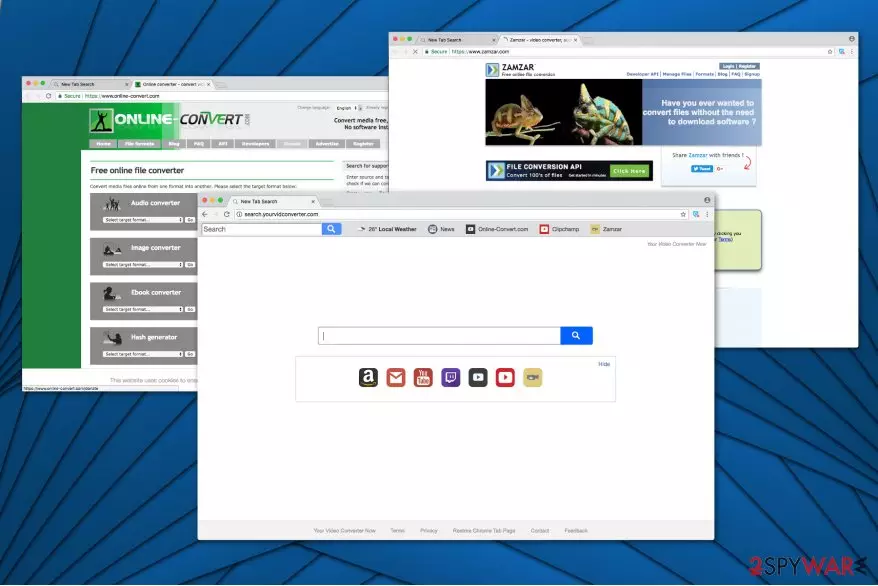
Search.yourvidconverter.com functions as a fake search directory which claims that it helps to convert various video formats quickly. Despite the fact that it might seem useful, as it displays local weather, and provides shortcuts to websites that offer video conversion services, experts note that it is a potentially unwanted program (PUP) which aims to hijack users' browsers. People are advised to stay away from Your Video Converter Now extension presented in Chrome Web Store if they want to protect their computers from future cyber threats and receive impartial search results.
Even though so-called Search.yourvidconverter.com virus pretends to be a handy tool and spreads as a browser extension, it can also secretly sneak inside your computer with the help of a popular marketing scheme called bundling[1]. Additionally, this potentially unwanted program operates as a browser hijacker which aims to take over most popular browsers, such as Google Chrome, Mozilla Firefox, Safari, Internet Explorer, etc.
After Search.yourvidconverter.com hijack, it changes settings in these browsers to make hxxp://search.yourvidconverter.com/ appear on the browser’s startup. Unfortunately, most of the people find such browser alterations insignificant. However, it is wise to know that this potentially unwanted program continuously collects various details about its users.
While most of the gathered information might be categorized as non-personally identifiable, developers, Polarity Technologies Ltd, clearly warns about the following in the Privacy Policy of Your Video Converter Now:
BY USING THE SERVICES, YOU ARE CONSENTING TO GRANT POLARITY PERMISSION TO COLLECT YOUR URLS AND SEARCH DATA, INCLUDING SEARCH QUERIES THAT MAY CONTAIN PERSONALLY IDENTIFIABLE INFORMATION, SHARE THEM WITH THIRD PARTIES, AND USE SEARCH-RELATED COOKIES.
Also, note that Your Video Converter Now can not only share this information with third-parties posing serious danger to your privacy, but also exploit these details to customize ads which would attract you to click on them. The worst part is that the content of the websites to which advertisements redirect can be malware-laden[2] and the contrivers of this browser hijacker do not take any responsibility for the potential damage to your computer.
If that is not enough, YourVidConverter provides biased search results. In other terms, it injects sponsored links in its search outcomes to lead you to affiliate websites. If the user clicks on such distorted search result, she/he gets redirected to a specific third-party site. Please be aware that such sites can be hazardous and attempt to trick you to download various material, for example, fake Java updates, or free apps containing more hidden PUPs.

Be aware that Search.yourvidconverter.com redirect tendency is only beneficial for its developers as they increase their revenue by employing pay-per-click marketing technique which is based on bringing the traffic to affiliate sites. Likewise, the more you click on the sponsored links or ads, the more revenue contrivers of this potentially unwanted program gets.
Additionally, it is wise to know that all promoted content on this fake search engine might be silently trying to force you to install a malicious file and is potentially dangerous to your computer's security. Before clicking on links, buttons, or ads on unfamiliar websites, please make sure that the site is entirely secure.
However, the better way to make sure that your computer is safe — remove Search.yourvidconverter.com right now. This way you will get rid of the annoying ads that might pop-up on your frequently visited pages and other advertising material. We can assure you that it is not only dangerous but also annoying as numerous ads can be extremely intrusive.
Once you uninstall Your Video Converter Now extension, you will be able to enjoy impartial search results which are relative to your query. You can use the manual elimination guidelines which are attached at the bottom of this article. However, trying to get rid of this browser hijacker manually will consume your time and patience.
For this reason, we suggest another way to complete Search.yourvidconverter.com removal faster — automatic uninstall of the unreliable extension. You merely need to download a professional antivirus software and run a full system scan. We highly recommend using FortectIntego as it perfectly suits regular computer users.
Attention during software installation helps to prevent PUPs
One of the main ways how potentially unwanted programs enter users' systems is based on the fact that many people tend to rush though the installation of free applications and skip many steps. Since developers bundle browser hijackers and similar programs with freeware, they additionally hide them among optional components which can only be seen if the user is attentive during the installation.
Therefore, you can avoid potentially unwanted programs by not skipping steps and paying close attention during the procedure. In other terms, choose Advanced or Custom option for the installation setup and then search for extra components which are pre-selected without directly asking for your permission. It is essential to de-select all suspicious elements added to your download.
Make sure you do not pick Recommended or Quick settings of the installer because these contain pre-confirmed agreements to install all additions. Even worse, these parameters intentionally hide potentially unwanted programs installation by not even showing a notification or a message warning about the installation of additional programs.
You can uninstall Search.yourvidconverter.com virus both, manually and automatically
There are two ways how you can get rid of Search.yourvidconverter.com — manual and automatic elimination. However, it is vital to evaluate your IT skills before rushing to make decisions. Experts from NoVirus.uk[3] warn that people with lack of IT knowledge should get help from a professional security software since it will not only save them time, but also protect from the potential dangers during the process.
Automatic Search.yourvidconverter.com removal requires getting a reliable antivirus. You can use one from the list below or pick one of your choice. However, be cautious of scammers who might offer expensive and ineffective malware removal tools online. Afterward, scan your computer and let it eliminate the browser hijacker.
For those who aim to remove Search.yourvidconverter.com manually, we suggest using the guide below. It will explain how to uninstall this potentially unwanted program and reset each of your browsers to the default settings. However, we ask you to pay close attention to each step during the procedure.
Uninstall from Windows
Uninstall from Windows 10/8:
- Type Control Panel into the Windows search box and open the result.
- Under Programs, select Uninstall a program.


Uninstall from Windows 7/XP:
- Click on Windows Start > Control Panel (Windows XP users should click on Add/Remove Programs).
- In Control Panel, select Programs > Uninstall a program.


Remove the unwanted program:
- In the Programs and Features window, look for any recently installed suspicious entries, select them, and click Uninstall.
- If User Account Control appears, click Yes to confirm, then complete the removal.


Delete from macOS
Remove the unwanted application:
- From the menu bar, select Go > Applications.
- In the Applications folder, look for any suspicious entries, then drag them to Trash (or right-click and pick Move to Trash).


Delete leftover files and folders:
- Select Go > Go to Folder.
- Enter /Library/Application Support and remove any suspicious folders related to the unwanted program.
- Repeat the same check in the /Library/LaunchAgents and /Library/LaunchDaemons folders, deleting any suspicious entries.

- Finally, empty the Trash to permanently remove the leftovers.

Reset Internet Explorer
Remove dangerous add-ons:
- Open Internet Explorer, click on the Gear icon (IE menu) on the top-right corner of the browser
- Pick Manage Add-ons.
- You will see a Manage Add-ons window. Here, look for suspicious plugins. Click on these entries and select Disable.


Change your homepage if it was altered:
- Open IE and click on the Gear icon.
- Select Internet Options.
- In the General tab, delete the Home page address and replace it by your preferred one (for example, Google.com).
- Click Apply and then select OK.


Delete temporary files:
- Press on the Gear icon and select Internet Options.
- Under Browsing history, click Delete...
- Select relevant fields and press Delete.


Reset Internet Explorer:
- Click on Gear icon > Internet options and select Advanced tab.
- Select Reset.
- In the new window, check Delete personal settings and select Reset.


Remove from Mozilla Firefox (FF)
Remove dangerous extensions:
- Open Mozilla Firefox browser and click on the Menu (three horizontal lines at the top-right of the window).
- Select Add-ons.
- In here, select the unwanted extension and click Remove.


Reset the homepage:
- Click three horizontal lines at the top right corner to open the menu.
- Choose Settings.
- Under Home, set your preferred homepage and new tab settings.
Clear cookies and site data:
- Click Menu and pick Settings.
- Go to Privacy & Security section.
- Scroll down to locate Cookies and Site Data.
- Click on Clear Data...
- Select Cookies and Site Data and Temporary cached files and pages, then click Clear.


Reset Mozilla Firefox
If clearing the browser as explained above did not help, reset Mozilla Firefox:
- Open Mozilla Firefox browser and click the Menu.
- Go to Help and then choose Troubleshooting Information.

- Under Give Firefox a tune up section, click on Refresh Firefox...
- Once the pop-up shows up, confirm the action by pressing on Refresh Firefox.



Remove from Google Chrome
Delete malicious extensions from Google Chrome:
- Open Google Chrome, click on the Menu (three vertical dots at the top-right corner) and select More tools > Extensions.
- In the newly opened window, you will see all the installed extensions. Uninstall all suspicious extensions related to the unwanted program by clicking Remove.


Clear cache and web data from Chrome:
- Click on Menu and pick Settings.
- Under Privacy and security, select Clear browsing data.
- Select Browsing history, Cookies and other site data, as well as Cached images and files.
- Click Clear data.


Change your homepage:
- Click menu and choose Settings.
- Look for a suspicious site in the On startup section.
- Click on Open a specific or set of pages and click on three dots to find the Remove option.
Reset Google Chrome:
If the previous methods did not help you, reset Google Chrome to eliminate all the unwanted components:
- Click on Menu and select Settings.
- In the Settings, scroll down and click Advanced.
- Scroll down and locate Reset and clean up section.
- Now click Restore settings to their original defaults.
- Confirm with Reset settings.


Delete from Safari
Remove dangerous extensions:
- Open Safari, click Safari in the menu at the top-left of the screen, and select Preferences.
- Go to the Extensions tab, look for any suspicious entries, and click Uninstall to remove them.


Clear history and website data:
- Click Safari in the menu and pick Clear History.
- Set Clear to all history and confirm with Clear History.


Reset Safari:
- Click Safari in the menu and select Preferences > Advanced.
- Enable Show Develop menu in menu bar.
- From the menu bar, click Develop and select Empty Caches.


Did this guide help?
4 comments
Zoella
another one from saferbrowser... this has to stop. nobody likes your toolbars, saferbrowser!!
Sunndayz
I totally agree with you. This was the most annoying browser add-on experience I have ever had!
Treavor007
I just. hATE. Web. redirects. Why this was installed on my computer? I didnt download anything!
tom
Reimage deleted this for me, thanks for telling me about this program. Never heard about it before but so far I am satisfied with the pc cleanup results!