

Is it safe to search via FunnySiting.com site?
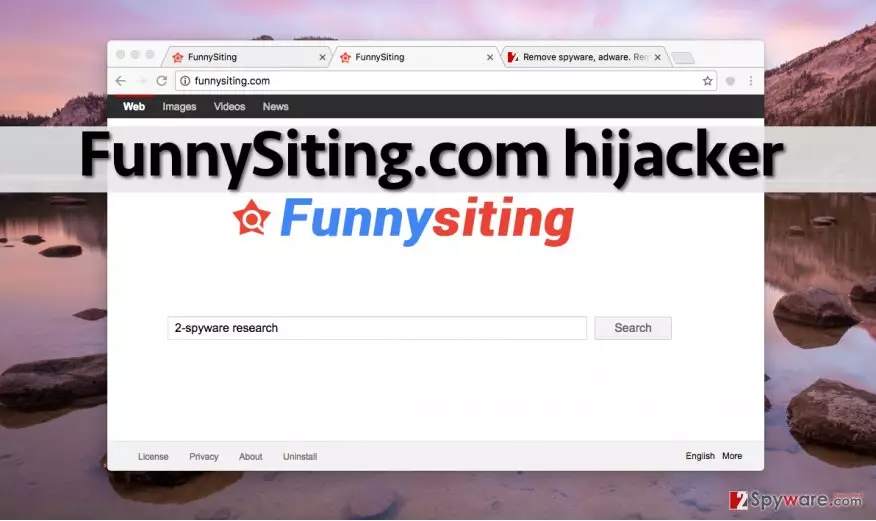
If this search engine pops up every time you launch your browser, it means that FunnySiting.com virus has infiltrated your computer system. This non-malicious piece of software is well-known among spyware researchers and according to them, it deserves to be removed. It appears that this Internet search engine barely has any advantageous features compared to other well-known ones; besides, it might cause redirects to questionable Internet places that you would not normally visit by your choice. Clearly, a browser hijacker is the one to blame for FunnySiting.com redirect issue, so in this article, we are going to talk about its modus operandi, FunnySiting.com removal methods and ways of distribution.
This browser hijacker is for sure one of the numerous potentially unwanted programs (PUP) that enter user’s system silently. Typically, users install it along with other programs after downloading them from file sharing sites or P2P file sharing networks. Once it gets the permission to enter the computer system, it configures some browser settings and installs tracking cookies to monitor user’s activity. This way, it prepares itself to gather information about user’s needs and interests and also changes browser settings so that the indicated search engine would show up on browser’s startup. This app gathers search terms, clicks, and other information required for marketing purposes, BUT, it can also collect personally identifiable data, including your name, gender, date of birth, and country. According to the developer of this app, “Funnysiting may request or collect personal information from online users in a variety of ways, including through online forms for ordering products and services, and other instances where users are invited to volunteer such information.”
Be aware that if you browse the Internet while this browser hijacker is active on the computer, you might be introduced to various pop-up advertisements, banners, and other forms of advertising. Some of these ads might ask you to participate in surveys, lotteries, and other contests, but please be cautious and do not provide any personal information! For example, if you provided your email address, you would soon be spammed with hundreds of annoying promotional letters. If you do not want to see these ads or keep the indicated site on your homepage, just remove FunnySiting.com using FortectIntego or a similar spyware removal software.
Who has allowed this program to enter my computer system?
If you cannot remember installing this browser hijacker, do not rush to blame other people who use your computer. Instead, think what programs have your recently installed. If you can remember some, think what settings did you set for their installation. In case you didn’t adjust them and left pre-selected ones on, there is no hesitation how did FunnySiting.com hijack your computer. Such programs spread together with other programs and effectively manage to slither into users’ computers only because they tend to rely on Default or Standard settings. Wrong! If you wish to adjust components of your download, please configure these settings by selecting Custom or Advanced option. Then you will be provided with a list of optional downloads. Deselect them – they typically appear to be meaningless ad-supported programs.
How can you remove FunnySiting.com browser hijacker?
Some computer users think that they can uninstall such computer parasites manually because automatic malware removal programs hardly can do the same thing better. That is not true. Automatic malware removal program can automatically fetch all files and Registry keys related to this hijacker, and do the same with all other questionable programs on your PC. It takes only one click to wipe these potentially dangerous components from the computer. If automatic FunnySiting.com removal option is not the one that you look for, then we suggest looking at instructions that we have prepared for users who want to remove FunnySiting.com virus manually:
Uninstall from Windows
Uninstall from Windows 10/8:
- Type Control Panel into the Windows search box and open the result.
- Under Programs, select Uninstall a program.


Uninstall from Windows 7/XP:
- Click on Windows Start > Control Panel (Windows XP users should click on Add/Remove Programs).
- In Control Panel, select Programs > Uninstall a program.


Remove the unwanted program:
- In the Programs and Features window, look for any recently installed suspicious entries, select them, and click Uninstall.
- If User Account Control appears, click Yes to confirm, then complete the removal.


Delete from macOS
Remove the unwanted application:
- From the menu bar, select Go > Applications.
- In the Applications folder, look for any suspicious entries, then drag them to Trash (or right-click and pick Move to Trash).


Delete leftover files and folders:
- Select Go > Go to Folder.
- Enter /Library/Application Support and remove any suspicious folders related to the unwanted program.
- Repeat the same check in the /Library/LaunchAgents and /Library/LaunchDaemons folders, deleting any suspicious entries.

- Finally, empty the Trash to permanently remove the leftovers.

Remove from Mozilla Firefox (FF)
Remove dangerous extensions:
- Open Mozilla Firefox browser and click on the Menu (three horizontal lines at the top-right of the window).
- Select Add-ons.
- In here, select the unwanted extension and click Remove.


Reset the homepage:
- Click three horizontal lines at the top right corner to open the menu.
- Choose Settings.
- Under Home, set your preferred homepage and new tab settings.
Clear cookies and site data:
- Click Menu and pick Settings.
- Go to Privacy & Security section.
- Scroll down to locate Cookies and Site Data.
- Click on Clear Data...
- Select Cookies and Site Data and Temporary cached files and pages, then click Clear.


Reset Mozilla Firefox
If clearing the browser as explained above did not help, reset Mozilla Firefox:
- Open Mozilla Firefox browser and click the Menu.
- Go to Help and then choose Troubleshooting Information.

- Under Give Firefox a tune up section, click on Refresh Firefox...
- Once the pop-up shows up, confirm the action by pressing on Refresh Firefox.



Remove from Google Chrome
Delete malicious extensions from Google Chrome:
- Open Google Chrome, click on the Menu (three vertical dots at the top-right corner) and select More tools > Extensions.
- In the newly opened window, you will see all the installed extensions. Uninstall all suspicious extensions related to the unwanted program by clicking Remove.


Clear cache and web data from Chrome:
- Click on Menu and pick Settings.
- Under Privacy and security, select Clear browsing data.
- Select Browsing history, Cookies and other site data, as well as Cached images and files.
- Click Clear data.


Change your homepage:
- Click menu and choose Settings.
- Look for a suspicious site in the On startup section.
- Click on Open a specific or set of pages and click on three dots to find the Remove option.
Reset Google Chrome:
If the previous methods did not help you, reset Google Chrome to eliminate all the unwanted components:
- Click on Menu and select Settings.
- In the Settings, scroll down and click Advanced.
- Scroll down and locate Reset and clean up section.
- Now click Restore settings to their original defaults.
- Confirm with Reset settings.


Did this guide help?
4 comments
Adam
For some reason I cannot find FunnySiting virus on my computer ;(
Dylan098
I was trying to remove FunnySiting.com manually, but I also could not find it on my computer. After running a system scan with anti-malware application and removing all detected threats, this one disappeared from my browser. Conclusion - it is way easier to delete this automatically :)
pharell
I deleted Funny Siting in a few minutes. Thank you guys for explaining me what to do!
Darkn3
finally defeated this virus, thankya ;]