

Why does Search.searchtp.com redirect you to suspicious sites?
If you have experienced these redirects, most likely you have thought that your computer is affected by Search.searchtp.com virus. In reality, this program is not harmful, but no one can deny that it is a highly annoying one. We have analyzed this program and decided to assign it to “browser hijackers” list due to its questionable functionality. It goes without saying that it belongs to “potentially unwanted programs” list, too. It is recommended to keep computer free of this program; otherwise, you will be forced to experience Search.searchtp.com redirect issues, system slowdowns, and other problems that it can cause.
This search engine will appear in your browser in case you install Tracker Package extension. This extension can read and change all data on sites you visit, as well as manage your extensions, apps, and themes. It adds new homepage and search tool to the browser, which shows up immediately after user launches the web browser or a new tab. Do not be mistaken and do not think that this site offers a reliable search tool. It appears that it presents a lot of sponsored search outcomes, which are meant to point users to third-party websites. It is highly advisable to be very careful while using a search engine that advertises such sites, because after clicking on such paid search results you can be directed to sites that might be insecure. Let’s not forget the fact that the majority of unsafe websites are created to look secure; to avoid potential risks, we strongly recommend you to ignore invitations to update your programs or install new ones. In the worst scenario, you can allow installing a Trojan horse, and it is not a secret that such malicious programs spread around the Internet masqueraded as safe files. Beware of bogus Java Player, or Flash updates – these are the ones that usually distribute malicious files alongside them. We suggest installing software only from reputable sites.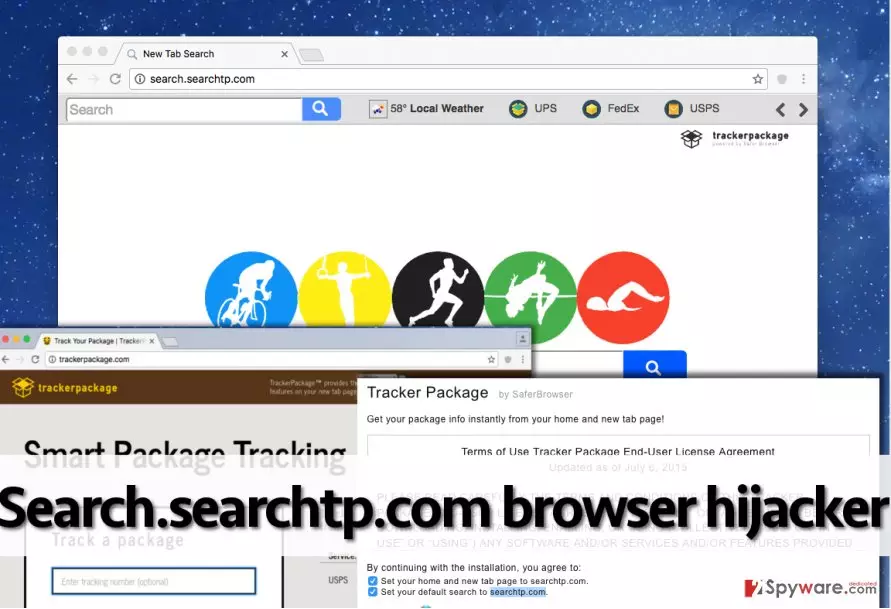
We must note that this browser hijacker tracks your browsing preferences. Although it does not collect personal information, it can collect and store URLS that you visit, words that you enter into search engines, and similar information. The hijacker shares such information with third-parties for marketing purposes and later uses it to integrate sponsored content. If you do not want your search or browsing activity to be tracked, just remove Search.searchtp.com. You can delete it using a spyware elimination software, for instance, FortectIntego, or eliminate it manually with a help of Search.searchtp.com removal guide that is provided at the end of this article.
How did I install this program?
There are two ways to install this program. You can download it from its official website, TrackerPackage(dot)com, or you can allow Search.searchtp.com hijack your computer without even knowing about it. The second situation can occur in case you rush to install PC programs without even modifying installation settings in a proper manner. It is a must to set either Advanced or Custom settings for your installation because then you can access the list of optional apps added to your download and refuse to install them. This list of optional components frequently include statements that grant permission to change browser settings, add toolbars, extensions, new search tools, and so on. Make sure you deselect such permissions, too!
Search.searchtp.com removal tips
To entirely remove Search.searchtp.com virus, you need to do two things. Please follow instructions provided below and delete components of this hijacker manually. In case you cannot remove them all, and also just to complete Search.searchtp.com removal successfully, run a system scan using spyware removal tool afterward. If you do not have one, you can choose one of the following programs that out team recommends:
Uninstall from Windows
Uninstall from Windows 10/8:
- Type Control Panel into the Windows search box and open the result.
- Under Programs, select Uninstall a program.


Uninstall from Windows 7/XP:
- Click on Windows Start > Control Panel (Windows XP users should click on Add/Remove Programs).
- In Control Panel, select Programs > Uninstall a program.


Remove the unwanted program:
- In the Programs and Features window, look for any recently installed suspicious entries, select them, and click Uninstall.
- If User Account Control appears, click Yes to confirm, then complete the removal.


Delete from macOS
Remove the unwanted application:
- From the menu bar, select Go > Applications.
- In the Applications folder, look for any suspicious entries, then drag them to Trash (or right-click and pick Move to Trash).


Delete leftover files and folders:
- Select Go > Go to Folder.
- Enter /Library/Application Support and remove any suspicious folders related to the unwanted program.
- Repeat the same check in the /Library/LaunchAgents and /Library/LaunchDaemons folders, deleting any suspicious entries.

- Finally, empty the Trash to permanently remove the leftovers.

Reset Internet Explorer
Remove dangerous add-ons:
- Open Internet Explorer, click on the Gear icon (IE menu) on the top-right corner of the browser
- Pick Manage Add-ons.
- You will see a Manage Add-ons window. Here, look for suspicious plugins. Click on these entries and select Disable.


Change your homepage if it was altered:
- Open IE and click on the Gear icon.
- Select Internet Options.
- In the General tab, delete the Home page address and replace it by your preferred one (for example, Google.com).
- Click Apply and then select OK.


Delete temporary files:
- Press on the Gear icon and select Internet Options.
- Under Browsing history, click Delete...
- Select relevant fields and press Delete.


Reset Internet Explorer:
- Click on Gear icon > Internet options and select Advanced tab.
- Select Reset.
- In the new window, check Delete personal settings and select Reset.


Remove from Mozilla Firefox (FF)
Remove dangerous extensions:
- Open Mozilla Firefox browser and click on the Menu (three horizontal lines at the top-right of the window).
- Select Add-ons.
- In here, select the unwanted extension and click Remove.


Reset the homepage:
- Click three horizontal lines at the top right corner to open the menu.
- Choose Settings.
- Under Home, set your preferred homepage and new tab settings.
Clear cookies and site data:
- Click Menu and pick Settings.
- Go to Privacy & Security section.
- Scroll down to locate Cookies and Site Data.
- Click on Clear Data...
- Select Cookies and Site Data and Temporary cached files and pages, then click Clear.


Reset Mozilla Firefox
If clearing the browser as explained above did not help, reset Mozilla Firefox:
- Open Mozilla Firefox browser and click the Menu.
- Go to Help and then choose Troubleshooting Information.

- Under Give Firefox a tune up section, click on Refresh Firefox...
- Once the pop-up shows up, confirm the action by pressing on Refresh Firefox.



Remove from Google Chrome
Delete malicious extensions from Google Chrome:
- Open Google Chrome, click on the Menu (three vertical dots at the top-right corner) and select More tools > Extensions.
- In the newly opened window, you will see all the installed extensions. Uninstall all suspicious extensions related to the unwanted program by clicking Remove.


Clear cache and web data from Chrome:
- Click on Menu and pick Settings.
- Under Privacy and security, select Clear browsing data.
- Select Browsing history, Cookies and other site data, as well as Cached images and files.
- Click Clear data.


Change your homepage:
- Click menu and choose Settings.
- Look for a suspicious site in the On startup section.
- Click on Open a specific or set of pages and click on three dots to find the Remove option.
Reset Google Chrome:
If the previous methods did not help you, reset Google Chrome to eliminate all the unwanted components:
- Click on Menu and select Settings.
- In the Settings, scroll down and click Advanced.
- Scroll down and locate Reset and clean up section.
- Now click Restore settings to their original defaults.
- Confirm with Reset settings.


Did this guide help?
4 comments
Ozzy29
Deleted Tracker Package from my PC and this solved the problem.
St3ll4
I uninstalled this program manually, but decided to install an automatic spyware removal tool just to see if there are any other threats on my PC. Detected more viruses. Thanks for recommending to scan my PC. Now my PC is clean, i guess. :)
crawford
I really thought that this browser extension can be useful, but it didnt meet my expectations. Sadly. Dont waste your time on Tracker Package.
the.hills
Just deleted this. Thank you!