

Search.searchfcs.com search engine – should you remove it from your browser?
Search.searchfcs.com virus is a potentially unwanted program (PUP), distributed online and also known as Search Career Online program. This suspicious application has been added to “browser hijackers” category since it can be installed on the system without user’s notice (this is also known as Search.searchfcs.com hijack). Although this program cannot do harmful activities or steal personal data from the user, it can still cause danger to the computer system. This application is designed to alter user’s browser settings and change home and new tab page URL. As you have guessed, it changes these settings and sets the indicated URL, which provides a search engine. Almost all computer users think that it is a regular search engine when they first see it in their browsers, sadly, later on, this opinion often changes. Computer users start complaining that this search engine delivers modified search results filled with sponsored content, which makes them visit suspicious Internet sites. In other words, be aware of the fact that some of these search results can redirect you to possibly insecure web pages.
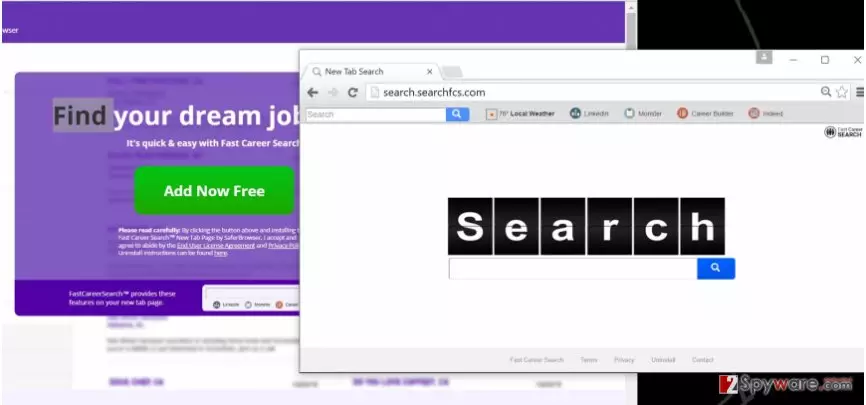
Search.searchfcs.com redirect issue is a serious problem. It is easy to click on a catchy-looking sponsored result if it displays an invitation to shop for your favorite brand. But have you ever wondered why these attractive offers appear, and how do this search engine manage to find such targeted advertisements for you? The answer is pretty simple. While you browse the Internet, this shady app gathers information about your activity online. It tracks your search queries, clicks, browsing history, and similar information. As a consequence, it gets access to analyze your browsing habits and deliver tailored content. If you do not want to be tracked and receive ads that can possibly lead you to hazardous Internet sites, remove Search.searchfcs.com from your computer using FortectIntego or a similar spyware removal software. Alternatively, you can try to delete this browser hijacker manually – just follow Search.searchfcs.com removal instructions given at the end of this post.
How did this program hijack your computer system?
As we have already said, this program can hijack user’s computer silently. It happens when the user installs another free program without checking its installation settings first. The thing is, the vast of free programs come bundled with other third-party applications, and in order to reject them, the user needs to adjust installation settings. It is advisable to modify settings by selecting Advanced or Custom option and then deselecting every additional component that should not originally come with the desired program. The rest of the installation can be completed in the usual manner.
Search.searchfcs.com removal
If you have never attempted to remove a potentially unwanted program, we strongly advise you to remove Search.searchfcs.com virus automatically. For that, choose and install a good spyware or malware removal tool. If you decide to install the anti-malware program, make that it can remove spyware threats, too. If you do not want to download an additional piece of software just to remove one program, and if you are absolutely positive that your computer is free of dangerous programs, and this hijacker is the only unwanted program on your PC, you can try to delete it manually. For that, we heartily suggest following Search.searchfcs.com removal instructions that we have prepared. Make sure you clean each of web browsers separately; otherwise this hijacker will not be removed completely.
Uninstall from Windows
Uninstall from Windows 10/8:
- Type Control Panel into the Windows search box and open the result.
- Under Programs, select Uninstall a program.


Uninstall from Windows 7/XP:
- Click on Windows Start > Control Panel (Windows XP users should click on Add/Remove Programs).
- In Control Panel, select Programs > Uninstall a program.


Remove the unwanted program:
- In the Programs and Features window, look for any recently installed suspicious entries, select them, and click Uninstall.
- If User Account Control appears, click Yes to confirm, then complete the removal.


Delete from macOS
Remove the unwanted application:
- From the menu bar, select Go > Applications.
- In the Applications folder, look for any suspicious entries, then drag them to Trash (or right-click and pick Move to Trash).


Delete leftover files and folders:
- Select Go > Go to Folder.
- Enter /Library/Application Support and remove any suspicious folders related to the unwanted program.
- Repeat the same check in the /Library/LaunchAgents and /Library/LaunchDaemons folders, deleting any suspicious entries.

- Finally, empty the Trash to permanently remove the leftovers.

Reset Internet Explorer
Remove dangerous add-ons:
- Open Internet Explorer, click on the Gear icon (IE menu) on the top-right corner of the browser
- Pick Manage Add-ons.
- You will see a Manage Add-ons window. Here, look for suspicious plugins. Click on these entries and select Disable.


Change your homepage if it was altered:
- Open IE and click on the Gear icon.
- Select Internet Options.
- In the General tab, delete the Home page address and replace it by your preferred one (for example, Google.com).
- Click Apply and then select OK.


Delete temporary files:
- Press on the Gear icon and select Internet Options.
- Under Browsing history, click Delete...
- Select relevant fields and press Delete.


Reset Internet Explorer:
- Click on Gear icon > Internet options and select Advanced tab.
- Select Reset.
- In the new window, check Delete personal settings and select Reset.


Remove from Mozilla Firefox (FF)
Remove dangerous extensions:
- Open Mozilla Firefox browser and click on the Menu (three horizontal lines at the top-right of the window).
- Select Add-ons.
- In here, select the unwanted extension and click Remove.


Reset the homepage:
- Click three horizontal lines at the top right corner to open the menu.
- Choose Settings.
- Under Home, set your preferred homepage and new tab settings.
Clear cookies and site data:
- Click Menu and pick Settings.
- Go to Privacy & Security section.
- Scroll down to locate Cookies and Site Data.
- Click on Clear Data...
- Select Cookies and Site Data and Temporary cached files and pages, then click Clear.


Reset Mozilla Firefox
If clearing the browser as explained above did not help, reset Mozilla Firefox:
- Open Mozilla Firefox browser and click the Menu.
- Go to Help and then choose Troubleshooting Information.

- Under Give Firefox a tune up section, click on Refresh Firefox...
- Once the pop-up shows up, confirm the action by pressing on Refresh Firefox.



Remove from Google Chrome
Delete malicious extensions from Google Chrome:
- Open Google Chrome, click on the Menu (three vertical dots at the top-right corner) and select More tools > Extensions.
- In the newly opened window, you will see all the installed extensions. Uninstall all suspicious extensions related to the unwanted program by clicking Remove.


Clear cache and web data from Chrome:
- Click on Menu and pick Settings.
- Under Privacy and security, select Clear browsing data.
- Select Browsing history, Cookies and other site data, as well as Cached images and files.
- Click Clear data.


Change your homepage:
- Click menu and choose Settings.
- Look for a suspicious site in the On startup section.
- Click on Open a specific or set of pages and click on three dots to find the Remove option.
Reset Google Chrome:
If the previous methods did not help you, reset Google Chrome to eliminate all the unwanted components:
- Click on Menu and select Settings.
- In the Settings, scroll down and click Advanced.
- Scroll down and locate Reset and clean up section.
- Now click Restore settings to their original defaults.
- Confirm with Reset settings.


Did this guide help?
4 comments
Golden
thanks so much. this hijacker took control over my browser and I was in panic for a while. I could not understand who changed my homepage, because I am the only human who uses this computer. This article explained everything to me and helped me to remove Search.searchfcs.com manually. What else can I ask! :) hooray!
Chuck
Really glad that I have come across this site.
Fredo
Finally I can browse without being redirected to random sites..... I have been waiting for this day so long!
Florence:)
It was easy to remove this. I used Reimage. I dont like to mess with computer settings on my own... i am scared to play with Delete button. I am afraid that i can mess up my computer system.