

Crucial facts about HPRewriter ads and their termination
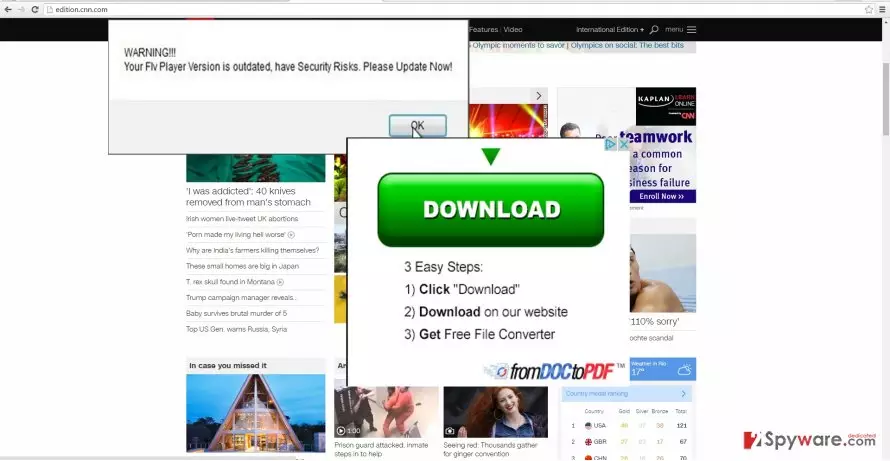
HPRewriter virus may overload your browser with tons of various fake system update notifications or offers suggesting to purchase a new iPad. If you get enough of these exasperating messages, then it is high time you got rid of this adware program. We suggest you to remove HPRewriter as soon as possible with FortectIntego. If you hesitate to delete the adware, your browser will increasingly become sluggish. Additionally, the PUP may also install unnecessary applications. Ads, banners, and redirects to affiliated websites are the main features of this adware. In short, HPRewriter removal should be your current priority.
Once this potentially unwanted program gets into your system, it roots into the operating system. The PUP leaves its related registry keys in the computer and injects a specific code into the browser. As a result, it enables the adware to display advertising material despite whether you are surfing the informational web page or the website of entertainment origin. Regularly appearing messages might turn out to be a completely peevish behavior. In addition, HPRewriter redirect is another peculiarity which is worth mentioning. When you click on the notification which falsely informs you of the outdated software, you might be directed to the domain which is possibly infected with a variety of malware. If you take too long there, the risk to attract lurking viruses greatly boosts up.
The adware is likely to drag along other PUP programs to your computer. Usually, they do not threaten the safety and proper operation of your computer. Nonetheless, they take up a significant amount of space on your hard disk. Some of them might covertly install plug-ins and peevish toolbars which only disturb your browsing sessions. In addition, we would like to warn you not to download any security software from the affiliated websites promoted by this adware. You might install futile applications which fail to guarantee the safety of your computer.
Other versions of HPRewriter
HPRewriter2. This updated version has been discovered recently. Its operation method does not differ much from its predecessor. The adware type program attempts to infect the computer via PC optimizers or other digital computer management tools. After the infiltration, it crams the browser with diverse advertising content. FortectIntego also works perfectly in eliminating this sort of PUP.
The transmission techniques of the PUP
You might be astonished after finding out that you installed the PUP yourself. Let us explain how you managed to do so. Such adware applications often come as optional attachments to the popular freeware. Since audio editors and pdf viewers are downloaded daily, the adware might have disguised itself under one of them. Consequently, after several minutes HPRewriter hijack occurs. Next time you are about to install a new program, make sure you do not install PUPs. You can avoid HP Rewriter by selecting “Custom” settings. Choosing the latter mode will enable you to detect the adware, browser hijackers or malware before the infiltration.
Adware removal options
Luckily, it is not difficult to remove HPRewriter virus. You can get rid of it quickly with the help of malware elimination utility. The program guarantees that the adware is fully eliminated. It also deletes all related files. Automatic elimination might be a better option because the program is able to locate adware files in the registry. Manually tracking them might require a lot of time. Eventually, such activity might eventually prove to be futile since there is always a risk to overlook essential file or delete the necessary system file. However, you may still check manual HPRewriter removal guidelines indicated below.
Uninstall from Windows
Uninstall from Windows 10/8:
- Type Control Panel into the Windows search box and open the result.
- Under Programs, select Uninstall a program.


Uninstall from Windows 7/XP:
- Click on Windows Start > Control Panel (Windows XP users should click on Add/Remove Programs).
- In Control Panel, select Programs > Uninstall a program.


Remove the unwanted program:
- In the Programs and Features window, look for any recently installed suspicious entries, select them, and click Uninstall.
- If User Account Control appears, click Yes to confirm, then complete the removal.


Delete from macOS
Remove the unwanted application:
- From the menu bar, select Go > Applications.
- In the Applications folder, look for any suspicious entries, then drag them to Trash (or right-click and pick Move to Trash).


Delete leftover files and folders:
- Select Go > Go to Folder.
- Enter /Library/Application Support and remove any suspicious folders related to the unwanted program.
- Repeat the same check in the /Library/LaunchAgents and /Library/LaunchDaemons folders, deleting any suspicious entries.

- Finally, empty the Trash to permanently remove the leftovers.

Remove from Microsoft Edge
Delete unwanted extensions from MS Edge:
- Select Menu (three horizontal dots at the top-right of the browser window) and pick Extensions.
- From the list, pick the extension and click on the Gear icon.
- Click Remove.


Clear cookies and other browser data:
- Click on the Menu (three horizontal dots at the top-right of the browser window) and select Settings > Privacy, search, and services..
- Under Clear browsing data, pick Choose what to clear.
- Select Cookies and other site data and Cached images and files. (apart from passwords, although you might want to include Media licenses as well, if applicable) and click on Clear.


Restore new tab and homepage settings:
- Click the menu icon and choose Settings.
- Then find On startup section.
- Click Remove next to any suspicious startup page.
Reset MS Edge if the above steps did not work:
- Press on Ctrl + Shift + Esc to open Task Manager.
- Click on More details arrow at the bottom of the window.
- Select Details tab.
- Now scroll down and locate every entry with Microsoft Edge name in it. Right-click on each of them and select End Task to stop MS Edge from running.


Instructions for Chromium-based Edge
Delete extensions from MS Edge (Chromium):
- Open Edge and click select Settings > Extensions.
- Delete unwanted extensions by clicking Remove.


Clear cache and site data:
- Click on Menu and go to Settings.
- Select Privacy, search and services.
- Under Clear browsing data, pick Choose what to clear.
- Under Time range, pick All time.
- Select Clear now.


Reset Chromium-based MS Edge:
- Click on Menu and select Settings.
- On the left side, pick Reset settings.
- Select Restore settings to their default values.
- Confirm with Reset.
- This will disable extensions and reset startup pages but will not delete bookmarks, saved passwords, or browsing history.


Remove from Mozilla Firefox (FF)
Remove dangerous extensions:
- Open Mozilla Firefox browser and click on the Menu (three horizontal lines at the top-right of the window).
- Select Add-ons.
- In here, select the unwanted extension and click Remove.


Reset the homepage:
- Click three horizontal lines at the top right corner to open the menu.
- Choose Settings.
- Under Home, set your preferred homepage and new tab settings.
Clear cookies and site data:
- Click Menu and pick Settings.
- Go to Privacy & Security section.
- Scroll down to locate Cookies and Site Data.
- Click on Clear Data...
- Select Cookies and Site Data and Temporary cached files and pages, then click Clear.


Reset Mozilla Firefox
If clearing the browser as explained above did not help, reset Mozilla Firefox:
- Open Mozilla Firefox browser and click the Menu.
- Go to Help and then choose Troubleshooting Information.

- Under Give Firefox a tune up section, click on Refresh Firefox...
- Once the pop-up shows up, confirm the action by pressing on Refresh Firefox.



Remove from Google Chrome
Delete malicious extensions from Google Chrome:
- Open Google Chrome, click on the Menu (three vertical dots at the top-right corner) and select More tools > Extensions.
- In the newly opened window, you will see all the installed extensions. Uninstall all suspicious extensions related to the unwanted program by clicking Remove.


Clear cache and web data from Chrome:
- Click on Menu and pick Settings.
- Under Privacy and security, select Clear browsing data.
- Select Browsing history, Cookies and other site data, as well as Cached images and files.
- Click Clear data.


Change your homepage:
- Click menu and choose Settings.
- Look for a suspicious site in the On startup section.
- Click on Open a specific or set of pages and click on three dots to find the Remove option.
Reset Google Chrome:
If the previous methods did not help you, reset Google Chrome to eliminate all the unwanted components:
- Click on Menu and select Settings.
- In the Settings, scroll down and click Advanced.
- Scroll down and locate Reset and clean up section.
- Now click Restore settings to their original defaults.
- Confirm with Reset settings.


Delete from Safari
Remove dangerous extensions:
- Open Safari, click Safari in the menu at the top-left of the screen, and select Preferences.
- Go to the Extensions tab, look for any suspicious entries, and click Uninstall to remove them.


Clear history and website data:
- Click Safari in the menu and pick Clear History.
- Set Clear to all history and confirm with Clear History.


Reset Safari:
- Click Safari in the menu and select Preferences > Advanced.
- Enable Show Develop menu in menu bar.
- From the menu bar, click Develop and select Empty Caches.


Did this guide help?
2 comments
PeterBob
These adware titles..sometimes you cant tell whether it is the real thing or not.
jacobbean
Still, its better than any ransomware.