

Recurring Imagebus pop-ups: how the adware works
If you have noticed unusual suggestions to update Java or Flash Player, they might reflect the problem – Imagebus virus has taken over the PC. This adware type program is problematic because it is able to display fake outdated software messages or simply stream you with exasperating advertisements. The latter might pop up regardless whether you conduct a banking operation or read an online newspaper. These annoying recurrences are one of the main negative aspects encouraging to remove Imagebus. Moreover, the adware is likely to direct you to the website of its sponsors. Commercial offers may not annoy you, but they might direct to the insecure websites. If you are interested in the operation techniques and Imagebus removal options, then read the following article.
If you are a passionate shopper online, visiting shopping domains encompass a significant part of your browsing sessions. Likewise, it is not surprising if this adware occupied your computer. It has been revealed that it is related yet with another adware application causing Bus Component ads. If either of these programs invades the device, the result is the same – your browser is overloaded with Imagebus ads and other vivid commercial offers. What is more, you might struggle to uninstall the adware manually since it tends to use alternative names. Likewise, some users might hesitate to uninstall one or another application in fear of removing an essential system tool.
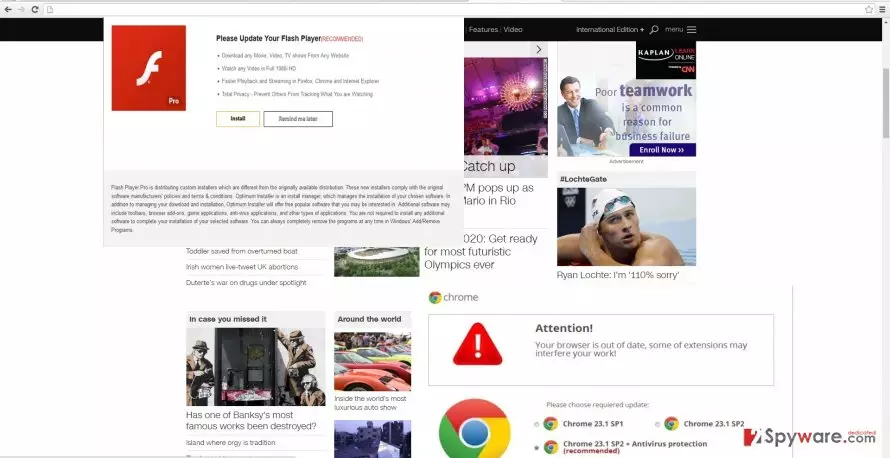
Another aspect which encourages you to perform removal is its peculiarity to direct you to the sponsored domains. We would like to warn you not to stay too long in such domains since they may be “enhanced” with malicious elements, viruses, for instance. Thus, visiting such redirect web pages may increase the number of vulnerabilities of the operating system. Lastly, we would like to warn you not to fall into the trap by downloading or updating the mentioned software if you see Java or Flash Player updates. There is a risk to install the potentially malevolent version of the mentioned programs. Only when you are sure that the messages are original, download the update.
The distribution techniques of the adware
The majority of users avoid taking an attentive look to the installation wizard. As a result, they overlook the attachments which bear this adware or similar PUP. In order to cease Imagebus hijack on time, you need to change the course of your actions installing a new application. Before hitting the “Install” button, opt for the “Advanced” settings. Unmark all add-ons which you regard as potentially dangerous. Such cautiousness will help you reduce the risk of adware infecting the device. Now let us move on the elimination part. One of the options to get rid of the daware permanently is to run the system scan with FortectIntego.
Effective ways to get rid of the PUP
You can either terminate Imagebus virus manually or automatically. We recommend choosing the latter since the anti-spyware application ensures that no files related to this adware remain. The security program will remove Imagebus within a moment. If you keep it updated, it will ward off more serious malware such as trojans or computer worms as well. Alternatively, you can get rid of the adware manually. Find Imagebus removal guidelines delivered below. Do not forget to pay utmost attention while going through each stage.
Uninstall from Windows
Uninstall from Windows 10/8:
- Type Control Panel into the Windows search box and open the result.
- Under Programs, select Uninstall a program.


Uninstall from Windows 7/XP:
- Click on Windows Start > Control Panel (Windows XP users should click on Add/Remove Programs).
- In Control Panel, select Programs > Uninstall a program.


Remove the unwanted program:
- In the Programs and Features window, look for any recently installed suspicious entries, select them, and click Uninstall.
- If User Account Control appears, click Yes to confirm, then complete the removal.


Delete from macOS
Remove the unwanted application:
- From the menu bar, select Go > Applications.
- In the Applications folder, look for any suspicious entries, then drag them to Trash (or right-click and pick Move to Trash).


Delete leftover files and folders:
- Select Go > Go to Folder.
- Enter /Library/Application Support and remove any suspicious folders related to the unwanted program.
- Repeat the same check in the /Library/LaunchAgents and /Library/LaunchDaemons folders, deleting any suspicious entries.

- Finally, empty the Trash to permanently remove the leftovers.

Remove from Microsoft Edge
Delete unwanted extensions from MS Edge:
- Select Menu (three horizontal dots at the top-right of the browser window) and pick Extensions.
- From the list, pick the extension and click on the Gear icon.
- Click Remove.


Clear cookies and other browser data:
- Click on the Menu (three horizontal dots at the top-right of the browser window) and select Settings > Privacy, search, and services..
- Under Clear browsing data, pick Choose what to clear.
- Select Cookies and other site data and Cached images and files. (apart from passwords, although you might want to include Media licenses as well, if applicable) and click on Clear.


Restore new tab and homepage settings:
- Click the menu icon and choose Settings.
- Then find On startup section.
- Click Remove next to any suspicious startup page.
Reset MS Edge if the above steps did not work:
- Press on Ctrl + Shift + Esc to open Task Manager.
- Click on More details arrow at the bottom of the window.
- Select Details tab.
- Now scroll down and locate every entry with Microsoft Edge name in it. Right-click on each of them and select End Task to stop MS Edge from running.


Instructions for Chromium-based Edge
Delete extensions from MS Edge (Chromium):
- Open Edge and click select Settings > Extensions.
- Delete unwanted extensions by clicking Remove.


Clear cache and site data:
- Click on Menu and go to Settings.
- Select Privacy, search and services.
- Under Clear browsing data, pick Choose what to clear.
- Under Time range, pick All time.
- Select Clear now.


Reset Chromium-based MS Edge:
- Click on Menu and select Settings.
- On the left side, pick Reset settings.
- Select Restore settings to their default values.
- Confirm with Reset.
- This will disable extensions and reset startup pages but will not delete bookmarks, saved passwords, or browsing history.


Remove from Mozilla Firefox (FF)
Remove dangerous extensions:
- Open Mozilla Firefox browser and click on the Menu (three horizontal lines at the top-right of the window).
- Select Add-ons.
- In here, select the unwanted extension and click Remove.


Reset the homepage:
- Click three horizontal lines at the top right corner to open the menu.
- Choose Settings.
- Under Home, set your preferred homepage and new tab settings.
Clear cookies and site data:
- Click Menu and pick Settings.
- Go to Privacy & Security section.
- Scroll down to locate Cookies and Site Data.
- Click on Clear Data...
- Select Cookies and Site Data and Temporary cached files and pages, then click Clear.


Reset Mozilla Firefox
If clearing the browser as explained above did not help, reset Mozilla Firefox:
- Open Mozilla Firefox browser and click the Menu.
- Go to Help and then choose Troubleshooting Information.

- Under Give Firefox a tune up section, click on Refresh Firefox...
- Once the pop-up shows up, confirm the action by pressing on Refresh Firefox.



Remove from Google Chrome
Delete malicious extensions from Google Chrome:
- Open Google Chrome, click on the Menu (three vertical dots at the top-right corner) and select More tools > Extensions.
- In the newly opened window, you will see all the installed extensions. Uninstall all suspicious extensions related to the unwanted program by clicking Remove.


Clear cache and web data from Chrome:
- Click on Menu and pick Settings.
- Under Privacy and security, select Clear browsing data.
- Select Browsing history, Cookies and other site data, as well as Cached images and files.
- Click Clear data.


Change your homepage:
- Click menu and choose Settings.
- Look for a suspicious site in the On startup section.
- Click on Open a specific or set of pages and click on three dots to find the Remove option.
Reset Google Chrome:
If the previous methods did not help you, reset Google Chrome to eliminate all the unwanted components:
- Click on Menu and select Settings.
- In the Settings, scroll down and click Advanced.
- Scroll down and locate Reset and clean up section.
- Now click Restore settings to their original defaults.
- Confirm with Reset settings.


Delete from Safari
Remove dangerous extensions:
- Open Safari, click Safari in the menu at the top-left of the screen, and select Preferences.
- Go to the Extensions tab, look for any suspicious entries, and click Uninstall to remove them.


Clear history and website data:
- Click Safari in the menu and pick Clear History.
- Set Clear to all history and confirm with Clear History.


Reset Safari:
- Click Safari in the menu and select Preferences > Advanced.
- Enable Show Develop menu in menu bar.
- From the menu bar, click Develop and select Empty Caches.


Did this guide help?
2 comments
Ricky44H
Now the adware apps are becoming more complex.
Dorris
Thank you for the warning!