

Traffic Media – an adware-based app that claims to be created for advertisers
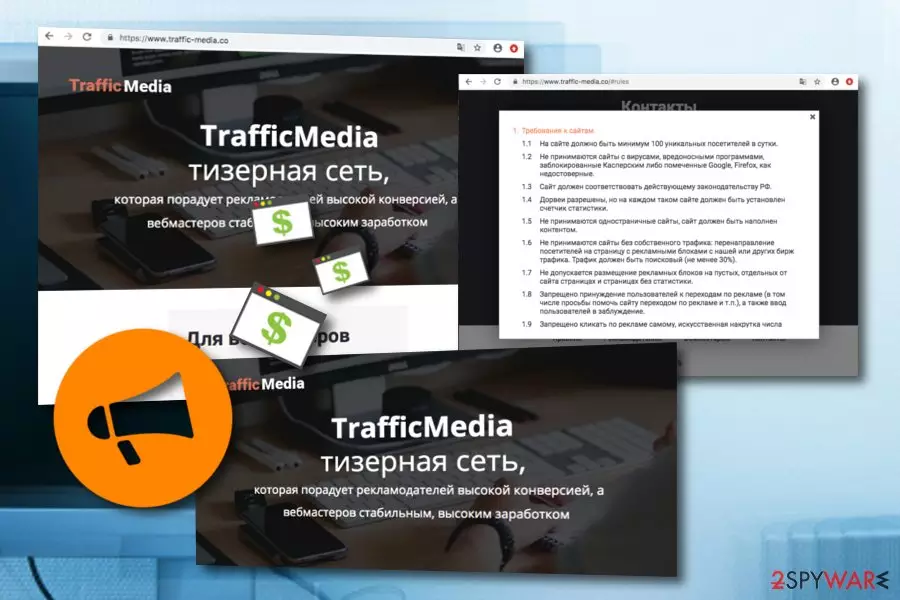
Traffic Media is a suspicious application that has been created to push advertising-based content. This app can hardly be compared with ransomware viruses, data miners,[1] trojans, and similar threats. However, no matter that it is not interested in your personal files, nor it aims to mess up your system, so why do the virus experts still deem this program potentially unwanted? There is no single answer since there are numerous aspects that allow categorizing this program as undesirable. It encourages users to use their provided services for advertising purposes. However, if you decide to do so, there is a big chance that you will be receiving a big number of notifications supported by Traffic Media pop-up.
What immediately puts Traffic Media in the spotlight of computer security specialists is that it does not need direct permission to enter the system. It can be installed as an additional component of the popular freeware or shareware applications, without the users even suspecting about what they actually agreed to install on the computer. And what these unlucky people install is an adware-type program[2] that generates an immoderate amount of ads and ruins the browsing experience.
| Name | Traffic Media |
|---|---|
| Type | Adware |
| Sub-type | Potentially unwanted program |
| Symptoms | Promotion of questionable content, pushing pop-ups and pop-unders, redirecting to affiliate websites, injection of dubious extensions into web browsers |
| Purpose | To gain revenue from the pay-per-click advertising technique and exchange user's browsing details for more income |
| Distribution | Bundled software, third-party websites |
| Browsers infected | This adware can appear on web browser applications such as Google Chrome, Mozilla Firefox, Internet Explorer, Microsoft Edge, and Safari |
| Prevention tips | Use Custom configuration to control all of your downloads, avoid visiting peer-to-peer networks, keep all of your programs, updated, install reputable antivirus protection |
| Elimination tool | FortectIntego can detect all adware-based content and remove the threat |
Forget your safe and uninterrupted browsing because of all the questionable pop-ups, banners, suspicious online surveys and Traffic media.co redirect issue will surely lead to some unpleasant consequences, sooner or later. If you want to diminish the potential risk, stay away from the online content marked as “Trafficmedia.co ads” or, even better, abstain from browsing on the infected browser completely.
Every click on these ads, even an accidental one, brings the adware creators profit, in the meanwhile, you have to deal with a growing number of problems on your computer. Remove Traffic Media from your computer now and do not let the malicious software creators exploit you. Use professional antivirus utility like FortectIntego to scan your computer. The entire scanning process will be completed quickly and will provide you all locations of adware content.
Continuously, Traffic Media removal can be carried out by manually cleaning your operating system and refreshing web browser applications. Take a look below this article and you will find instructing steps which should help you to get rid of the adware from your machine and eliminate all questionable-looking browser extensions, plug-ins, and add-ons from web browsers such as Chrome, Firefox, Edge, Explorer, and Safari.

On a final note, we should point out that Traffic Media virus can also threaten your privacy. By keeping this adware on your computer you allow it to monitor your browsing patterns, collect information about your interests and share this data with practically anyone. Though usually it is used for marketing purposes, this information can easily reach the hands of scammers and hackers, and these guys are always up to no good.
Traffic Media is not a program you can trust even though it might provide itself attractive-looking. Frequent advertising is not good for your computer and browser stability as the incoming notifications might start eating your computer resources and increasing the work of your machine's Central Processing Unit.[3] Moreover, various ads might promote worthless products or services which you can be easily convinced to download for a specific price.
Infection techniques of adware programs
The delivery of adware on a specific computer system begins with a stealthy system infiltration. Adware programs are commonly attached to popular, frequently downloaded software which might include PDF converters, download managers, video/audio players and similar apps. The installation of these potentially unwanted programs often remains undetected simply because the users do not know how to install software correctly.
They want to get their hands on the intended software as quickly as possible and choose “Quick” or “Recommended” installation. These settings do not disclose, nor they allow the users to stop unwanted software package components from entering the system. To be able to do that, you need to choose “Advanced” or “Custom” modes instead. Do not ignore these settings if you do not want adware to take over your computer.
Additionally, ad-supported threats are also lurking on third-party websites[4] which have a big number of users daily. According to computer experts,[5] there is a big chance to find potentially unwanted content on a network such as Torrents or The Pirate Bay where the adware program can easily be bundled and downloaded to the computer system together with the regular software, movie, or video clip that the user has applied to download.
You can easily remove Traffic-media.co with antivirus software

If you are already fed up with Traffic-media.co virus and you want to be able to browse without being interrupted by its annoying pop-ups, you can get rid of the cyber threat in just a few simple steps. Automatic antivirus scanners are the first option you should consider.
These virus-fighting utilities will make the Traffic-media.co removal incomparably simpler and faster. Besides, you will be able to continue with your work during the process. This option is also the best variant for computer users who lack skills or confidence in the virus elimination field or just do not want to waste their time.
If virus elimination does not bother you, though, you can easily remove Traffic-media.co from your browser yourself. Our experts have prepared a comprehensive tutorial which lists all the removal stages one-by-one. Carefully perform every step, clean your OS and web browsers such as Chrome, Firefox, Explorer, Edge, and Safari.
Uninstall from Windows
Uninstall from Windows 10/8:
- Type Control Panel into the Windows search box and open the result.
- Under Programs, select Uninstall a program.


Uninstall from Windows 7/XP:
- Click on Windows Start > Control Panel (Windows XP users should click on Add/Remove Programs).
- In Control Panel, select Programs > Uninstall a program.


Remove the unwanted program:
- In the Programs and Features window, look for any recently installed suspicious entries, select them, and click Uninstall.
- If User Account Control appears, click Yes to confirm, then complete the removal.


Delete from macOS
Remove the unwanted application:
- From the menu bar, select Go > Applications.
- In the Applications folder, look for any suspicious entries, then drag them to Trash (or right-click and pick Move to Trash).


Delete leftover files and folders:
- Select Go > Go to Folder.
- Enter /Library/Application Support and remove any suspicious folders related to the unwanted program.
- Repeat the same check in the /Library/LaunchAgents and /Library/LaunchDaemons folders, deleting any suspicious entries.

- Finally, empty the Trash to permanently remove the leftovers.

Reset Internet Explorer
Remove dangerous add-ons:
- Open Internet Explorer, click on the Gear icon (IE menu) on the top-right corner of the browser
- Pick Manage Add-ons.
- You will see a Manage Add-ons window. Here, look for suspicious plugins. Click on these entries and select Disable.


Change your homepage if it was altered:
- Open IE and click on the Gear icon.
- Select Internet Options.
- In the General tab, delete the Home page address and replace it by your preferred one (for example, Google.com).
- Click Apply and then select OK.


Delete temporary files:
- Press on the Gear icon and select Internet Options.
- Under Browsing history, click Delete...
- Select relevant fields and press Delete.


Reset Internet Explorer:
- Click on Gear icon > Internet options and select Advanced tab.
- Select Reset.
- In the new window, check Delete personal settings and select Reset.


Remove from Microsoft Edge
Delete unwanted extensions from MS Edge:
- Select Menu (three horizontal dots at the top-right of the browser window) and pick Extensions.
- From the list, pick the extension and click on the Gear icon.
- Click Remove.


Clear cookies and other browser data:
- Click on the Menu (three horizontal dots at the top-right of the browser window) and select Settings > Privacy, search, and services..
- Under Clear browsing data, pick Choose what to clear.
- Select Cookies and other site data and Cached images and files. (apart from passwords, although you might want to include Media licenses as well, if applicable) and click on Clear.


Restore new tab and homepage settings:
- Click the menu icon and choose Settings.
- Then find On startup section.
- Click Remove next to any suspicious startup page.
Reset MS Edge if the above steps did not work:
- Press on Ctrl + Shift + Esc to open Task Manager.
- Click on More details arrow at the bottom of the window.
- Select Details tab.
- Now scroll down and locate every entry with Microsoft Edge name in it. Right-click on each of them and select End Task to stop MS Edge from running.


Instructions for Chromium-based Edge
Delete extensions from MS Edge (Chromium):
- Open Edge and click select Settings > Extensions.
- Delete unwanted extensions by clicking Remove.


Clear cache and site data:
- Click on Menu and go to Settings.
- Select Privacy, search and services.
- Under Clear browsing data, pick Choose what to clear.
- Under Time range, pick All time.
- Select Clear now.


Reset Chromium-based MS Edge:
- Click on Menu and select Settings.
- On the left side, pick Reset settings.
- Select Restore settings to their default values.
- Confirm with Reset.
- This will disable extensions and reset startup pages but will not delete bookmarks, saved passwords, or browsing history.


Remove from Mozilla Firefox (FF)
Remove dangerous extensions:
- Open Mozilla Firefox browser and click on the Menu (three horizontal lines at the top-right of the window).
- Select Add-ons.
- In here, select the unwanted extension and click Remove.


Reset the homepage:
- Click three horizontal lines at the top right corner to open the menu.
- Choose Settings.
- Under Home, set your preferred homepage and new tab settings.
Clear cookies and site data:
- Click Menu and pick Settings.
- Go to Privacy & Security section.
- Scroll down to locate Cookies and Site Data.
- Click on Clear Data...
- Select Cookies and Site Data and Temporary cached files and pages, then click Clear.


Reset Mozilla Firefox
If clearing the browser as explained above did not help, reset Mozilla Firefox:
- Open Mozilla Firefox browser and click the Menu.
- Go to Help and then choose Troubleshooting Information.

- Under Give Firefox a tune up section, click on Refresh Firefox...
- Once the pop-up shows up, confirm the action by pressing on Refresh Firefox.



Remove from Google Chrome
Delete malicious extensions from Google Chrome:
- Open Google Chrome, click on the Menu (three vertical dots at the top-right corner) and select More tools > Extensions.
- In the newly opened window, you will see all the installed extensions. Uninstall all suspicious extensions related to the unwanted program by clicking Remove.


Clear cache and web data from Chrome:
- Click on Menu and pick Settings.
- Under Privacy and security, select Clear browsing data.
- Select Browsing history, Cookies and other site data, as well as Cached images and files.
- Click Clear data.


Change your homepage:
- Click menu and choose Settings.
- Look for a suspicious site in the On startup section.
- Click on Open a specific or set of pages and click on three dots to find the Remove option.
Reset Google Chrome:
If the previous methods did not help you, reset Google Chrome to eliminate all the unwanted components:
- Click on Menu and select Settings.
- In the Settings, scroll down and click Advanced.
- Scroll down and locate Reset and clean up section.
- Now click Restore settings to their original defaults.
- Confirm with Reset settings.


Delete from Safari
Remove dangerous extensions:
- Open Safari, click Safari in the menu at the top-left of the screen, and select Preferences.
- Go to the Extensions tab, look for any suspicious entries, and click Uninstall to remove them.


Clear history and website data:
- Click Safari in the menu and pick Clear History.
- Set Clear to all history and confirm with Clear History.


Reset Safari:
- Click Safari in the menu and select Preferences > Advanced.
- Enable Show Develop menu in menu bar.
- From the menu bar, click Develop and select Empty Caches.


Did this guide help?
2 comments
Jasper Ultzer
Finally, Im free to browser safely! Thanks for uploading the removal instructions!
Gruesome
So does it do anything besides redirecting to Traffic-media.co ? Can it infect my PC with some other malware?