

The real reason why “BSOD : DllRegisterServer failed” messages appear on your screen
If the reason why you are reading this article right now is that “BSOD : DllRegisterServer failed” virus attacks you, then we suggest reading it carefully. First of all, we want to inform you that you are dealing with tech support scammers, who managed to convince you to install their malicious software. This software could come into your computer system along other free programs that you have recently downloaded and installed. Please be careful; this program is designed to forge legitimate pop-up messages, dialogs or websites and simply do everything to convince you that your computer is at risk and that your can only get help from “experienced” IT technicians. Typically, BSOD : DllRegisterServer failed with the error code 0x80040201 malware displays fake alerts showing fictitious error numbers, false claims about computer system status, and other problems that need to be solved immediately. Remember – certified IT technicians never promise to fix user’s computer remotely via programs like TeamViewer or LogMeIn. If the technical support technician asks you to give them details allowing them to connect to your PC remotely, or if they ask you for your credit card details, hang up and scan your PC for malware using FortectIntego or another reputable software. Please do not try to remove BSOD : DllRegisterServer failed virus manually unless you are an expert in IT sphere.
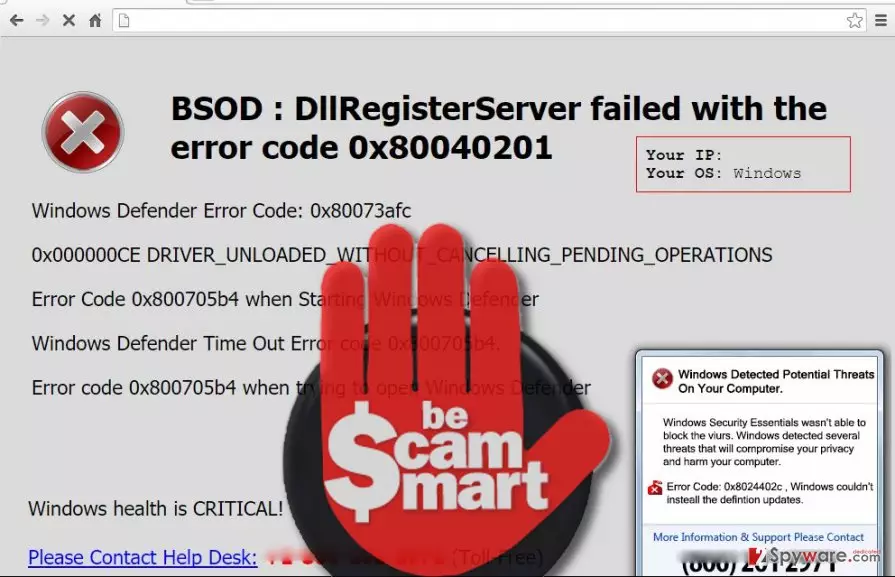
Scammers that work behind such deceptive projects seek to swindle money from users by telling tales about non-existent computer problems. Typically, they “guide” the victim to go through series of pointless tasks, for instance, open rarely-used folders, touch system settings, type in something in command prompt and initiate other meaningless activities just to confuse the inexperienced user and in the meantime, tell him/her lies that the computer has been compromised. The scammers typically apply one of two strategies to deceive the victim. The first method that they use is to scare the victim and ask him to install a particular computer software, of course, a paid one. Sometimes, scammers urge the victim to provide credit card details to “verify user’s identity,” which is absolute nonsense. Do not let them scam you! The second deceptive strategy is based on persuasion to provide them access to the computer. Scammers ask the victim to install a certain remote administration tool and then tell them login details. Once they get access to the computer, scammers can steal important documents, plant malware, execute ransomware or other malicious viruses, or just delete all victim’s files. Be careful!
How do such viruses spread?
Fraudsters can integrate malicious download links into various Internet websites. However, typically users install such malware along other free programs downloaded from questionable Internet pages. BSOD : DllRegisterServer failed hijack happens when the user fails to opt-out unwanted additional downloads added to his/hers download. Such programs are typically hidden under Default or Standard settings. Choosing these settings means that all optional downloads get installed alongside the main program without even notifying the user. To opt these additions out, the user has to select Advanced or Custom settings and adjust software components appropriately. On top of that, users who want to avoid this malware should avoid clicking on suspicious links sent via email and also attachments added to such messages, especially if they come from unknown sources.
“BSOD : DllRegisterServer failed” removal tutorial
Please do not let “BSOD : DllRegisterServer failed” virus trick you – do not call these support scammers. First of all, you might lose a considerable amount of money, since these scammers typically provide premium-rate numbers, despite the fact that they state they are toll-free ones. What is more, they attempt to deceive users by asking to buy rogue software or provide sensitive information. If you suspect that your computer system is infected with such malware, we suggest scanning your computer system with FortectIntego or another reputable software to remove “BSOD : DllRegisterServer failed” virus automatically. As we have already stated, users should not try to delete “BSOD : DllRegisterServer failed” malware manually unless they have already encountered similar programs before and know how to uninstall them properly. Remember – leaving at least one component of such program on the system can make it vulnerable to further infections. You can find instructions on how to fix this issue provided below or in this post.
Uninstall from Windows
Uninstall from Windows 10/8:
- Type Control Panel into the Windows search box and open the result.
- Under Programs, select Uninstall a program.


Uninstall from Windows 7/XP:
- Click on Windows Start > Control Panel (Windows XP users should click on Add/Remove Programs).
- In Control Panel, select Programs > Uninstall a program.


Remove the unwanted program:
- In the Programs and Features window, look for any recently installed suspicious entries, select them, and click Uninstall.
- If User Account Control appears, click Yes to confirm, then complete the removal.


Delete from macOS
Remove the unwanted application:
- From the menu bar, select Go > Applications.
- In the Applications folder, look for any suspicious entries, then drag them to Trash (or right-click and pick Move to Trash).


Delete leftover files and folders:
- Select Go > Go to Folder.
- Enter /Library/Application Support and remove any suspicious folders related to the unwanted program.
- Repeat the same check in the /Library/LaunchAgents and /Library/LaunchDaemons folders, deleting any suspicious entries.

- Finally, empty the Trash to permanently remove the leftovers.

Remove from Microsoft Edge
Delete unwanted extensions from MS Edge:
- Select Menu (three horizontal dots at the top-right of the browser window) and pick Extensions.
- From the list, pick the extension and click on the Gear icon.
- Click Remove.


Clear cookies and other browser data:
- Click on the Menu (three horizontal dots at the top-right of the browser window) and select Settings > Privacy, search, and services..
- Under Clear browsing data, pick Choose what to clear.
- Select Cookies and other site data and Cached images and files. (apart from passwords, although you might want to include Media licenses as well, if applicable) and click on Clear.


Restore new tab and homepage settings:
- Click the menu icon and choose Settings.
- Then find On startup section.
- Click Remove next to any suspicious startup page.
Reset MS Edge if the above steps did not work:
- Press on Ctrl + Shift + Esc to open Task Manager.
- Click on More details arrow at the bottom of the window.
- Select Details tab.
- Now scroll down and locate every entry with Microsoft Edge name in it. Right-click on each of them and select End Task to stop MS Edge from running.


Instructions for Chromium-based Edge
Delete extensions from MS Edge (Chromium):
- Open Edge and click select Settings > Extensions.
- Delete unwanted extensions by clicking Remove.


Clear cache and site data:
- Click on Menu and go to Settings.
- Select Privacy, search and services.
- Under Clear browsing data, pick Choose what to clear.
- Under Time range, pick All time.
- Select Clear now.


Reset Chromium-based MS Edge:
- Click on Menu and select Settings.
- On the left side, pick Reset settings.
- Select Restore settings to their default values.
- Confirm with Reset.
- This will disable extensions and reset startup pages but will not delete bookmarks, saved passwords, or browsing history.


Remove from Mozilla Firefox (FF)
Remove dangerous extensions:
- Open Mozilla Firefox browser and click on the Menu (three horizontal lines at the top-right of the window).
- Select Add-ons.
- In here, select the unwanted extension and click Remove.


Reset the homepage:
- Click three horizontal lines at the top right corner to open the menu.
- Choose Settings.
- Under Home, set your preferred homepage and new tab settings.
Clear cookies and site data:
- Click Menu and pick Settings.
- Go to Privacy & Security section.
- Scroll down to locate Cookies and Site Data.
- Click on Clear Data...
- Select Cookies and Site Data and Temporary cached files and pages, then click Clear.


Reset Mozilla Firefox
If clearing the browser as explained above did not help, reset Mozilla Firefox:
- Open Mozilla Firefox browser and click the Menu.
- Go to Help and then choose Troubleshooting Information.

- Under Give Firefox a tune up section, click on Refresh Firefox...
- Once the pop-up shows up, confirm the action by pressing on Refresh Firefox.



Remove from Google Chrome
Delete malicious extensions from Google Chrome:
- Open Google Chrome, click on the Menu (three vertical dots at the top-right corner) and select More tools > Extensions.
- In the newly opened window, you will see all the installed extensions. Uninstall all suspicious extensions related to the unwanted program by clicking Remove.


Clear cache and web data from Chrome:
- Click on Menu and pick Settings.
- Under Privacy and security, select Clear browsing data.
- Select Browsing history, Cookies and other site data, as well as Cached images and files.
- Click Clear data.


Change your homepage:
- Click menu and choose Settings.
- Look for a suspicious site in the On startup section.
- Click on Open a specific or set of pages and click on three dots to find the Remove option.
Reset Google Chrome:
If the previous methods did not help you, reset Google Chrome to eliminate all the unwanted components:
- Click on Menu and select Settings.
- In the Settings, scroll down and click Advanced.
- Scroll down and locate Reset and clean up section.
- Now click Restore settings to their original defaults.
- Confirm with Reset settings.


Delete from Safari
Remove dangerous extensions:
- Open Safari, click Safari in the menu at the top-left of the screen, and select Preferences.
- Go to the Extensions tab, look for any suspicious entries, and click Uninstall to remove them.


Clear history and website data:
- Click Safari in the menu and pick Clear History.
- Set Clear to all history and confirm with Clear History.


Reset Safari:
- Click Safari in the menu and select Preferences > Advanced.
- Enable Show Develop menu in menu bar.
- From the menu bar, click Develop and select Empty Caches.


Did this guide help?
4 comments
Dunya
I seriously hate tech support scammers! They have called my mom and tried to deceive her!
nico
Just fixed my computer, thanks to you! Reimage is a good program - I guess i have underestimated it earlier.
Bobbi90
Thank you for your help. I was so confused when these lying alerts started to appear on my screen...
Rocky
Thanks for informing us about these crooks.