

PowerSearchOnline notifications won't leave you alone until you delete adware from your system
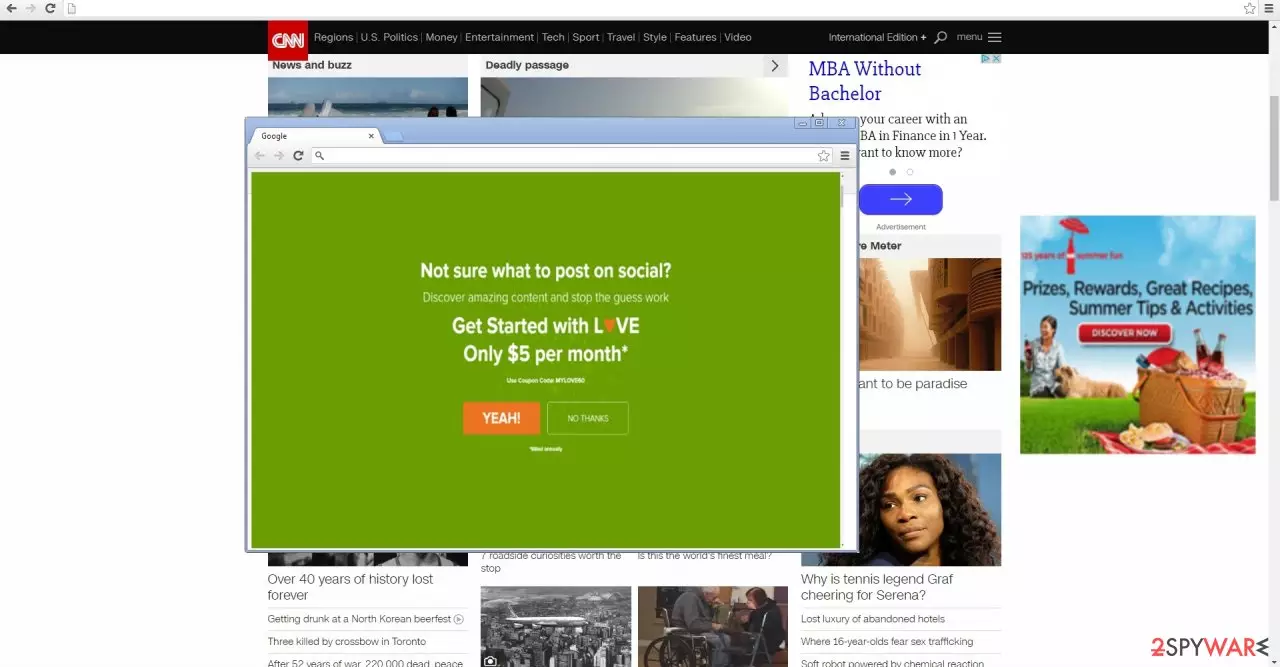
PowerSearchOnline is a potentially unwanted program that, according to its developers, can benefit the users greatly by delivering online offers and shopping deals. Once installed, the app would constantly bother them with pop-ups, in-text links, interstitial, auto-play, and similar ads, regardless of whether Google Chrome, Mozilla Firefox, or Safari browser is used.
Since the app uses software bundles for its distribution (it was seen being promoted via Turbo Downloader installer), it is commonly not installed intentionally. That being said, some users might believe that it is useful due to its alleged shopping improvement features, hence install it themselves. Among other negative traits, the PUP also specializes in data tracking, which is later used to deliver intrusive ad campaigns.
| Name | PowerSearchOnline |
| Type | Adware |
| Target system | Mac |
| Distribution | Software bundling, third-party websites |
| Symptoms & operation | Uses a virtual layer of advertisements that might cover the contents of visited websites; tracks various user information |
| Uninstall | The quickest way to get rid of adware is to scan the infected computer with SpyHunterCombo Cleaner or another reputable anti-malware |
| Browser fix | Don't forget to delete web data and cookies from your browsers – FortectIntego can help you do that efficiently |
IT experts have revealed that the PUP takes preference on Mac users, so they should be extra vigilant when it comes to cybersecurity. While it is not a harmful computer threat, you should not ignore its presence on your device and remove it immediately – especially if you did not install it intentionally.
If you delay getting rid of it, besides the pop-ups, you might get directed to the insecure domains. In addition, the adware might complement the amount of system applications with unnecessary ones. Before we move on to PowerSearchOnline removal section, find out how the adware makes its way into the operating system.
Let us discuss main negative aspects which encourage you to start the elimination process. With the technological advancement, advertising business resettled in the Internet world. Since this sort of online activities brings profit to its developers, there are millions of users who try to earn a few dollars by generating intrusive and bothersome advertisements.
Virus researchers would not concern about them if not of their tendency to direct to insecure web pages. Likewise, intrusive ads might lead you to low-security domains overcrowded with flickering banners and coupons. In some cases, users might even find themselves in gambling or pornographic domains.
Note that the latter might hide viruses and malware. Thus PowerSearchOnline redirect proves to be not only frustrating tendency but the problem which might cause system performance issues.
Furthermore, you should be aware of the fact that the program spies on your browsing habits. IT does so by applying tracking technologies, such as cookies, pixel tags, beacons, etc. Usually, they collect such information as:
- browsing history,
- IP address and ISP
- geolocation
- search entries, etc.
This information helps to identify your interests and preferences. Likewise, those, who obtain such data, for example, partners of Power Search Online adware, might create customized advertisements and then load your computer with them.
Thus, the probability that you click on such pay-per-view ads significantly boosts up. However, excessive advertising is not something an Internet user enjoys. Therefore, remove the adware with the help of a malware removal utility. FortectIntego proves to be an effective tool for dealing with such pests.
The distribution peculiarities of the adware
Most likely, this PUP managed to infect the computer via the “bundling“ technique. It allows attaching unwanted tools under the “Recommended” settings of freeware. Free file converters and media players are popular free programs downloaded by millions of users every day. Thus, the crooks do not waste such a chance.
Likewise, recklessly installing a new program might have resulted in unintentional infiltration of not only PUPs but also malware. If you are interested in its prevention, choose “Custom“ settings so you would be able to see optional programs. Exercise cautiousness while downloading and installing new programs.
Quickly eliminate Power Search Online adware
If you intend not to waste time on PUP's removal, install an anti-spyware program to do all the job for you. Update it and run the system scan. The program also proves to be a reliable guardian of the PC by detecting similar and more dangerous computer threats.
Alternatively, you may remove the PowerSearchOnline virus manually. Find the instructions below. Lastly, we would like to remind you to review the privacy policies of the programs you are about to install. Cautiously review each stage of the installation wizard not to install unwanted tools and programs.
Delete from macOS
Remove the unwanted application:
- From the menu bar, select Go > Applications.
- In the Applications folder, look for any suspicious entries, then drag them to Trash (or right-click and pick Move to Trash).


Delete leftover files and folders:
- Select Go > Go to Folder.
- Enter /Library/Application Support and remove any suspicious folders related to the unwanted program.
- Repeat the same check in the /Library/LaunchAgents and /Library/LaunchDaemons folders, deleting any suspicious entries.

- Finally, empty the Trash to permanently remove the leftovers.

Remove from Microsoft Edge
Delete unwanted extensions from MS Edge:
- Select Menu (three horizontal dots at the top-right of the browser window) and pick Extensions.
- From the list, pick the extension and click on the Gear icon.
- Click Remove.


Clear cookies and other browser data:
- Click on the Menu (three horizontal dots at the top-right of the browser window) and select Settings > Privacy, search, and services..
- Under Clear browsing data, pick Choose what to clear.
- Select Cookies and other site data and Cached images and files. (apart from passwords, although you might want to include Media licenses as well, if applicable) and click on Clear.


Restore new tab and homepage settings:
- Click the menu icon and choose Settings.
- Then find On startup section.
- Click Remove next to any suspicious startup page.
Reset MS Edge if the above steps did not work:
- Press on Ctrl + Shift + Esc to open Task Manager.
- Click on More details arrow at the bottom of the window.
- Select Details tab.
- Now scroll down and locate every entry with Microsoft Edge name in it. Right-click on each of them and select End Task to stop MS Edge from running.


Instructions for Chromium-based Edge
Delete extensions from MS Edge (Chromium):
- Open Edge and click select Settings > Extensions.
- Delete unwanted extensions by clicking Remove.


Clear cache and site data:
- Click on Menu and go to Settings.
- Select Privacy, search and services.
- Under Clear browsing data, pick Choose what to clear.
- Under Time range, pick All time.
- Select Clear now.


Reset Chromium-based MS Edge:
- Click on Menu and select Settings.
- On the left side, pick Reset settings.
- Select Restore settings to their default values.
- Confirm with Reset.
- This will disable extensions and reset startup pages but will not delete bookmarks, saved passwords, or browsing history.


Remove from Mozilla Firefox (FF)
Remove dangerous extensions:
- Open Mozilla Firefox browser and click on the Menu (three horizontal lines at the top-right of the window).
- Select Add-ons.
- In here, select the unwanted extension and click Remove.


Reset the homepage:
- Click three horizontal lines at the top right corner to open the menu.
- Choose Settings.
- Under Home, set your preferred homepage and new tab settings.
Clear cookies and site data:
- Click Menu and pick Settings.
- Go to Privacy & Security section.
- Scroll down to locate Cookies and Site Data.
- Click on Clear Data...
- Select Cookies and Site Data and Temporary cached files and pages, then click Clear.


Reset Mozilla Firefox
If clearing the browser as explained above did not help, reset Mozilla Firefox:
- Open Mozilla Firefox browser and click the Menu.
- Go to Help and then choose Troubleshooting Information.

- Under Give Firefox a tune up section, click on Refresh Firefox...
- Once the pop-up shows up, confirm the action by pressing on Refresh Firefox.



Remove from Google Chrome
Delete malicious extensions from Google Chrome:
- Open Google Chrome, click on the Menu (three vertical dots at the top-right corner) and select More tools > Extensions.
- In the newly opened window, you will see all the installed extensions. Uninstall all suspicious extensions related to the unwanted program by clicking Remove.


Clear cache and web data from Chrome:
- Click on Menu and pick Settings.
- Under Privacy and security, select Clear browsing data.
- Select Browsing history, Cookies and other site data, as well as Cached images and files.
- Click Clear data.


Change your homepage:
- Click menu and choose Settings.
- Look for a suspicious site in the On startup section.
- Click on Open a specific or set of pages and click on three dots to find the Remove option.
Reset Google Chrome:
If the previous methods did not help you, reset Google Chrome to eliminate all the unwanted components:
- Click on Menu and select Settings.
- In the Settings, scroll down and click Advanced.
- Scroll down and locate Reset and clean up section.
- Now click Restore settings to their original defaults.
- Confirm with Reset settings.


Delete from Safari
Remove dangerous extensions:
- Open Safari, click Safari in the menu at the top-left of the screen, and select Preferences.
- Go to the Extensions tab, look for any suspicious entries, and click Uninstall to remove them.


Clear history and website data:
- Click Safari in the menu and pick Clear History.
- Set Clear to all history and confirm with Clear History.


Reset Safari:
- Click Safari in the menu and select Preferences > Advanced.
- Enable Show Develop menu in menu bar.
- From the menu bar, click Develop and select Empty Caches.


Did this guide help?
2 comments
Tim88
It‘s a shame that I got tricked by some virus. Luckily, my anti-virus did all work for me.
Catherine
Thank you for the tips. Now I‘ll be more careful.