

The peculiarities of Srch application
If you have been searching for a way to get rid of annoying Srch virus, then you have come to the right place. The appearance of annoying advertisements, banners, and various in-text ads might have become a bothersome phenomenon preventing you from fast and effective browsing. Thus, it is the perfect reason for you start Srch removal. If you are fine with occasionally popping up ads, be aware that the adware might cause redirects to unknown websites. This PUP is closely linked with another questionable Srch.bar virus so that it might target your PC as well. All adware-type programs have the tendency to add useless and unnecessary add-ons and browser plug-ins to your browser. Find out what effect they might have on you and read further suggestions to remove Srch effectively.
Let us discuss the most negative aspects of this PUP. Srch ads may load you screen regardless of the websites you are visiting. They may emerge in informational, entertainment or even in the official websites of governmental institutions. These advertisements lead you to other websites which promote various products. It is often the case that they offer to obtain a security program. Restrain from buying or simply downloading it. You may accidentally install a questionable tool which will fail to meet your expectations concerning cyber security. There is also a probability that they might contain not only futile but potentially infected elements as well. In general, if you are not careful choosing a security add-on or the software, you might install an application which acts as scareware. It only informs of fake viruses only to persuade into purchasing the full version.
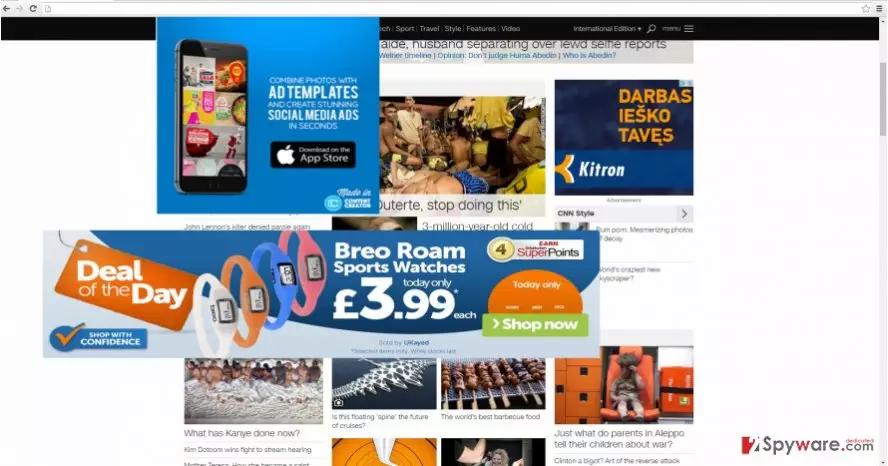
It is highly infuriating to keep encountering Srch redirect issue. The main principle of this quality is that the adware not only displays more commercial offers than usual but it also edits traffic of your visited domains. In other words, the adware might lead you to its sponsored websites before letting you access the required web page. Besides this tendency being disturbing, it may have a highly negative effect on the operating system as well since you may find yourself in an infected web page. Thus, remove the PUP as soon as possible. For that purpose, FortectIntego comes in handy.
The transmission methods of the adware
It exploits freeware to infect computers. It does so by attaching itself under popular and regularly downloadable applications. You might have recently installed a new file converter or image editing tool. It is a common vice among the majority of users to ignore the add-ons which come along with similar applications. Leaving them pre-marked results in Srch hijack or the invasion of other PUP. Nonetheless, there are some things which might prevent the infiltration of adware. Before you hit the “Install” button, check for optional attachments. Usually, they contain unnecessary applications.
Can I effectively and quickly eliminate the adware app?
Luckily, this PUP does not possess any complex technical features which would burden Srch removal process. You can install an anti-spyware application to clean your computer. The application will deal with Srch virus efficiently. In addition, the program serves as a reliable tool detecting and terminating viruses of a different kind. Additionally, you may remove Srch manually. Find the instructions given bellow in this page. Lastly, you can also decrease the chances of a PUP hijack by verifying the publisher of the program you are about to install. Other users’ reviews might give you valuable information as well.
Uninstall from Windows
Uninstall from Windows 10/8:
- Type Control Panel into the Windows search box and open the result.
- Under Programs, select Uninstall a program.


Uninstall from Windows 7/XP:
- Click on Windows Start > Control Panel (Windows XP users should click on Add/Remove Programs).
- In Control Panel, select Programs > Uninstall a program.


Remove the unwanted program:
- In the Programs and Features window, look for any recently installed suspicious entries, select them, and click Uninstall.
- If User Account Control appears, click Yes to confirm, then complete the removal.


Delete from macOS
Remove the unwanted application:
- From the menu bar, select Go > Applications.
- In the Applications folder, look for any suspicious entries, then drag them to Trash (or right-click and pick Move to Trash).


Delete leftover files and folders:
- Select Go > Go to Folder.
- Enter /Library/Application Support and remove any suspicious folders related to the unwanted program.
- Repeat the same check in the /Library/LaunchAgents and /Library/LaunchDaemons folders, deleting any suspicious entries.

- Finally, empty the Trash to permanently remove the leftovers.

Remove from Microsoft Edge
Delete unwanted extensions from MS Edge:
- Select Menu (three horizontal dots at the top-right of the browser window) and pick Extensions.
- From the list, pick the extension and click on the Gear icon.
- Click Remove.


Clear cookies and other browser data:
- Click on the Menu (three horizontal dots at the top-right of the browser window) and select Settings > Privacy, search, and services..
- Under Clear browsing data, pick Choose what to clear.
- Select Cookies and other site data and Cached images and files. (apart from passwords, although you might want to include Media licenses as well, if applicable) and click on Clear.


Restore new tab and homepage settings:
- Click the menu icon and choose Settings.
- Then find On startup section.
- Click Remove next to any suspicious startup page.
Reset MS Edge if the above steps did not work:
- Press on Ctrl + Shift + Esc to open Task Manager.
- Click on More details arrow at the bottom of the window.
- Select Details tab.
- Now scroll down and locate every entry with Microsoft Edge name in it. Right-click on each of them and select End Task to stop MS Edge from running.


Instructions for Chromium-based Edge
Delete extensions from MS Edge (Chromium):
- Open Edge and click select Settings > Extensions.
- Delete unwanted extensions by clicking Remove.


Clear cache and site data:
- Click on Menu and go to Settings.
- Select Privacy, search and services.
- Under Clear browsing data, pick Choose what to clear.
- Under Time range, pick All time.
- Select Clear now.


Reset Chromium-based MS Edge:
- Click on Menu and select Settings.
- On the left side, pick Reset settings.
- Select Restore settings to their default values.
- Confirm with Reset.
- This will disable extensions and reset startup pages but will not delete bookmarks, saved passwords, or browsing history.


Remove from Mozilla Firefox (FF)
Remove dangerous extensions:
- Open Mozilla Firefox browser and click on the Menu (three horizontal lines at the top-right of the window).
- Select Add-ons.
- In here, select the unwanted extension and click Remove.


Reset the homepage:
- Click three horizontal lines at the top right corner to open the menu.
- Choose Settings.
- Under Home, set your preferred homepage and new tab settings.
Clear cookies and site data:
- Click Menu and pick Settings.
- Go to Privacy & Security section.
- Scroll down to locate Cookies and Site Data.
- Click on Clear Data...
- Select Cookies and Site Data and Temporary cached files and pages, then click Clear.


Reset Mozilla Firefox
If clearing the browser as explained above did not help, reset Mozilla Firefox:
- Open Mozilla Firefox browser and click the Menu.
- Go to Help and then choose Troubleshooting Information.

- Under Give Firefox a tune up section, click on Refresh Firefox...
- Once the pop-up shows up, confirm the action by pressing on Refresh Firefox.



Remove from Google Chrome
Delete malicious extensions from Google Chrome:
- Open Google Chrome, click on the Menu (three vertical dots at the top-right corner) and select More tools > Extensions.
- In the newly opened window, you will see all the installed extensions. Uninstall all suspicious extensions related to the unwanted program by clicking Remove.


Clear cache and web data from Chrome:
- Click on Menu and pick Settings.
- Under Privacy and security, select Clear browsing data.
- Select Browsing history, Cookies and other site data, as well as Cached images and files.
- Click Clear data.


Change your homepage:
- Click menu and choose Settings.
- Look for a suspicious site in the On startup section.
- Click on Open a specific or set of pages and click on three dots to find the Remove option.
Reset Google Chrome:
If the previous methods did not help you, reset Google Chrome to eliminate all the unwanted components:
- Click on Menu and select Settings.
- In the Settings, scroll down and click Advanced.
- Scroll down and locate Reset and clean up section.
- Now click Restore settings to their original defaults.
- Confirm with Reset settings.


Delete from Safari
Remove dangerous extensions:
- Open Safari, click Safari in the menu at the top-left of the screen, and select Preferences.
- Go to the Extensions tab, look for any suspicious entries, and click Uninstall to remove them.


Clear history and website data:
- Click Safari in the menu and pick Clear History.
- Set Clear to all history and confirm with Clear History.


Reset Safari:
- Click Safari in the menu and select Preferences > Advanced.
- Enable Show Develop menu in menu bar.
- From the menu bar, click Develop and select Empty Caches.


Did this guide help?
2 comments
Jackie
Sometimes the most ordinary-looking adware cause the most trouble.
Evelyn00
Luckily, I didn‘t have trouble dealing with this sort of adware-type program.