

What kind of blc.welllikedresource.com website is it?
Blc.welllikedresource.com virus works as the adware application which interferes with your browsing. You may accidentally run into it while browsing the Web. Once it gets a liking of the computer, it becomes a matter of time when the PUP will take over the system. Even if the threat is not regarded as potentially damaging, remove blc.welllikedresource.com immediately. Within a short while, you might notice an increasing number of advertisements, banners, and coupons. They will overcrowd the computer screen and slower down the browser‘s processing speed. In addition, the adware keeps a record of your online activities. Find out why the adware needs this information. This article will also present blc.welllikedresource.com removal solutions. One of which is to install FortectIntego.
Initially, the mission of this PUP is to sneak into the computer and access certain information about the user‘s browsing habits. Additionally, it applies its “codes.” With their help, the adware is able to display its sponsored content. Similar programs are created solely for revenue-generating purposes. In order to earn money for the viewing of their ads, it is necessary to make the ads attractive and appealing. That is why Well Liked Resource adware employs pixel tags and cookies to track your visited websites and browsing frequency. This technical data serves as valuable information for creating personalized advertisements. In addition, this data might be sold to advertising companies. Though the bargain is beneficial for the developers of adware and their partners, it has no advantage for the recipients of these ads – Internet users.
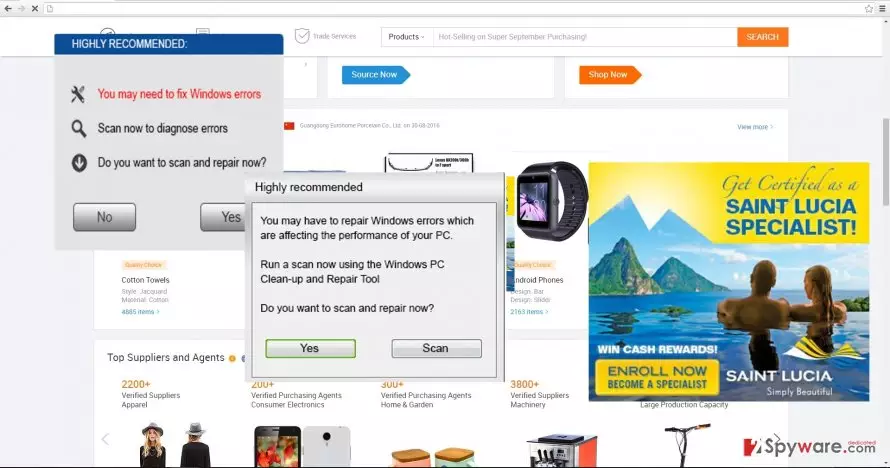
Moving on, blc.welllikedresource.com ads will pile up on the screen. This quality might enrage those who are in a hurry to find the wanted piece of information quickly. Therefore, the commercial offers direct you to other sponsored domains which stream their own advertising content to you. Eventually, surrounded by blinking and distracting ads, you might be misguided to the gambling website which hide infections. As a result, blc.welllikedresource.com redirect might have more damaging effect than expected.
How does the adware infiltrate my computer?
Frequently, the PUP attaches itself to a free pdf viewer or media converter to sneak into the device without detection. Unfortunately, this technique proves to be profitable and effective, since few users unmark optional add-ons when going through the installation guide. In order to prevent blc.welllikedresource.com hijack in the future, follow our advice. Prior installing a free program, switch to “Custom” settings. They will disclose any suspicious programs or add-ons attempting to occupy the system. Unmark the unnecessary ones and only then initiate the installation of the downloaded program.
Easily remove blc.welllikedresource.com from the device
This application can be easily exterminated both, manually and automatically. If you opt for the first solution, go through the steps carefully and with utmost precision. This PUP might disguise under the alternative title on the system, so manually detecting it might require more time. Eliminating all its files, including the registry keys, is an essential step as well. For that purpose, automatic blc.welllikedresource.com removal is the better option. The anti-spyware application is apt in locating the scattered PUP files. As a result, there are more chances to remove blc.welllikedresource.com completely. On the final note, do not lower your guard when surfing the Internet. Downloading the programs from their official domains and checking its rating in the IT security websites might help you evade similar PUPs like blc.welllikedresource.com virus.
Uninstall from Windows
Uninstall from Windows 10/8:
- Type Control Panel into the Windows search box and open the result.
- Under Programs, select Uninstall a program.


Uninstall from Windows 7/XP:
- Click on Windows Start > Control Panel (Windows XP users should click on Add/Remove Programs).
- In Control Panel, select Programs > Uninstall a program.


Remove the unwanted program:
- In the Programs and Features window, look for any recently installed suspicious entries, select them, and click Uninstall.
- If User Account Control appears, click Yes to confirm, then complete the removal.


Delete from macOS
Remove the unwanted application:
- From the menu bar, select Go > Applications.
- In the Applications folder, look for any suspicious entries, then drag them to Trash (or right-click and pick Move to Trash).


Delete leftover files and folders:
- Select Go > Go to Folder.
- Enter /Library/Application Support and remove any suspicious folders related to the unwanted program.
- Repeat the same check in the /Library/LaunchAgents and /Library/LaunchDaemons folders, deleting any suspicious entries.

- Finally, empty the Trash to permanently remove the leftovers.

Remove from Microsoft Edge
Delete unwanted extensions from MS Edge:
- Select Menu (three horizontal dots at the top-right of the browser window) and pick Extensions.
- From the list, pick the extension and click on the Gear icon.
- Click Remove.


Clear cookies and other browser data:
- Click on the Menu (three horizontal dots at the top-right of the browser window) and select Settings > Privacy, search, and services..
- Under Clear browsing data, pick Choose what to clear.
- Select Cookies and other site data and Cached images and files. (apart from passwords, although you might want to include Media licenses as well, if applicable) and click on Clear.


Restore new tab and homepage settings:
- Click the menu icon and choose Settings.
- Then find On startup section.
- Click Remove next to any suspicious startup page.
Reset MS Edge if the above steps did not work:
- Press on Ctrl + Shift + Esc to open Task Manager.
- Click on More details arrow at the bottom of the window.
- Select Details tab.
- Now scroll down and locate every entry with Microsoft Edge name in it. Right-click on each of them and select End Task to stop MS Edge from running.


Instructions for Chromium-based Edge
Delete extensions from MS Edge (Chromium):
- Open Edge and click select Settings > Extensions.
- Delete unwanted extensions by clicking Remove.


Clear cache and site data:
- Click on Menu and go to Settings.
- Select Privacy, search and services.
- Under Clear browsing data, pick Choose what to clear.
- Under Time range, pick All time.
- Select Clear now.


Reset Chromium-based MS Edge:
- Click on Menu and select Settings.
- On the left side, pick Reset settings.
- Select Restore settings to their default values.
- Confirm with Reset.
- This will disable extensions and reset startup pages but will not delete bookmarks, saved passwords, or browsing history.


Remove from Mozilla Firefox (FF)
Remove dangerous extensions:
- Open Mozilla Firefox browser and click on the Menu (three horizontal lines at the top-right of the window).
- Select Add-ons.
- In here, select the unwanted extension and click Remove.


Reset the homepage:
- Click three horizontal lines at the top right corner to open the menu.
- Choose Settings.
- Under Home, set your preferred homepage and new tab settings.
Clear cookies and site data:
- Click Menu and pick Settings.
- Go to Privacy & Security section.
- Scroll down to locate Cookies and Site Data.
- Click on Clear Data...
- Select Cookies and Site Data and Temporary cached files and pages, then click Clear.


Reset Mozilla Firefox
If clearing the browser as explained above did not help, reset Mozilla Firefox:
- Open Mozilla Firefox browser and click the Menu.
- Go to Help and then choose Troubleshooting Information.

- Under Give Firefox a tune up section, click on Refresh Firefox...
- Once the pop-up shows up, confirm the action by pressing on Refresh Firefox.



Remove from Google Chrome
Delete malicious extensions from Google Chrome:
- Open Google Chrome, click on the Menu (three vertical dots at the top-right corner) and select More tools > Extensions.
- In the newly opened window, you will see all the installed extensions. Uninstall all suspicious extensions related to the unwanted program by clicking Remove.


Clear cache and web data from Chrome:
- Click on Menu and pick Settings.
- Under Privacy and security, select Clear browsing data.
- Select Browsing history, Cookies and other site data, as well as Cached images and files.
- Click Clear data.


Change your homepage:
- Click menu and choose Settings.
- Look for a suspicious site in the On startup section.
- Click on Open a specific or set of pages and click on three dots to find the Remove option.
Reset Google Chrome:
If the previous methods did not help you, reset Google Chrome to eliminate all the unwanted components:
- Click on Menu and select Settings.
- In the Settings, scroll down and click Advanced.
- Scroll down and locate Reset and clean up section.
- Now click Restore settings to their original defaults.
- Confirm with Reset settings.


Delete from Safari
Remove dangerous extensions:
- Open Safari, click Safari in the menu at the top-left of the screen, and select Preferences.
- Go to the Extensions tab, look for any suspicious entries, and click Uninstall to remove them.


Clear history and website data:
- Click Safari in the menu and pick Clear History.
- Set Clear to all history and confirm with Clear History.


Reset Safari:
- Click Safari in the menu and select Preferences > Advanced.
- Enable Show Develop menu in menu bar.
- From the menu bar, click Develop and select Empty Caches.


Did this guide help?
Be the first to comment