

The overview of Musictabsearch.com
Musictabsearch.com virus tends to attack different Internet users, regardless whether they spend the whole day in the virtual reality or occasionally visit it. Like other PUPs of the same kind: Gamestabsearch.com, Tvtabsearch.com or Coupontabsearch.com, this browsing tool promotes sponsored websites. As a result, you might find yourself in them.However, this behaviour might not leave a positive impression for some users. If you happen to be one of them, you might start considering Musictabsearch removal. Nonetheless, PUP’s offers to use Spotify, SoundCloud, or Youtube might seem intriguing. Furthermore, the site promotes radiotuna.com live radio service. Sound tempting? Well, this is a part of this hijacker’s plan. This search engine is designed to look legitimate and useful, while shady activities are carried out in the background. We do not recommend trusting the almost-too-good-to-be-true offers you might receive through Music Tab Search. They might be deceptive and link you to sites where you can be scammed. We must urge you to remove Musictabsearch.com as soon as you have the chance and choose more reputable search providers instead. You can carry out the removal with FortectIntego.
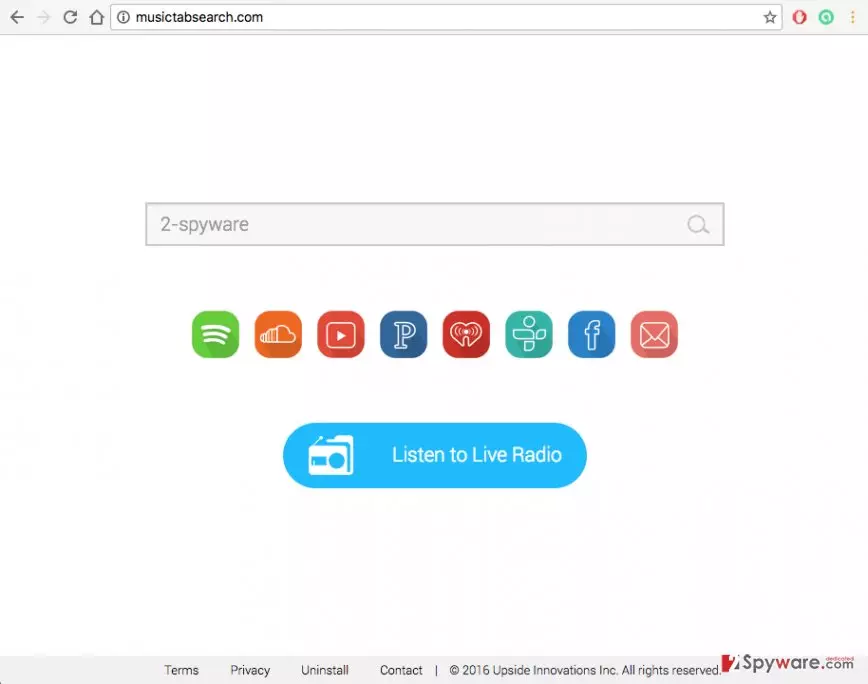
We must warn you that Musictabsearch.com hijack browsers without asking permission. So if you do not remember setting it as your homepage or default search engine, you most likely didn’t. This engine has found its way on your computer itself and will do whatever it can to stay put. It may install additional browser extensions, toolbars or add-ons to help it bounce back to your homepage in case you decide to remove it. Thus, you will be forced to suffer the Musictabsearch.com redirect issue, deal with intrusive ads and struggle your way through the Internet search. If you have been unsuccessfully trying to remove this virus from your computer and already lost hope to ever get rid of this annoying parasite, we have some good news for you. We have prepared manual Musictabsearch.com removal instructions which you can find below and freely use to delete the virus from your computer.
Prevention measures
Depending on a type of malware, there are certain precautions that can be taken to prevent the infiltration. Here we present several most effective techniques:
- Antivirus software. It goes without saying that a modern computer is simply unimaginable without a professional antivirus software. It is highly advisable to use reputable and legal tools to ensure the best protection.
- System updates. You should always keep your system as well as the installed software updated to the latest version. This diminishes the system’s vulnerability and prevents you from accidentally downloading corrupted software updates with a hidden Musictabsearch malware.
- Careful software installation. Be very precise about what you download and install on your computer. Do not download software from insecure and unknown sources and always beware of the additional components, such as Musictabsearch.com that might be purposefully hidden in the downloaded software package.
Remove the hijacker quickly and effectively
Musictabsearch.com virus is not regarded as malicious, but it can cause you some bad headache if you had no experience with such viruses before. Don’t worry; you are not the only one. Many users contact us asking for comprehensive removal instructions. And we are happy to help. The guide provided below will help you remove Musictabsearch.com easily without additional help. Nevertheless, automatic virus elimination still remains a recommend option for the less experienced users. Besides, obtaining a professional antivirus utility has other bonuses, too. Apart from the Musictabsearch.com removal, such tools will also make sure your PC is not infected with other malware and keep your system virus-free. Here are several suggestions:
Uninstall from Windows
Uninstall from Windows 10/8:
- Type Control Panel into the Windows search box and open the result.
- Under Programs, select Uninstall a program.


Uninstall from Windows 7/XP:
- Click on Windows Start > Control Panel (Windows XP users should click on Add/Remove Programs).
- In Control Panel, select Programs > Uninstall a program.


Remove the unwanted program:
- In the Programs and Features window, look for any recently installed suspicious entries, select them, and click Uninstall.
- If User Account Control appears, click Yes to confirm, then complete the removal.


Delete from macOS
Remove the unwanted application:
- From the menu bar, select Go > Applications.
- In the Applications folder, look for any suspicious entries, then drag them to Trash (or right-click and pick Move to Trash).


Delete leftover files and folders:
- Select Go > Go to Folder.
- Enter /Library/Application Support and remove any suspicious folders related to the unwanted program.
- Repeat the same check in the /Library/LaunchAgents and /Library/LaunchDaemons folders, deleting any suspicious entries.

- Finally, empty the Trash to permanently remove the leftovers.

Remove from Microsoft Edge
Delete unwanted extensions from MS Edge:
- Select Menu (three horizontal dots at the top-right of the browser window) and pick Extensions.
- From the list, pick the extension and click on the Gear icon.
- Click Remove.


Clear cookies and other browser data:
- Click on the Menu (three horizontal dots at the top-right of the browser window) and select Settings > Privacy, search, and services..
- Under Clear browsing data, pick Choose what to clear.
- Select Cookies and other site data and Cached images and files. (apart from passwords, although you might want to include Media licenses as well, if applicable) and click on Clear.


Restore new tab and homepage settings:
- Click the menu icon and choose Settings.
- Then find On startup section.
- Click Remove next to any suspicious startup page.
Reset MS Edge if the above steps did not work:
- Press on Ctrl + Shift + Esc to open Task Manager.
- Click on More details arrow at the bottom of the window.
- Select Details tab.
- Now scroll down and locate every entry with Microsoft Edge name in it. Right-click on each of them and select End Task to stop MS Edge from running.


Instructions for Chromium-based Edge
Delete extensions from MS Edge (Chromium):
- Open Edge and click select Settings > Extensions.
- Delete unwanted extensions by clicking Remove.


Clear cache and site data:
- Click on Menu and go to Settings.
- Select Privacy, search and services.
- Under Clear browsing data, pick Choose what to clear.
- Under Time range, pick All time.
- Select Clear now.


Reset Chromium-based MS Edge:
- Click on Menu and select Settings.
- On the left side, pick Reset settings.
- Select Restore settings to their default values.
- Confirm with Reset.
- This will disable extensions and reset startup pages but will not delete bookmarks, saved passwords, or browsing history.


Remove from Mozilla Firefox (FF)
Remove dangerous extensions:
- Open Mozilla Firefox browser and click on the Menu (three horizontal lines at the top-right of the window).
- Select Add-ons.
- In here, select the unwanted extension and click Remove.


Reset the homepage:
- Click three horizontal lines at the top right corner to open the menu.
- Choose Settings.
- Under Home, set your preferred homepage and new tab settings.
Clear cookies and site data:
- Click Menu and pick Settings.
- Go to Privacy & Security section.
- Scroll down to locate Cookies and Site Data.
- Click on Clear Data...
- Select Cookies and Site Data and Temporary cached files and pages, then click Clear.


Reset Mozilla Firefox
If clearing the browser as explained above did not help, reset Mozilla Firefox:
- Open Mozilla Firefox browser and click the Menu.
- Go to Help and then choose Troubleshooting Information.

- Under Give Firefox a tune up section, click on Refresh Firefox...
- Once the pop-up shows up, confirm the action by pressing on Refresh Firefox.



Remove from Google Chrome
Delete malicious extensions from Google Chrome:
- Open Google Chrome, click on the Menu (three vertical dots at the top-right corner) and select More tools > Extensions.
- In the newly opened window, you will see all the installed extensions. Uninstall all suspicious extensions related to the unwanted program by clicking Remove.


Clear cache and web data from Chrome:
- Click on Menu and pick Settings.
- Under Privacy and security, select Clear browsing data.
- Select Browsing history, Cookies and other site data, as well as Cached images and files.
- Click Clear data.


Change your homepage:
- Click menu and choose Settings.
- Look for a suspicious site in the On startup section.
- Click on Open a specific or set of pages and click on three dots to find the Remove option.
Reset Google Chrome:
If the previous methods did not help you, reset Google Chrome to eliminate all the unwanted components:
- Click on Menu and select Settings.
- In the Settings, scroll down and click Advanced.
- Scroll down and locate Reset and clean up section.
- Now click Restore settings to their original defaults.
- Confirm with Reset settings.


Delete from Safari
Remove dangerous extensions:
- Open Safari, click Safari in the menu at the top-left of the screen, and select Preferences.
- Go to the Extensions tab, look for any suspicious entries, and click Uninstall to remove them.


Clear history and website data:
- Click Safari in the menu and pick Clear History.
- Set Clear to all history and confirm with Clear History.


Reset Safari:
- Click Safari in the menu and select Preferences > Advanced.
- Enable Show Develop menu in menu bar.
- From the menu bar, click Develop and select Empty Caches.


Did this guide help?
2 comments
Uppton
This site is quite handy but the search results they provide are simply horrible. Would not recommend doing any research through it
Alice Mattwes
These hijackers are becomming simply uncountable.. So annoying!