

Review of Corner Sunshine application
After the infiltration, Corner Sunshine virus stays silent and keeps covertly operating on the computer. You might not have even the slightest suspicion that this adware-type application took a liking of your device. However, vigilant users might notice the increasing number of advertisements, banners, and commercial offers. The number and their frequency might be the main factors encouraging you to opt for Corner Sunshine removal. It should be performed as soon as possible because the adware might bother you with redirects to potentially insecure domains. In addition, we would like to warn you not to give in to the temptation to install its promoted applications and add-ons. What you might download are futile tools. Thus, let us help you remove Corner Sunshine. FortectIntego is a reliable program ensuring fast and complete elimination.
The adware has the tendency to work as a rogue file as well. This means that you might not spot it in your system from the first try. The only hints about the presence of this adware might be Corner Sunshine ads and the commercial offers labeled as “Powered by CornerSunshine”.Within a while, they might become a highly disturbing phenomenon. The continuous ads slow down the overall browser’s processing speed. In addition, if you are in a hurry they hinder you from finding the required information quickly. The ads might also be the main tools for Corner Sunshine redirect to take effect. Likewise, you might be carried away to unknown advertising websites or the domains offering inappropriate services. Note that such web pages often disguise viruses which vary in the degree of complexity.
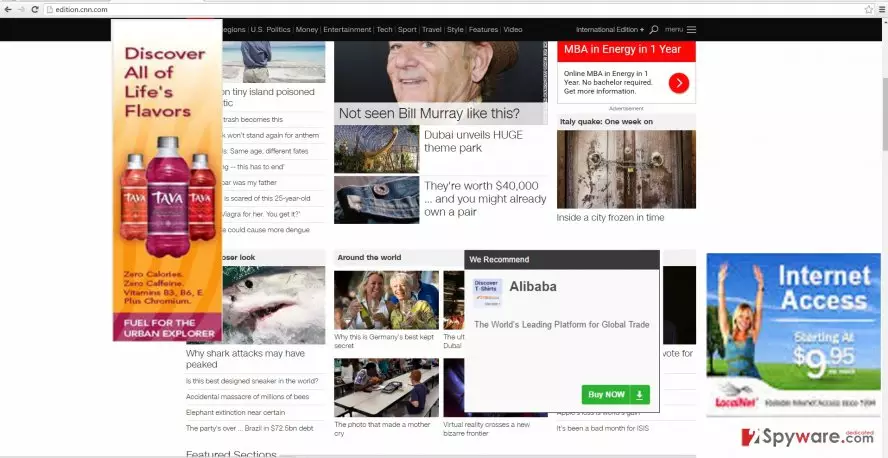
Additionally, the adware tends to collect information about your browsing peculiarities. Frequently visited domains and entries comprise the main target of this PUP. Such information is of great use and value for online advertising companies. If they obtain it, you might be targeted by a stream of ads, coupons and banners. However, excessive online advertising might make some users lose their patience. Lastly, there is no information whether such adware does not manipulate your personal information as well.
When did this adware invade my computer?
Such programs like this adware tend to employ “bundling” technique. Its main principle lies in pinning down the PUPs to freeware and shareware. It is a common mistake to skip long and installation instructions, not to mention terms of use or privacy policy. Unfortunately, due to this vice, the distribution of similar adware programs is on the rise. Likewise, Corner Sunshine hijack took place. Nonetheless, there are simple prevention means which block the PUPs the way into users’ computers. After launching the installation wizard, select “Advanced” mode. Locate all unnecessary add-ons and remove the checkmarks from them.
Remove the adware quickly and efficiently
You can choose from two options – automatic and manual Corner Sunshine removal. The guidelines necessary to implement the latter method are displayed below. Carefully go through each step not to miss any vital detail. Otherwise, Corner Sunshine virus might attempt to settle on the computer again. Keep in mind that the adware employs certain files and scripts and infects them in the browser. Therefore, it is essential to delete these files. In this case, some users might find it boring and bothersome to follow manual guidelines thoroughly. Alternatively, they can remove Corner Sunshine using an anti-spyware application. Update it and run the system scan.
Uninstall from Windows
Uninstall from Windows 10/8:
- Type Control Panel into the Windows search box and open the result.
- Under Programs, select Uninstall a program.


Uninstall from Windows 7/XP:
- Click on Windows Start > Control Panel (Windows XP users should click on Add/Remove Programs).
- In Control Panel, select Programs > Uninstall a program.


Remove the unwanted program:
- In the Programs and Features window, look for any recently installed suspicious entries, select them, and click Uninstall.
- If User Account Control appears, click Yes to confirm, then complete the removal.


Delete from macOS
Remove the unwanted application:
- From the menu bar, select Go > Applications.
- In the Applications folder, look for any suspicious entries, then drag them to Trash (or right-click and pick Move to Trash).


Delete leftover files and folders:
- Select Go > Go to Folder.
- Enter /Library/Application Support and remove any suspicious folders related to the unwanted program.
- Repeat the same check in the /Library/LaunchAgents and /Library/LaunchDaemons folders, deleting any suspicious entries.

- Finally, empty the Trash to permanently remove the leftovers.

Remove from Microsoft Edge
Delete unwanted extensions from MS Edge:
- Select Menu (three horizontal dots at the top-right of the browser window) and pick Extensions.
- From the list, pick the extension and click on the Gear icon.
- Click Remove.


Clear cookies and other browser data:
- Click on the Menu (three horizontal dots at the top-right of the browser window) and select Settings > Privacy, search, and services..
- Under Clear browsing data, pick Choose what to clear.
- Select Cookies and other site data and Cached images and files. (apart from passwords, although you might want to include Media licenses as well, if applicable) and click on Clear.


Restore new tab and homepage settings:
- Click the menu icon and choose Settings.
- Then find On startup section.
- Click Remove next to any suspicious startup page.
Reset MS Edge if the above steps did not work:
- Press on Ctrl + Shift + Esc to open Task Manager.
- Click on More details arrow at the bottom of the window.
- Select Details tab.
- Now scroll down and locate every entry with Microsoft Edge name in it. Right-click on each of them and select End Task to stop MS Edge from running.


Instructions for Chromium-based Edge
Delete extensions from MS Edge (Chromium):
- Open Edge and click select Settings > Extensions.
- Delete unwanted extensions by clicking Remove.


Clear cache and site data:
- Click on Menu and go to Settings.
- Select Privacy, search and services.
- Under Clear browsing data, pick Choose what to clear.
- Under Time range, pick All time.
- Select Clear now.


Reset Chromium-based MS Edge:
- Click on Menu and select Settings.
- On the left side, pick Reset settings.
- Select Restore settings to their default values.
- Confirm with Reset.
- This will disable extensions and reset startup pages but will not delete bookmarks, saved passwords, or browsing history.


Remove from Mozilla Firefox (FF)
Remove dangerous extensions:
- Open Mozilla Firefox browser and click on the Menu (three horizontal lines at the top-right of the window).
- Select Add-ons.
- In here, select the unwanted extension and click Remove.


Reset the homepage:
- Click three horizontal lines at the top right corner to open the menu.
- Choose Settings.
- Under Home, set your preferred homepage and new tab settings.
Clear cookies and site data:
- Click Menu and pick Settings.
- Go to Privacy & Security section.
- Scroll down to locate Cookies and Site Data.
- Click on Clear Data...
- Select Cookies and Site Data and Temporary cached files and pages, then click Clear.


Reset Mozilla Firefox
If clearing the browser as explained above did not help, reset Mozilla Firefox:
- Open Mozilla Firefox browser and click the Menu.
- Go to Help and then choose Troubleshooting Information.

- Under Give Firefox a tune up section, click on Refresh Firefox...
- Once the pop-up shows up, confirm the action by pressing on Refresh Firefox.



Remove from Google Chrome
Delete malicious extensions from Google Chrome:
- Open Google Chrome, click on the Menu (three vertical dots at the top-right corner) and select More tools > Extensions.
- In the newly opened window, you will see all the installed extensions. Uninstall all suspicious extensions related to the unwanted program by clicking Remove.


Clear cache and web data from Chrome:
- Click on Menu and pick Settings.
- Under Privacy and security, select Clear browsing data.
- Select Browsing history, Cookies and other site data, as well as Cached images and files.
- Click Clear data.


Change your homepage:
- Click menu and choose Settings.
- Look for a suspicious site in the On startup section.
- Click on Open a specific or set of pages and click on three dots to find the Remove option.
Reset Google Chrome:
If the previous methods did not help you, reset Google Chrome to eliminate all the unwanted components:
- Click on Menu and select Settings.
- In the Settings, scroll down and click Advanced.
- Scroll down and locate Reset and clean up section.
- Now click Restore settings to their original defaults.
- Confirm with Reset settings.


Delete from Safari
Remove dangerous extensions:
- Open Safari, click Safari in the menu at the top-left of the screen, and select Preferences.
- Go to the Extensions tab, look for any suspicious entries, and click Uninstall to remove them.


Clear history and website data:
- Click Safari in the menu and pick Clear History.
- Set Clear to all history and confirm with Clear History.


Reset Safari:
- Click Safari in the menu and select Preferences > Advanced.
- Enable Show Develop menu in menu bar.
- From the menu bar, click Develop and select Empty Caches.


Did this guide help?
2 comments
Maggie
Not only all corners, the entire screen is flooded with these annoying advertisements!
Jerry7O
Thats it. Im getting rid of this virus.