

Zumix.com – a potentially unwanted program that takes out enjoyment of the browsing
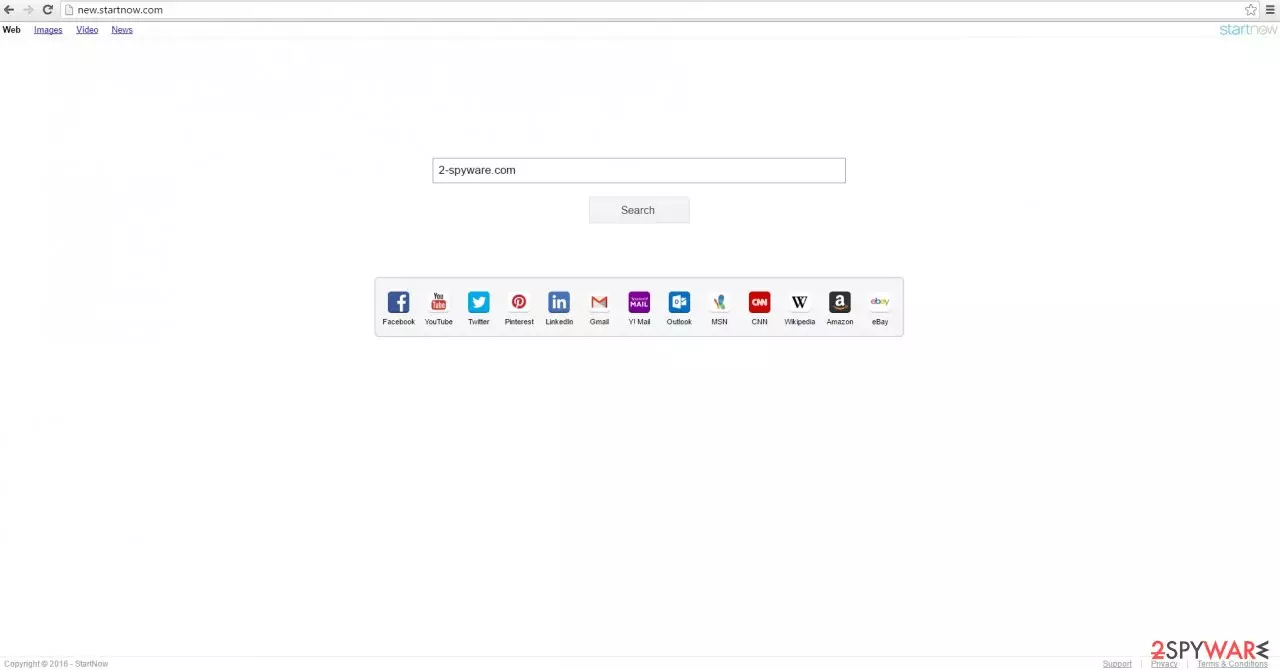
If you are being redirected to the new.startnow.com website every time you open your Google Chrome or another web browser, you have been infected with the Zumix.com browser hijacker. Likely, you have not noticed how this app entered your device. This is because potentially unwanted programs commonly use software bundling as the main distribution technique, allowing them to sneak in optional programs into users' machines unnoticed.
Once installed, your browser will no longer be the same – you will constantly be directed to an alternative search provider, and your search results will be filled with sponsored links and ads. While the app is not technically considered to be a virus, many people might believe it to be due to an unexpected appearance on the system.
| Name | Zumix.com |
|---|---|
| Type | Browser hijacker |
| Distribution | Software bundle packages, deceptive ads, fake update prompts |
| Symptoms | Homepage and new tab address altered; a customized search engine is appended to the homepage; altered search provider and search results, etc. |
| Risks | Installation of other potentially unwanted programs, privacy issues |
| Removal | You can uninstall potentially unwanted programs by following the manual guide below or by scanning the computer with anti-malware software |
| Optional steps | Computer infections can cause significant damage to system files or disrupt normal settings. To revert these changes and remediate the OS, perform a full system scan with FortectIntego repair |
The owners might have created such diversion in order to attract more potential users. However, when you noticed that this browsing tool had hijacked your browser, it is time to remove this app. The longer you keep it on the system, the more troublesome your browsing might become.
In other words, the hijacker might not provide such relevant search results as you expect. What is more, occasionally popping messages distract attention and affect the overall browsing speed as well. In short, make Zumix.com removal your top priority. SpyHunterCombo Cleaner helps you get rid of the hijacker and all its components more quickly.
Although, you can also get rid of potentially unwanted programs manually. Here's how to do that on Windows platforms (note: this method only works for programs that have been installed on the system):
- Type Control Panel into Windows search and hit Enter.
- Under Programs, select Uninstall a program.
- From the list, find the entry of the suspicious program.
- Right-click on the application and select Uninstall.
- If User Account Control shows up, click Yes.

- Wait till uninstallation process is complete and click OK.

It is important to note that browser hijackers might also be present on macOS systems. If you are using a Mac and are suffering from this virus, proceed with the following:
- From the menu bar, select Go > Applications.
- In the Applications folder, look for all related entries.
- Click on the app and drag it to Trash (or right-click and pick Move to Trash)


To fully remove an unwanted app, you need to access Application Support, LaunchAgents, and LaunchDaemons folders and delete relevant files:
- Select Go > Go to Folder.
- Enter /Library/Application Support and click Go or press Enter.
- In the Application Support folder, look for any dubious entries and then delete them.
- Now enter /Library/LaunchAgents and /Library/LaunchDaemons folders the same way and terminate all the related .plist files.


If you are not familiar with a category of browser hijackers, you may not know of their tendency to mislead you to sponsored websites. This PUP is no exception. Redirect issues become a troublesome phenomenon when you get redirected to another website rather than to the wanted one. What is more, these domains happen to be of gambling, gaming, or pornographic origin.
Usually, the latter websites are targeted by hackers. They often place their viruses there. As a result, if you are too curious and start clicking on the links which supposedly lead you to an intriguing article or video, you might get a full bouquet of viruses. As a result, you will need to sacrifice your time and energy to eliminate the severe consequences of the hijack.
Furthermore, the hijacker may not provide you such search results as you expect. In other words, the hijacker applies a certain “filter.” Due to it, you might be seeing more search results that direct to advertising websites rather than to the objective web pages. Contrary to this, a reliable search engine does not possess such features. Thus, it is a perfect reason to get rid of the hijacker.
Keep in mind that sometimes, the hijacker might be hiding in your browser. To eliminate it from there, you have to clean tour browsers accordingly. Follow the full instructions for each of the browsers below or simply employ a PC repair and privacy tool FortectIntego.
Be more attentive when installing freeware from the internet
You might get surprised after finding out that you installed the hijacker by yourself. The unexpected PUP appearance took place when you launched the installation wizard of a recently downloaded free application. Therefore, out of habit, you ran through the stages without noticing the attachment of this hijacker. By clicking the “Install” button, you paved the way for the browsing tool to enter your operating system successfully.
If you are willing to escape the fate of getting infected again, remember this piece of advice we are about to give you. After starting the installation of a new program, choose “Advanced” mode. It will disclose all optional programs. Only when you are sure that no possibly malicious programs enter your system continue installing your primary application.
Eliminate the hijacker and other unwanted apps
You can easily remove Zumix.com by running the security application. We recommend installing an anti-spyware program. It is specifically created for detecting and terminated every sort of PUPs. It is a perfect tool to deal with the virus as well. In addition, if you update the software daily, you can be sure that your computer will be protected from more complex and severe cyber threats as well.
Alternatively, perform manual Zumix.com removal. It is of primary importance to delete all files related to the hijacker to leave any system vulnerabilities for the hijacker to occupy your computer in the future. Since we already discussed how to remove programs, below you will find ways to clean your web browsers properly.
Remove from Microsoft Edge
Delete unwanted extensions from MS Edge:
- Select Menu (three horizontal dots at the top-right of the browser window) and pick Extensions.
- From the list, pick the extension and click on the Gear icon.
- Click Remove.


Clear cookies and other browser data:
- Click on the Menu (three horizontal dots at the top-right of the browser window) and select Settings > Privacy, search, and services..
- Under Clear browsing data, pick Choose what to clear.
- Select Cookies and other site data and Cached images and files. (apart from passwords, although you might want to include Media licenses as well, if applicable) and click on Clear.


Restore new tab and homepage settings:
- Click the menu icon and choose Settings.
- Then find On startup section.
- Click Remove next to any suspicious startup page.
Reset MS Edge if the above steps did not work:
- Press on Ctrl + Shift + Esc to open Task Manager.
- Click on More details arrow at the bottom of the window.
- Select Details tab.
- Now scroll down and locate every entry with Microsoft Edge name in it. Right-click on each of them and select End Task to stop MS Edge from running.


Instructions for Chromium-based Edge
Delete extensions from MS Edge (Chromium):
- Open Edge and click select Settings > Extensions.
- Delete unwanted extensions by clicking Remove.


Clear cache and site data:
- Click on Menu and go to Settings.
- Select Privacy, search and services.
- Under Clear browsing data, pick Choose what to clear.
- Under Time range, pick All time.
- Select Clear now.


Reset Chromium-based MS Edge:
- Click on Menu and select Settings.
- On the left side, pick Reset settings.
- Select Restore settings to their default values.
- Confirm with Reset.
- This will disable extensions and reset startup pages but will not delete bookmarks, saved passwords, or browsing history.


Remove from Mozilla Firefox (FF)
Remove dangerous extensions:
- Open Mozilla Firefox browser and click on the Menu (three horizontal lines at the top-right of the window).
- Select Add-ons.
- In here, select the unwanted extension and click Remove.


Reset the homepage:
- Click three horizontal lines at the top right corner to open the menu.
- Choose Settings.
- Under Home, set your preferred homepage and new tab settings.
Clear cookies and site data:
- Click Menu and pick Settings.
- Go to Privacy & Security section.
- Scroll down to locate Cookies and Site Data.
- Click on Clear Data...
- Select Cookies and Site Data and Temporary cached files and pages, then click Clear.


Reset Mozilla Firefox
If clearing the browser as explained above did not help, reset Mozilla Firefox:
- Open Mozilla Firefox browser and click the Menu.
- Go to Help and then choose Troubleshooting Information.

- Under Give Firefox a tune up section, click on Refresh Firefox...
- Once the pop-up shows up, confirm the action by pressing on Refresh Firefox.



Remove from Google Chrome
Delete malicious extensions from Google Chrome:
- Open Google Chrome, click on the Menu (three vertical dots at the top-right corner) and select More tools > Extensions.
- In the newly opened window, you will see all the installed extensions. Uninstall all suspicious extensions related to the unwanted program by clicking Remove.


Clear cache and web data from Chrome:
- Click on Menu and pick Settings.
- Under Privacy and security, select Clear browsing data.
- Select Browsing history, Cookies and other site data, as well as Cached images and files.
- Click Clear data.


Change your homepage:
- Click menu and choose Settings.
- Look for a suspicious site in the On startup section.
- Click on Open a specific or set of pages and click on three dots to find the Remove option.
Reset Google Chrome:
If the previous methods did not help you, reset Google Chrome to eliminate all the unwanted components:
- Click on Menu and select Settings.
- In the Settings, scroll down and click Advanced.
- Scroll down and locate Reset and clean up section.
- Now click Restore settings to their original defaults.
- Confirm with Reset settings.


Delete from Safari
Remove dangerous extensions:
- Open Safari, click Safari in the menu at the top-left of the screen, and select Preferences.
- Go to the Extensions tab, look for any suspicious entries, and click Uninstall to remove them.


Clear history and website data:
- Click Safari in the menu and pick Clear History.
- Set Clear to all history and confirm with Clear History.


Reset Safari:
- Click Safari in the menu and select Preferences > Advanced.
- Enable Show Develop menu in menu bar.
- From the menu bar, click Develop and select Empty Caches.


Did this guide help?
2 comments
jayD
Again newstartnow.com hijacker?
Lizzy
Manual method worked for me.