

Why should you keep your computer free of Outfire Browser virus?
Typically, Outfire Browser virus gets inside victim’s computer with the help of Mutabaha Trojan. Outfire Browser is Chromium-based and hardly differs from the real and legitimate browser. Well, of course, only from the first sight. In reality, it is a highly dangerous computer parasite designed to display advertisements on user’s screen and integrate them into websites that he or she enters. Outfire Browser hijack happens when the previously mentioned Trojan installs a malware dropper on the compromised computer system and a Windows Batch (BAT) file. Once the malware dropper installs the bogus web browser, the BAT file removes the malware dropper from the system, concealing signs of its existence.
Outfire Browser adware assigns itself to Startup programs and launches on Windows startup. It removes real Google Chrome shortcuts from user’s desktop and start menu, replacing them with its own ones. Of course, these shortcuts are designed to pose as real Chrome shortcuts, but of course, they are not. The first sign indicating that your system has been hijacked by this potentially unwanted program (PUP) is OurStartPage.com homepage, which appears on the fake Chrome browser’s startup. If this web page featuring a search engine shows up in your browser, do not ignore this signs and scan your computer system using FortectIntego or similar software to detect and remove Outfire Browser malware.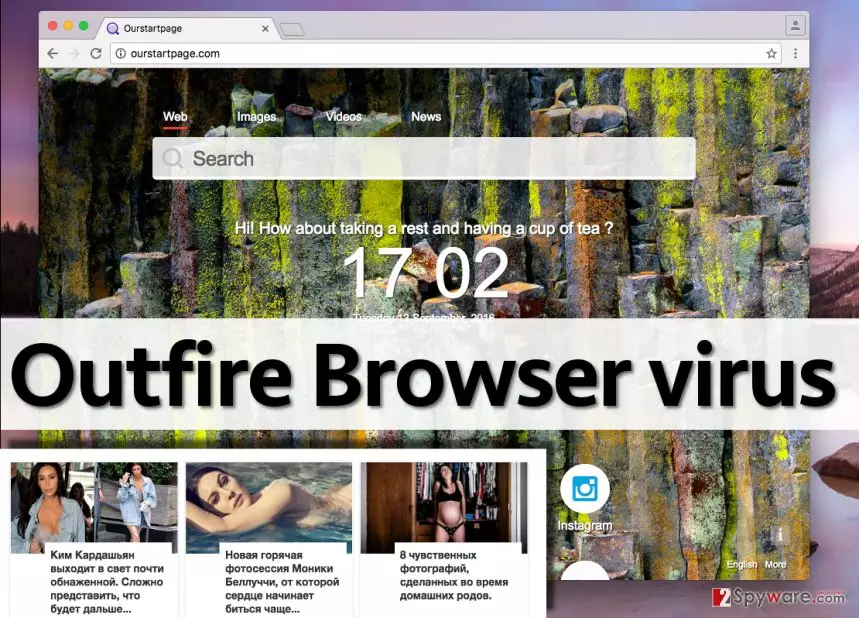
As we have mentioned, this fake browser incorporates web ads, which, needless to say, can be dangerous. Clicking on them might open untrustworthy Internet sites filled with questionable content. It goes without saying that Outfire Browser ads are no regular ads and that they cannot be trusted. Be aware of the truth that this fake web browser tracks your activity online while you use it, including your search queries, downloads, browsing history, and similar information, which helps it to select targeted advertisements for you. Beware of these catchy-looking ads, or they might transfer you to potentially dangerous places on the Internet. That is why we suggest you to complete Outfire Browser removal without a doubt.
How to protect your computer from Outfire Browser hijack?
We have already mentioned that Outfire Browser hijack occurs due to Mutabaha Trojan. Beware of this malicious infection because it is capable of installing even more malware on your system! This Trojan might slither into the system after carelessly installing untrustworthy programs or after downloading bogus software updates (which are actively advertised via various shady third-party sites). Remember – install only trustworthy programs and updates, which can be found on verified and secure websites. It would be the best to install software only from websites that belong to official software developers. Please, do not be tempted by free downloads presented on shady websites – such downloads are frequently bundled with untrustworthy or even dangerous files. If you have already installed this adware on the system and don’t know how to uninstall it, then continue reading the information provided below.
Outfire Browser removal instructions
Please keep your computer protected and remove Outfire Browser virus from it. Keeping this fake web browser leaves a big security hole in your PC system, which can become the path allowing other cyber threats to infiltrate the computer system. We recommend you to carry out Outfire Browser removal using automatic malware removal software, because you have to check if the Mutabaha Trojan horse hasn’t brought any additional malware to your
PC. However, we still provide manual removal instructions that might help you to remove this fake Internet browser. Please complete the removal procedure automatically if you cannot delete it manually.
Uninstall from Windows
Uninstall from Windows 10/8:
- Type Control Panel into the Windows search box and open the result.
- Under Programs, select Uninstall a program.


Uninstall from Windows 7/XP:
- Click on Windows Start > Control Panel (Windows XP users should click on Add/Remove Programs).
- In Control Panel, select Programs > Uninstall a program.


Remove the unwanted program:
- In the Programs and Features window, look for any recently installed suspicious entries, select them, and click Uninstall.
- If User Account Control appears, click Yes to confirm, then complete the removal.


Delete from macOS
Remove the unwanted application:
- From the menu bar, select Go > Applications.
- In the Applications folder, look for any suspicious entries, then drag them to Trash (or right-click and pick Move to Trash).


Delete leftover files and folders:
- Select Go > Go to Folder.
- Enter /Library/Application Support and remove any suspicious folders related to the unwanted program.
- Repeat the same check in the /Library/LaunchAgents and /Library/LaunchDaemons folders, deleting any suspicious entries.

- Finally, empty the Trash to permanently remove the leftovers.

Remove from Microsoft Edge
Delete unwanted extensions from MS Edge:
- Select Menu (three horizontal dots at the top-right of the browser window) and pick Extensions.
- From the list, pick the extension and click on the Gear icon.
- Click Remove.


Clear cookies and other browser data:
- Click on the Menu (three horizontal dots at the top-right of the browser window) and select Settings > Privacy, search, and services..
- Under Clear browsing data, pick Choose what to clear.
- Select Cookies and other site data and Cached images and files. (apart from passwords, although you might want to include Media licenses as well, if applicable) and click on Clear.


Restore new tab and homepage settings:
- Click the menu icon and choose Settings.
- Then find On startup section.
- Click Remove next to any suspicious startup page.
Reset MS Edge if the above steps did not work:
- Press on Ctrl + Shift + Esc to open Task Manager.
- Click on More details arrow at the bottom of the window.
- Select Details tab.
- Now scroll down and locate every entry with Microsoft Edge name in it. Right-click on each of them and select End Task to stop MS Edge from running.


Instructions for Chromium-based Edge
Delete extensions from MS Edge (Chromium):
- Open Edge and click select Settings > Extensions.
- Delete unwanted extensions by clicking Remove.


Clear cache and site data:
- Click on Menu and go to Settings.
- Select Privacy, search and services.
- Under Clear browsing data, pick Choose what to clear.
- Under Time range, pick All time.
- Select Clear now.


Reset Chromium-based MS Edge:
- Click on Menu and select Settings.
- On the left side, pick Reset settings.
- Select Restore settings to their default values.
- Confirm with Reset.
- This will disable extensions and reset startup pages but will not delete bookmarks, saved passwords, or browsing history.


Remove from Mozilla Firefox (FF)
Remove dangerous extensions:
- Open Mozilla Firefox browser and click on the Menu (three horizontal lines at the top-right of the window).
- Select Add-ons.
- In here, select the unwanted extension and click Remove.


Reset the homepage:
- Click three horizontal lines at the top right corner to open the menu.
- Choose Settings.
- Under Home, set your preferred homepage and new tab settings.
Clear cookies and site data:
- Click Menu and pick Settings.
- Go to Privacy & Security section.
- Scroll down to locate Cookies and Site Data.
- Click on Clear Data...
- Select Cookies and Site Data and Temporary cached files and pages, then click Clear.


Reset Mozilla Firefox
If clearing the browser as explained above did not help, reset Mozilla Firefox:
- Open Mozilla Firefox browser and click the Menu.
- Go to Help and then choose Troubleshooting Information.

- Under Give Firefox a tune up section, click on Refresh Firefox...
- Once the pop-up shows up, confirm the action by pressing on Refresh Firefox.



Remove from Google Chrome
Delete malicious extensions from Google Chrome:
- Open Google Chrome, click on the Menu (three vertical dots at the top-right corner) and select More tools > Extensions.
- In the newly opened window, you will see all the installed extensions. Uninstall all suspicious extensions related to the unwanted program by clicking Remove.


Clear cache and web data from Chrome:
- Click on Menu and pick Settings.
- Under Privacy and security, select Clear browsing data.
- Select Browsing history, Cookies and other site data, as well as Cached images and files.
- Click Clear data.


Change your homepage:
- Click menu and choose Settings.
- Look for a suspicious site in the On startup section.
- Click on Open a specific or set of pages and click on three dots to find the Remove option.
Reset Google Chrome:
If the previous methods did not help you, reset Google Chrome to eliminate all the unwanted components:
- Click on Menu and select Settings.
- In the Settings, scroll down and click Advanced.
- Scroll down and locate Reset and clean up section.
- Now click Restore settings to their original defaults.
- Confirm with Reset settings.


Delete from Safari
Remove dangerous extensions:
- Open Safari, click Safari in the menu at the top-left of the screen, and select Preferences.
- Go to the Extensions tab, look for any suspicious entries, and click Uninstall to remove them.


Clear history and website data:
- Click Safari in the menu and pick Clear History.
- Set Clear to all history and confirm with Clear History.


Reset Safari:
- Click Safari in the menu and select Preferences > Advanced.
- Enable Show Develop menu in menu bar.
- From the menu bar, click Develop and select Empty Caches.


Did this guide help?
4 comments
Ronald
Thats scary - I have seen ads showing up when I use chrome. I believe i gotta scan my pc now!
adam
My malware removal software has just detected and removed both Trojan and this outfire browser.
Hazey3
My computer is infected with this $%#!!!!!
Alexander24
AAntivirus just discovered Mutabaha for me. I wonder if it can detect this browser too