

Reasons to stay away from Search.searchmmap.com search engine
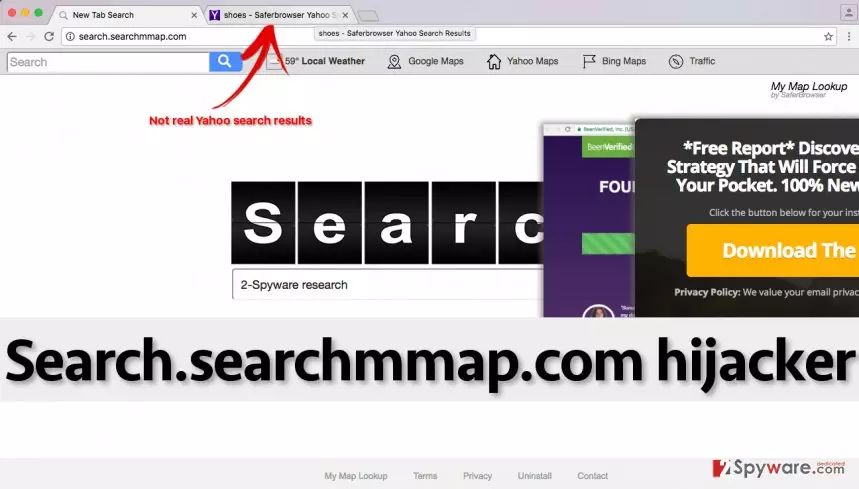
Search.searchmmap.com virus can change your homepage settings without asking for your permission first, and considerably influence the quality of Internet browsing. It adds My Map Lookup extension to user’s browsers, too, and this tool helps to collect information about user’s web browsing habits and decisions, including search queries, downloads, bookmarks, clicks on ads, browsing history, and similar information. Although it claims to be collecting this information purely for market research purpose, it might share this data with third-parties to select targeted advertisements and display them to you. If you think that by doing so this program seeks to serve you relevant content and meet your needs, you are mistaken. The only purpose of such activity is to convince you to click on affiliate links and generate pay-per-click revenue for authors of this hijacker. This tool is yet another product by Safer Browser, an untrustworthy company that keeps releasing new browser hijackers weekly. Almost every program it creates claims to be a useful and beneficial application, which in reality does nothing but changes user’s homepage with some suspicious search engine that presents a few theme-related shortcuts above it.
Sadly, search results brought by these vague search engines are often forged and contain highly dangerous links, pointing to questionable websites. You might discover links on sides of the search results asking to visit various websites, but beware of Search.searchmmap.com redirect problem, which can unexpectedly make you visit dangerous sites. You might be asked to install additional software or provide your personal information, so be careful. Bypass such offers if you do not wish to disclose your sensitive data to untrustworthy sources or install a potentially dangerous program. If you do not want to deal with these inconveniences and if you want to keep your computer nice and clean, remove Search.searchmmap.com redirect virus from it. For that, you ought to use the FortectIntego software. Although we do not advise doing so, you can try to uninstall it manually, too.
How did Search.searchmmap.com hijack your PC?
Many people are interested to find out how does Search.searchmmap.com hijack computer systems. There are several different ways how this unpleasant program can get access to your computer. It can be installed along Safer Browser virus or come together with another free program, or just be downloaded from the Internet directly. However, research shows that usually computer users infect their devices with potentially unwanted programs after installing a concealed software pack, which seems to be a single program at first sight. That is why we always recommend our readers to check if the software contains any additional files or not by opening “Advanced” or “Custom” software setup settings and adjusting its components manually. If you decide to choose auto-selected options, you risk installing unwanted programs like adware or browser hijackers.
How does one remove Search.searchmmap.com?
If this browser hijacker has already infected your device, wait no more and delete it from there. Do not let it reside on the system and collect personally non-identifiable data about you; otherwise, it might try to trick you into visiting insecure websites and encounter various dangers on the Internet. If you do not want to see sponsored third-party links mixed with regular search results, avoid search tools produced by Safer Browser. To complete Search.searchmmap.com removal, scan your PC with anti-spyware software or follow instructions provided below.
Uninstall from Windows
Uninstall from Windows 10/8:
- Type Control Panel into the Windows search box and open the result.
- Under Programs, select Uninstall a program.


Uninstall from Windows 7/XP:
- Click on Windows Start > Control Panel (Windows XP users should click on Add/Remove Programs).
- In Control Panel, select Programs > Uninstall a program.


Remove the unwanted program:
- In the Programs and Features window, look for any recently installed suspicious entries, select them, and click Uninstall.
- If User Account Control appears, click Yes to confirm, then complete the removal.


Delete from macOS
Remove the unwanted application:
- From the menu bar, select Go > Applications.
- In the Applications folder, look for any suspicious entries, then drag them to Trash (or right-click and pick Move to Trash).


Delete leftover files and folders:
- Select Go > Go to Folder.
- Enter /Library/Application Support and remove any suspicious folders related to the unwanted program.
- Repeat the same check in the /Library/LaunchAgents and /Library/LaunchDaemons folders, deleting any suspicious entries.

- Finally, empty the Trash to permanently remove the leftovers.

Reset Internet Explorer
Remove dangerous add-ons:
- Open Internet Explorer, click on the Gear icon (IE menu) on the top-right corner of the browser
- Pick Manage Add-ons.
- You will see a Manage Add-ons window. Here, look for suspicious plugins. Click on these entries and select Disable.


Change your homepage if it was altered:
- Open IE and click on the Gear icon.
- Select Internet Options.
- In the General tab, delete the Home page address and replace it by your preferred one (for example, Google.com).
- Click Apply and then select OK.


Delete temporary files:
- Press on the Gear icon and select Internet Options.
- Under Browsing history, click Delete...
- Select relevant fields and press Delete.


Reset Internet Explorer:
- Click on Gear icon > Internet options and select Advanced tab.
- Select Reset.
- In the new window, check Delete personal settings and select Reset.


Remove from Microsoft Edge
Delete unwanted extensions from MS Edge:
- Select Menu (three horizontal dots at the top-right of the browser window) and pick Extensions.
- From the list, pick the extension and click on the Gear icon.
- Click Remove.


Clear cookies and other browser data:
- Click on the Menu (three horizontal dots at the top-right of the browser window) and select Settings > Privacy, search, and services..
- Under Clear browsing data, pick Choose what to clear.
- Select Cookies and other site data and Cached images and files. (apart from passwords, although you might want to include Media licenses as well, if applicable) and click on Clear.


Restore new tab and homepage settings:
- Click the menu icon and choose Settings.
- Then find On startup section.
- Click Remove next to any suspicious startup page.
Reset MS Edge if the above steps did not work:
- Press on Ctrl + Shift + Esc to open Task Manager.
- Click on More details arrow at the bottom of the window.
- Select Details tab.
- Now scroll down and locate every entry with Microsoft Edge name in it. Right-click on each of them and select End Task to stop MS Edge from running.


Instructions for Chromium-based Edge
Delete extensions from MS Edge (Chromium):
- Open Edge and click select Settings > Extensions.
- Delete unwanted extensions by clicking Remove.


Clear cache and site data:
- Click on Menu and go to Settings.
- Select Privacy, search and services.
- Under Clear browsing data, pick Choose what to clear.
- Under Time range, pick All time.
- Select Clear now.


Reset Chromium-based MS Edge:
- Click on Menu and select Settings.
- On the left side, pick Reset settings.
- Select Restore settings to their default values.
- Confirm with Reset.
- This will disable extensions and reset startup pages but will not delete bookmarks, saved passwords, or browsing history.


Remove from Mozilla Firefox (FF)
Remove dangerous extensions:
- Open Mozilla Firefox browser and click on the Menu (three horizontal lines at the top-right of the window).
- Select Add-ons.
- In here, select the unwanted extension and click Remove.


Reset the homepage:
- Click three horizontal lines at the top right corner to open the menu.
- Choose Settings.
- Under Home, set your preferred homepage and new tab settings.
Clear cookies and site data:
- Click Menu and pick Settings.
- Go to Privacy & Security section.
- Scroll down to locate Cookies and Site Data.
- Click on Clear Data...
- Select Cookies and Site Data and Temporary cached files and pages, then click Clear.


Reset Mozilla Firefox
If clearing the browser as explained above did not help, reset Mozilla Firefox:
- Open Mozilla Firefox browser and click the Menu.
- Go to Help and then choose Troubleshooting Information.

- Under Give Firefox a tune up section, click on Refresh Firefox...
- Once the pop-up shows up, confirm the action by pressing on Refresh Firefox.



Remove from Google Chrome
Delete malicious extensions from Google Chrome:
- Open Google Chrome, click on the Menu (three vertical dots at the top-right corner) and select More tools > Extensions.
- In the newly opened window, you will see all the installed extensions. Uninstall all suspicious extensions related to the unwanted program by clicking Remove.


Clear cache and web data from Chrome:
- Click on Menu and pick Settings.
- Under Privacy and security, select Clear browsing data.
- Select Browsing history, Cookies and other site data, as well as Cached images and files.
- Click Clear data.


Change your homepage:
- Click menu and choose Settings.
- Look for a suspicious site in the On startup section.
- Click on Open a specific or set of pages and click on three dots to find the Remove option.
Reset Google Chrome:
If the previous methods did not help you, reset Google Chrome to eliminate all the unwanted components:
- Click on Menu and select Settings.
- In the Settings, scroll down and click Advanced.
- Scroll down and locate Reset and clean up section.
- Now click Restore settings to their original defaults.
- Confirm with Reset settings.


Delete from Safari
Remove dangerous extensions:
- Open Safari, click Safari in the menu at the top-left of the screen, and select Preferences.
- Go to the Extensions tab, look for any suspicious entries, and click Uninstall to remove them.


Clear history and website data:
- Click Safari in the menu and pick Clear History.
- Set Clear to all history and confirm with Clear History.


Reset Safari:
- Click Safari in the menu and select Preferences > Advanced.
- Enable Show Develop menu in menu bar.
- From the menu bar, click Develop and select Empty Caches.


Did this guide help?
4 comments
Mirgaeva
I couldnt remove this virus for so long! Thanks for saving me!
royal20
Hope this virus never comes back... i really hope
Hillbert
My dad installed this and asked me to fix the computer. This tutorial was helpful, I have to say! I pretended that I know how to fix computers, but my secret is that this tutorial actually helped me to do it lol:)
Dani
Im so happy that Ive got rid of this hijacker!