

What should you do when you see “Update required” notifications?
Update required virus tries to convince you that important applications of your device require an update. On top of that, in order for the update process to go smooth, they offer the help of technical support specialists. Nonetheless, can trust such alerts or are they another hoax? In this article, you will not only find out how to remove “Update required” threat but also get acquainted how such applications function. In fact, these alerts are generated by the adware which sneaked into your computer a while ago. We recommend starting “Update required” removal because the PUP might install other questionable applications. One of the methods to terminate the malware is to run FortectIntego.
Automatic application updates relieve your life from having to waste time on manually managing applications. In this manner, you might get used to the running applications in the background minding their own business. However, when the matter comes to adware application, things get a bit different. Adware type programs might have managed to sneak into your computer without notice, but they are still limited in their capabilities. Thus, in order to take full control, they need your permission in certain stages of operation. Likewise, this malware works in the same manner. After the infiltration, it starts displaying various alerts. These Update Required ads do not only misinform you of falsely outdated software, but they tend to misguide you to potentially malevolent websites. If you take too long there, you risk getting infected with a virus. It is often the case that the redirect websites crammed with ads and suspicious links bear hidden unpleasant surprises – malware. Therefore, “Update required” redirect might become quite an irritating issue.
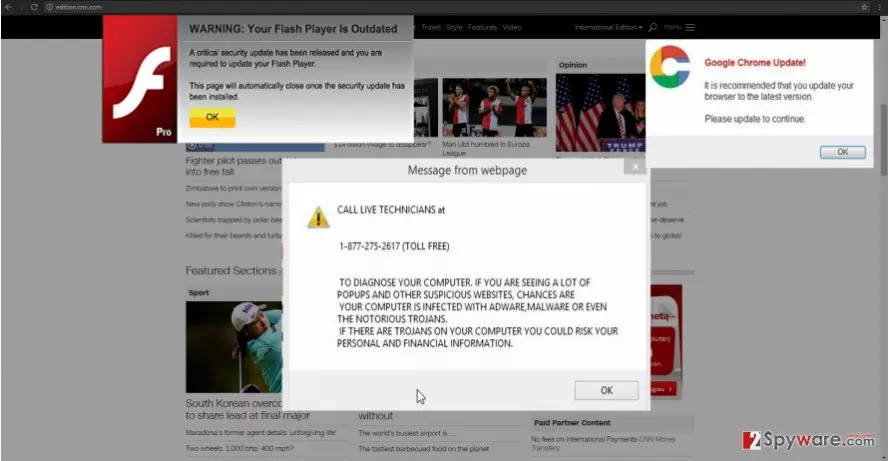
However, the distinctive feature of this adware is that it tends to persuade you into calling a technical support specialist. In reality, he or she is none other than a crook attempting to palm you off a supposed malware removal utility or software updater. There is also a possibility that you might install a malevolent update. It might either malfunction or drag along other suspicious tools into your system.
When did I encounter the adware?
For your bewilderment, Update required hijack took place when you were installing a new application. It is common knowledge that the majority of virtual community rushes through the stages ignoring possible add-ons. Consequently, any PUP which disguises under “Basic” settings successfully enters the operating system. Likewise, we recommend several steps how to escape this annoying malware. Make sure you download applications from their original sources. However, if you do so, you still cannot let your guard until the installation is not complete. After initiating the guide, choose “Custom” settings. They will reveal optional PUPs. Only when you unmark them, continue with the process.
“Update required” elimination instructions
Though the adware itself might not have an independent application, it is still not difficult to terminate it. However, regarding the latter peculiarity, the automatic Update required removal might be a better solution. Install an anti-spyware application and then run the scan. You can be sure that it will remove Update required virus quickly and effectively. In addition, you can check manual guidelines. After going through the steps, you will ensure that the malware is completely terminated.
Uninstall from Windows
Uninstall from Windows 10/8:
- Type Control Panel into the Windows search box and open the result.
- Under Programs, select Uninstall a program.


Uninstall from Windows 7/XP:
- Click on Windows Start > Control Panel (Windows XP users should click on Add/Remove Programs).
- In Control Panel, select Programs > Uninstall a program.


Remove the unwanted program:
- In the Programs and Features window, look for any recently installed suspicious entries, select them, and click Uninstall.
- If User Account Control appears, click Yes to confirm, then complete the removal.


Delete from macOS
Remove the unwanted application:
- From the menu bar, select Go > Applications.
- In the Applications folder, look for any suspicious entries, then drag them to Trash (or right-click and pick Move to Trash).


Delete leftover files and folders:
- Select Go > Go to Folder.
- Enter /Library/Application Support and remove any suspicious folders related to the unwanted program.
- Repeat the same check in the /Library/LaunchAgents and /Library/LaunchDaemons folders, deleting any suspicious entries.

- Finally, empty the Trash to permanently remove the leftovers.

Remove from Microsoft Edge
Delete unwanted extensions from MS Edge:
- Select Menu (three horizontal dots at the top-right of the browser window) and pick Extensions.
- From the list, pick the extension and click on the Gear icon.
- Click Remove.


Clear cookies and other browser data:
- Click on the Menu (three horizontal dots at the top-right of the browser window) and select Settings > Privacy, search, and services..
- Under Clear browsing data, pick Choose what to clear.
- Select Cookies and other site data and Cached images and files. (apart from passwords, although you might want to include Media licenses as well, if applicable) and click on Clear.


Restore new tab and homepage settings:
- Click the menu icon and choose Settings.
- Then find On startup section.
- Click Remove next to any suspicious startup page.
Reset MS Edge if the above steps did not work:
- Press on Ctrl + Shift + Esc to open Task Manager.
- Click on More details arrow at the bottom of the window.
- Select Details tab.
- Now scroll down and locate every entry with Microsoft Edge name in it. Right-click on each of them and select End Task to stop MS Edge from running.


Instructions for Chromium-based Edge
Delete extensions from MS Edge (Chromium):
- Open Edge and click select Settings > Extensions.
- Delete unwanted extensions by clicking Remove.


Clear cache and site data:
- Click on Menu and go to Settings.
- Select Privacy, search and services.
- Under Clear browsing data, pick Choose what to clear.
- Under Time range, pick All time.
- Select Clear now.


Reset Chromium-based MS Edge:
- Click on Menu and select Settings.
- On the left side, pick Reset settings.
- Select Restore settings to their default values.
- Confirm with Reset.
- This will disable extensions and reset startup pages but will not delete bookmarks, saved passwords, or browsing history.


Remove from Mozilla Firefox (FF)
Remove dangerous extensions:
- Open Mozilla Firefox browser and click on the Menu (three horizontal lines at the top-right of the window).
- Select Add-ons.
- In here, select the unwanted extension and click Remove.


Reset the homepage:
- Click three horizontal lines at the top right corner to open the menu.
- Choose Settings.
- Under Home, set your preferred homepage and new tab settings.
Clear cookies and site data:
- Click Menu and pick Settings.
- Go to Privacy & Security section.
- Scroll down to locate Cookies and Site Data.
- Click on Clear Data...
- Select Cookies and Site Data and Temporary cached files and pages, then click Clear.


Reset Mozilla Firefox
If clearing the browser as explained above did not help, reset Mozilla Firefox:
- Open Mozilla Firefox browser and click the Menu.
- Go to Help and then choose Troubleshooting Information.

- Under Give Firefox a tune up section, click on Refresh Firefox...
- Once the pop-up shows up, confirm the action by pressing on Refresh Firefox.



Remove from Google Chrome
Delete malicious extensions from Google Chrome:
- Open Google Chrome, click on the Menu (three vertical dots at the top-right corner) and select More tools > Extensions.
- In the newly opened window, you will see all the installed extensions. Uninstall all suspicious extensions related to the unwanted program by clicking Remove.


Clear cache and web data from Chrome:
- Click on Menu and pick Settings.
- Under Privacy and security, select Clear browsing data.
- Select Browsing history, Cookies and other site data, as well as Cached images and files.
- Click Clear data.


Change your homepage:
- Click menu and choose Settings.
- Look for a suspicious site in the On startup section.
- Click on Open a specific or set of pages and click on three dots to find the Remove option.
Reset Google Chrome:
If the previous methods did not help you, reset Google Chrome to eliminate all the unwanted components:
- Click on Menu and select Settings.
- In the Settings, scroll down and click Advanced.
- Scroll down and locate Reset and clean up section.
- Now click Restore settings to their original defaults.
- Confirm with Reset settings.


Delete from Safari
Remove dangerous extensions:
- Open Safari, click Safari in the menu at the top-left of the screen, and select Preferences.
- Go to the Extensions tab, look for any suspicious entries, and click Uninstall to remove them.


Clear history and website data:
- Click Safari in the menu and pick Clear History.
- Set Clear to all history and confirm with Clear History.


Reset Safari:
- Click Safari in the menu and select Preferences > Advanced.
- Enable Show Develop menu in menu bar.
- From the menu bar, click Develop and select Empty Caches.


Did this guide help?
2 comments
PhillipReeves
The hackers are getting more persuasive..damn..
Jeany
Now you need to waste time juts to make sure whether these notifications are real or not...