

Why is it not advisable to keep Statliru1.ru as your default search engine?
Statliru1.ru virus is a malware program, in particular, a browser hijacker which primarily infects Windows operating systems. The virus focuses on Edge, Chrome, IE and Mozilla Firefox browsers, but may as well attack less popular web engines under the right conditions. Statliru1 is undoubtedly a member of probably the most annoying potentially unwanted program category. Browser hijackers are known for aggressive advertising and are quite difficult to get rid of. Besides, we should also mention that the users rarely notice the initial Statliru1.ru hijack, so it might as well be that you are already infected with this parasite but don’t know it yet. In this article, we will discuss the common malware infection indicators and provide several Statliru1.ru removal options.
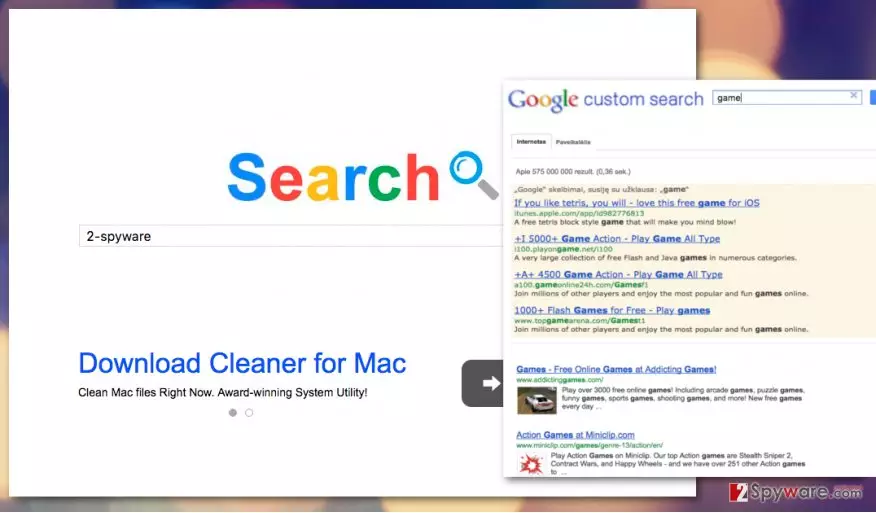
First and the most obvious impact the Statliru1.ru malware makes on the infected computers can be seen by opening the Internet browser. Instead of your regular homepage and search site, you probably will be seeing an unfamiliar domain which looks a lot like Google. Instead of this well-known brand name the hijacker website shows “Search” in the same colorful letters and similar design. It is not wonder that many people mistake it for the legitimate search provider and continue using it even if the search results start to look a bit off. This leads us to another indicator of malware attack — an ad-filled online content. If you are not interested in online shopping and generally use your Internet browser just to check emails or read some daily news, the constant exposure to ads and other sponsored content will make even these basic activities almost impossible. The advertisements may fill your whole screen and obstruct you from viewing the page content. Laggy browser and numerous ads popping up everywhere increase the possibility of you accidentally clicking on one of them and ending up on the web pages the hijacker has prepared for you. We must warn you that this tendency grows worse over time, so, eventually, you will be simply forced to remove Statliru1.ru from your computer. Make it easier for yourself and delete this program from your computer now. You can do this with FortectIntego anti-malware software.
Finally, besides from the unauthorized system hijack and Statliru1.ru redirect issue, we should not forget to mention data tracking as well. On the privacy policy of the site, you can find a disclaimer announcing that the site does not use cookies or track your data in any other way. Nevertheless, we know that browser hijackers tend to collect non-personally identifiable information, such as search queries or visited websites log just to be able to provide the users with eye-catching ads. It’s up to you to decide whether you want to share this data with third-parties but we suggest to end this one-sided collaboration as soon as possible.
Is it possible to stop browser hijackers from breaking into your PC?
To be precise, browser hijackers like Statliru1.ru do not break into the users’ computers. As funny as it sounds, people often let these infections in themselves. Even though inadvertently, the users agree to install Statliru1.ru as their regular search engine and homepage while installing other software, say, PDF converters, video players, etc. “Quick” or “Recommended” installation modes they are mostly using do not disclose all the additional agreements, so all the software package programs are being installed under a single “Accept.” To avoid such situations, we recommend always opting for the “Advanced” or “Custom” installation modes instead and reject all the suspicious components.
Basic Statliru1.ru removal options:
Eliminating programs like Statliru1.ru virus can be quite troublesome because browser hijacker viruses are generally quite hard to catch. They may scatter its components and additional “helper-objects” all over your system and operate from different directories under different names. Thus, automatic malware detection utilities can be a great help. You only need to update them to the newest version and run a scan to remove Statliru1.ru from your computer. In case your computer is stuffed with other data, and there is no way to stuff an antivirus utility on it, you can also try out manual Statliru1.ru removal which is described in detail below.
Uninstall from Windows
Uninstall from Windows 10/8:
- Type Control Panel into the Windows search box and open the result.
- Under Programs, select Uninstall a program.


Uninstall from Windows 7/XP:
- Click on Windows Start > Control Panel (Windows XP users should click on Add/Remove Programs).
- In Control Panel, select Programs > Uninstall a program.


Remove the unwanted program:
- In the Programs and Features window, look for any recently installed suspicious entries, select them, and click Uninstall.
- If User Account Control appears, click Yes to confirm, then complete the removal.


Delete from macOS
Remove the unwanted application:
- From the menu bar, select Go > Applications.
- In the Applications folder, look for any suspicious entries, then drag them to Trash (or right-click and pick Move to Trash).


Delete leftover files and folders:
- Select Go > Go to Folder.
- Enter /Library/Application Support and remove any suspicious folders related to the unwanted program.
- Repeat the same check in the /Library/LaunchAgents and /Library/LaunchDaemons folders, deleting any suspicious entries.

- Finally, empty the Trash to permanently remove the leftovers.

Remove from Microsoft Edge
Delete unwanted extensions from MS Edge:
- Select Menu (three horizontal dots at the top-right of the browser window) and pick Extensions.
- From the list, pick the extension and click on the Gear icon.
- Click Remove.


Clear cookies and other browser data:
- Click on the Menu (three horizontal dots at the top-right of the browser window) and select Settings > Privacy, search, and services..
- Under Clear browsing data, pick Choose what to clear.
- Select Cookies and other site data and Cached images and files. (apart from passwords, although you might want to include Media licenses as well, if applicable) and click on Clear.


Restore new tab and homepage settings:
- Click the menu icon and choose Settings.
- Then find On startup section.
- Click Remove next to any suspicious startup page.
Reset MS Edge if the above steps did not work:
- Press on Ctrl + Shift + Esc to open Task Manager.
- Click on More details arrow at the bottom of the window.
- Select Details tab.
- Now scroll down and locate every entry with Microsoft Edge name in it. Right-click on each of them and select End Task to stop MS Edge from running.


Instructions for Chromium-based Edge
Delete extensions from MS Edge (Chromium):
- Open Edge and click select Settings > Extensions.
- Delete unwanted extensions by clicking Remove.


Clear cache and site data:
- Click on Menu and go to Settings.
- Select Privacy, search and services.
- Under Clear browsing data, pick Choose what to clear.
- Under Time range, pick All time.
- Select Clear now.


Reset Chromium-based MS Edge:
- Click on Menu and select Settings.
- On the left side, pick Reset settings.
- Select Restore settings to their default values.
- Confirm with Reset.
- This will disable extensions and reset startup pages but will not delete bookmarks, saved passwords, or browsing history.


Remove from Mozilla Firefox (FF)
Remove dangerous extensions:
- Open Mozilla Firefox browser and click on the Menu (three horizontal lines at the top-right of the window).
- Select Add-ons.
- In here, select the unwanted extension and click Remove.


Reset the homepage:
- Click three horizontal lines at the top right corner to open the menu.
- Choose Settings.
- Under Home, set your preferred homepage and new tab settings.
Clear cookies and site data:
- Click Menu and pick Settings.
- Go to Privacy & Security section.
- Scroll down to locate Cookies and Site Data.
- Click on Clear Data...
- Select Cookies and Site Data and Temporary cached files and pages, then click Clear.


Reset Mozilla Firefox
If clearing the browser as explained above did not help, reset Mozilla Firefox:
- Open Mozilla Firefox browser and click the Menu.
- Go to Help and then choose Troubleshooting Information.

- Under Give Firefox a tune up section, click on Refresh Firefox...
- Once the pop-up shows up, confirm the action by pressing on Refresh Firefox.



Remove from Google Chrome
Delete malicious extensions from Google Chrome:
- Open Google Chrome, click on the Menu (three vertical dots at the top-right corner) and select More tools > Extensions.
- In the newly opened window, you will see all the installed extensions. Uninstall all suspicious extensions related to the unwanted program by clicking Remove.


Clear cache and web data from Chrome:
- Click on Menu and pick Settings.
- Under Privacy and security, select Clear browsing data.
- Select Browsing history, Cookies and other site data, as well as Cached images and files.
- Click Clear data.


Change your homepage:
- Click menu and choose Settings.
- Look for a suspicious site in the On startup section.
- Click on Open a specific or set of pages and click on three dots to find the Remove option.
Reset Google Chrome:
If the previous methods did not help you, reset Google Chrome to eliminate all the unwanted components:
- Click on Menu and select Settings.
- In the Settings, scroll down and click Advanced.
- Scroll down and locate Reset and clean up section.
- Now click Restore settings to their original defaults.
- Confirm with Reset settings.


Delete from Safari
Remove dangerous extensions:
- Open Safari, click Safari in the menu at the top-left of the screen, and select Preferences.
- Go to the Extensions tab, look for any suspicious entries, and click Uninstall to remove them.


Clear history and website data:
- Click Safari in the menu and pick Clear History.
- Set Clear to all history and confirm with Clear History.


Reset Safari:
- Click Safari in the menu and select Preferences > Advanced.
- Enable Show Develop menu in menu bar.
- From the menu bar, click Develop and select Empty Caches.


Did this guide help?
Be the first to comment