

What lies behind “Compromised Windows Security” notifications?
Compromised Windows Security virus generates fake notifications of a supposedly corrupted operating system. While users who are not familiar with scam might rush to fulfill the requirements, others know the true intentions of such notifications. What you are dealing with is adware. When this application succeeds in infiltrating the operating system, it starts displaying fake alerts and notifications. Moreover, they provide a phone number of a technician which will save you from these sufferings. Though this number might look like the light at the end of the tunnel, in fact, it is a well-designed scheme. Thus, we recommend you to remove Compromised Windows Security at first. If you are not sure how to do it, let FortectIntego help you. Though this adware does not possess elaborate and complex features as a trojan or another highly aggressive computer threat – ransomware – however, its visit should not be ignored. Therefore, Compromised Windows Security removal should become your current priority.
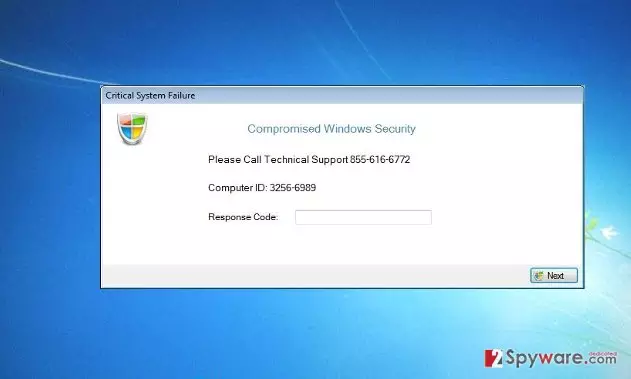
This adware is another sample of tech support scam. Lately, there has been a steady increase of this deception forms. Needless to say, it is highly effective as users who encounter this scam for the first time, fall for the scam and contact the supposed technical support specialist. Later on, he or she tries to convince the victim that in order to solve current issue, the user needs to purchase additional software which would guarantee the safety of the operating system. Since cyber security is a sensitive topic and each of us is cautious to escape computer threats, the victim might behave according to the crook’s expectations without giving it a second thought. Likewise, Compromised Windows Security ads work the same way. The alerts display 855-616-6772 number. They are designed to look genuine. Alerted that a virus might infect your system, you might consider calling the number. Obviously, neither you nor any other victim of this scan should fulfill crooks‘ requirements. In fact, you might make matters worse as you download a potentially fraudulent malware removal application. Therefore, real threats might settle on your operating system. Then, you might really need to clean your device.
When does the adware take over the PC?
Though these adware applications look more sophisticated than mere PUPs, their distribution techniques are not exceptional. In fact, the adware sneaked into the device when you installed a new application. Unaware that it comes with bonus programs, you quickly rushed through the guide. Unfortunately, due to this habit, you facilitated Compromised Windows Security hijack. If you are interested in the prevention ways, you should keep in mind these recommendations. First of all, upon installing a new application, select “Custom” settings. They will disclose optional add-ons. Unmark them carefully not to install adware again.
Compromised Windows Security removal process
The best way to terminate “Compromised Windows Security” virus would be to use automatic method. Install an anti-spyware application and run the scam. Usually, Compromised Windows Security removal requires only a couple of minutes. Therefore, you can be sure that the application completely roots out the adware. It also comes in handy when warding off more threatening virtual threats. If you are willing to remove Compromised Windows Security manually, you can find the instructions below. However, keep in mind that this virus might have spread its files throughout the entire registry, so you will need to be very vigilant.
Uninstall from Windows
Uninstall from Windows 10/8:
- Type Control Panel into the Windows search box and open the result.
- Under Programs, select Uninstall a program.


Uninstall from Windows 7/XP:
- Click on Windows Start > Control Panel (Windows XP users should click on Add/Remove Programs).
- In Control Panel, select Programs > Uninstall a program.


Remove the unwanted program:
- In the Programs and Features window, look for any recently installed suspicious entries, select them, and click Uninstall.
- If User Account Control appears, click Yes to confirm, then complete the removal.


Delete from macOS
Remove the unwanted application:
- From the menu bar, select Go > Applications.
- In the Applications folder, look for any suspicious entries, then drag them to Trash (or right-click and pick Move to Trash).


Delete leftover files and folders:
- Select Go > Go to Folder.
- Enter /Library/Application Support and remove any suspicious folders related to the unwanted program.
- Repeat the same check in the /Library/LaunchAgents and /Library/LaunchDaemons folders, deleting any suspicious entries.

- Finally, empty the Trash to permanently remove the leftovers.

Remove from Microsoft Edge
Delete unwanted extensions from MS Edge:
- Select Menu (three horizontal dots at the top-right of the browser window) and pick Extensions.
- From the list, pick the extension and click on the Gear icon.
- Click Remove.


Clear cookies and other browser data:
- Click on the Menu (three horizontal dots at the top-right of the browser window) and select Settings > Privacy, search, and services..
- Under Clear browsing data, pick Choose what to clear.
- Select Cookies and other site data and Cached images and files. (apart from passwords, although you might want to include Media licenses as well, if applicable) and click on Clear.


Restore new tab and homepage settings:
- Click the menu icon and choose Settings.
- Then find On startup section.
- Click Remove next to any suspicious startup page.
Reset MS Edge if the above steps did not work:
- Press on Ctrl + Shift + Esc to open Task Manager.
- Click on More details arrow at the bottom of the window.
- Select Details tab.
- Now scroll down and locate every entry with Microsoft Edge name in it. Right-click on each of them and select End Task to stop MS Edge from running.


Instructions for Chromium-based Edge
Delete extensions from MS Edge (Chromium):
- Open Edge and click select Settings > Extensions.
- Delete unwanted extensions by clicking Remove.


Clear cache and site data:
- Click on Menu and go to Settings.
- Select Privacy, search and services.
- Under Clear browsing data, pick Choose what to clear.
- Under Time range, pick All time.
- Select Clear now.


Reset Chromium-based MS Edge:
- Click on Menu and select Settings.
- On the left side, pick Reset settings.
- Select Restore settings to their default values.
- Confirm with Reset.
- This will disable extensions and reset startup pages but will not delete bookmarks, saved passwords, or browsing history.


Remove from Mozilla Firefox (FF)
Remove dangerous extensions:
- Open Mozilla Firefox browser and click on the Menu (three horizontal lines at the top-right of the window).
- Select Add-ons.
- In here, select the unwanted extension and click Remove.


Reset the homepage:
- Click three horizontal lines at the top right corner to open the menu.
- Choose Settings.
- Under Home, set your preferred homepage and new tab settings.
Clear cookies and site data:
- Click Menu and pick Settings.
- Go to Privacy & Security section.
- Scroll down to locate Cookies and Site Data.
- Click on Clear Data...
- Select Cookies and Site Data and Temporary cached files and pages, then click Clear.


Reset Mozilla Firefox
If clearing the browser as explained above did not help, reset Mozilla Firefox:
- Open Mozilla Firefox browser and click the Menu.
- Go to Help and then choose Troubleshooting Information.

- Under Give Firefox a tune up section, click on Refresh Firefox...
- Once the pop-up shows up, confirm the action by pressing on Refresh Firefox.



Remove from Google Chrome
Delete malicious extensions from Google Chrome:
- Open Google Chrome, click on the Menu (three vertical dots at the top-right corner) and select More tools > Extensions.
- In the newly opened window, you will see all the installed extensions. Uninstall all suspicious extensions related to the unwanted program by clicking Remove.


Clear cache and web data from Chrome:
- Click on Menu and pick Settings.
- Under Privacy and security, select Clear browsing data.
- Select Browsing history, Cookies and other site data, as well as Cached images and files.
- Click Clear data.


Change your homepage:
- Click menu and choose Settings.
- Look for a suspicious site in the On startup section.
- Click on Open a specific or set of pages and click on three dots to find the Remove option.
Reset Google Chrome:
If the previous methods did not help you, reset Google Chrome to eliminate all the unwanted components:
- Click on Menu and select Settings.
- In the Settings, scroll down and click Advanced.
- Scroll down and locate Reset and clean up section.
- Now click Restore settings to their original defaults.
- Confirm with Reset settings.


Delete from Safari
Remove dangerous extensions:
- Open Safari, click Safari in the menu at the top-left of the screen, and select Preferences.
- Go to the Extensions tab, look for any suspicious entries, and click Uninstall to remove them.


Clear history and website data:
- Click Safari in the menu and pick Clear History.
- Set Clear to all history and confirm with Clear History.


Reset Safari:
- Click Safari in the menu and select Preferences > Advanced.
- Enable Show Develop menu in menu bar.
- From the menu bar, click Develop and select Empty Caches.


Did this guide help?
2 comments
kimcy4+74
They look so real...
freddieg
Removed it in a flash.