

Are “Google Rewards Centre” notifications real?
If the Internet takes a significant part of your daily life, you are aware that there are tons of cyber deceptions like ”Google Rewards Centre” virus. This is none other than adware which displays fake messages trying to persuade you of prizes which await you. Crooks expect that users believe in the credibility of any content which is labeled under Google logo. However, keep in mind that it is common scam strategy. Therefore, start ”Google Rewards Centre” removal right away. You should not delay the process because the adware might start gathering not only non-personal information but personal data as well. There is a possibility that unknown and suspicious users and online companies will acquire such data. If this scenario does not raise pleasant thoughts, remove Google Rewards Centre malware.
The idea of winning a lottery seems to be still lively and prevalent in modern users. Thus, who would refuse the offers to get a new iPhone or a laptop for free? The adware uses the same bait to persuade you to answer several ridiculously easy questions to receive the award. Once you do it, you are required to provide a phone number or an email address. After you do it, expect Google Rewards Centre ads to cram not only your Inbox but the computer screen as well. Moreover, the commercial offers become highly annoying and intrusive over a while as digital voice nags you with suggestions to complete surveys and win prizes.
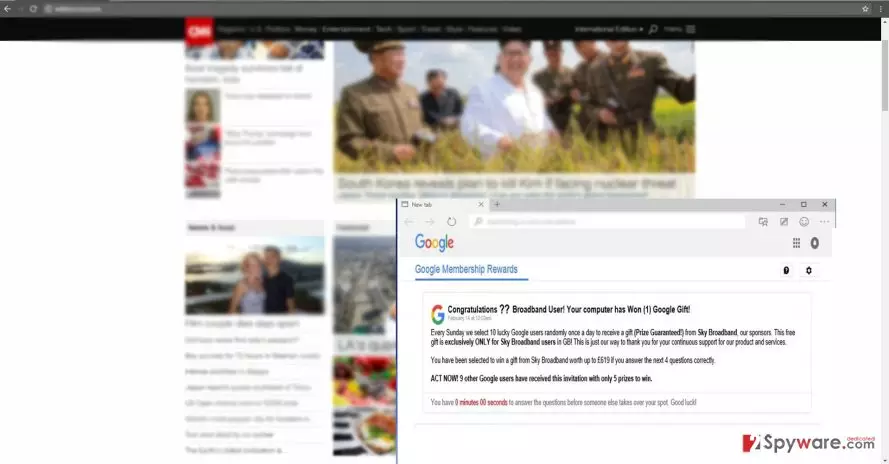
However, more severe consequences lie behind this behavior. The appearing pop-ups tend to facilitate Google Rewards Centre redirect. Likewise, you might spot additional redirect tabs opening alongside your primary tab, or you might be misguided to an unknown web page instead if your expected destination. Keep in mind that these websites might contain unpleasant and highly destructive “surprises” – viruses. Thus, for the safety of the operating system, remove the adware. FortectIntego speeds up the elimination procedure.
How does the adware manage to occupy the device?
If you tend to install new applications quickly, it is not surprising that a PUP settled on the computer. You have enabled “Google Rewards Centre” hijack when you hit the “Install” button after choosing the “Recommended” settings. Unfortunately, this is dominant vice among the majority of Internet users. Therefore, this distribution of adware continues to be profitable. To avoid committing the same mistake again, we would like to advise a different way of installing new programs. First of all, upon initializing the installation guide, make sure you opt for “Custom” settings. Afterward, unmark all optional add-ons which often to happen adware and browser hijackers.
“Google Rewards Centre” adware removal guidelines
It is not difficult to remove Google Rewards Centre virus if you opt for automatic elimination. For that purpose, an anti-spyware application comes in handy. Check whether it is updated and run the scan. Usually, the elimination takes a moment. You can be sure that the adware is completely eliminated. In addition, you might check manual “Google Rewards Centre” removal guidelines. Carefully implement each step not to miss any important detail. Next time you download a program, check its publisher and read user reviews.
Uninstall from Windows
Uninstall from Windows 10/8:
- Type Control Panel into the Windows search box and open the result.
- Under Programs, select Uninstall a program.


Uninstall from Windows 7/XP:
- Click on Windows Start > Control Panel (Windows XP users should click on Add/Remove Programs).
- In Control Panel, select Programs > Uninstall a program.


Remove the unwanted program:
- In the Programs and Features window, look for any recently installed suspicious entries, select them, and click Uninstall.
- If User Account Control appears, click Yes to confirm, then complete the removal.


Delete from macOS
Remove the unwanted application:
- From the menu bar, select Go > Applications.
- In the Applications folder, look for any suspicious entries, then drag them to Trash (or right-click and pick Move to Trash).


Delete leftover files and folders:
- Select Go > Go to Folder.
- Enter /Library/Application Support and remove any suspicious folders related to the unwanted program.
- Repeat the same check in the /Library/LaunchAgents and /Library/LaunchDaemons folders, deleting any suspicious entries.

- Finally, empty the Trash to permanently remove the leftovers.

Remove from Microsoft Edge
Delete unwanted extensions from MS Edge:
- Select Menu (three horizontal dots at the top-right of the browser window) and pick Extensions.
- From the list, pick the extension and click on the Gear icon.
- Click Remove.


Clear cookies and other browser data:
- Click on the Menu (three horizontal dots at the top-right of the browser window) and select Settings > Privacy, search, and services..
- Under Clear browsing data, pick Choose what to clear.
- Select Cookies and other site data and Cached images and files. (apart from passwords, although you might want to include Media licenses as well, if applicable) and click on Clear.


Restore new tab and homepage settings:
- Click the menu icon and choose Settings.
- Then find On startup section.
- Click Remove next to any suspicious startup page.
Reset MS Edge if the above steps did not work:
- Press on Ctrl + Shift + Esc to open Task Manager.
- Click on More details arrow at the bottom of the window.
- Select Details tab.
- Now scroll down and locate every entry with Microsoft Edge name in it. Right-click on each of them and select End Task to stop MS Edge from running.


Instructions for Chromium-based Edge
Delete extensions from MS Edge (Chromium):
- Open Edge and click select Settings > Extensions.
- Delete unwanted extensions by clicking Remove.


Clear cache and site data:
- Click on Menu and go to Settings.
- Select Privacy, search and services.
- Under Clear browsing data, pick Choose what to clear.
- Under Time range, pick All time.
- Select Clear now.


Reset Chromium-based MS Edge:
- Click on Menu and select Settings.
- On the left side, pick Reset settings.
- Select Restore settings to their default values.
- Confirm with Reset.
- This will disable extensions and reset startup pages but will not delete bookmarks, saved passwords, or browsing history.


Remove from Mozilla Firefox (FF)
Remove dangerous extensions:
- Open Mozilla Firefox browser and click on the Menu (three horizontal lines at the top-right of the window).
- Select Add-ons.
- In here, select the unwanted extension and click Remove.


Reset the homepage:
- Click three horizontal lines at the top right corner to open the menu.
- Choose Settings.
- Under Home, set your preferred homepage and new tab settings.
Clear cookies and site data:
- Click Menu and pick Settings.
- Go to Privacy & Security section.
- Scroll down to locate Cookies and Site Data.
- Click on Clear Data...
- Select Cookies and Site Data and Temporary cached files and pages, then click Clear.


Reset Mozilla Firefox
If clearing the browser as explained above did not help, reset Mozilla Firefox:
- Open Mozilla Firefox browser and click the Menu.
- Go to Help and then choose Troubleshooting Information.

- Under Give Firefox a tune up section, click on Refresh Firefox...
- Once the pop-up shows up, confirm the action by pressing on Refresh Firefox.



Remove from Google Chrome
Delete malicious extensions from Google Chrome:
- Open Google Chrome, click on the Menu (three vertical dots at the top-right corner) and select More tools > Extensions.
- In the newly opened window, you will see all the installed extensions. Uninstall all suspicious extensions related to the unwanted program by clicking Remove.


Clear cache and web data from Chrome:
- Click on Menu and pick Settings.
- Under Privacy and security, select Clear browsing data.
- Select Browsing history, Cookies and other site data, as well as Cached images and files.
- Click Clear data.


Change your homepage:
- Click menu and choose Settings.
- Look for a suspicious site in the On startup section.
- Click on Open a specific or set of pages and click on three dots to find the Remove option.
Reset Google Chrome:
If the previous methods did not help you, reset Google Chrome to eliminate all the unwanted components:
- Click on Menu and select Settings.
- In the Settings, scroll down and click Advanced.
- Scroll down and locate Reset and clean up section.
- Now click Restore settings to their original defaults.
- Confirm with Reset settings.


Delete from Safari
Remove dangerous extensions:
- Open Safari, click Safari in the menu at the top-left of the screen, and select Preferences.
- Go to the Extensions tab, look for any suspicious entries, and click Uninstall to remove them.


Clear history and website data:
- Click Safari in the menu and pick Clear History.
- Set Clear to all history and confirm with Clear History.


Reset Safari:
- Click Safari in the menu and select Preferences > Advanced.
- Enable Show Develop menu in menu bar.
- From the menu bar, click Develop and select Empty Caches.


Did this guide help?
2 comments
michell
Pure hoax. That is all I can say.
carolineRoko
I thought for a second that I really gonna get a prize.