

What can you expect from Topsafetabsearch.com?
Wanting to change your browsing routine with some new homepage or search engine can soon turn bitter if you unknowingly install the Topsafetabsearch.com virus on your computer. This website seems to provide exciting and useful features, such as quick access to social media or shopping sites. These speed dial options are accompanied by a bunch of other tools including the Internet speed tester, selection of different wallpapers and the ability to save secure notes. This supposedly useful browser extension is brought by Imali Media, the company which has already created a number of similar sites, including Search.topsafetab.com which is apparently related to the Topsafetabsearch. What is concerning, thought, that the site creators do not leave you much of a choice whether to use this program or not. So, you can expect the Topsafetabsearch.com hijack even if you are fully satisfied with your current homepage. Because of such intrusive behavior regarding users’ browsers, the extension deserves to be attributed to the category of browser hijacker viruses. Although they are not especially malicious, such programs are still potentially unwanted and can be removed from the system without hesitation. Later in the article, we present a couple of Topsafetabsearch.com removal options which should help you get rid of this uninvited guest from your computer as soon as possible. If you are in a rush, though, you can simply scan your computer with an antivirus utility, for instance, FortectIntego. It will give you the desired effect quicker.
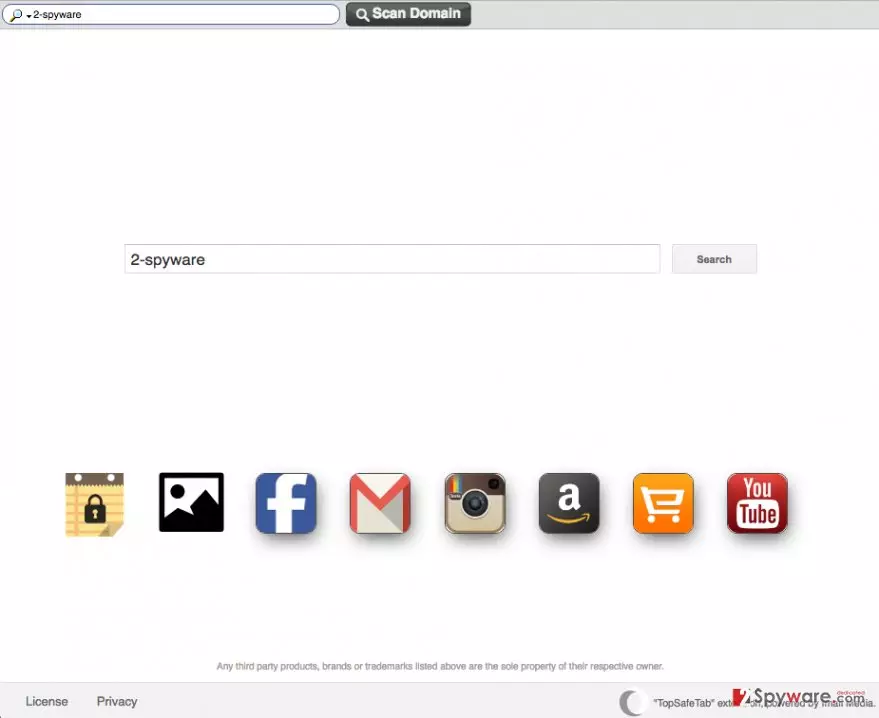
Now, let us discuss a couple of other features that the researchers have disclosed about the Topsafetabsearch.com malware. The first aspect you may not like about this search engine is that it is barely useful. You should not rely on it if you are looking for a straight answer because it might simply not provide you with any. Instead, the search results will be filled with third-party ads and links to the sponsored websites or software download sites. What is more, to receive these results, you will be redirected through a suspicious Plustnetwork.com domain. This relates to another problem of this questionable search engine, the Topsafetabsearch.com redirect issue. Apart from initiating Plusnetwork redirects to display the search results, the hijacker can also trick you into visiting insecure domains by presenting altered link descriptions. For instance, when clicking on some ad with a tempting online shopping deal, you may end up on an insecure domain, trying to sell you non-existent products or involve you in scams. Needless to say, you should remove Topsafetabsearch.com from your computer when you have the chance.
What are the best browser hijacker prevention tactics?
Browser hijackers like Topsafetabsearch.com are lightweight cyber infections so they can slip through your computer’s security shields without much difficulty. Nonetheless, if you know when and how to use the antivirus utility in combination with your own skills, avoiding Topsafetabsearch.com can be quite easy. First and foremost, we should highlight that such potentially unwanted programs often hide in software bundles, so investigating the downloaded content before installing it on your computer is of high importance. You should give your antivirus utility some time to scan the downloaded material or initiate the scan manually. Then, you should also cancel the installation of shady content via the “Advanced” or “Custom” installation modes. In the case of Topsafetabsearch.com, you should unmark the option allowing to set this suspicious domain as your default search engine and homepage.
What should you know about Topsafetabsearch.com removal?
The essential thing to be aware of when preparing for the Topsafetabsearch.com removal is that such viruses are unlikely to be located in one place, or be easy to eliminate from the computer. They tend to additionally install software like browser extensions, add-ons, etc., as a form of insurance. So, your computer can only be virus-free if you eliminate all these additional programs from the system as well. Since Topsafetabsearch.com virus might not be easy to deal with, we recommend employing professional antivirus software to do the job. The full system scan only takes a few minutes, so you save hours trying to remove Topsafetabsearch.com manually. If such removal technique does not scare you at all, you can use our step-by-step guide below to eliminate this hijacker from your computer yourself.
Uninstall from Windows
Uninstall from Windows 10/8:
- Type Control Panel into the Windows search box and open the result.
- Under Programs, select Uninstall a program.


Uninstall from Windows 7/XP:
- Click on Windows Start > Control Panel (Windows XP users should click on Add/Remove Programs).
- In Control Panel, select Programs > Uninstall a program.


Remove the unwanted program:
- In the Programs and Features window, look for any recently installed suspicious entries, select them, and click Uninstall.
- If User Account Control appears, click Yes to confirm, then complete the removal.


Delete from macOS
Remove the unwanted application:
- From the menu bar, select Go > Applications.
- In the Applications folder, look for any suspicious entries, then drag them to Trash (or right-click and pick Move to Trash).


Delete leftover files and folders:
- Select Go > Go to Folder.
- Enter /Library/Application Support and remove any suspicious folders related to the unwanted program.
- Repeat the same check in the /Library/LaunchAgents and /Library/LaunchDaemons folders, deleting any suspicious entries.

- Finally, empty the Trash to permanently remove the leftovers.

Reset Internet Explorer
Remove dangerous add-ons:
- Open Internet Explorer, click on the Gear icon (IE menu) on the top-right corner of the browser
- Pick Manage Add-ons.
- You will see a Manage Add-ons window. Here, look for suspicious plugins. Click on these entries and select Disable.


Change your homepage if it was altered:
- Open IE and click on the Gear icon.
- Select Internet Options.
- In the General tab, delete the Home page address and replace it by your preferred one (for example, Google.com).
- Click Apply and then select OK.


Delete temporary files:
- Press on the Gear icon and select Internet Options.
- Under Browsing history, click Delete...
- Select relevant fields and press Delete.


Reset Internet Explorer:
- Click on Gear icon > Internet options and select Advanced tab.
- Select Reset.
- In the new window, check Delete personal settings and select Reset.


Remove from Microsoft Edge
Delete unwanted extensions from MS Edge:
- Select Menu (three horizontal dots at the top-right of the browser window) and pick Extensions.
- From the list, pick the extension and click on the Gear icon.
- Click Remove.


Clear cookies and other browser data:
- Click on the Menu (three horizontal dots at the top-right of the browser window) and select Settings > Privacy, search, and services..
- Under Clear browsing data, pick Choose what to clear.
- Select Cookies and other site data and Cached images and files. (apart from passwords, although you might want to include Media licenses as well, if applicable) and click on Clear.


Restore new tab and homepage settings:
- Click the menu icon and choose Settings.
- Then find On startup section.
- Click Remove next to any suspicious startup page.
Reset MS Edge if the above steps did not work:
- Press on Ctrl + Shift + Esc to open Task Manager.
- Click on More details arrow at the bottom of the window.
- Select Details tab.
- Now scroll down and locate every entry with Microsoft Edge name in it. Right-click on each of them and select End Task to stop MS Edge from running.


Instructions for Chromium-based Edge
Delete extensions from MS Edge (Chromium):
- Open Edge and click select Settings > Extensions.
- Delete unwanted extensions by clicking Remove.


Clear cache and site data:
- Click on Menu and go to Settings.
- Select Privacy, search and services.
- Under Clear browsing data, pick Choose what to clear.
- Under Time range, pick All time.
- Select Clear now.


Reset Chromium-based MS Edge:
- Click on Menu and select Settings.
- On the left side, pick Reset settings.
- Select Restore settings to their default values.
- Confirm with Reset.
- This will disable extensions and reset startup pages but will not delete bookmarks, saved passwords, or browsing history.


Remove from Mozilla Firefox (FF)
Remove dangerous extensions:
- Open Mozilla Firefox browser and click on the Menu (three horizontal lines at the top-right of the window).
- Select Add-ons.
- In here, select the unwanted extension and click Remove.


Reset the homepage:
- Click three horizontal lines at the top right corner to open the menu.
- Choose Settings.
- Under Home, set your preferred homepage and new tab settings.
Clear cookies and site data:
- Click Menu and pick Settings.
- Go to Privacy & Security section.
- Scroll down to locate Cookies and Site Data.
- Click on Clear Data...
- Select Cookies and Site Data and Temporary cached files and pages, then click Clear.


Reset Mozilla Firefox
If clearing the browser as explained above did not help, reset Mozilla Firefox:
- Open Mozilla Firefox browser and click the Menu.
- Go to Help and then choose Troubleshooting Information.

- Under Give Firefox a tune up section, click on Refresh Firefox...
- Once the pop-up shows up, confirm the action by pressing on Refresh Firefox.



Remove from Google Chrome
Delete malicious extensions from Google Chrome:
- Open Google Chrome, click on the Menu (three vertical dots at the top-right corner) and select More tools > Extensions.
- In the newly opened window, you will see all the installed extensions. Uninstall all suspicious extensions related to the unwanted program by clicking Remove.


Clear cache and web data from Chrome:
- Click on Menu and pick Settings.
- Under Privacy and security, select Clear browsing data.
- Select Browsing history, Cookies and other site data, as well as Cached images and files.
- Click Clear data.


Change your homepage:
- Click menu and choose Settings.
- Look for a suspicious site in the On startup section.
- Click on Open a specific or set of pages and click on three dots to find the Remove option.
Reset Google Chrome:
If the previous methods did not help you, reset Google Chrome to eliminate all the unwanted components:
- Click on Menu and select Settings.
- In the Settings, scroll down and click Advanced.
- Scroll down and locate Reset and clean up section.
- Now click Restore settings to their original defaults.
- Confirm with Reset settings.


Delete from Safari
Remove dangerous extensions:
- Open Safari, click Safari in the menu at the top-left of the screen, and select Preferences.
- Go to the Extensions tab, look for any suspicious entries, and click Uninstall to remove them.


Clear history and website data:
- Click Safari in the menu and pick Clear History.
- Set Clear to all history and confirm with Clear History.


Reset Safari:
- Click Safari in the menu and select Preferences > Advanced.
- Enable Show Develop menu in menu bar.
- From the menu bar, click Develop and select Empty Caches.


Did this guide help?
3 comments
truppente
It makes my blood boil when I see one of these on my browser!
codie
Expanded search possibilities? Thanks but no thanks
DavieDave
Does this one affect macs too?