

General information about Securefindersearch.com redirect virus
One more suspicious browser hijacked has been spotted and added to our database of spyware threats. This potentially unwanted program (PUP) is better known as Securefindersearch.com virus. We have noticed that computer users have a tendency to call it like that due to its suspicious and annoying activity, though it is is not malicious. This browser hijacker does not ask the user if he wants to change the homepage address and changes it anyway; besides, it can assign Securefindersearch.com URL as the default new tab page address and also alter default search settings to make the user go to Securefindersearch.com search results every time he or she looks for information online. Such redirections and unexpected changes in browser settings can displease you, and that is a completely normal reaction. If you do not like such changes in your browser, remove Securefindersearch.com redirect virus using the anti-spyware app. If you do not have one, use FortectIntego or MalwarebytesMalwarebytes – we can rely on them so we believe that you should, too. 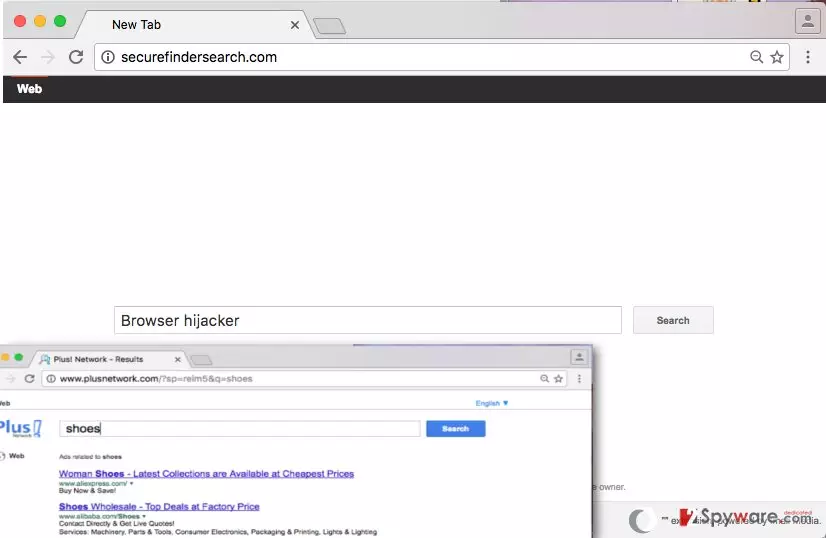
However, the biggest problem related to this browser hijacker is not the fact that it changes some settings in the browser without asking user’s permission. A much more frightening reality is that the search engine provided on the new homepage is likely to be dangerous, especially for inexperienced computer users. It appears that this search tool reroutes users to plusnetwork.com results page, and this search engine is believed to be untrustworthy. Beware that unreliable web search service providers might not necessarily filter sponsored results they display, so keep in mind that clicking on search results brought by them can be dangerous and point to insecure places on the Internet. You will soon notice that the results page is filled up with entries that are marked as “Ads” – you will see them above and beyond organic search results. According to the developer of this questionable browser hijacker, IMALI -N.I. MEDIA LTD., the search tool presented on the Securefindersearch.com site can include links to other third party sites, which might present different policies, besides, such sites can “carry advertisements or offer content, functionality, games, rewards programs, newsletters, contests or sweepstakes, or applications developed and maintained by third parties.” A scary fact is that this company does not endorse content that third-party sites publish, so in other words, it does not filter what sites it advertise and what content they present. This means that you can be easily redirected to a bad website and interact with its content freely without being warned first! If you do not want to be thrown onto suspicious Internet sites, think about Securefindersearch.com removal options. There are two – the manual and the automatic removal option.
How does Securefindersearch.com hijack computer systems?
If you wish to find out how does Securefindersearch.com redirect virus spread, read this paragraph carefully. It seems that Securefindersearch.com hijack occurs when the user fails to install another free program safely. Typically, free programs travel together with other programs to be installed on the system silently. You probably seek for the answer how and when does that happen. They are distributed alongside other programs and presented as “recommended downloads.” The sad truth is, people think that additional downloads suggested by software installers are as trustworthy as the program that they have downloaded. That is not true. Typically, programs bundled with other software appear to be highly annoying ad-supported applications or even rogue programs that can hardly can provide useful functions. To check if you download includes such programs, open Advanced or Custom settings in the software installer and once you are here, deselect all offers to install additional programs or make changes in the system.
How to remove Securefindersearch.com?
To remove Securefindersearch.com virus, use instructions provided below. Make sure you leave no remains of this browser hijacker; otherwise your system might remain vulnerable to other malware infections. You can complete Securefindersearch.com removal using anti-malware software, so if you do not have a security program, we highly recommend you to consider installing one of these:
Uninstall from Windows
Uninstall from Windows 10/8:
- Type Control Panel into the Windows search box and open the result.
- Under Programs, select Uninstall a program.


Uninstall from Windows 7/XP:
- Click on Windows Start > Control Panel (Windows XP users should click on Add/Remove Programs).
- In Control Panel, select Programs > Uninstall a program.


Remove the unwanted program:
- In the Programs and Features window, look for any recently installed suspicious entries, select them, and click Uninstall.
- If User Account Control appears, click Yes to confirm, then complete the removal.


Delete from macOS
Remove the unwanted application:
- From the menu bar, select Go > Applications.
- In the Applications folder, look for any suspicious entries, then drag them to Trash (or right-click and pick Move to Trash).


Delete leftover files and folders:
- Select Go > Go to Folder.
- Enter /Library/Application Support and remove any suspicious folders related to the unwanted program.
- Repeat the same check in the /Library/LaunchAgents and /Library/LaunchDaemons folders, deleting any suspicious entries.

- Finally, empty the Trash to permanently remove the leftovers.

Remove from Mozilla Firefox (FF)
Remove dangerous extensions:
- Open Mozilla Firefox browser and click on the Menu (three horizontal lines at the top-right of the window).
- Select Add-ons.
- In here, select the unwanted extension and click Remove.


Reset the homepage:
- Click three horizontal lines at the top right corner to open the menu.
- Choose Settings.
- Under Home, set your preferred homepage and new tab settings.
Clear cookies and site data:
- Click Menu and pick Settings.
- Go to Privacy & Security section.
- Scroll down to locate Cookies and Site Data.
- Click on Clear Data...
- Select Cookies and Site Data and Temporary cached files and pages, then click Clear.


Reset Mozilla Firefox
If clearing the browser as explained above did not help, reset Mozilla Firefox:
- Open Mozilla Firefox browser and click the Menu.
- Go to Help and then choose Troubleshooting Information.

- Under Give Firefox a tune up section, click on Refresh Firefox...
- Once the pop-up shows up, confirm the action by pressing on Refresh Firefox.



Did this guide help?
4 comments
Roman
Hey, Reimage has removed this for me! thanks a lot!!
Gilea
I thought my computer has been hacked or something.
Harry
Securefindersearch virus is totally annoying! I cant remove it manually for some reason. I bet it hides its components elsewhere!
lEO7G
I am so nervous because I cannot find it on my computer... I have accidentally installed it on someone elses PC...