

Yourconnectivity.net – a browser hijacker promising enhanced search results just to mislead its victims
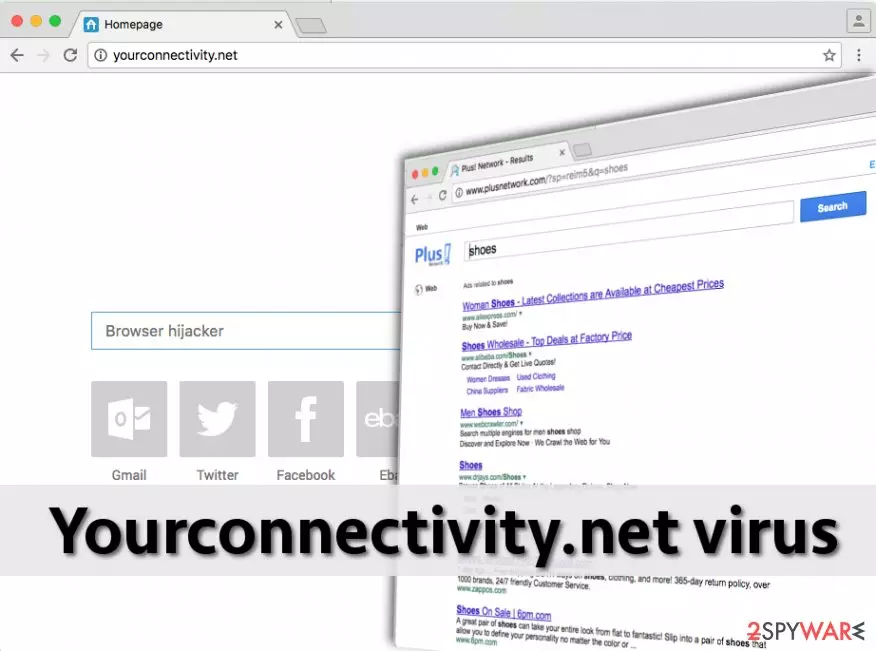
Yourconnectivity.net virus is a suspicious search engine that might look normal at first. However, if it ended up on your browser out of the blue and does not allow accessing other search providers, it should be treated as a virus. In fact, the app is considered to be a browser hijacker[1] that was created to bring income to its developers by causing numerous redirects and pop-up ads while users are browsing the web. The problems begin when the infection gets into the system and alters the browser’s settings. As a result, every time you launch an infected browser, you will see Yourconnectivity.net site that disables you from going back to your preferred web browser. Typically, the virus takes over your homepage, new tab URL, and the default search engine.
| Name | Yourconnectivity.net |
|---|---|
| Category | Browser hijacker |
| Sub-category | Potentially unwanted program |
| Browser affected | Google Chrome, Mozilla Firefox, Internet Explorer, etc. |
| Symptoms | The browser's homepage, new tab URL, and default search engine have been modified, you are facing dubious redirects to developer-promoted websites |
| Distribution | Bundled freeware or shareware is the most common browser hijacker spreading technique |
| Prevention | Use the Custom or Advanced installation mode |
| Elimination | Use FortectIntego to scan your system |
Using this corrupted search engine[2] you will encounter the world full of sponsored content and advertisements. It modifies search results and includes sponsored links, so looking for necessary information becomes impossible. Surprisingly, it’s not the biggest problem. Some of these links might lead to potentially harmful websites that are created for spreading malware.
After one click on a dubious-looking website your computer might catch serious infections such as ransomware virus .or even a Trojan horse[3], It’s better not to risk your computer’s safety and remove Yourconnectivity.net virus as soon as you spot the first symptoms such as beforementioned browser modifications, frequent redirecting, and similar.
Yourconnectivity.net browser hijacker usually travels bundled with free software programs. So downloading and installing files from unknown web sources can be dangerous, and it is extremely important to know that untrustworthy websites tend to advertise bogus software updates that are bundled with potentially unwanted or even harmful programs.

So if the site that clearly does not belong to the developer of the suggested program advises you to update it by downloading an “official update,” you should realize that such site is untrustworthy and most likely seeks to convince you to install a dangerous program. Do not let that happen – perform the Yourconnectivitynet removal and scan your system for other threats with a decent anti-malware tool. If you do not have one, we strongly recommend using FortectIntego.
Note that browser hijackers have one more unpleasant feature – they can collect all details that are related to your browsing experience and habits. Such information includes:
- Sites visited;
- Content searched on the Internet;
- IP addresses[4];
- Saved bookmarks;
- Pictures and videos viewed;
- etc.
Such details are gathered to be shared with third-parties and bring revenue to the developers. Make sure you get rid of Yourconnectivity.net browser hijacker as soon as possible an avoid all unwanted consequences.

Transmission techniques of browser-hijacking apps
According to tech experts[5], many people install browser hijackers unwillingly; such programs tend to travel in software packages and in most cases, they get installed by users who tend to rush through the installation process by continuously clicking “Next” and “I agree” buttons. That is not the right way of installing computer programs, especially free ones that were downloaded from the Internet.
Please pay close attention to the installation process because the majority of free programs tend to suggest installing additional software along with them. Such optional downloads are commonly concealed behind traditional installation settings – Default or Standard ones. If the user forgets to adjust the settings, all additional pieces of software will be installed alongside the main program.
To prevent this from happening, we advise users to choose Custom or Advanced settings instead. This configuration can reveal all extra downloads bundled with the main program and allow the user to reject them. So please remember to opt for these settings the next time you install something on your PC and do not give your permission for some suspicious optional programs to make arbitrary changes on your PC.
Guidelines for eliminating Yourconnectivity.net redirect

If you do not want to experience browser hijacker-related issues ever again, clean your computer with anti-spyware software. Such software can uninstall suspicious programs from your computer and clean your browsers from unwanted elements. However, if for some reason you do not want to use it, you can try to remove Yourconnectivity.net virus manually.
Instructions provided below were created with an intention to ease this task for inexperienced PC users. Please be careful and carry out instructions properly to initiate a full Yourconnectivity.net removal. Note that you will need to get rid of all unwanted browser extensions, plug-ins, and add-ons from infected web browsers such as Google Chrome, Mozilla Firefox, Internet Explorer, Microsoft Edge, or Safari.
Uninstall from Windows
Uninstall from Windows 10/8:
- Type Control Panel into the Windows search box and open the result.
- Under Programs, select Uninstall a program.


Uninstall from Windows 7/XP:
- Click on Windows Start > Control Panel (Windows XP users should click on Add/Remove Programs).
- In Control Panel, select Programs > Uninstall a program.


Remove the unwanted program:
- In the Programs and Features window, look for any recently installed suspicious entries, select them, and click Uninstall.
- If User Account Control appears, click Yes to confirm, then complete the removal.


Delete from macOS
Remove the unwanted application:
- From the menu bar, select Go > Applications.
- In the Applications folder, look for any suspicious entries, then drag them to Trash (or right-click and pick Move to Trash).


Delete leftover files and folders:
- Select Go > Go to Folder.
- Enter /Library/Application Support and remove any suspicious folders related to the unwanted program.
- Repeat the same check in the /Library/LaunchAgents and /Library/LaunchDaemons folders, deleting any suspicious entries.

- Finally, empty the Trash to permanently remove the leftovers.

Reset Internet Explorer
Remove dangerous add-ons:
- Open Internet Explorer, click on the Gear icon (IE menu) on the top-right corner of the browser
- Pick Manage Add-ons.
- You will see a Manage Add-ons window. Here, look for suspicious plugins. Click on these entries and select Disable.


Change your homepage if it was altered:
- Open IE and click on the Gear icon.
- Select Internet Options.
- In the General tab, delete the Home page address and replace it by your preferred one (for example, Google.com).
- Click Apply and then select OK.


Delete temporary files:
- Press on the Gear icon and select Internet Options.
- Under Browsing history, click Delete...
- Select relevant fields and press Delete.


Reset Internet Explorer:
- Click on Gear icon > Internet options and select Advanced tab.
- Select Reset.
- In the new window, check Delete personal settings and select Reset.


Remove from Microsoft Edge
Delete unwanted extensions from MS Edge:
- Select Menu (three horizontal dots at the top-right of the browser window) and pick Extensions.
- From the list, pick the extension and click on the Gear icon.
- Click Remove.


Clear cookies and other browser data:
- Click on the Menu (three horizontal dots at the top-right of the browser window) and select Settings > Privacy, search, and services..
- Under Clear browsing data, pick Choose what to clear.
- Select Cookies and other site data and Cached images and files. (apart from passwords, although you might want to include Media licenses as well, if applicable) and click on Clear.


Restore new tab and homepage settings:
- Click the menu icon and choose Settings.
- Then find On startup section.
- Click Remove next to any suspicious startup page.
Reset MS Edge if the above steps did not work:
- Press on Ctrl + Shift + Esc to open Task Manager.
- Click on More details arrow at the bottom of the window.
- Select Details tab.
- Now scroll down and locate every entry with Microsoft Edge name in it. Right-click on each of them and select End Task to stop MS Edge from running.


Instructions for Chromium-based Edge
Delete extensions from MS Edge (Chromium):
- Open Edge and click select Settings > Extensions.
- Delete unwanted extensions by clicking Remove.


Clear cache and site data:
- Click on Menu and go to Settings.
- Select Privacy, search and services.
- Under Clear browsing data, pick Choose what to clear.
- Under Time range, pick All time.
- Select Clear now.


Reset Chromium-based MS Edge:
- Click on Menu and select Settings.
- On the left side, pick Reset settings.
- Select Restore settings to their default values.
- Confirm with Reset.
- This will disable extensions and reset startup pages but will not delete bookmarks, saved passwords, or browsing history.


Remove from Mozilla Firefox (FF)
Remove dangerous extensions:
- Open Mozilla Firefox browser and click on the Menu (three horizontal lines at the top-right of the window).
- Select Add-ons.
- In here, select the unwanted extension and click Remove.


Reset the homepage:
- Click three horizontal lines at the top right corner to open the menu.
- Choose Settings.
- Under Home, set your preferred homepage and new tab settings.
Clear cookies and site data:
- Click Menu and pick Settings.
- Go to Privacy & Security section.
- Scroll down to locate Cookies and Site Data.
- Click on Clear Data...
- Select Cookies and Site Data and Temporary cached files and pages, then click Clear.


Reset Mozilla Firefox
If clearing the browser as explained above did not help, reset Mozilla Firefox:
- Open Mozilla Firefox browser and click the Menu.
- Go to Help and then choose Troubleshooting Information.

- Under Give Firefox a tune up section, click on Refresh Firefox...
- Once the pop-up shows up, confirm the action by pressing on Refresh Firefox.



Remove from Google Chrome
Delete malicious extensions from Google Chrome:
- Open Google Chrome, click on the Menu (three vertical dots at the top-right corner) and select More tools > Extensions.
- In the newly opened window, you will see all the installed extensions. Uninstall all suspicious extensions related to the unwanted program by clicking Remove.


Clear cache and web data from Chrome:
- Click on Menu and pick Settings.
- Under Privacy and security, select Clear browsing data.
- Select Browsing history, Cookies and other site data, as well as Cached images and files.
- Click Clear data.


Change your homepage:
- Click menu and choose Settings.
- Look for a suspicious site in the On startup section.
- Click on Open a specific or set of pages and click on three dots to find the Remove option.
Reset Google Chrome:
If the previous methods did not help you, reset Google Chrome to eliminate all the unwanted components:
- Click on Menu and select Settings.
- In the Settings, scroll down and click Advanced.
- Scroll down and locate Reset and clean up section.
- Now click Restore settings to their original defaults.
- Confirm with Reset settings.


Delete from Safari
Remove dangerous extensions:
- Open Safari, click Safari in the menu at the top-left of the screen, and select Preferences.
- Go to the Extensions tab, look for any suspicious entries, and click Uninstall to remove them.


Clear history and website data:
- Click Safari in the menu and pick Clear History.
- Set Clear to all history and confirm with Clear History.


Reset Safari:
- Click Safari in the menu and select Preferences > Advanced.
- Enable Show Develop menu in menu bar.
- From the menu bar, click Develop and select Empty Caches.


Did this guide help?
3 comments
Georgina28
I hope I will never come across sites like Yourconnectivity.net again. I have installed anti-malware software that protects me from dangerous sites.
jamali
I was wondering why this search engine acts suspicious... at first, it says yourconnectivity.net , later on it changes to plusnetwork. thats just suspicious
Marthina
Yasss finally removed it!!! thanks, guys!!! It was enough to uninstall some suspicious programs and remove unknown browser extensions :)