

Should you install APNToolbar or stay away from it?
APNToolbar virus is a browser hijacker application that the antivirus software detect as a potentially unwanted program (PUP). Some Internet users speculate that APN might stand as for “Ask partner network,” though the relationship between this questionable tool and the legitimate Ask.com web search engine is not confirmed. Nonetheless, what we know for certain is that this program is unwelcome on the users’ computers. The web forums are full of inquiries about what is APN Toolbar and how to get it off the computer. This only suggests that the program enters the computers without their owners’ consent and carries out activities that are most probably quite unfavorable. Otherwise, why would so many people want to delete it? Sadly, the virus experts confirm these theories. They claim that this application which should initially provide the users with quick access to the eBay deals and other online shopping related information is a fake and should be eliminated from the computer as soon as possible. It is interesting that the software sharing websites, such as Cnet and informer.com indicate apnretail.co.uk as the official APNToolbar’s page. Apparently, this site helps users to find eBay deals with misspelled titles and, hopefully, save some money. It’s strange, though, that the toolbar itself is nowhere to be found on the site. There are many suspicions surrounding this browser add-on, and we are just getting started. But if you came here for the APNToolbar removal suggestions only, you will find them at the end of this article. You will get rid of this PUP even quicker if you use automatic removal software such as FortectIntego.
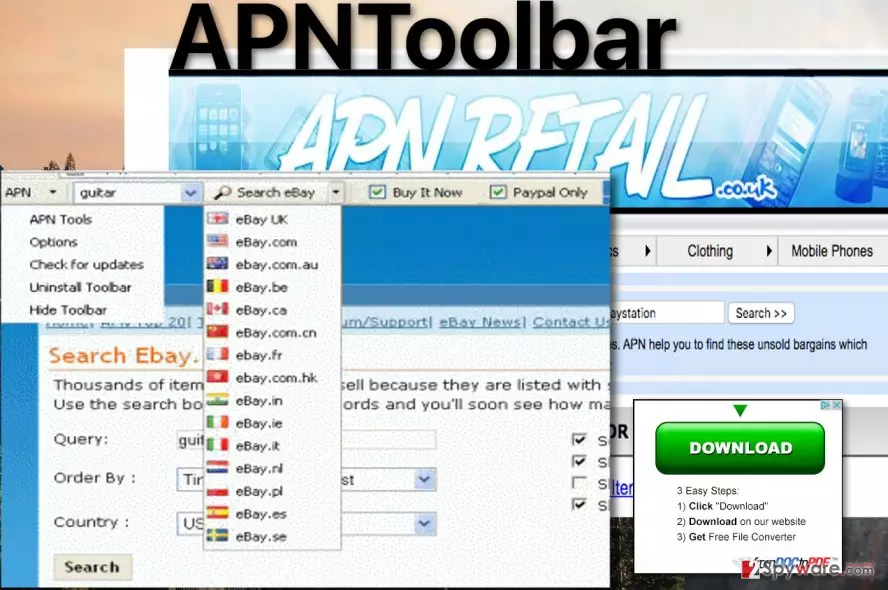
If you have been specifically looking for such online shopping assistant, you still may not take APNToolbar malware seriously. But we should warn you that this toolbar is dangerous not only because of the unauthorized ways it enters computers. The hijacker does that so it can start redirecting you to the sponsored websites among which, there might also be some potentially dangerous ones too. The program’s creators do not seem to have any interest of what they promote and focus solely on advertising revenue. To achieve the best possible outcome, they may also start tracking you and record everything you search for online also peek on what websites or pages you visit. The collected information helps the malware algorithm to present you with more relevant content and trick you into click on it, even though these links may actually redirect you to completely random domains. Remove APNToolbar without delay and stop it from taking control over your browsing habits.
What should you know about the distribution of this PUP?
Talking about the virus distribution, we should point out that there are numerous ways you can accidentally allow the APNToolbar PUP to enter your PC. Yes, this virus does need computer owner’s assistance to get in, and most of us grant it when we recklessly install some other software on our computers. Though the program is directly distributed via file sharing sites, it may as well travel in software bundles with PDF, OCR converters, video/audio applications and any other software that the users often download and install. Thus, every downloaded software package should always be closely examined, and all the suspicious and, perhaps, dangerous components should be eliminated. Also, this toolbar may be unknowingly installed as an update for Java, Adobe or other software you may or may not have installed on your computer. Thus, be very careful and do NOT download apntoolbarinstaller.exe instead of the intended update! It is advisable that you always update your software only via the official websites.
What are your options for the APNToolbar removal:
If a strange extension or add-on has been added to your browser, it does not mean that you have to use. On the opposite, if it did not ask your permission it is most likely a potentially unwanted program like APNToolbar virus that is trying to make your computer their potential source of profit. In case you have downloaded the program yourself and are not content with how it performs, there is also no need of keeping it installed. Follow the APNToolbar removal tutorial listed down below, if you wish to eliminate this virus from your computer manually. But if you are fast problem-solver, you should get rid of this browser hijacker using automatic antivirus software, for instance, one of the programs below. Our security experts have tested these applications, so you can trust them to remove APNToolbar from your computer.
Uninstall from Windows
Uninstall from Windows 10/8:
- Type Control Panel into the Windows search box and open the result.
- Under Programs, select Uninstall a program.


Uninstall from Windows 7/XP:
- Click on Windows Start > Control Panel (Windows XP users should click on Add/Remove Programs).
- In Control Panel, select Programs > Uninstall a program.


Remove the unwanted program:
- In the Programs and Features window, look for any recently installed suspicious entries, select them, and click Uninstall.
- If User Account Control appears, click Yes to confirm, then complete the removal.


Reset Internet Explorer
Remove dangerous add-ons:
- Open Internet Explorer, click on the Gear icon (IE menu) on the top-right corner of the browser
- Pick Manage Add-ons.
- You will see a Manage Add-ons window. Here, look for suspicious plugins. Click on these entries and select Disable.


Change your homepage if it was altered:
- Open IE and click on the Gear icon.
- Select Internet Options.
- In the General tab, delete the Home page address and replace it by your preferred one (for example, Google.com).
- Click Apply and then select OK.


Delete temporary files:
- Press on the Gear icon and select Internet Options.
- Under Browsing history, click Delete...
- Select relevant fields and press Delete.


Reset Internet Explorer:
- Click on Gear icon > Internet options and select Advanced tab.
- Select Reset.
- In the new window, check Delete personal settings and select Reset.


Remove from Microsoft Edge
Delete unwanted extensions from MS Edge:
- Select Menu (three horizontal dots at the top-right of the browser window) and pick Extensions.
- From the list, pick the extension and click on the Gear icon.
- Click Remove.


Clear cookies and other browser data:
- Click on the Menu (three horizontal dots at the top-right of the browser window) and select Settings > Privacy, search, and services..
- Under Clear browsing data, pick Choose what to clear.
- Select Cookies and other site data and Cached images and files. (apart from passwords, although you might want to include Media licenses as well, if applicable) and click on Clear.


Restore new tab and homepage settings:
- Click the menu icon and choose Settings.
- Then find On startup section.
- Click Remove next to any suspicious startup page.
Reset MS Edge if the above steps did not work:
- Press on Ctrl + Shift + Esc to open Task Manager.
- Click on More details arrow at the bottom of the window.
- Select Details tab.
- Now scroll down and locate every entry with Microsoft Edge name in it. Right-click on each of them and select End Task to stop MS Edge from running.


Instructions for Chromium-based Edge
Delete extensions from MS Edge (Chromium):
- Open Edge and click select Settings > Extensions.
- Delete unwanted extensions by clicking Remove.


Clear cache and site data:
- Click on Menu and go to Settings.
- Select Privacy, search and services.
- Under Clear browsing data, pick Choose what to clear.
- Under Time range, pick All time.
- Select Clear now.


Reset Chromium-based MS Edge:
- Click on Menu and select Settings.
- On the left side, pick Reset settings.
- Select Restore settings to their default values.
- Confirm with Reset.
- This will disable extensions and reset startup pages but will not delete bookmarks, saved passwords, or browsing history.


Remove from Mozilla Firefox (FF)
Remove dangerous extensions:
- Open Mozilla Firefox browser and click on the Menu (three horizontal lines at the top-right of the window).
- Select Add-ons.
- In here, select the unwanted extension and click Remove.


Reset the homepage:
- Click three horizontal lines at the top right corner to open the menu.
- Choose Settings.
- Under Home, set your preferred homepage and new tab settings.
Clear cookies and site data:
- Click Menu and pick Settings.
- Go to Privacy & Security section.
- Scroll down to locate Cookies and Site Data.
- Click on Clear Data...
- Select Cookies and Site Data and Temporary cached files and pages, then click Clear.


Reset Mozilla Firefox
If clearing the browser as explained above did not help, reset Mozilla Firefox:
- Open Mozilla Firefox browser and click the Menu.
- Go to Help and then choose Troubleshooting Information.

- Under Give Firefox a tune up section, click on Refresh Firefox...
- Once the pop-up shows up, confirm the action by pressing on Refresh Firefox.



Remove from Google Chrome
Delete malicious extensions from Google Chrome:
- Open Google Chrome, click on the Menu (three vertical dots at the top-right corner) and select More tools > Extensions.
- In the newly opened window, you will see all the installed extensions. Uninstall all suspicious extensions related to the unwanted program by clicking Remove.


Clear cache and web data from Chrome:
- Click on Menu and pick Settings.
- Under Privacy and security, select Clear browsing data.
- Select Browsing history, Cookies and other site data, as well as Cached images and files.
- Click Clear data.


Change your homepage:
- Click menu and choose Settings.
- Look for a suspicious site in the On startup section.
- Click on Open a specific or set of pages and click on three dots to find the Remove option.
Reset Google Chrome:
If the previous methods did not help you, reset Google Chrome to eliminate all the unwanted components:
- Click on Menu and select Settings.
- In the Settings, scroll down and click Advanced.
- Scroll down and locate Reset and clean up section.
- Now click Restore settings to their original defaults.
- Confirm with Reset settings.


Did this guide help?
Be the first to comment