

Why shouldn’t you leave Search.searchetg.com on your computer?
Search.searchetg.com virus is a cyber threat which specifically targets travellers or generally, people who use public transportation services daily. Some of us might even be tempted to set it as a default homepage and search engine because the sites really seem to provide useful service. On the top section of the screen, there are speed-dial links to such sites like Kayak.com or Expedia.com, in case you live on a suitcase and constantly search for flight deals or car rental services. Besides, the site also provides quick access to local and global weather forecasts. There is even a quick link to the Uber service. Good news is, all of these links are fully functional and lead to the promised websites. A bit more problematic are the search results Searchetg.com provides. Users report (and we had the chance to witness it ourselves) that this site is different from the regular search engines because it is primarily focused on promoting third-party content. It’s not necessarily bad if you are interested in online advertising, but if you are forced to use such a service against your will, this might quickly get really frustrating. Sadly, Search.searchetg.com hijack is a common occurrence with this software. It is not surprising, though, because the site is administered by another ad-based giant Safer Browser. Most of the search engines and other products that belong to this company branch have already been deemed potentially unwanted and are attributed to the category of browser hijackers. As you may already know from our previous investigations, although these viruses are not considered dangerous, they can still have some negative impact on the computers. Thus, Search.searchetg.com removal is inevitable. For a quick fix, we recommend using FortectIntego anti-malware.
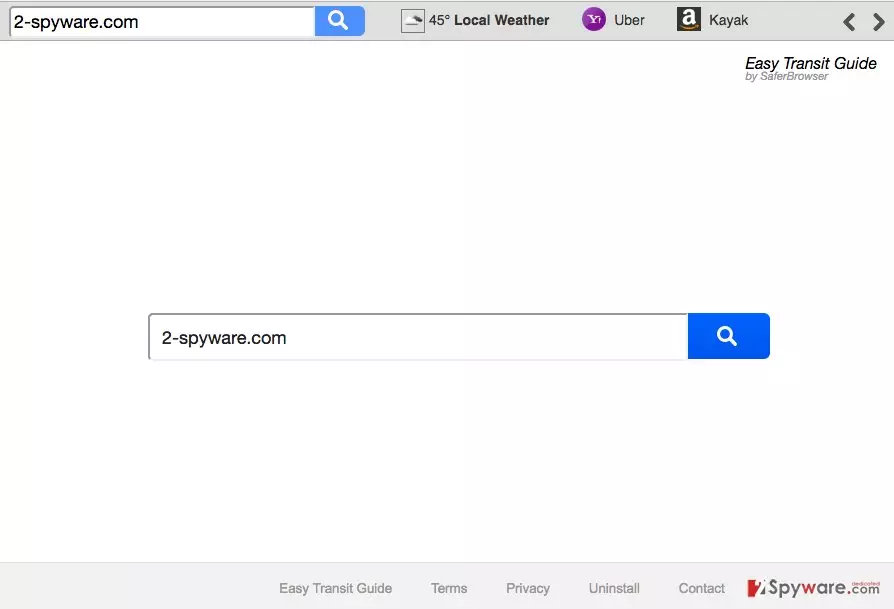
When we browse the Internet we often forget how careful we should be considering different links and ads that we are pushed to click on almost every page we visit. When infected with Search.searchetg.com redirect virus, cautious browsing becomes even more necessary. We do not know what parties does this suspicious search engines have in its list of affiliates, nor can we be sure if the content these parties offer is really safe to obtain and utilize. What if some scammers or cyber criminals decide to advertise their malicious software or try to swindle money using Search.searchetg.com? Another concerning factor — this hijacker may spy on you and try to sell the collected data to the mentioned third-parties. That might be quite unpleasant news for more privacy-oriented users. Even if you think you have nothing to hide, you should remove Search.searchetg.com from your computer simply because the data tracking can further expand from non-personally identifiable to some more sensitive information. Then, you may not be that far from identity theft, financial losses, and other unpleasant consequences.
What are the techniques to prevent browser hijacker infection?
Search.searchetg.com might have sneaked into your computer while you were installing new applications. PDF converters, video/audio players, and similar frequently downloaded software are among the top choices for the malware creators to attach their malicious browser hijackers. The users don’t even suspect such simple and, most importantly, legal programs may be infected with malware and install them on their computers without carrying out any additional investigation. Sadly, it is a common truth that fraudulent developers use such user habits to deploy potentially unwanted programs like Search.searchetg.com on the computers. There is a quick fix to that. Instead of the suggested “Basic” installation settings, opt for “Custom” mode and any optional programs will be disclosed. Then you will be able to unmark the attachments you do not wish to have installed on your PC.
Search.searchetg.com removal instructions:
First and the most assured recommendation we have for the users who have been infected with Search.searchetg.com virus is to remove the virus automatically. For that, you simply have to install an anti-spyware program and run a full system scan to complete the elimination. Such utilities are especially useful when locating the scattered junk files or infectious components. Of course, you will have to remember to update this utility regularly to maintain top performance. You also have an alternative for the automatic Search.searchetg.com removal. A tutorial located below this article will teach you how to reset your browser and locate potentially unwanted programs on your computer without automatic help. This way, you will be able to remove Search.searchetg.com virus manually.
Uninstall from Windows
Uninstall from Windows 10/8:
- Type Control Panel into the Windows search box and open the result.
- Under Programs, select Uninstall a program.


Uninstall from Windows 7/XP:
- Click on Windows Start > Control Panel (Windows XP users should click on Add/Remove Programs).
- In Control Panel, select Programs > Uninstall a program.


Remove the unwanted program:
- In the Programs and Features window, look for any recently installed suspicious entries, select them, and click Uninstall.
- If User Account Control appears, click Yes to confirm, then complete the removal.


Reset Internet Explorer
Remove dangerous add-ons:
- Open Internet Explorer, click on the Gear icon (IE menu) on the top-right corner of the browser
- Pick Manage Add-ons.
- You will see a Manage Add-ons window. Here, look for suspicious plugins. Click on these entries and select Disable.


Change your homepage if it was altered:
- Open IE and click on the Gear icon.
- Select Internet Options.
- In the General tab, delete the Home page address and replace it by your preferred one (for example, Google.com).
- Click Apply and then select OK.


Delete temporary files:
- Press on the Gear icon and select Internet Options.
- Under Browsing history, click Delete...
- Select relevant fields and press Delete.


Reset Internet Explorer:
- Click on Gear icon > Internet options and select Advanced tab.
- Select Reset.
- In the new window, check Delete personal settings and select Reset.


Remove from Microsoft Edge
Delete unwanted extensions from MS Edge:
- Select Menu (three horizontal dots at the top-right of the browser window) and pick Extensions.
- From the list, pick the extension and click on the Gear icon.
- Click Remove.


Clear cookies and other browser data:
- Click on the Menu (three horizontal dots at the top-right of the browser window) and select Settings > Privacy, search, and services..
- Under Clear browsing data, pick Choose what to clear.
- Select Cookies and other site data and Cached images and files. (apart from passwords, although you might want to include Media licenses as well, if applicable) and click on Clear.


Restore new tab and homepage settings:
- Click the menu icon and choose Settings.
- Then find On startup section.
- Click Remove next to any suspicious startup page.
Reset MS Edge if the above steps did not work:
- Press on Ctrl + Shift + Esc to open Task Manager.
- Click on More details arrow at the bottom of the window.
- Select Details tab.
- Now scroll down and locate every entry with Microsoft Edge name in it. Right-click on each of them and select End Task to stop MS Edge from running.


Instructions for Chromium-based Edge
Delete extensions from MS Edge (Chromium):
- Open Edge and click select Settings > Extensions.
- Delete unwanted extensions by clicking Remove.


Clear cache and site data:
- Click on Menu and go to Settings.
- Select Privacy, search and services.
- Under Clear browsing data, pick Choose what to clear.
- Under Time range, pick All time.
- Select Clear now.


Reset Chromium-based MS Edge:
- Click on Menu and select Settings.
- On the left side, pick Reset settings.
- Select Restore settings to their default values.
- Confirm with Reset.
- This will disable extensions and reset startup pages but will not delete bookmarks, saved passwords, or browsing history.


Remove from Mozilla Firefox (FF)
Remove dangerous extensions:
- Open Mozilla Firefox browser and click on the Menu (three horizontal lines at the top-right of the window).
- Select Add-ons.
- In here, select the unwanted extension and click Remove.


Reset the homepage:
- Click three horizontal lines at the top right corner to open the menu.
- Choose Settings.
- Under Home, set your preferred homepage and new tab settings.
Clear cookies and site data:
- Click Menu and pick Settings.
- Go to Privacy & Security section.
- Scroll down to locate Cookies and Site Data.
- Click on Clear Data...
- Select Cookies and Site Data and Temporary cached files and pages, then click Clear.


Reset Mozilla Firefox
If clearing the browser as explained above did not help, reset Mozilla Firefox:
- Open Mozilla Firefox browser and click the Menu.
- Go to Help and then choose Troubleshooting Information.

- Under Give Firefox a tune up section, click on Refresh Firefox...
- Once the pop-up shows up, confirm the action by pressing on Refresh Firefox.



Remove from Google Chrome
Delete malicious extensions from Google Chrome:
- Open Google Chrome, click on the Menu (three vertical dots at the top-right corner) and select More tools > Extensions.
- In the newly opened window, you will see all the installed extensions. Uninstall all suspicious extensions related to the unwanted program by clicking Remove.


Clear cache and web data from Chrome:
- Click on Menu and pick Settings.
- Under Privacy and security, select Clear browsing data.
- Select Browsing history, Cookies and other site data, as well as Cached images and files.
- Click Clear data.


Change your homepage:
- Click menu and choose Settings.
- Look for a suspicious site in the On startup section.
- Click on Open a specific or set of pages and click on three dots to find the Remove option.
Reset Google Chrome:
If the previous methods did not help you, reset Google Chrome to eliminate all the unwanted components:
- Click on Menu and select Settings.
- In the Settings, scroll down and click Advanced.
- Scroll down and locate Reset and clean up section.
- Now click Restore settings to their original defaults.
- Confirm with Reset settings.


Did this guide help?
Be the first to comment