

Another Russian Gotoinstall.ru virus is ready to overtake your browser
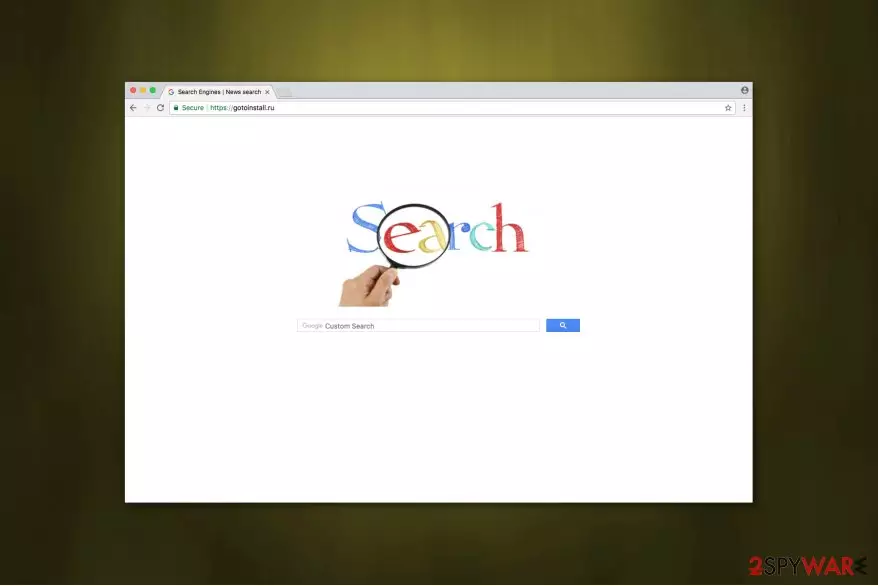
Experts classify Gotoinstall.ru as a browser hijacker that can significantly deteriorate user's browsing experience. It is similar to Webalta.ru and modifies new tab URL, homepage and default search engine after the installation. Once users are forced to search using this unreliable service provider, it delivers intrusive ads that constantly pop-up[1] and disturb while browsing the Internet.
The most common actions that Gotoinstall.ru might perform:
- Assign hxxps://gotoinstall.ru/ as a default search provider;
- Infiltrate tracking cookies and collect browsing-related information;
- Generate annoying ads that might lead to malware infections;
- Secretly install additional potentially unwanted programs (PUPs).
Therefore, analysts from UsunWirusa.pl[2] recommend you to start Gotoinstall.ru removal right away, to avoid the potential damage it may cause to your system and privacy. You can learn how to get rid of it from the instructions presented at the end of this article.
However, those who still hesitate to eliminate Gotoinstall.ru shouldn't be surprised if they find this ad-based search engine instead of their regular one. The questionable platform is focused purely on displaying sponsored advertisements and providing links to user's search query-related merchandise.

This means that even you look for scientific terms, like quantum mechanics, Gotoinstall.ru may lead to websites completely unrelated to the topic. Even if these pages are related and provide relevant content, they will be filled with suspicious ads, offering random online deals.
To make matters even worse, the hijacker may also track your browsing patterns and adjust the ads accordingly. After that, the online browsing may become even riskier as bogus download managers, shady applications, and tech support scams may start hiding under the ads that actually fit your interests.
Thus, you should start Gotoinstall.ru removal the moment you see it instead of your default search engine or homepage. Choose a professional security software like FortectIntego or MalwarebytesMalwarebytes to help you with the termination procedure.
You can prevent the infiltration of the browser hijacker
It is vital to understand how potentially unwanted programs (PUPs)[3] are distributed to stop their installation in time. Cybersecurity experts report that usually, they come together with regular applications that you might download from the Internet. To hide the ad-supported program, developers offer Quick or Recommended settings for the inexperienced computer users.
Be aware that these options do not allow to decline the installation of the potentially unwanted programs (PUPs). Thus, you should choose Custom or Advanced settings and unmark all pre-selected boxes. Additionally, it is necessary to carefully monitor the download/installation procedure later on as well.
To protect your computer from unwanted applications, you should also scan files you are going to download beforehand. Most of the security software are able to detect a vast of malware and notify you to stay away from them.
Anti-malware program will help you to uninstall Gotoinstall.ru hijacker
Gotoinstall.ru removal might be easy if you choose to get rid of it automatically with the help of a powerful security application. Download it from verified developers and run a full system scan shortly after. It will quickly eliminate the hijacker and save you time.
However, if you want to remove Gotoinstall.ru manually, it might be confusing. Therefore, we attach detailed instructions at the end of this article. You must follow them strictly, in order not to delete essential files of your system.
Uninstall from Windows
Uninstall from Windows 10/8:
- Type Control Panel into the Windows search box and open the result.
- Under Programs, select Uninstall a program.


Uninstall from Windows 7/XP:
- Click on Windows Start > Control Panel (Windows XP users should click on Add/Remove Programs).
- In Control Panel, select Programs > Uninstall a program.


Remove the unwanted program:
- In the Programs and Features window, look for any recently installed suspicious entries, select them, and click Uninstall.
- If User Account Control appears, click Yes to confirm, then complete the removal.


Reset Internet Explorer
Remove dangerous add-ons:
- Open Internet Explorer, click on the Gear icon (IE menu) on the top-right corner of the browser
- Pick Manage Add-ons.
- You will see a Manage Add-ons window. Here, look for suspicious plugins. Click on these entries and select Disable.


Change your homepage if it was altered:
- Open IE and click on the Gear icon.
- Select Internet Options.
- In the General tab, delete the Home page address and replace it by your preferred one (for example, Google.com).
- Click Apply and then select OK.


Delete temporary files:
- Press on the Gear icon and select Internet Options.
- Under Browsing history, click Delete...
- Select relevant fields and press Delete.


Reset Internet Explorer:
- Click on Gear icon > Internet options and select Advanced tab.
- Select Reset.
- In the new window, check Delete personal settings and select Reset.


Remove from Microsoft Edge
Delete unwanted extensions from MS Edge:
- Select Menu (three horizontal dots at the top-right of the browser window) and pick Extensions.
- From the list, pick the extension and click on the Gear icon.
- Click Remove.


Clear cookies and other browser data:
- Click on the Menu (three horizontal dots at the top-right of the browser window) and select Settings > Privacy, search, and services..
- Under Clear browsing data, pick Choose what to clear.
- Select Cookies and other site data and Cached images and files. (apart from passwords, although you might want to include Media licenses as well, if applicable) and click on Clear.


Restore new tab and homepage settings:
- Click the menu icon and choose Settings.
- Then find On startup section.
- Click Remove next to any suspicious startup page.
Reset MS Edge if the above steps did not work:
- Press on Ctrl + Shift + Esc to open Task Manager.
- Click on More details arrow at the bottom of the window.
- Select Details tab.
- Now scroll down and locate every entry with Microsoft Edge name in it. Right-click on each of them and select End Task to stop MS Edge from running.


Instructions for Chromium-based Edge
Delete extensions from MS Edge (Chromium):
- Open Edge and click select Settings > Extensions.
- Delete unwanted extensions by clicking Remove.


Clear cache and site data:
- Click on Menu and go to Settings.
- Select Privacy, search and services.
- Under Clear browsing data, pick Choose what to clear.
- Under Time range, pick All time.
- Select Clear now.


Reset Chromium-based MS Edge:
- Click on Menu and select Settings.
- On the left side, pick Reset settings.
- Select Restore settings to their default values.
- Confirm with Reset.
- This will disable extensions and reset startup pages but will not delete bookmarks, saved passwords, or browsing history.


Remove from Mozilla Firefox (FF)
Remove dangerous extensions:
- Open Mozilla Firefox browser and click on the Menu (three horizontal lines at the top-right of the window).
- Select Add-ons.
- In here, select the unwanted extension and click Remove.


Reset the homepage:
- Click three horizontal lines at the top right corner to open the menu.
- Choose Settings.
- Under Home, set your preferred homepage and new tab settings.
Clear cookies and site data:
- Click Menu and pick Settings.
- Go to Privacy & Security section.
- Scroll down to locate Cookies and Site Data.
- Click on Clear Data...
- Select Cookies and Site Data and Temporary cached files and pages, then click Clear.


Reset Mozilla Firefox
If clearing the browser as explained above did not help, reset Mozilla Firefox:
- Open Mozilla Firefox browser and click the Menu.
- Go to Help and then choose Troubleshooting Information.

- Under Give Firefox a tune up section, click on Refresh Firefox...
- Once the pop-up shows up, confirm the action by pressing on Refresh Firefox.



Remove from Google Chrome
Delete malicious extensions from Google Chrome:
- Open Google Chrome, click on the Menu (three vertical dots at the top-right corner) and select More tools > Extensions.
- In the newly opened window, you will see all the installed extensions. Uninstall all suspicious extensions related to the unwanted program by clicking Remove.


Clear cache and web data from Chrome:
- Click on Menu and pick Settings.
- Under Privacy and security, select Clear browsing data.
- Select Browsing history, Cookies and other site data, as well as Cached images and files.
- Click Clear data.


Change your homepage:
- Click menu and choose Settings.
- Look for a suspicious site in the On startup section.
- Click on Open a specific or set of pages and click on three dots to find the Remove option.
Reset Google Chrome:
If the previous methods did not help you, reset Google Chrome to eliminate all the unwanted components:
- Click on Menu and select Settings.
- In the Settings, scroll down and click Advanced.
- Scroll down and locate Reset and clean up section.
- Now click Restore settings to their original defaults.
- Confirm with Reset settings.


Did this guide help?
Be the first to comment