

Advancedpctools.com is the website that gets promoted as a very useful service
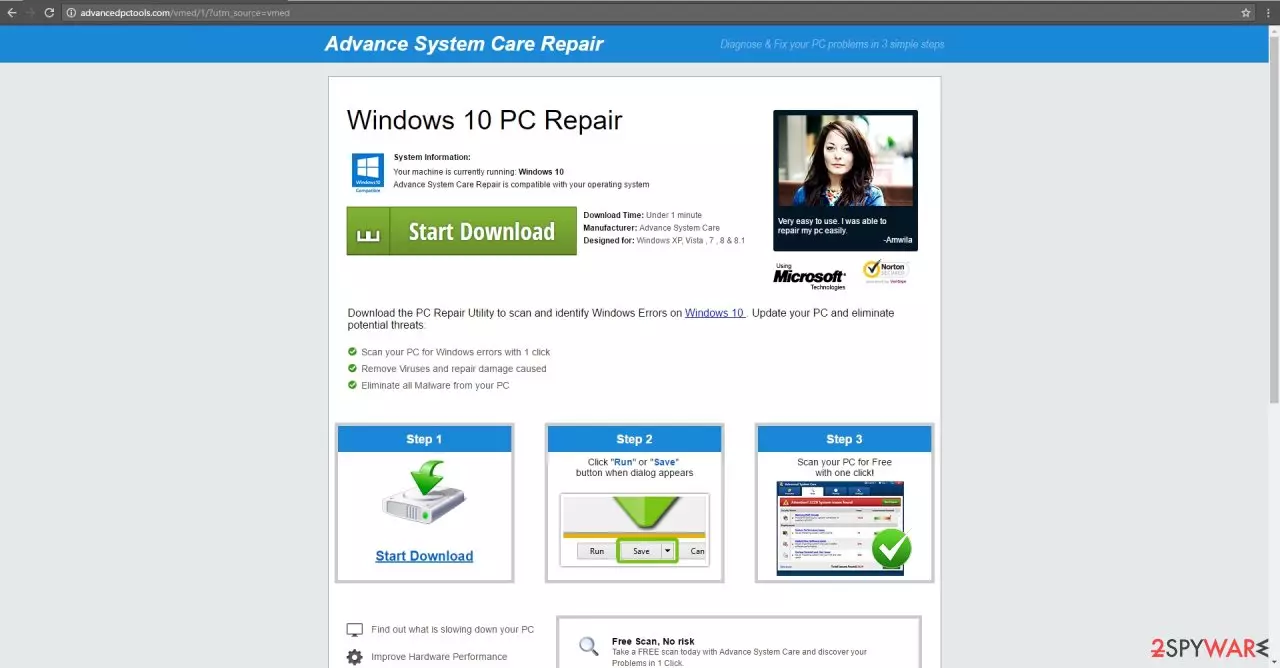
Advancedpctools.com virus can be promoted by other PUP-based programs and platforms. It is a website promoting malware removal and prevention utility. As a matter of fact, you should not trust this website as it is classified as adware. It claimed such title after users spot its tendency to advertise and promote its product in an intrusive way. Once the virus settles on the computer, it displays ads and banner ads while you are watching a movie or reading a news piece. Even if you happen to be a very patient-user, you might get eventually enraged by the tendencies of this adware.
| Name | Advancedpctools.com |
|---|---|
| Type | Adware, potentially unwanted program |
| Main problems | The commercial content fills up the screen, pop-ups and banners occur out of nowhere, speed gets significantly affected |
| Danger | Advertising platforms, third-party developers can use data tracking functions and collect information about user' habits |
| Distribution | Freeware sites, deceptive platforms, p2p services |
| Elimination | Anti-malware tools can be very helpful when dealing with PUPs. Check the guide below for the direct web browser fixes |
| Repair | Clear the device and make sure to fix any damage that the intruder has done to your system with the help of FortectIntego |
In case you get tempted to install one of their products, the consequences might be completely different from what you expected. It would be better to remove Advancedpctools.com right away. If you procrastinate to do it, additional unknown applications might settle on the system.
Often they take up a lot of free space on a hard disk affecting the PC’s performance capabilities. Advancedpctools.com removal should be performed right away. Anti-malware tools like SpyHunterCombo Cleaner, MalwarebytesMalwarebytes ensures that the process goes without disturbances.
Since privacy and cybersecurity are becoming more relevant issues, not only famous virtual security companies offer their services. While some crooks or hackers concentrate on the virus, specifically, ransomware, creation, crooks with fewer ambitions fish for new victims by promoting questionable malware elimination tools. Likewise, Advancedpctools happens to be one such example as well.
Credulous users might not suspect that the promoted content in those intrusive ads is just poor bait. Avoid installing such tools. At the very least, you may simply install a futile application. From a broader perspective, there is a possibility that their older products may be misused by more destructive viruses. Even if you intend to renew your security, research the wanted application in reliable security websites with explicit reviews and recommendations.
Another highly bothersome feature of this adware is its tendency to direct you to other domains. Thus, due to Advancedpctools.com redirect, you may find yourself on another website promoting anti-spyware programs or a shopping web page crammed with flickering banners. These web pages might be exploited by crooks.
In other words, these websites may contain malignant elements. Once they cram your computer, the operating system might start displaying various fake system error messages or, in general, it might start malfunctioning.
Questionable content exposes users to the adware
On the one hand, you might have downloaded the tool from its official website. On the other hand, the hijack might have taken place after the installation of a new application was complete. It is a common mistake not to pay enough attention while installing a new application.
As a result, the majority of users overlook the hidden attachments. Likewise, you skipped through the settings only to find out the adware later on the computer. When you install a new application next time, opt for “Custom” settings. Detect optional applications and unmark one by one. Therefore, you will be able to prevent the infiltration of any adware.
Eliminate Advancedpctools.com and other PUPs properly
It is not complicated to perform either manual or automatic elimination. We recommend choosing the automatic threat removal option. The anti-spyware application is specifically designed for dealing with similar computer threats.
After the elimination, you will cease seeing annoying ads. Update it daily, and you will enjoy proper and speedy browsing without any interference. There is also an option to remove the Advancedpctools.com virus the usual way. You can find the instructions required for this method delivered below.
Uninstall from Windows
Uninstall from Windows 10/8:
- Type Control Panel into the Windows search box and open the result.
- Under Programs, select Uninstall a program.


Uninstall from Windows 7/XP:
- Click on Windows Start > Control Panel (Windows XP users should click on Add/Remove Programs).
- In Control Panel, select Programs > Uninstall a program.


Remove the unwanted program:
- In the Programs and Features window, look for any recently installed suspicious entries, select them, and click Uninstall.
- If User Account Control appears, click Yes to confirm, then complete the removal.


Delete from macOS
Remove the unwanted application:
- From the menu bar, select Go > Applications.
- In the Applications folder, look for any suspicious entries, then drag them to Trash (or right-click and pick Move to Trash).


Delete leftover files and folders:
- Select Go > Go to Folder.
- Enter /Library/Application Support and remove any suspicious folders related to the unwanted program.
- Repeat the same check in the /Library/LaunchAgents and /Library/LaunchDaemons folders, deleting any suspicious entries.

- Finally, empty the Trash to permanently remove the leftovers.

Remove from Microsoft Edge
Delete unwanted extensions from MS Edge:
- Select Menu (three horizontal dots at the top-right of the browser window) and pick Extensions.
- From the list, pick the extension and click on the Gear icon.
- Click Remove.


Clear cookies and other browser data:
- Click on the Menu (three horizontal dots at the top-right of the browser window) and select Settings > Privacy, search, and services..
- Under Clear browsing data, pick Choose what to clear.
- Select Cookies and other site data and Cached images and files. (apart from passwords, although you might want to include Media licenses as well, if applicable) and click on Clear.


Restore new tab and homepage settings:
- Click the menu icon and choose Settings.
- Then find On startup section.
- Click Remove next to any suspicious startup page.
Reset MS Edge if the above steps did not work:
- Press on Ctrl + Shift + Esc to open Task Manager.
- Click on More details arrow at the bottom of the window.
- Select Details tab.
- Now scroll down and locate every entry with Microsoft Edge name in it. Right-click on each of them and select End Task to stop MS Edge from running.


Instructions for Chromium-based Edge
Delete extensions from MS Edge (Chromium):
- Open Edge and click select Settings > Extensions.
- Delete unwanted extensions by clicking Remove.


Clear cache and site data:
- Click on Menu and go to Settings.
- Select Privacy, search and services.
- Under Clear browsing data, pick Choose what to clear.
- Under Time range, pick All time.
- Select Clear now.


Reset Chromium-based MS Edge:
- Click on Menu and select Settings.
- On the left side, pick Reset settings.
- Select Restore settings to their default values.
- Confirm with Reset.
- This will disable extensions and reset startup pages but will not delete bookmarks, saved passwords, or browsing history.


Remove from Mozilla Firefox (FF)
Remove dangerous extensions:
- Open Mozilla Firefox browser and click on the Menu (three horizontal lines at the top-right of the window).
- Select Add-ons.
- In here, select the unwanted extension and click Remove.


Reset the homepage:
- Click three horizontal lines at the top right corner to open the menu.
- Choose Settings.
- Under Home, set your preferred homepage and new tab settings.
Clear cookies and site data:
- Click Menu and pick Settings.
- Go to Privacy & Security section.
- Scroll down to locate Cookies and Site Data.
- Click on Clear Data...
- Select Cookies and Site Data and Temporary cached files and pages, then click Clear.


Reset Mozilla Firefox
If clearing the browser as explained above did not help, reset Mozilla Firefox:
- Open Mozilla Firefox browser and click the Menu.
- Go to Help and then choose Troubleshooting Information.

- Under Give Firefox a tune up section, click on Refresh Firefox...
- Once the pop-up shows up, confirm the action by pressing on Refresh Firefox.



Remove from Google Chrome
Delete malicious extensions from Google Chrome:
- Open Google Chrome, click on the Menu (three vertical dots at the top-right corner) and select More tools > Extensions.
- In the newly opened window, you will see all the installed extensions. Uninstall all suspicious extensions related to the unwanted program by clicking Remove.


Clear cache and web data from Chrome:
- Click on Menu and pick Settings.
- Under Privacy and security, select Clear browsing data.
- Select Browsing history, Cookies and other site data, as well as Cached images and files.
- Click Clear data.


Change your homepage:
- Click menu and choose Settings.
- Look for a suspicious site in the On startup section.
- Click on Open a specific or set of pages and click on three dots to find the Remove option.
Reset Google Chrome:
If the previous methods did not help you, reset Google Chrome to eliminate all the unwanted components:
- Click on Menu and select Settings.
- In the Settings, scroll down and click Advanced.
- Scroll down and locate Reset and clean up section.
- Now click Restore settings to their original defaults.
- Confirm with Reset settings.


Delete from Safari
Remove dangerous extensions:
- Open Safari, click Safari in the menu at the top-left of the screen, and select Preferences.
- Go to the Extensions tab, look for any suspicious entries, and click Uninstall to remove them.


Clear history and website data:
- Click Safari in the menu and pick Clear History.
- Set Clear to all history and confirm with Clear History.


Reset Safari:
- Click Safari in the menu and select Preferences > Advanced.
- Enable Show Develop menu in menu bar.
- From the menu bar, click Develop and select Empty Caches.


Did this guide help?
3 comments
Remus^$^
Adware for adware removal? Still, you get mixed up sometimes...
voxPopuli5654
They need to have a taste of real viruses.
figaro&7
Removed the adware within a couple of minutes.