

Should you trust “Urgent Firefox Update” ads and update your browser?
If your Internet browsing suddenly gets interrupted by an update request, don’t hurry to download it, because it might be the Urgent Firefox Update virus that you are having business with. This virus shows up on Mozilla Firefox browsers, though it is not yet known whether Macs and Windows OS are equally susceptible to the infection. What we are sure of, is the fact that this virus only pretends to be a software update in order to get the users to download suspicious executables or javascript files labeled “firefox-patch.” The tactics chosen to deliver this potential scam make it pretty believable. Once the browser is infected, the virus creates a virtual layer on which it displays the well-recognizable Firefox update logo, with an additional “URGENT FIREFOX UPDATE — Download Now” message underneath. It then opens a pop-up with download permission request which also obstructs the user from browsing the web normally. Something you would expect a normal browser update would do? Well, not quite. If such update ever appears on your browser, there is one way to test its reliability. Just look at the URL of the page you are on. If it’s not the official Firefox website, but suspicious domains like faedijapanesepod101.net, eehacitysocialising.net, fiostrending.verizon.com, ibtimes.co.uk or eumahdcamb.net, do NOT allow any downloads. Also, make sure you close your browser and run an antivirus scan immediately to find and remove Urgent Firefox Update malware from your PC. You can obviously do all the elimination manually. Nevertheless, we recommend sticking to reputable antivirus tools, such as FortectIntego.
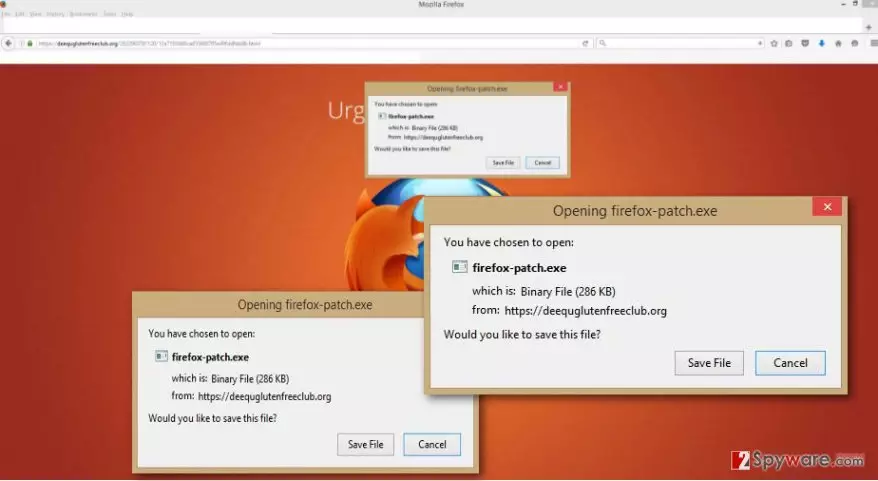
The problem with Urgent Firefox Update hijack is that this update scam is just a small part of a much larger picture that a sneaky adware is responsible for. As a result, apart from these notifications you will probably witness generally increased scale of online advertising and, possibly, not on your Firefox browser only. Google Chrome, Internet Explorer or Microsoft Edge browsers may start deploying ads urging you to buy goods, visit certain websites, fill in online surveys, etc. If the adware is especially malicious, it may also get involved in tech support scam business. Thus, you should be extremely careful once you start noticing any unusual or suspicious ads. For more gullible users, we suggest refraining from using the browser completely while this adware is on the computer. While you are off the network, you can take care of the Urgent Firefox Update removal. We strongly suggest attending to this virus as soon as possible, because its prolonged stay on the computer usually turns out to be harmful. In other words, infectious Urgent Firefox Update ads may bring malware, viruses and Trojans to your PC.
How do these ads find their way into computers?
In its essence, Urgent Firefox Update program is very similar to other adware-type infections such as “Java Software Critical Update” or “Update Windows 7 Drivers” which use fake update notifications to trick users into downloading potential malware. All of these programs are PUPs, so they are all distributed using the same misleading “bundling” method. Bundling allows spreading several programs at a time placing them in a single software package. This can be used for a good cause, like promoting less popular software or adding extra tools in addition to some larger software. Nevertheless, this method is now largely abused by the malwartisers, so if you found Urgent Firefox Update installed on your computer, it most likely ended up there due to malicious bundling. Such practice of spreading adware around is tricky but can be outsmarted. You should begin with software downloading. Do not obtain software from unreputable sources and try to stay away from unsafe file sharing domains. Secondly, once you download some program or a software package, scan it with anti-malware or anti-spyware utility before proceeding with the installation. Finally, check whether the software you have downloaded is not bundled with potentially unwanted programs and cancel their installation if you notice any.
Is there a way to remove Urgent Firefox Update ads?
If you never had any experience with adware, getting rid of Urgent Firefox Update virus may seem like an impossible mission. Luckily, it isn’t so. In fact, this malware can be easily removed using automatic antivirus tools. Experts suggest that the software you use for the Urgent Firefox Update removal should be legally obtained and updated. Otherwise, the elimination might get tricky or fail entirely. Also, make sure you do a little research before obtaining any virus-fighting tool, in order to choose the best option. You can find all the necessary information for that in the table of our recommended software. Nevertheless, if you would rather remove Urgent Firefox Update manually, we have some good news, too. Our team has prepared a tutorial featuring all the removal steps just below the article.
Uninstall from Windows
Uninstall from Windows 10/8:
- Type Control Panel into the Windows search box and open the result.
- Under Programs, select Uninstall a program.


Uninstall from Windows 7/XP:
- Click on Windows Start > Control Panel (Windows XP users should click on Add/Remove Programs).
- In Control Panel, select Programs > Uninstall a program.


Remove the unwanted program:
- In the Programs and Features window, look for any recently installed suspicious entries, select them, and click Uninstall.
- If User Account Control appears, click Yes to confirm, then complete the removal.


Delete from macOS
Remove the unwanted application:
- From the menu bar, select Go > Applications.
- In the Applications folder, look for any suspicious entries, then drag them to Trash (or right-click and pick Move to Trash).


Delete leftover files and folders:
- Select Go > Go to Folder.
- Enter /Library/Application Support and remove any suspicious folders related to the unwanted program.
- Repeat the same check in the /Library/LaunchAgents and /Library/LaunchDaemons folders, deleting any suspicious entries.

- Finally, empty the Trash to permanently remove the leftovers.

Reset Internet Explorer
Remove dangerous add-ons:
- Open Internet Explorer, click on the Gear icon (IE menu) on the top-right corner of the browser
- Pick Manage Add-ons.
- You will see a Manage Add-ons window. Here, look for suspicious plugins. Click on these entries and select Disable.


Change your homepage if it was altered:
- Open IE and click on the Gear icon.
- Select Internet Options.
- In the General tab, delete the Home page address and replace it by your preferred one (for example, Google.com).
- Click Apply and then select OK.


Delete temporary files:
- Press on the Gear icon and select Internet Options.
- Under Browsing history, click Delete...
- Select relevant fields and press Delete.


Reset Internet Explorer:
- Click on Gear icon > Internet options and select Advanced tab.
- Select Reset.
- In the new window, check Delete personal settings and select Reset.


Remove from Microsoft Edge
Delete unwanted extensions from MS Edge:
- Select Menu (three horizontal dots at the top-right of the browser window) and pick Extensions.
- From the list, pick the extension and click on the Gear icon.
- Click Remove.


Clear cookies and other browser data:
- Click on the Menu (three horizontal dots at the top-right of the browser window) and select Settings > Privacy, search, and services..
- Under Clear browsing data, pick Choose what to clear.
- Select Cookies and other site data and Cached images and files. (apart from passwords, although you might want to include Media licenses as well, if applicable) and click on Clear.


Restore new tab and homepage settings:
- Click the menu icon and choose Settings.
- Then find On startup section.
- Click Remove next to any suspicious startup page.
Reset MS Edge if the above steps did not work:
- Press on Ctrl + Shift + Esc to open Task Manager.
- Click on More details arrow at the bottom of the window.
- Select Details tab.
- Now scroll down and locate every entry with Microsoft Edge name in it. Right-click on each of them and select End Task to stop MS Edge from running.


Instructions for Chromium-based Edge
Delete extensions from MS Edge (Chromium):
- Open Edge and click select Settings > Extensions.
- Delete unwanted extensions by clicking Remove.


Clear cache and site data:
- Click on Menu and go to Settings.
- Select Privacy, search and services.
- Under Clear browsing data, pick Choose what to clear.
- Under Time range, pick All time.
- Select Clear now.


Reset Chromium-based MS Edge:
- Click on Menu and select Settings.
- On the left side, pick Reset settings.
- Select Restore settings to their default values.
- Confirm with Reset.
- This will disable extensions and reset startup pages but will not delete bookmarks, saved passwords, or browsing history.


Remove from Mozilla Firefox (FF)
Remove dangerous extensions:
- Open Mozilla Firefox browser and click on the Menu (three horizontal lines at the top-right of the window).
- Select Add-ons.
- In here, select the unwanted extension and click Remove.


Reset the homepage:
- Click three horizontal lines at the top right corner to open the menu.
- Choose Settings.
- Under Home, set your preferred homepage and new tab settings.
Clear cookies and site data:
- Click Menu and pick Settings.
- Go to Privacy & Security section.
- Scroll down to locate Cookies and Site Data.
- Click on Clear Data...
- Select Cookies and Site Data and Temporary cached files and pages, then click Clear.


Reset Mozilla Firefox
If clearing the browser as explained above did not help, reset Mozilla Firefox:
- Open Mozilla Firefox browser and click the Menu.
- Go to Help and then choose Troubleshooting Information.

- Under Give Firefox a tune up section, click on Refresh Firefox...
- Once the pop-up shows up, confirm the action by pressing on Refresh Firefox.



Remove from Google Chrome
Delete malicious extensions from Google Chrome:
- Open Google Chrome, click on the Menu (three vertical dots at the top-right corner) and select More tools > Extensions.
- In the newly opened window, you will see all the installed extensions. Uninstall all suspicious extensions related to the unwanted program by clicking Remove.


Clear cache and web data from Chrome:
- Click on Menu and pick Settings.
- Under Privacy and security, select Clear browsing data.
- Select Browsing history, Cookies and other site data, as well as Cached images and files.
- Click Clear data.


Change your homepage:
- Click menu and choose Settings.
- Look for a suspicious site in the On startup section.
- Click on Open a specific or set of pages and click on three dots to find the Remove option.
Reset Google Chrome:
If the previous methods did not help you, reset Google Chrome to eliminate all the unwanted components:
- Click on Menu and select Settings.
- In the Settings, scroll down and click Advanced.
- Scroll down and locate Reset and clean up section.
- Now click Restore settings to their original defaults.
- Confirm with Reset settings.


Delete from Safari
Remove dangerous extensions:
- Open Safari, click Safari in the menu at the top-left of the screen, and select Preferences.
- Go to the Extensions tab, look for any suspicious entries, and click Uninstall to remove them.


Clear history and website data:
- Click Safari in the menu and pick Clear History.
- Set Clear to all history and confirm with Clear History.


Reset Safari:
- Click Safari in the menu and select Preferences > Advanced.
- Enable Show Develop menu in menu bar.
- From the menu bar, click Develop and select Empty Caches.


Did this guide help?
Be the first to comment