

Some facts about Paper-search2016.com:
Some malicious search engines, like, for instance, Paper-search2016.com virus are designed to take over your browser, advertise sponsored content, initiate redirects and run a couple of other nasty activities while you are not looking. By its design, Paper-search2016 is identical to another suspicious search site called Searchbewst2016.com which we have already discussed in one of our previous articles. Using clone sites is a typical browser hijacker feature so with an addition of distorted and ad-filled search results, it leaves no doubt that Paper-search2016.com belongs to these particular potentially unwanted programs. Knowing the origin of this virus, we can apply better strategies for its removal. In this case, we suggest putting automatic tools to the task. Browser hijackers are tricky and may bounce back to your browser quite easily, but reputable antivirus software like FortectIntego can stop that from happening by eliminating all of the virus components from the infected computer. Using antivirus scanner, you are more likely to prevent Paper-search2016.com removal from failing.
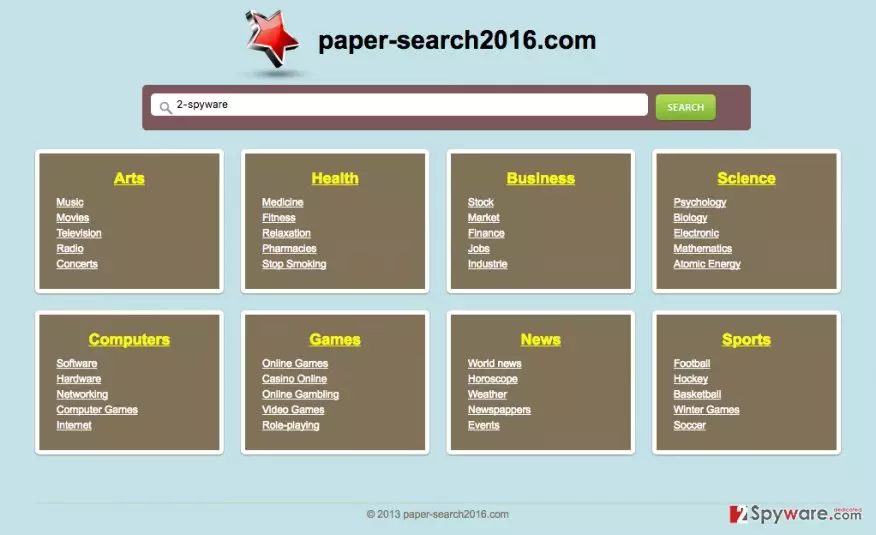
Before we head to virus prevention tips, let us elaborate a bit more on the Paper-search2016.com hijack itself. The program’s installation usually happens without the user’s knowledge while the browser’s homepage and default search engine preferences are also changed without authorization. It is not too difficult to get tricked into using this search engine willingly because it offers a good infrastructure, easily accessible subject categories, and topics. Nonetheless, if you decide to use it, you will be quickly put off by the idea. Soon you will find out that the search service the site offers is barely usable and the results that are displayed give little or no relevant information. Besides, this domain will take over all of the browsers installed on your computer, so you will have no alternatives to switch to. What is more, most users refuse to use this engine partially because of the Paper-search2016.com redirect problem. Hijacker embeds thousands of advertisements, links, and pop-ups to advertise the sponsored content, so surfing the web becomes highly unpredictable. One minute you may be browsing through a weather forecast website, but may end up on some car retail website the next. Remove Paper-search2016.com, and you will not have to deal with any of the incalculable actions this virus decides to perform.
How should I protect my PC from this browser hijacker?
Many users ask us the latter question. But what they have in mind is usually antivirus utilities, optimization tools and other software that can be installed on the computer. These tools are undoubtedly important but no less important is our own actions online. Most infected users are surprised to find out that they are the ones who should be held accountable for the Paper-search2016.com infiltration. What they do not know is that malware is usually distributed via software bundles, so downloading freeware or shareware from unreputable online sources is the quickest way to get infected. The potentially unwanted program gets installed simultaneously with audio-video players, photo editors or download managers. If you use “Advanced” or “Custom” installation settings, though, this might not happen. These modes disclose other software which might be bundled with your downloaded applications, so you can stop it from installing on your PC. In the case of Paper-search2016.com, you should look for a pre-marked checkbox that says something along the lines of “make Paper-search2016.com my homepage” and unmark it.
Remove Paper-search2016.com and reset your browser:
Security professionals agree that Paper-search2016.com removal is necessary to ensure better system protection. Browser hijackers might not be the most dangerous of threats, but they can seriously weaken the computer’s stability. You should be especially careful to remove the virus safely because an inconsiderate action can damage your computer. There are two acknowledged methods using which Paper-search2016.com virus can be eliminated from the infected computer. The system scan with antivirus utilities, or the so-called automatic method is the first and the most preferable option. This technique allows a thorough system investigation and decreases the risk of virus reappearance. You can also remove Paper-search2016.com manually. The detailed step-by-step instructions on how to do it are given below.
Uninstall from Windows
Uninstall from Windows 10/8:
- Type Control Panel into the Windows search box and open the result.
- Under Programs, select Uninstall a program.


Uninstall from Windows 7/XP:
- Click on Windows Start > Control Panel (Windows XP users should click on Add/Remove Programs).
- In Control Panel, select Programs > Uninstall a program.


Remove the unwanted program:
- In the Programs and Features window, look for any recently installed suspicious entries, select them, and click Uninstall.
- If User Account Control appears, click Yes to confirm, then complete the removal.


Reset Internet Explorer
Remove dangerous add-ons:
- Open Internet Explorer, click on the Gear icon (IE menu) on the top-right corner of the browser
- Pick Manage Add-ons.
- You will see a Manage Add-ons window. Here, look for suspicious plugins. Click on these entries and select Disable.


Change your homepage if it was altered:
- Open IE and click on the Gear icon.
- Select Internet Options.
- In the General tab, delete the Home page address and replace it by your preferred one (for example, Google.com).
- Click Apply and then select OK.


Delete temporary files:
- Press on the Gear icon and select Internet Options.
- Under Browsing history, click Delete...
- Select relevant fields and press Delete.


Reset Internet Explorer:
- Click on Gear icon > Internet options and select Advanced tab.
- Select Reset.
- In the new window, check Delete personal settings and select Reset.


Remove from Microsoft Edge
Delete unwanted extensions from MS Edge:
- Select Menu (three horizontal dots at the top-right of the browser window) and pick Extensions.
- From the list, pick the extension and click on the Gear icon.
- Click Remove.


Clear cookies and other browser data:
- Click on the Menu (three horizontal dots at the top-right of the browser window) and select Settings > Privacy, search, and services..
- Under Clear browsing data, pick Choose what to clear.
- Select Cookies and other site data and Cached images and files. (apart from passwords, although you might want to include Media licenses as well, if applicable) and click on Clear.


Restore new tab and homepage settings:
- Click the menu icon and choose Settings.
- Then find On startup section.
- Click Remove next to any suspicious startup page.
Reset MS Edge if the above steps did not work:
- Press on Ctrl + Shift + Esc to open Task Manager.
- Click on More details arrow at the bottom of the window.
- Select Details tab.
- Now scroll down and locate every entry with Microsoft Edge name in it. Right-click on each of them and select End Task to stop MS Edge from running.


Instructions for Chromium-based Edge
Delete extensions from MS Edge (Chromium):
- Open Edge and click select Settings > Extensions.
- Delete unwanted extensions by clicking Remove.


Clear cache and site data:
- Click on Menu and go to Settings.
- Select Privacy, search and services.
- Under Clear browsing data, pick Choose what to clear.
- Under Time range, pick All time.
- Select Clear now.


Reset Chromium-based MS Edge:
- Click on Menu and select Settings.
- On the left side, pick Reset settings.
- Select Restore settings to their default values.
- Confirm with Reset.
- This will disable extensions and reset startup pages but will not delete bookmarks, saved passwords, or browsing history.


Remove from Mozilla Firefox (FF)
Remove dangerous extensions:
- Open Mozilla Firefox browser and click on the Menu (three horizontal lines at the top-right of the window).
- Select Add-ons.
- In here, select the unwanted extension and click Remove.


Reset the homepage:
- Click three horizontal lines at the top right corner to open the menu.
- Choose Settings.
- Under Home, set your preferred homepage and new tab settings.
Clear cookies and site data:
- Click Menu and pick Settings.
- Go to Privacy & Security section.
- Scroll down to locate Cookies and Site Data.
- Click on Clear Data...
- Select Cookies and Site Data and Temporary cached files and pages, then click Clear.


Reset Mozilla Firefox
If clearing the browser as explained above did not help, reset Mozilla Firefox:
- Open Mozilla Firefox browser and click the Menu.
- Go to Help and then choose Troubleshooting Information.

- Under Give Firefox a tune up section, click on Refresh Firefox...
- Once the pop-up shows up, confirm the action by pressing on Refresh Firefox.



Remove from Google Chrome
Delete malicious extensions from Google Chrome:
- Open Google Chrome, click on the Menu (three vertical dots at the top-right corner) and select More tools > Extensions.
- In the newly opened window, you will see all the installed extensions. Uninstall all suspicious extensions related to the unwanted program by clicking Remove.


Clear cache and web data from Chrome:
- Click on Menu and pick Settings.
- Under Privacy and security, select Clear browsing data.
- Select Browsing history, Cookies and other site data, as well as Cached images and files.
- Click Clear data.


Change your homepage:
- Click menu and choose Settings.
- Look for a suspicious site in the On startup section.
- Click on Open a specific or set of pages and click on three dots to find the Remove option.
Reset Google Chrome:
If the previous methods did not help you, reset Google Chrome to eliminate all the unwanted components:
- Click on Menu and select Settings.
- In the Settings, scroll down and click Advanced.
- Scroll down and locate Reset and clean up section.
- Now click Restore settings to their original defaults.
- Confirm with Reset settings.


Did this guide help?
Be the first to comment