

EasyCalc ads can stop you from finding relevant information online
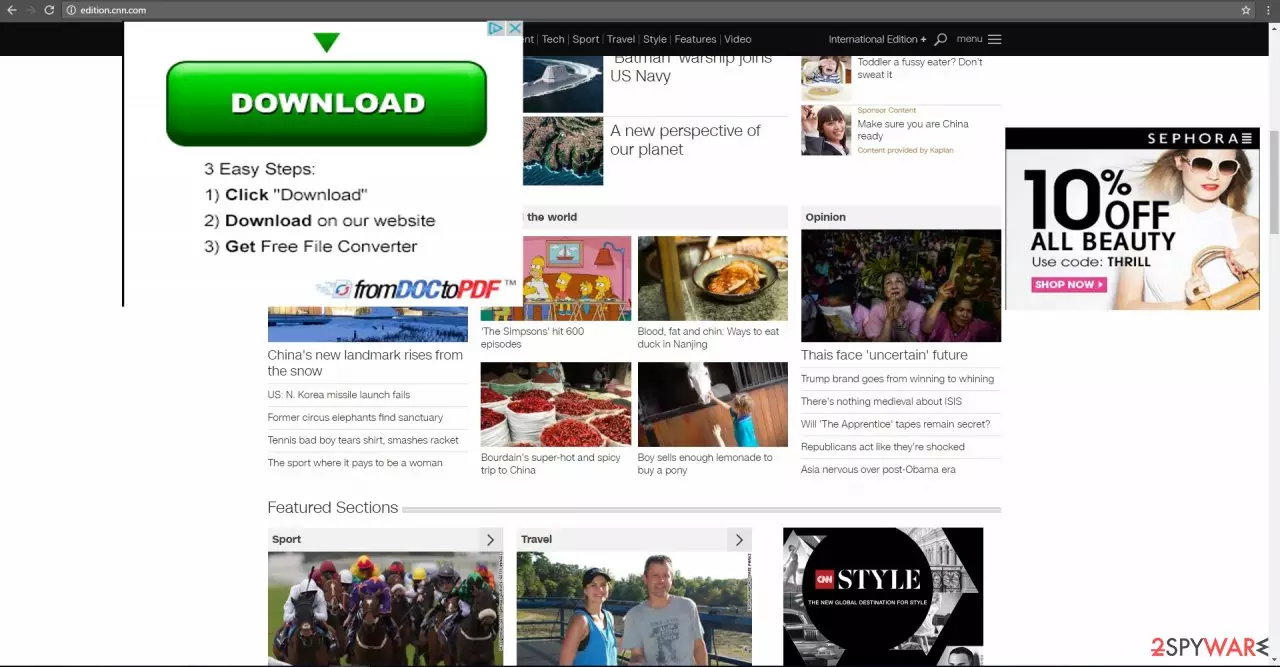
Various pop-ups offering you to obtain software or other goods might be the sign of EasyCalc infiltration. This is merely an adware application that is designed for displaying sponsored advertisements, coupons, banners, and in-text ads. This could commonly prompt users to find ways to remove the ads from their systems for good.
You should do it as soon as possible as this rogue app might encourage you to install other programs and toolbars on your computer. Usually, these programs will not harm your system, but they might take up a lot of space in local disks. We present you with several easyCalc removal options at the end of the article.
| Name | EasyCalc |
| Type | Adware |
| Distribution | Software bundles, third-party websites |
| Operation | Displays intrusive pop-ups, banners, auto-play and other ads on the infected system; might collect user data and share it with third-parties |
| Removal | You can typically uninstall adware as per instructions below or employ anti-malware software |
| System fix | Adware might sometimes negatively impact not only web browsing experience but also damage some system components. If you experience application crashes or errors, we recommend fixing virus damage with FortectIntego |
Usually, you might start suspecting that some fishy apps sneaked into the device when you see pop-ups appearing not only in gaming or shopping domains but in informational web pages as well. They do not only distract you, but they may facilitate EasyCalc redirect problems.
In short, the ads misguide you not only to the domains of their sponsors but unknown web pages. Unfortunately, there is no certainty that they are not infected. Thus, once you see ads, exit them as soon as possible. Keep in mind that the redirect occurs when you click on fake exit buttons. The real ones are usually put in the very corner.
Be aware of the offers to purchase and install security applications. These ads frequently offer a broad range of products. When it comes to anti-spyware applications, do not get tempted to install them offered by the ads. Such programs, which are spread by secondary distributors, might possess malignant elements.
You should not also fall for their trick by downloading the software once you see fake alerts that your device is infected. Such claims often happen to be just false alerts. Users who decided to put an end to the application might get frustrated.
Since the app behaves like a rogue file, you might blow a fuse after looking for the source of infection. It might disguise under an alternative title. In addition, once you proceed to the elimination, it is of utmost importance to remove all adware elements which are often dispersed throughout the entire system.
Adware gets installed along other software you download from the internet
The infiltration happens when users carelessly perform the installation of their preferred program. It is a common mistake to think that legitimate applications do not contain optional apps along or are entirely safe to install. Thus, due to rush and inattentiveness, the installation of PUPs occurs.
To not commit the same mistake again, we offer you a different way of installing new applications. After checking the official publisher of the program, you are willing to install, download it from the official website. Upon initiating the installation, choose “Custom” settings. They will disclose optional applications. Likewise, you will be able to unmark shady programs before they sneak into the computer.
Is it difficult to uninstall EasyCalc?
Luckily, easyCalc removal does not require any special preparation or knowledge. You can simply do it automatically with the help of an anti-spyware application. Once you launch it, check for updates. Only when it is fully renewed is it able to remove adware fully.
In addition, users who have more time might opt for the manual elimination method. The instructions necessary for this method are provided below. They apply to various adware-type applications so that they might come in handy in the future.
Uninstall from Windows
Uninstall from Windows 10/8:
- Type Control Panel into the Windows search box and open the result.
- Under Programs, select Uninstall a program.


Uninstall from Windows 7/XP:
- Click on Windows Start > Control Panel (Windows XP users should click on Add/Remove Programs).
- In Control Panel, select Programs > Uninstall a program.


Remove the unwanted program:
- In the Programs and Features window, look for any recently installed suspicious entries, select them, and click Uninstall.
- If User Account Control appears, click Yes to confirm, then complete the removal.


Delete from macOS
Remove the unwanted application:
- From the menu bar, select Go > Applications.
- In the Applications folder, look for any suspicious entries, then drag them to Trash (or right-click and pick Move to Trash).


Delete leftover files and folders:
- Select Go > Go to Folder.
- Enter /Library/Application Support and remove any suspicious folders related to the unwanted program.
- Repeat the same check in the /Library/LaunchAgents and /Library/LaunchDaemons folders, deleting any suspicious entries.

- Finally, empty the Trash to permanently remove the leftovers.

Remove from Microsoft Edge
Delete unwanted extensions from MS Edge:
- Select Menu (three horizontal dots at the top-right of the browser window) and pick Extensions.
- From the list, pick the extension and click on the Gear icon.
- Click Remove.


Clear cookies and other browser data:
- Click on the Menu (three horizontal dots at the top-right of the browser window) and select Settings > Privacy, search, and services..
- Under Clear browsing data, pick Choose what to clear.
- Select Cookies and other site data and Cached images and files. (apart from passwords, although you might want to include Media licenses as well, if applicable) and click on Clear.


Restore new tab and homepage settings:
- Click the menu icon and choose Settings.
- Then find On startup section.
- Click Remove next to any suspicious startup page.
Reset MS Edge if the above steps did not work:
- Press on Ctrl + Shift + Esc to open Task Manager.
- Click on More details arrow at the bottom of the window.
- Select Details tab.
- Now scroll down and locate every entry with Microsoft Edge name in it. Right-click on each of them and select End Task to stop MS Edge from running.


Instructions for Chromium-based Edge
Delete extensions from MS Edge (Chromium):
- Open Edge and click select Settings > Extensions.
- Delete unwanted extensions by clicking Remove.


Clear cache and site data:
- Click on Menu and go to Settings.
- Select Privacy, search and services.
- Under Clear browsing data, pick Choose what to clear.
- Under Time range, pick All time.
- Select Clear now.


Reset Chromium-based MS Edge:
- Click on Menu and select Settings.
- On the left side, pick Reset settings.
- Select Restore settings to their default values.
- Confirm with Reset.
- This will disable extensions and reset startup pages but will not delete bookmarks, saved passwords, or browsing history.


Remove from Mozilla Firefox (FF)
Remove dangerous extensions:
- Open Mozilla Firefox browser and click on the Menu (three horizontal lines at the top-right of the window).
- Select Add-ons.
- In here, select the unwanted extension and click Remove.


Reset the homepage:
- Click three horizontal lines at the top right corner to open the menu.
- Choose Settings.
- Under Home, set your preferred homepage and new tab settings.
Clear cookies and site data:
- Click Menu and pick Settings.
- Go to Privacy & Security section.
- Scroll down to locate Cookies and Site Data.
- Click on Clear Data...
- Select Cookies and Site Data and Temporary cached files and pages, then click Clear.


Reset Mozilla Firefox
If clearing the browser as explained above did not help, reset Mozilla Firefox:
- Open Mozilla Firefox browser and click the Menu.
- Go to Help and then choose Troubleshooting Information.

- Under Give Firefox a tune up section, click on Refresh Firefox...
- Once the pop-up shows up, confirm the action by pressing on Refresh Firefox.



Remove from Google Chrome
Delete malicious extensions from Google Chrome:
- Open Google Chrome, click on the Menu (three vertical dots at the top-right corner) and select More tools > Extensions.
- In the newly opened window, you will see all the installed extensions. Uninstall all suspicious extensions related to the unwanted program by clicking Remove.


Clear cache and web data from Chrome:
- Click on Menu and pick Settings.
- Under Privacy and security, select Clear browsing data.
- Select Browsing history, Cookies and other site data, as well as Cached images and files.
- Click Clear data.


Change your homepage:
- Click menu and choose Settings.
- Look for a suspicious site in the On startup section.
- Click on Open a specific or set of pages and click on three dots to find the Remove option.
Reset Google Chrome:
If the previous methods did not help you, reset Google Chrome to eliminate all the unwanted components:
- Click on Menu and select Settings.
- In the Settings, scroll down and click Advanced.
- Scroll down and locate Reset and clean up section.
- Now click Restore settings to their original defaults.
- Confirm with Reset settings.


Delete from Safari
Remove dangerous extensions:
- Open Safari, click Safari in the menu at the top-left of the screen, and select Preferences.
- Go to the Extensions tab, look for any suspicious entries, and click Uninstall to remove them.


Clear history and website data:
- Click Safari in the menu and pick Clear History.
- Set Clear to all history and confirm with Clear History.


Reset Safari:
- Click Safari in the menu and select Preferences > Advanced.
- Enable Show Develop menu in menu bar.
- From the menu bar, click Develop and select Empty Caches.


Did this guide help?
2 comments
goblin35
Only teenagers and old geezers get infected with such weak PUP.
lemon!
Thanks for the review.