

Analysis of Safesearch4.ru browser hijacker
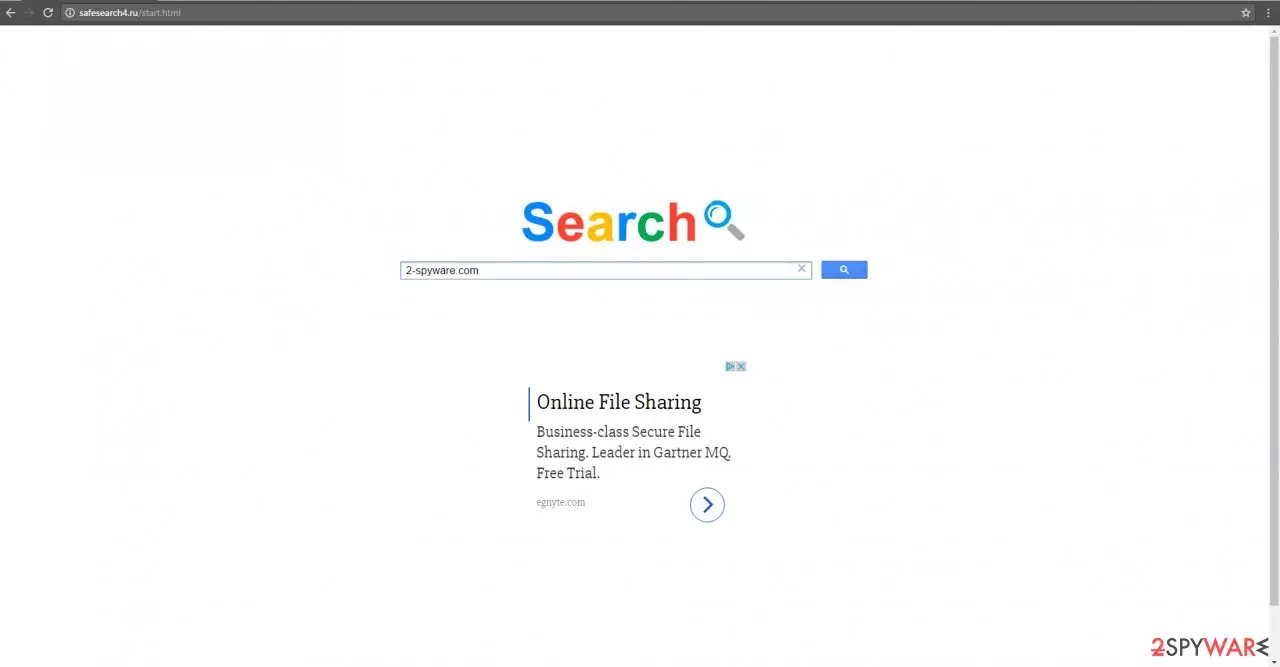
Safesearch4.ru virus looks like a search engine. Though it says to be “Inspired by Google”, in fact, it is a browser hijacker. It means that it is distributed in insidious ways. In addition, it fails to provide you relevant search results. Moreover, using this hijacker for a longer while, you might get bothered by constant redirects to suspicious domains.
Therefore, the risk to catch a virus or two highly boosts up. That is why we urge users to remove the potentially unwanted program immediately. And with this article, we'll explain how to do that in detail. As the title suggests, the hijacker has its several “predecessors” already with safesearch1.ru being one of them
All of them share the same front page designs and operation features. In fact, it has been a prevalent tendency for browser hijackers, which pretend to be the affiliate products of Google, to include the logo of the company and mark it with “Google Custom Search.” You should know that it is simply a marketing trick.
If you want to use the real search engine from the mentioned company, just enter the official web page. There is no need to deviate to similar questionable search engines. If you delay getting rid of this hijacker, redirect tendencies will become a more and more persistent problem.
| Name | Safesearch4.ru virus |
|---|---|
| Type | Browser hijacker, PUP |
| Symptoms | Redirects to untrustworthy sites; modified browser settings; intruscive and deceptive ads |
| Distribution | Software bundling, file-sharing platforms |
| Elimination | Remove the infection with trustworthy anti-malware software or our instructions posted below |
Since the hijacker applies its “layer,” it starts to control your browsing traffic. In short, you get misguided to the domains of the affiliated partner companies. Safesearch4.ru/start.html is supported by third parties so it is obligated to advertise their web pages.
However, such an advertising technique has major flaws. The redirect domains might be poorly protected from cyber infections so they might get attacked by malware. If you stay on the redirected web page too long, your computer gets threatened by computer viruses. Thus, quick elimination of the hijacker should become a priority.
In addition, you might be encouraged to start the procedure soon after finding out that the hijacker spies on your online activities. It does so with the assistance of cookies, pixels, etc. They collect information about visited domains, locate IP addresses and track how often you browse the Web.
This information might be traded with online advertising companies which later on cram your computer screen with pay-per-click ads. Therefore you need to remove Safesearch4.ru ASAp. By doing that with proper AV tools like MalwarebytesMalwarebytes and SpyHunterCombo Cleaner, you can rest assured that the threat is completely terminated.
In case you want to get your hands dirty and complete the browser removal process yourself, at least let us help you by providing instructions which are posted below. Afterward, use system diagnostics software such as the time-tested FortectIntego to repair system inconsistencies.
How does the PUP get into devices?
Users enable safesearch4.ru hijack when installing new applications. Due to reckless installation habits, they miss the add-ons, which often are futile programs and tools. If you are willing to prevent the infiltration of any PUP, you should follow these recommendations. Download the programs from their official sources and find out the official publisher.
Secondary distributors might promote infected versions of the program. Afterward, upon proceeding to the installation guide, opt for “Custom” settings. They will reveal optional applications. Likewise, you will be able to uncheck unwanted tools.
Quick Safesearch4.ru removal
You might choose from two options: manual and automatic elimination of safesearch4.ru virus. If you are looking for a quick and effective solution, you should simply install a security application. Update the software and let it root out the hijacker.
You might also remove the browser hijacker manually. The guidelines are presented below. Do not forget that precision and attention are vital factors ensuring its complete removal. Next time you install new software, check its ratings and user reviews.
Uninstall from Windows
Uninstall from Windows 10/8:
- Type Control Panel into the Windows search box and open the result.
- Under Programs, select Uninstall a program.


Uninstall from Windows 7/XP:
- Click on Windows Start > Control Panel (Windows XP users should click on Add/Remove Programs).
- In Control Panel, select Programs > Uninstall a program.


Remove the unwanted program:
- In the Programs and Features window, look for any recently installed suspicious entries, select them, and click Uninstall.
- If User Account Control appears, click Yes to confirm, then complete the removal.


Delete from macOS
Remove the unwanted application:
- From the menu bar, select Go > Applications.
- In the Applications folder, look for any suspicious entries, then drag them to Trash (or right-click and pick Move to Trash).


Delete leftover files and folders:
- Select Go > Go to Folder.
- Enter /Library/Application Support and remove any suspicious folders related to the unwanted program.
- Repeat the same check in the /Library/LaunchAgents and /Library/LaunchDaemons folders, deleting any suspicious entries.

- Finally, empty the Trash to permanently remove the leftovers.

Remove from Microsoft Edge
Delete unwanted extensions from MS Edge:
- Select Menu (three horizontal dots at the top-right of the browser window) and pick Extensions.
- From the list, pick the extension and click on the Gear icon.
- Click Remove.


Clear cookies and other browser data:
- Click on the Menu (three horizontal dots at the top-right of the browser window) and select Settings > Privacy, search, and services..
- Under Clear browsing data, pick Choose what to clear.
- Select Cookies and other site data and Cached images and files. (apart from passwords, although you might want to include Media licenses as well, if applicable) and click on Clear.


Restore new tab and homepage settings:
- Click the menu icon and choose Settings.
- Then find On startup section.
- Click Remove next to any suspicious startup page.
Reset MS Edge if the above steps did not work:
- Press on Ctrl + Shift + Esc to open Task Manager.
- Click on More details arrow at the bottom of the window.
- Select Details tab.
- Now scroll down and locate every entry with Microsoft Edge name in it. Right-click on each of them and select End Task to stop MS Edge from running.


Instructions for Chromium-based Edge
Delete extensions from MS Edge (Chromium):
- Open Edge and click select Settings > Extensions.
- Delete unwanted extensions by clicking Remove.


Clear cache and site data:
- Click on Menu and go to Settings.
- Select Privacy, search and services.
- Under Clear browsing data, pick Choose what to clear.
- Under Time range, pick All time.
- Select Clear now.


Reset Chromium-based MS Edge:
- Click on Menu and select Settings.
- On the left side, pick Reset settings.
- Select Restore settings to their default values.
- Confirm with Reset.
- This will disable extensions and reset startup pages but will not delete bookmarks, saved passwords, or browsing history.


Remove from Mozilla Firefox (FF)
Remove dangerous extensions:
- Open Mozilla Firefox browser and click on the Menu (three horizontal lines at the top-right of the window).
- Select Add-ons.
- In here, select the unwanted extension and click Remove.


Reset the homepage:
- Click three horizontal lines at the top right corner to open the menu.
- Choose Settings.
- Under Home, set your preferred homepage and new tab settings.
Clear cookies and site data:
- Click Menu and pick Settings.
- Go to Privacy & Security section.
- Scroll down to locate Cookies and Site Data.
- Click on Clear Data...
- Select Cookies and Site Data and Temporary cached files and pages, then click Clear.


Reset Mozilla Firefox
If clearing the browser as explained above did not help, reset Mozilla Firefox:
- Open Mozilla Firefox browser and click the Menu.
- Go to Help and then choose Troubleshooting Information.

- Under Give Firefox a tune up section, click on Refresh Firefox...
- Once the pop-up shows up, confirm the action by pressing on Refresh Firefox.



Remove from Google Chrome
Delete malicious extensions from Google Chrome:
- Open Google Chrome, click on the Menu (three vertical dots at the top-right corner) and select More tools > Extensions.
- In the newly opened window, you will see all the installed extensions. Uninstall all suspicious extensions related to the unwanted program by clicking Remove.


Clear cache and web data from Chrome:
- Click on Menu and pick Settings.
- Under Privacy and security, select Clear browsing data.
- Select Browsing history, Cookies and other site data, as well as Cached images and files.
- Click Clear data.


Change your homepage:
- Click menu and choose Settings.
- Look for a suspicious site in the On startup section.
- Click on Open a specific or set of pages and click on three dots to find the Remove option.
Reset Google Chrome:
If the previous methods did not help you, reset Google Chrome to eliminate all the unwanted components:
- Click on Menu and select Settings.
- In the Settings, scroll down and click Advanced.
- Scroll down and locate Reset and clean up section.
- Now click Restore settings to their original defaults.
- Confirm with Reset settings.


Delete from Safari
Remove dangerous extensions:
- Open Safari, click Safari in the menu at the top-left of the screen, and select Preferences.
- Go to the Extensions tab, look for any suspicious entries, and click Uninstall to remove them.


Clear history and website data:
- Click Safari in the menu and pick Clear History.
- Set Clear to all history and confirm with Clear History.


Reset Safari:
- Click Safari in the menu and select Preferences > Advanced.
- Enable Show Develop menu in menu bar.
- From the menu bar, click Develop and select Empty Caches.


Did this guide help?
2 comments
howday
Ive seen it somewhere else...
bilbocrackers
Thanks for the tutorial.