

Problematic features of Videobah.com/find.php browser hijacker
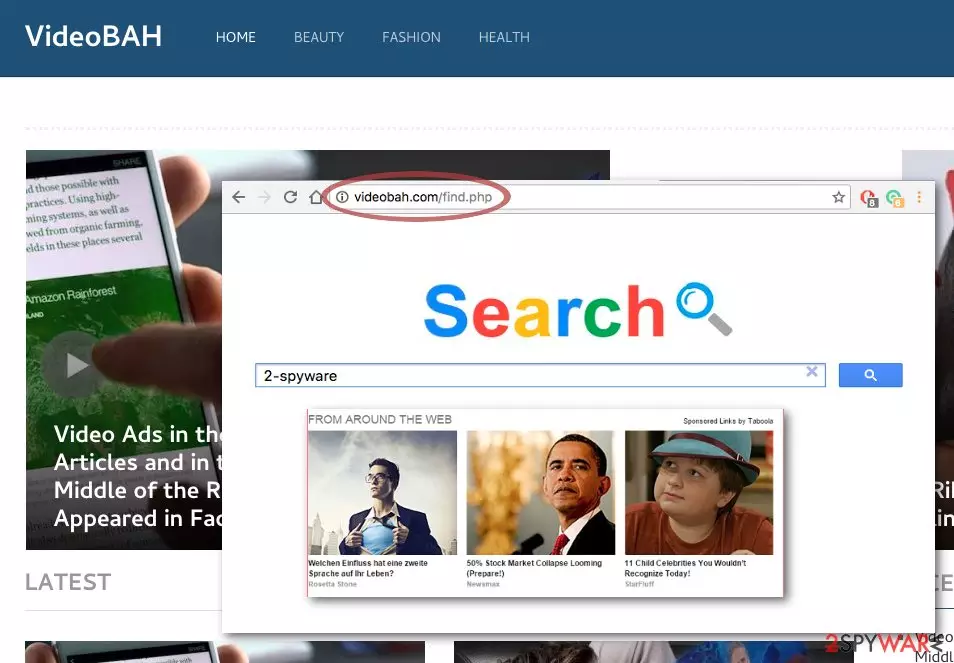
Videobah.com/find.php virus is a hijacker search engine that belongs to a suspicious news site. The website features only 6 news articles and does not seem to have been updated since June 2016. The article's culprit is no less suspicious. It employs add rotation, so every time you refresh the site or enter it anew you will see a different advertisement just below the search tab.
Interestingly enough, the ads are country-targeted, so if you live, say, in France, the content of the ads will be French as well. Luckily, ad-blockers easily take care of such undesirable components and eliminate them from your browser. Nevertheless, if this site manages to change your homepage and default search engine without permission, the ads may not be that easy to get rid of either.
Besides, the experts warn against using this site not only because of the annoying, ad-filled homepage. More concerning is its search service. Apart from the fact that the search results it displays are filled with sponsored links and ads; you may also have trouble finding relevant information because of the intrusive Videobah.com/find.php redirect issue.
This means that by clicking on certain links you may end up on unrelated websites or even infectious domains. You may also be carried to unwanted sites by pop-up or pop-under windows that may randomly appear on your visited pages. Therefore, we'll explain how to remove this cyber threat.
| name | Videobah.com/find.php |
|---|---|
| Type | Browser hijacker |
| Symptoms | Altered default browser settings; redirects to suspicious domains; intrusive ads |
| Distribution | Fake Flash Player updates, freeware |
| Elimination | Manual removal is possible with our instructions posted below. For automatic elimination use a reliable security tool |
| System fix | After the removal, use the FortectIntego PC repair tool to fix system-related irregularities like modified Registry values and keys, and alike |
If you suspect you have become a victim of Videobah.com/find.php hijack yourself, pay attention to your system’s performance. Has your browser been acting strange lately? Did it experience episodes of unresponsiveness or even crashed a few times?
In case you have noticed such tendencies, it is likely that your computer has been infected with Videobah browser hijacker. If you allow this program to stay on the system longer, the computer’s condition may deteriorate even more and start affecting not only the browser but other applications as well.
The hijacker may also additionally install browser helper objects (BHO) to track your browsing habits and present you with targeted advertising, some of which may be targeted towards swindling out your money. So we urge you to carry out its removal as soon as you possibly can.
For automatic termination, use MalwarebytesMalwarebytes or SpyHunterCombo Cleaner anti-malware tools. They will detect and remove any infections within minutes, and prevent such instances in the future. Although by using proper AV tools you can rest assured all threats are eliminated, you can remove Videobah.com/find.php manually.
If you choose so, we encourage you to use our illustrated removal guidelines at the bottom of the article. Once the browser hijacker is removed, you should use the FortectIntego system diagnostics tool to repair any system irregularities so you could enjoy your device anew.
How are browser hijacker distributed around the web?
Like most potentially unwanted programs, browser hijackers are distributed with the help of a deceptive “bundling” strategy which allows them to be attached to the legitimate programs and install along with them. You should keep in mind that only the “Advanced” or “Custom” installation setting will allow you to choose whether you want to install additional applications or not.
Unfortunately, the “Quick” or “Recommended” ones, which the regular users seem to prefer the most, simply install all of the software package components on the computer. Thus, to stay in control, you should avoid them and always opt for the advanced ones instead.
Instructions for Videobah.com/find.php removal
As you can see, there are hardly any positive features about the Videobah.com/find.php virus. It only triggers browser malfunctions and negatively impacts the whole computer system. On a more positive note, you should know that this program is not difficult to delete. If you are a security-minded person and you care about the health of your computer, you should choose the automatic removal option by employing reputable anti-spyware software.
Apart from eliminating the hijacker, a professional antivirus tool will also make sure of your computer’s future health and clean up other malware. If you do not feel put off by the manual removal and have time to deal with this virus yourself, please follow the step-by-step instructions below.
Uninstall from Windows
Uninstall from Windows 10/8:
- Type Control Panel into the Windows search box and open the result.
- Under Programs, select Uninstall a program.


Uninstall from Windows 7/XP:
- Click on Windows Start > Control Panel (Windows XP users should click on Add/Remove Programs).
- In Control Panel, select Programs > Uninstall a program.


Remove the unwanted program:
- In the Programs and Features window, look for any recently installed suspicious entries, select them, and click Uninstall.
- If User Account Control appears, click Yes to confirm, then complete the removal.


Delete from macOS
Remove the unwanted application:
- From the menu bar, select Go > Applications.
- In the Applications folder, look for any suspicious entries, then drag them to Trash (or right-click and pick Move to Trash).


Delete leftover files and folders:
- Select Go > Go to Folder.
- Enter /Library/Application Support and remove any suspicious folders related to the unwanted program.
- Repeat the same check in the /Library/LaunchAgents and /Library/LaunchDaemons folders, deleting any suspicious entries.

- Finally, empty the Trash to permanently remove the leftovers.

Remove from Microsoft Edge
Delete unwanted extensions from MS Edge:
- Select Menu (three horizontal dots at the top-right of the browser window) and pick Extensions.
- From the list, pick the extension and click on the Gear icon.
- Click Remove.


Clear cookies and other browser data:
- Click on the Menu (three horizontal dots at the top-right of the browser window) and select Settings > Privacy, search, and services..
- Under Clear browsing data, pick Choose what to clear.
- Select Cookies and other site data and Cached images and files. (apart from passwords, although you might want to include Media licenses as well, if applicable) and click on Clear.


Restore new tab and homepage settings:
- Click the menu icon and choose Settings.
- Then find On startup section.
- Click Remove next to any suspicious startup page.
Reset MS Edge if the above steps did not work:
- Press on Ctrl + Shift + Esc to open Task Manager.
- Click on More details arrow at the bottom of the window.
- Select Details tab.
- Now scroll down and locate every entry with Microsoft Edge name in it. Right-click on each of them and select End Task to stop MS Edge from running.


Instructions for Chromium-based Edge
Delete extensions from MS Edge (Chromium):
- Open Edge and click select Settings > Extensions.
- Delete unwanted extensions by clicking Remove.


Clear cache and site data:
- Click on Menu and go to Settings.
- Select Privacy, search and services.
- Under Clear browsing data, pick Choose what to clear.
- Under Time range, pick All time.
- Select Clear now.


Reset Chromium-based MS Edge:
- Click on Menu and select Settings.
- On the left side, pick Reset settings.
- Select Restore settings to their default values.
- Confirm with Reset.
- This will disable extensions and reset startup pages but will not delete bookmarks, saved passwords, or browsing history.


Remove from Mozilla Firefox (FF)
Remove dangerous extensions:
- Open Mozilla Firefox browser and click on the Menu (three horizontal lines at the top-right of the window).
- Select Add-ons.
- In here, select the unwanted extension and click Remove.


Reset the homepage:
- Click three horizontal lines at the top right corner to open the menu.
- Choose Settings.
- Under Home, set your preferred homepage and new tab settings.
Clear cookies and site data:
- Click Menu and pick Settings.
- Go to Privacy & Security section.
- Scroll down to locate Cookies and Site Data.
- Click on Clear Data...
- Select Cookies and Site Data and Temporary cached files and pages, then click Clear.


Reset Mozilla Firefox
If clearing the browser as explained above did not help, reset Mozilla Firefox:
- Open Mozilla Firefox browser and click the Menu.
- Go to Help and then choose Troubleshooting Information.

- Under Give Firefox a tune up section, click on Refresh Firefox...
- Once the pop-up shows up, confirm the action by pressing on Refresh Firefox.



Remove from Google Chrome
Delete malicious extensions from Google Chrome:
- Open Google Chrome, click on the Menu (three vertical dots at the top-right corner) and select More tools > Extensions.
- In the newly opened window, you will see all the installed extensions. Uninstall all suspicious extensions related to the unwanted program by clicking Remove.


Clear cache and web data from Chrome:
- Click on Menu and pick Settings.
- Under Privacy and security, select Clear browsing data.
- Select Browsing history, Cookies and other site data, as well as Cached images and files.
- Click Clear data.


Change your homepage:
- Click menu and choose Settings.
- Look for a suspicious site in the On startup section.
- Click on Open a specific or set of pages and click on three dots to find the Remove option.
Reset Google Chrome:
If the previous methods did not help you, reset Google Chrome to eliminate all the unwanted components:
- Click on Menu and select Settings.
- In the Settings, scroll down and click Advanced.
- Scroll down and locate Reset and clean up section.
- Now click Restore settings to their original defaults.
- Confirm with Reset settings.


Delete from Safari
Remove dangerous extensions:
- Open Safari, click Safari in the menu at the top-left of the screen, and select Preferences.
- Go to the Extensions tab, look for any suspicious entries, and click Uninstall to remove them.


Clear history and website data:
- Click Safari in the menu and pick Clear History.
- Set Clear to all history and confirm with Clear History.


Reset Safari:
- Click Safari in the menu and select Preferences > Advanced.
- Enable Show Develop menu in menu bar.
- From the menu bar, click Develop and select Empty Caches.


Did this guide help?
Be the first to comment