

What should you know about “Security Error: 0x80070643” virus?
“Security Error: 0x80070643” virus causes fake notifications about the compromised security of the device. They are shown to convince users of viruses which supposedly infected their system and call the indicated telephone number. However, such technique is purely a tech support scam, well-known for virus researchers. It earned the status of adware as well. The essence of all online scams is to wheedle out money. Thus, once you see the notifications asking you to call a supposed technical support specialist, remove Security Error: 0x80070643 from the device. You can do it with the help of an anti-spyware application. There is also an option to perform manual Security Error: 0x80070643 removal. Let FortectIntego help you get rid of the infection.
There have been multiple tech support scams on the Web already. The crooks manage to fake BSOD (“blue screen of death”) screens leading users to think that their operating systems have crashed. Alternatively, they may present forged private key identification messages. Users, unaware of such sort of deception, follow the instructions only to find out that they are fooled in the end. Whether you are dealing with this kind of scam which tend to appear on the website or you see the forged Windows alert, you should look for one particular feature – all scams include the phone number. Calling the specialist would solve the current computer issues; at least, what users tend to think. Likewise, “Security Error: 0x80070643″ alerts display you “1-855-999-9246.” After dialing the number, you are connected to the crook who aims to foist some products, mainly security or PC optimization tools. However, such tools are rarely practical. There is also a probability that they might be infected with viruses or malicious elements which cause various system issues.
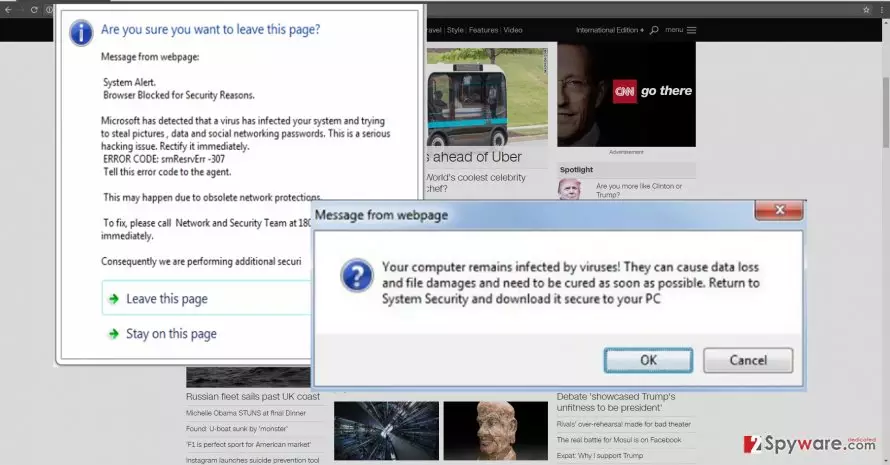
Furthermore, the longer the adware resides on the computer, you might suffer from the frustrating consequences of Security Error: 0x80070643 redirect. In short, you may misguide to the “official” domains of the crooks where they try to coax out not only your email address but such confidential information as the credit card number and verification codes. Though this type of scams is not s harmful as banking trojans, which overlay the official bank web pages and steal the mentioned information, it is primary importance to stay alerted and exit all redirected domains.
How did the adware get into my device?
At first glance, the adware might leave the image that a complex virus entangled your system and you might be confused how to get rid of it, leave alone how it got into the device in the first place. In fact, this adware spreads like other samples of the same category – through freeware. If you download new applications and do not pay attention neither to the publisher or the download source, then there are more than enough chances to encounter Security Error: 0x80070643 hijack. Luckily, there are some tips which can greatly reduce the risk of cyber threats. Upon starting the installation of any program, opt for “Custom” settings. Likewise, you will notice additional applications. Unmark the suspicious and unnecessary ones and only then continue with the installation of the program.
Terminating Security Error: 0x80070643
There are two methods to remove “Security Error: 0x80070643” virus. You can do it with the help of the anti-spyware application. It is designed to locate and exterminate every sort of cyber threats, including adware and even ransomware. Update it before starting the full system scan. Below this article you may find the instructions which guide you through manual Security Error: 0x80070643 removal guide. Remember that personal caution while surfing through the vast spaces of the Internet has much more significance regarding cyber attacks.
Uninstall from Windows
Uninstall from Windows 10/8:
- Type Control Panel into the Windows search box and open the result.
- Under Programs, select Uninstall a program.


Uninstall from Windows 7/XP:
- Click on Windows Start > Control Panel (Windows XP users should click on Add/Remove Programs).
- In Control Panel, select Programs > Uninstall a program.


Remove the unwanted program:
- In the Programs and Features window, look for any recently installed suspicious entries, select them, and click Uninstall.
- If User Account Control appears, click Yes to confirm, then complete the removal.


Delete from macOS
Remove the unwanted application:
- From the menu bar, select Go > Applications.
- In the Applications folder, look for any suspicious entries, then drag them to Trash (or right-click and pick Move to Trash).


Delete leftover files and folders:
- Select Go > Go to Folder.
- Enter /Library/Application Support and remove any suspicious folders related to the unwanted program.
- Repeat the same check in the /Library/LaunchAgents and /Library/LaunchDaemons folders, deleting any suspicious entries.

- Finally, empty the Trash to permanently remove the leftovers.

Reset Internet Explorer
Remove dangerous add-ons:
- Open Internet Explorer, click on the Gear icon (IE menu) on the top-right corner of the browser
- Pick Manage Add-ons.
- You will see a Manage Add-ons window. Here, look for suspicious plugins. Click on these entries and select Disable.


Change your homepage if it was altered:
- Open IE and click on the Gear icon.
- Select Internet Options.
- In the General tab, delete the Home page address and replace it by your preferred one (for example, Google.com).
- Click Apply and then select OK.


Delete temporary files:
- Press on the Gear icon and select Internet Options.
- Under Browsing history, click Delete...
- Select relevant fields and press Delete.


Reset Internet Explorer:
- Click on Gear icon > Internet options and select Advanced tab.
- Select Reset.
- In the new window, check Delete personal settings and select Reset.


Remove from Microsoft Edge
Delete unwanted extensions from MS Edge:
- Select Menu (three horizontal dots at the top-right of the browser window) and pick Extensions.
- From the list, pick the extension and click on the Gear icon.
- Click Remove.


Clear cookies and other browser data:
- Click on the Menu (three horizontal dots at the top-right of the browser window) and select Settings > Privacy, search, and services..
- Under Clear browsing data, pick Choose what to clear.
- Select Cookies and other site data and Cached images and files. (apart from passwords, although you might want to include Media licenses as well, if applicable) and click on Clear.


Restore new tab and homepage settings:
- Click the menu icon and choose Settings.
- Then find On startup section.
- Click Remove next to any suspicious startup page.
Reset MS Edge if the above steps did not work:
- Press on Ctrl + Shift + Esc to open Task Manager.
- Click on More details arrow at the bottom of the window.
- Select Details tab.
- Now scroll down and locate every entry with Microsoft Edge name in it. Right-click on each of them and select End Task to stop MS Edge from running.


Instructions for Chromium-based Edge
Delete extensions from MS Edge (Chromium):
- Open Edge and click select Settings > Extensions.
- Delete unwanted extensions by clicking Remove.


Clear cache and site data:
- Click on Menu and go to Settings.
- Select Privacy, search and services.
- Under Clear browsing data, pick Choose what to clear.
- Under Time range, pick All time.
- Select Clear now.


Reset Chromium-based MS Edge:
- Click on Menu and select Settings.
- On the left side, pick Reset settings.
- Select Restore settings to their default values.
- Confirm with Reset.
- This will disable extensions and reset startup pages but will not delete bookmarks, saved passwords, or browsing history.


Remove from Mozilla Firefox (FF)
Remove dangerous extensions:
- Open Mozilla Firefox browser and click on the Menu (three horizontal lines at the top-right of the window).
- Select Add-ons.
- In here, select the unwanted extension and click Remove.


Reset the homepage:
- Click three horizontal lines at the top right corner to open the menu.
- Choose Settings.
- Under Home, set your preferred homepage and new tab settings.
Clear cookies and site data:
- Click Menu and pick Settings.
- Go to Privacy & Security section.
- Scroll down to locate Cookies and Site Data.
- Click on Clear Data...
- Select Cookies and Site Data and Temporary cached files and pages, then click Clear.


Reset Mozilla Firefox
If clearing the browser as explained above did not help, reset Mozilla Firefox:
- Open Mozilla Firefox browser and click the Menu.
- Go to Help and then choose Troubleshooting Information.

- Under Give Firefox a tune up section, click on Refresh Firefox...
- Once the pop-up shows up, confirm the action by pressing on Refresh Firefox.



Remove from Google Chrome
Delete malicious extensions from Google Chrome:
- Open Google Chrome, click on the Menu (three vertical dots at the top-right corner) and select More tools > Extensions.
- In the newly opened window, you will see all the installed extensions. Uninstall all suspicious extensions related to the unwanted program by clicking Remove.


Clear cache and web data from Chrome:
- Click on Menu and pick Settings.
- Under Privacy and security, select Clear browsing data.
- Select Browsing history, Cookies and other site data, as well as Cached images and files.
- Click Clear data.


Change your homepage:
- Click menu and choose Settings.
- Look for a suspicious site in the On startup section.
- Click on Open a specific or set of pages and click on three dots to find the Remove option.
Reset Google Chrome:
If the previous methods did not help you, reset Google Chrome to eliminate all the unwanted components:
- Click on Menu and select Settings.
- In the Settings, scroll down and click Advanced.
- Scroll down and locate Reset and clean up section.
- Now click Restore settings to their original defaults.
- Confirm with Reset settings.


Delete from Safari
Remove dangerous extensions:
- Open Safari, click Safari in the menu at the top-left of the screen, and select Preferences.
- Go to the Extensions tab, look for any suspicious entries, and click Uninstall to remove them.


Clear history and website data:
- Click Safari in the menu and pick Clear History.
- Set Clear to all history and confirm with Clear History.


Reset Safari:
- Click Safari in the menu and select Preferences > Advanced.
- Enable Show Develop menu in menu bar.
- From the menu bar, click Develop and select Empty Caches.


Did this guide help?
2 comments
reckonCrypt
They are getting fishier each time...
killerknife
Its just an ordinary PUP...