

A brief description of Mandami.ru virus
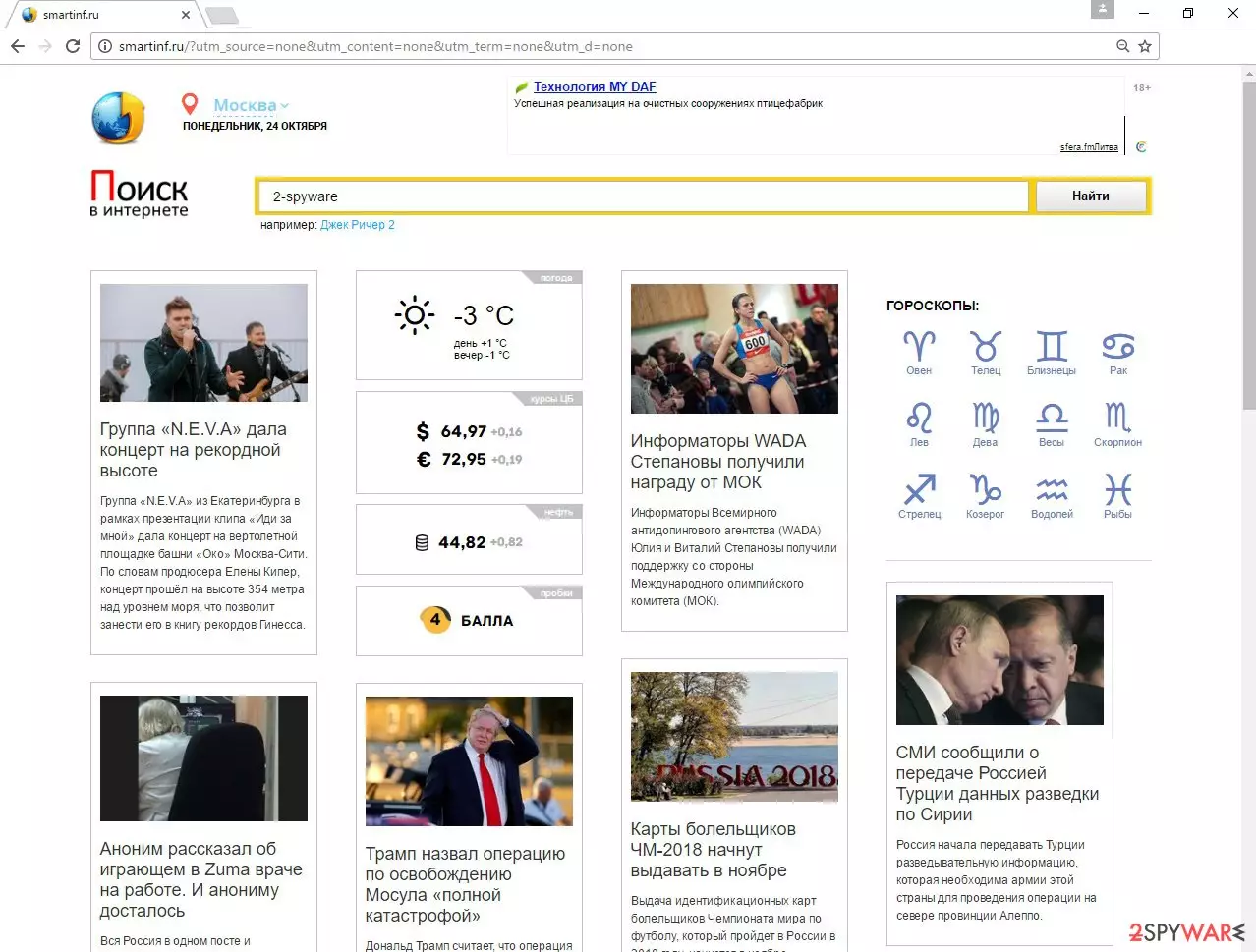
Mandami.ru virus is a browser hijacker that mostly targets Russian-speaking computer users. The main page of the hijacker includes news, weather forecast, horoscopes, and other information in The Russian language. Moreover, there you will find a suspicious search engine too, and we do not advise using it.
It delivers modified results and includes lots of sponsored links. Unfortunately, some of these links might lead to infected websites, and you might encounter even bigger computer-related problems. This potentially unwanted program (PUP) spreads bundled with free programs, and once it gets inside, it alters web browsers’ settings.
After Mandami.ru hijack you might notice that your homepage, new tab URL, and default search engine were changed to its domain. The virus has the same features like other browser hijackers. It might modify Windows Registry and prevent users from making any customizations or accessing reliable search engines, such as Google, Yahoo, or Bing.
| name | Mandami.ru virus |
|---|---|
| Type | Browser hijacker, PUP |
| Symptoms | Altered browser settings; intrusive ads; slower device performance |
| Distribution | Software bundles, fake Flash Player updates |
| Elimination | Eliminate all threats by scanning your device with reliable AV software |
| System health | Check for any system errors and repair them with the FortectIntego software |
Its redirect issue is one of the most harmful features of the browser hijacker. Using the affected browser you might encounter various redirects to Smartinf.ru or other questionable websites, and some of them might be potentially dangerous. After visiting malicious websites, your computer might catch other infections or hazardous viruses.
For this reason, you should not delay its removal and initiate it as soon as the virus appears on your PC. If your browser was affected, you might also notice an increased amount of ads that offer various discount coupons, installing software, or updates. These ads might be delivered in strange places on various websites; they might cover some of the necessary content and aggressively seek for your click.
It happens because developers generate pay-per-click revenue, so all clicks worth some money. Like any other businesses, creators of the PUPs also want to make as much money as possible by using aggressive methods. Mandami.ru virus is not dangerous itself, but its initiated redirects and delivered commercial content is a potential threat to your computer.
You can remove the browser hijacker either by scanning your device with legitimate security software such as SpyHunterCombo Cleaner or MalwarebytesMalwarebytes or by using our instructions for manual removal. Although we recommend sticking to anti-malware software as then you can rest assured that no cyber threats are left hiding on your device.
Once you remove Mandami.ru from your system, it's time to take care of its overall health. We suggest using the FortectIntego PC repair software for that. By performing a full system scan you will fix all system-related issues and delete all tracking cookies stored by devious websites.
Tips for protecting computer from the hijacker
Mandami.ru virus spreads bundled with free software that users download from the Internet, so the main way to protect your computer is to be careful with downloads. First of all, always choose reputable and safe sources for program downloads. Keep in mind that the only reliable source is the developers’ website. Various file-sharing domains and programs are not the ones to trust.
Secondly, before installing the program, always read the Privacy Policy, EULA, or other provided documents. Make sure that all the statements are clear and legal. If you find statements that might put your privacy at risk or include other unwanted activities (data gathering, third-party advertisements, etc.), do not install the program. Thirdly, always choose “Advanced” or “Custom” software installation settings and monitor the process.
This setup allows seeing the list of additional programs and declining their installation. The majority of optional installs are potentially unwanted programs that you don’t need to let in your PC. Bear in mind that “Quick,” “Standard,” “Basic” or other recommended installation modes do not allow opting for the list of optional downloads. Using these setups you give PUPs permission to enter the system.
Mandami.ru elimination strategies
Browser hijackers are not dangerous viruses, so their removal might be completed both, manually and automatically. To remove Mandami.ru manually, you have to detect and eliminate the hijacker with all its components from the computer and affected web browsers.
Sometimes it might be difficult to locate the virus and wipe out its helper objects from the system, so if you cannot find these entries by yourself, employ malware removal tools. Automatic removal will assure that all suspicious components were uninstalled successfully. Once the virus is gone, you will be able to restore your previous browser’s settings.
Uninstall from Windows
Uninstall from Windows 10/8:
- Type Control Panel into the Windows search box and open the result.
- Under Programs, select Uninstall a program.


Uninstall from Windows 7/XP:
- Click on Windows Start > Control Panel (Windows XP users should click on Add/Remove Programs).
- In Control Panel, select Programs > Uninstall a program.


Remove the unwanted program:
- In the Programs and Features window, look for any recently installed suspicious entries, select them, and click Uninstall.
- If User Account Control appears, click Yes to confirm, then complete the removal.


Delete from macOS
Remove the unwanted application:
- From the menu bar, select Go > Applications.
- In the Applications folder, look for any suspicious entries, then drag them to Trash (or right-click and pick Move to Trash).


Delete leftover files and folders:
- Select Go > Go to Folder.
- Enter /Library/Application Support and remove any suspicious folders related to the unwanted program.
- Repeat the same check in the /Library/LaunchAgents and /Library/LaunchDaemons folders, deleting any suspicious entries.

- Finally, empty the Trash to permanently remove the leftovers.

Remove from Microsoft Edge
Delete unwanted extensions from MS Edge:
- Select Menu (three horizontal dots at the top-right of the browser window) and pick Extensions.
- From the list, pick the extension and click on the Gear icon.
- Click Remove.


Clear cookies and other browser data:
- Click on the Menu (three horizontal dots at the top-right of the browser window) and select Settings > Privacy, search, and services..
- Under Clear browsing data, pick Choose what to clear.
- Select Cookies and other site data and Cached images and files. (apart from passwords, although you might want to include Media licenses as well, if applicable) and click on Clear.


Restore new tab and homepage settings:
- Click the menu icon and choose Settings.
- Then find On startup section.
- Click Remove next to any suspicious startup page.
Reset MS Edge if the above steps did not work:
- Press on Ctrl + Shift + Esc to open Task Manager.
- Click on More details arrow at the bottom of the window.
- Select Details tab.
- Now scroll down and locate every entry with Microsoft Edge name in it. Right-click on each of them and select End Task to stop MS Edge from running.


Instructions for Chromium-based Edge
Delete extensions from MS Edge (Chromium):
- Open Edge and click select Settings > Extensions.
- Delete unwanted extensions by clicking Remove.


Clear cache and site data:
- Click on Menu and go to Settings.
- Select Privacy, search and services.
- Under Clear browsing data, pick Choose what to clear.
- Under Time range, pick All time.
- Select Clear now.


Reset Chromium-based MS Edge:
- Click on Menu and select Settings.
- On the left side, pick Reset settings.
- Select Restore settings to their default values.
- Confirm with Reset.
- This will disable extensions and reset startup pages but will not delete bookmarks, saved passwords, or browsing history.


Remove from Mozilla Firefox (FF)
Remove dangerous extensions:
- Open Mozilla Firefox browser and click on the Menu (three horizontal lines at the top-right of the window).
- Select Add-ons.
- In here, select the unwanted extension and click Remove.


Reset the homepage:
- Click three horizontal lines at the top right corner to open the menu.
- Choose Settings.
- Under Home, set your preferred homepage and new tab settings.
Clear cookies and site data:
- Click Menu and pick Settings.
- Go to Privacy & Security section.
- Scroll down to locate Cookies and Site Data.
- Click on Clear Data...
- Select Cookies and Site Data and Temporary cached files and pages, then click Clear.


Reset Mozilla Firefox
If clearing the browser as explained above did not help, reset Mozilla Firefox:
- Open Mozilla Firefox browser and click the Menu.
- Go to Help and then choose Troubleshooting Information.

- Under Give Firefox a tune up section, click on Refresh Firefox...
- Once the pop-up shows up, confirm the action by pressing on Refresh Firefox.



Remove from Google Chrome
Delete malicious extensions from Google Chrome:
- Open Google Chrome, click on the Menu (three vertical dots at the top-right corner) and select More tools > Extensions.
- In the newly opened window, you will see all the installed extensions. Uninstall all suspicious extensions related to the unwanted program by clicking Remove.


Clear cache and web data from Chrome:
- Click on Menu and pick Settings.
- Under Privacy and security, select Clear browsing data.
- Select Browsing history, Cookies and other site data, as well as Cached images and files.
- Click Clear data.


Change your homepage:
- Click menu and choose Settings.
- Look for a suspicious site in the On startup section.
- Click on Open a specific or set of pages and click on three dots to find the Remove option.
Reset Google Chrome:
If the previous methods did not help you, reset Google Chrome to eliminate all the unwanted components:
- Click on Menu and select Settings.
- In the Settings, scroll down and click Advanced.
- Scroll down and locate Reset and clean up section.
- Now click Restore settings to their original defaults.
- Confirm with Reset settings.


Delete from Safari
Remove dangerous extensions:
- Open Safari, click Safari in the menu at the top-left of the screen, and select Preferences.
- Go to the Extensions tab, look for any suspicious entries, and click Uninstall to remove them.


Clear history and website data:
- Click Safari in the menu and pick Clear History.
- Set Clear to all history and confirm with Clear History.


Reset Safari:
- Click Safari in the menu and select Preferences > Advanced.
- Enable Show Develop menu in menu bar.
- From the menu bar, click Develop and select Empty Caches.


Did this guide help?
2 comments
Lena
Oh, Ive tried using this page. Hopefully, I didnt catch any virus...
Daniel
Mandami.ru took removal some time. This browser hijacker didnt want to give up easily.