

What is Search.linkmyc.com doing on my browser?
This is probably the first question that comes to mind when infected with Search.linkmyc.com virus. This website shows up on the browser unexpectedly, so it might be difficult to determine its origin. Nevertheless, the experts see right through such shady programs and warn that this insecure domain is placed on the browser by a sneaky browser hijacker that has stealthily infiltrated your PC. This hijacker pretends to be a legitimate search engine, adapting pleasant-looking and convenient design. It offers convenient functions, such as quick access links to the sites such as VK.com, Youtube, Ok.ru and AliExpress. Another important thing to mention — this search site is Russian, so we can presume that it will be targeting computers located in the Russian-speaking countries. Like most Russian browser hijackers, this one is related to Mail.Ru and redirects to go.mail.ru website when attempting the Internet search. Experts also recommend not to hesitate with the Search.linkmyc.com removal because the virus only gets more intrusive over time. A quick result can be achieved using anti-malware utilities, such as FortectIntego.
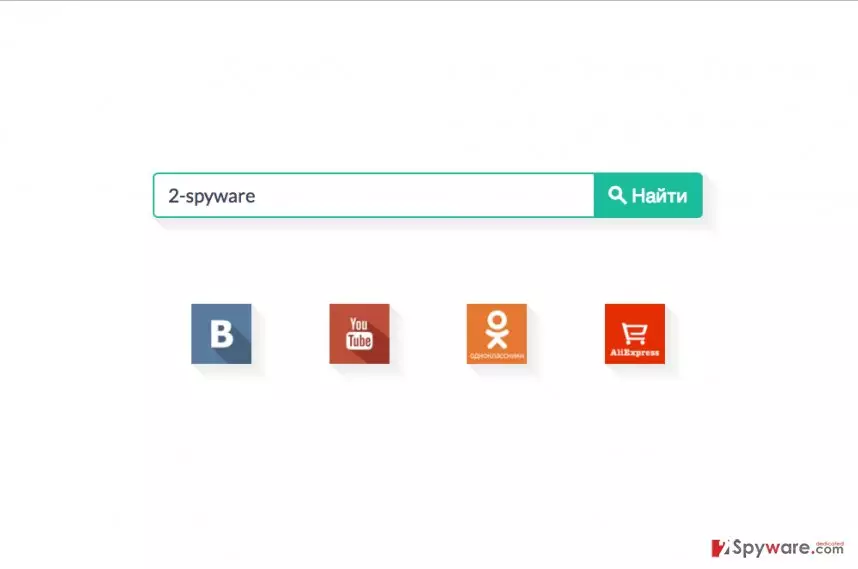
What is also important to note about the Search.linkmyc.com hijack is that it mostly affects Windows operating systems. This means that this hijacker is capable of making changes to the Google Chrome, Mozilla Firefox, Internet Explorer and Edge browsers. These changes might include alteration of the DNS settings, saved bookmarks and, of course, replacement of your default search engine and homepage. What is more, Search.linkmyc.com redirect and advertising issue may also obstruct you from properly browsing the web. Apart from these deliberate changes, potentially unwanted programs like Linkmyc.com usually have an impact on the computer’s performance just by running on it. Due to its resource-draining activity on the computer, other programs may begin malfunctioning or crash. You must remove Search.linkmyc.com from your computer if you don’t want issues like these bothering you. You will find explanations how to do it at the end of the article.
How does the virus enter computers?
Search.linkmyc.com is easily attributable to the browser hijackers, so its distribution strategies do not differ a lot from the rest of the programs in this category. It usually exploits software bundles in order to install on the computer stealthily. The virus creators use popular freeware and shareware applications as the carriers of these malicious apps. Thus, if the users are not observant enough while installing new software on their computers, they might unknowingly allow the hijacker to enter their computers as well. To prevent this from happening, you should opt for the “Advanced” or “Custom” settings when installing applications.
Search.linkmyc.com removal:
Almost all browser hijackers can be eliminated either manually or automatically. The latter option is recommended for those, who have less or no experience with virus elimination and simply want to remove Search.linkmyc.com virus from their computers in the shortest time possible. This technique is generally more precise and secure since all of the elimination is done automatically. Thus, there is a lesser chance that malicious virus components remain on the computer and continue to hold your browser hostage. If you have no antivirus installed, we recommend obtaining one or carrying out Search.linkmyc.com removal manually. The main removal steps are indicated below.
Uninstall from Windows
Uninstall from Windows 10/8:
- Type Control Panel into the Windows search box and open the result.
- Under Programs, select Uninstall a program.


Uninstall from Windows 7/XP:
- Click on Windows Start > Control Panel (Windows XP users should click on Add/Remove Programs).
- In Control Panel, select Programs > Uninstall a program.


Remove the unwanted program:
- In the Programs and Features window, look for any recently installed suspicious entries, select them, and click Uninstall.
- If User Account Control appears, click Yes to confirm, then complete the removal.


Reset Internet Explorer
Remove dangerous add-ons:
- Open Internet Explorer, click on the Gear icon (IE menu) on the top-right corner of the browser
- Pick Manage Add-ons.
- You will see a Manage Add-ons window. Here, look for suspicious plugins. Click on these entries and select Disable.


Change your homepage if it was altered:
- Open IE and click on the Gear icon.
- Select Internet Options.
- In the General tab, delete the Home page address and replace it by your preferred one (for example, Google.com).
- Click Apply and then select OK.


Delete temporary files:
- Press on the Gear icon and select Internet Options.
- Under Browsing history, click Delete...
- Select relevant fields and press Delete.


Reset Internet Explorer:
- Click on Gear icon > Internet options and select Advanced tab.
- Select Reset.
- In the new window, check Delete personal settings and select Reset.


Remove from Microsoft Edge
Delete unwanted extensions from MS Edge:
- Select Menu (three horizontal dots at the top-right of the browser window) and pick Extensions.
- From the list, pick the extension and click on the Gear icon.
- Click Remove.


Clear cookies and other browser data:
- Click on the Menu (three horizontal dots at the top-right of the browser window) and select Settings > Privacy, search, and services..
- Under Clear browsing data, pick Choose what to clear.
- Select Cookies and other site data and Cached images and files. (apart from passwords, although you might want to include Media licenses as well, if applicable) and click on Clear.


Restore new tab and homepage settings:
- Click the menu icon and choose Settings.
- Then find On startup section.
- Click Remove next to any suspicious startup page.
Reset MS Edge if the above steps did not work:
- Press on Ctrl + Shift + Esc to open Task Manager.
- Click on More details arrow at the bottom of the window.
- Select Details tab.
- Now scroll down and locate every entry with Microsoft Edge name in it. Right-click on each of them and select End Task to stop MS Edge from running.


Instructions for Chromium-based Edge
Delete extensions from MS Edge (Chromium):
- Open Edge and click select Settings > Extensions.
- Delete unwanted extensions by clicking Remove.


Clear cache and site data:
- Click on Menu and go to Settings.
- Select Privacy, search and services.
- Under Clear browsing data, pick Choose what to clear.
- Under Time range, pick All time.
- Select Clear now.


Reset Chromium-based MS Edge:
- Click on Menu and select Settings.
- On the left side, pick Reset settings.
- Select Restore settings to their default values.
- Confirm with Reset.
- This will disable extensions and reset startup pages but will not delete bookmarks, saved passwords, or browsing history.


Remove from Mozilla Firefox (FF)
Remove dangerous extensions:
- Open Mozilla Firefox browser and click on the Menu (three horizontal lines at the top-right of the window).
- Select Add-ons.
- In here, select the unwanted extension and click Remove.


Reset the homepage:
- Click three horizontal lines at the top right corner to open the menu.
- Choose Settings.
- Under Home, set your preferred homepage and new tab settings.
Clear cookies and site data:
- Click Menu and pick Settings.
- Go to Privacy & Security section.
- Scroll down to locate Cookies and Site Data.
- Click on Clear Data...
- Select Cookies and Site Data and Temporary cached files and pages, then click Clear.


Reset Mozilla Firefox
If clearing the browser as explained above did not help, reset Mozilla Firefox:
- Open Mozilla Firefox browser and click the Menu.
- Go to Help and then choose Troubleshooting Information.

- Under Give Firefox a tune up section, click on Refresh Firefox...
- Once the pop-up shows up, confirm the action by pressing on Refresh Firefox.



Remove from Google Chrome
Delete malicious extensions from Google Chrome:
- Open Google Chrome, click on the Menu (three vertical dots at the top-right corner) and select More tools > Extensions.
- In the newly opened window, you will see all the installed extensions. Uninstall all suspicious extensions related to the unwanted program by clicking Remove.


Clear cache and web data from Chrome:
- Click on Menu and pick Settings.
- Under Privacy and security, select Clear browsing data.
- Select Browsing history, Cookies and other site data, as well as Cached images and files.
- Click Clear data.


Change your homepage:
- Click menu and choose Settings.
- Look for a suspicious site in the On startup section.
- Click on Open a specific or set of pages and click on three dots to find the Remove option.
Reset Google Chrome:
If the previous methods did not help you, reset Google Chrome to eliminate all the unwanted components:
- Click on Menu and select Settings.
- In the Settings, scroll down and click Advanced.
- Scroll down and locate Reset and clean up section.
- Now click Restore settings to their original defaults.
- Confirm with Reset settings.


Did this guide help?
Be the first to comment