

Things to know about ChromoSearch.com hijack
You do not want to add ChromoSearch.com virus to your computer, because it is a questionable program that causes web redirections and promotes shady Internet sites. Users infected with this program notice unexpected homepage and new tab page changes in their web browsers. Although this program promotes a search engine that is presented as “the new search engine on the block, offering private searching, new design , fast blazing speed and of course, context-based search results,” you shouldn’t easily believe in these words blindly. It also praises itself and says that it offers “private search without tracking.” However, just like other browser hijackers, it does track you using cookies and other tracking technologies, and gathers the following information:
- Recent search queries;
- Browser type;
- IP address;
- Language preference;
- Ads that you click on.
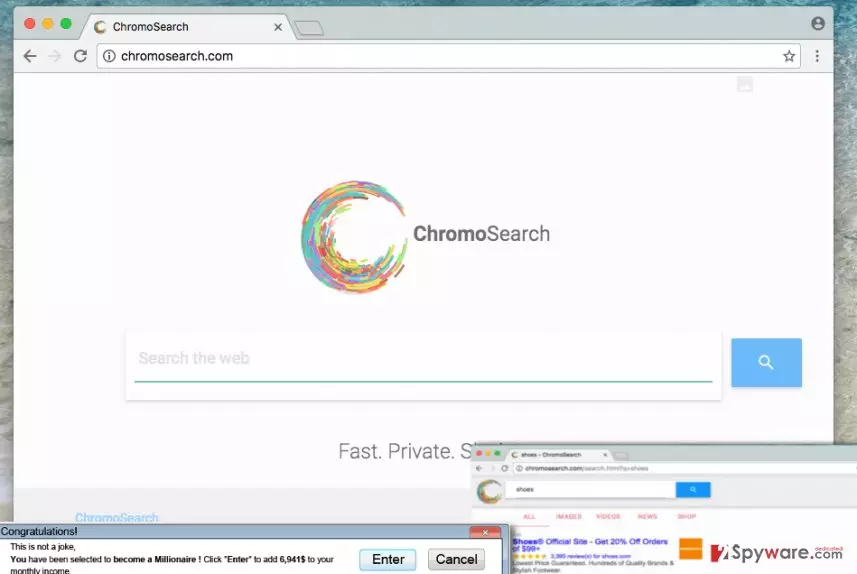
Despite of being personally non-identifiable type of data, it helps to select third-party advertisements targeted to your likes and dislikes. You will notice that a part of the results page that ChromoSearch.com redirect virus prepares is filled with ads, and some of them will not be related to your search query. This is slightly annoying, besides, statistics show that the vast majority of people bypass sponsored search outcomes and mainly click on organic ones only, so if you tend to bypass these results, too, we assume that this search engine might seem annoying to you. Besides, you should avoid these sponsored results not only because they are annoying, but also because they can lead to hazardous Internet locations. We bet that you do not want to visit shady web pages, so think twice before exploring ChromoSearch search results. If you clicked on these results, you would bring pay-per-click revenue for the developers of this questionable search tool. Sadly, in the Terms of Use document, authors of this browser hijacker provide one very suspicious statement that we would like to share with you:
NEITHER LICENSOR NOR ANY OF ITS AFFILIATES, NOR ANY OF THEIR OFFICERS, DIRECTORS, LICENSORS, EMPLOYEES OR REPRESENTATIVES REPRESENT OR WARRANT […] (iii) THAT ANY DEFECTS WILL BE CORRECTED, OR THAT THE PRODUCT WILL BE FREE FROM VIRUSES, WORMS, TROJAN HORSES OR OTHER HARMFUL PROPERTIES;
We believe that this product does not seem reliable, so we recommend you to remove ChromoSearch.com from the computer system without a hesitation. For ChromoSearch.com removal, employ a strong anti-malware software like FortectIntego.
Cannot remember installing this program?
Many computer users download free programs from the Internet – it is not a secret. You can safely download free programs if you know where to get them from and how to install them. Try to download programs from sites that have good reputation, ideally – from the official developer’s website, not from some shady file sharing web page. Once you download the program, do not forget that it is very important to install it properly. We highly recommend you to install programs using Custom or Advanced settings because these allow you to modify extra components added to your download. For example, if the program that you have downloaded promotes additional third-party software, you have the right to refuse to install it, but this can be done via Advanced/Custom settings only. Once you adjust the composition of your download, you can install it safely.
How to remove ChromoSearch.com?
If your browser has been compromised already, do not waste time trying to change homepage settings because you need to remove ChromoSearch.com virus first. Only then you will recoup the opportunity to alter your browser’s homepage settings again. If you want to be sure that ChromoSearch.com removal procedure goes well, read instructions that we have prepared first. You can find them below. You should not hesitate and ask us whatever you like if you cannot understand the instructions or if you want to learn more about this browser hijacker.
Uninstall from Windows
Uninstall from Windows 10/8:
- Type Control Panel into the Windows search box and open the result.
- Under Programs, select Uninstall a program.


Uninstall from Windows 7/XP:
- Click on Windows Start > Control Panel (Windows XP users should click on Add/Remove Programs).
- In Control Panel, select Programs > Uninstall a program.


Remove the unwanted program:
- In the Programs and Features window, look for any recently installed suspicious entries, select them, and click Uninstall.
- If User Account Control appears, click Yes to confirm, then complete the removal.


Delete from macOS
Remove the unwanted application:
- From the menu bar, select Go > Applications.
- In the Applications folder, look for any suspicious entries, then drag them to Trash (or right-click and pick Move to Trash).


Delete leftover files and folders:
- Select Go > Go to Folder.
- Enter /Library/Application Support and remove any suspicious folders related to the unwanted program.
- Repeat the same check in the /Library/LaunchAgents and /Library/LaunchDaemons folders, deleting any suspicious entries.

- Finally, empty the Trash to permanently remove the leftovers.

Remove from Microsoft Edge
Delete unwanted extensions from MS Edge:
- Select Menu (three horizontal dots at the top-right of the browser window) and pick Extensions.
- From the list, pick the extension and click on the Gear icon.
- Click Remove.


Clear cookies and other browser data:
- Click on the Menu (three horizontal dots at the top-right of the browser window) and select Settings > Privacy, search, and services..
- Under Clear browsing data, pick Choose what to clear.
- Select Cookies and other site data and Cached images and files. (apart from passwords, although you might want to include Media licenses as well, if applicable) and click on Clear.


Restore new tab and homepage settings:
- Click the menu icon and choose Settings.
- Then find On startup section.
- Click Remove next to any suspicious startup page.
Reset MS Edge if the above steps did not work:
- Press on Ctrl + Shift + Esc to open Task Manager.
- Click on More details arrow at the bottom of the window.
- Select Details tab.
- Now scroll down and locate every entry with Microsoft Edge name in it. Right-click on each of them and select End Task to stop MS Edge from running.


Instructions for Chromium-based Edge
Delete extensions from MS Edge (Chromium):
- Open Edge and click select Settings > Extensions.
- Delete unwanted extensions by clicking Remove.


Clear cache and site data:
- Click on Menu and go to Settings.
- Select Privacy, search and services.
- Under Clear browsing data, pick Choose what to clear.
- Under Time range, pick All time.
- Select Clear now.


Reset Chromium-based MS Edge:
- Click on Menu and select Settings.
- On the left side, pick Reset settings.
- Select Restore settings to their default values.
- Confirm with Reset.
- This will disable extensions and reset startup pages but will not delete bookmarks, saved passwords, or browsing history.


Remove from Google Chrome
Delete malicious extensions from Google Chrome:
- Open Google Chrome, click on the Menu (three vertical dots at the top-right corner) and select More tools > Extensions.
- In the newly opened window, you will see all the installed extensions. Uninstall all suspicious extensions related to the unwanted program by clicking Remove.


Clear cache and web data from Chrome:
- Click on Menu and pick Settings.
- Under Privacy and security, select Clear browsing data.
- Select Browsing history, Cookies and other site data, as well as Cached images and files.
- Click Clear data.


Change your homepage:
- Click menu and choose Settings.
- Look for a suspicious site in the On startup section.
- Click on Open a specific or set of pages and click on three dots to find the Remove option.
Reset Google Chrome:
If the previous methods did not help you, reset Google Chrome to eliminate all the unwanted components:
- Click on Menu and select Settings.
- In the Settings, scroll down and click Advanced.
- Scroll down and locate Reset and clean up section.
- Now click Restore settings to their original defaults.
- Confirm with Reset settings.


Did this guide help?
4 comments
Orlando
ChromoSearch.com redirect virus was the most annoying program I have ever encountered.
Ricky43
Thanks for the help, my daughter explained what i needed to know, but these instructions are actually quite easy-to-follow, too! I can say that I removed this virus by myself... just with a little help from side :)
Phoebe
Ahh, finally I can play games without receiving suspicious ads! Reimage cleaned the computer entirely :)
july
Great guide. Thanks a lot.