

Will FunSafeTab really guarantee protection against viruses?
FunSafeTab virus tends to attract attention as it offers to secure your browsing by regularly scanning visited websites. Cyber security is becoming a more escalated issue due to highly damaging ransomware viruses roaming on the Web. Therefore, such trends in the online world also continue to inspire crooks to exploit them for their ambitions. This application, which claims to ensure the safety of your browsing, might not succeed. There have been already several cases when tools or add-ons were boasted about protecting personal data, while, in fact, they sold such data along with non-personal information to partner companies. In this regard, the program does not create a reliable image taking into account that it is developed by Imali Ltd. This company is widely known for its tendency to publish new browser hijackers daily. All of them bear “tab” in their URL addresses. In any case, we urge you to start FunSafeTab removal before you get bothered by the effects.
If you are looking for a new security tool which would protect your computer from all sorts of cyber infections, then it is not surprising if you ran into http://funsafetab.com/. Here, the application is promoted in the form of a plug-in. It is designed to run in Windows OS and specifically for Chrome browser. After the installation, the PUP will automatically scan your frequently visited websites and supposedly inform you of the possible dangers. However, what is more, the file extension will also enhance your browsing by adding additional links to “useful” websites. Along with the extension, your homepage will be changed to search.funsafetab.com or another version of a hijacker. FunSafeTab redirect becomes a frequent phenomenon as well. You should be careful not to get carried away by intriguing headlines as these web pages might not only be futile but also contain malicious elements. In addition, you might receive an increasing amount of irrelevant ads.
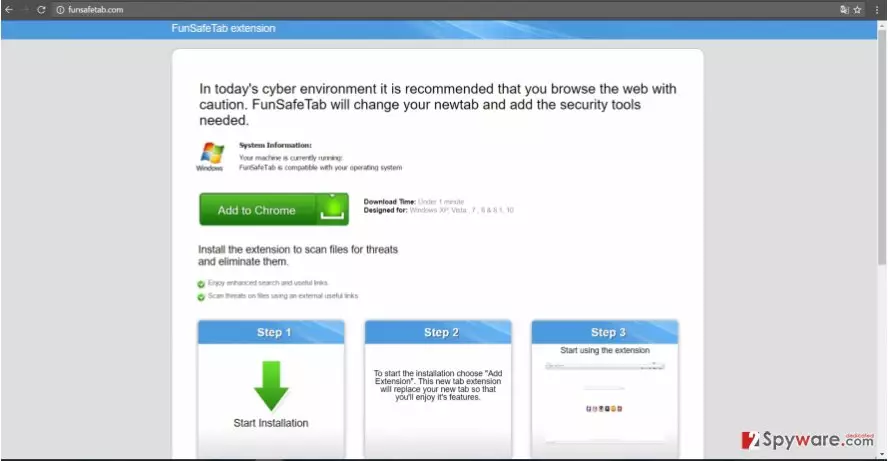
Additionally, keep in mind that any extension and plug-in collect information about your computer and your browsing habits. Such data might leak to third parties and partner companies which exploit it for marketing purposes. They might target not only non-personal information but personal data such as full name, email address, and even credit card information. As a result, your Inbox and computer screen might get overcrowded with bothersome advertisements. Therefore, make a rush to remove FunSafeTab from the device. FortectIntego quickes the process.
The dispersion tendencies of the PUP
As we have already discussed, the most direct way to enable FunSafeTab hijack is to download it from the official web page. You might find yourself in there indirectly, though. Similar PUPs are promoted in low-security and cheap content websites. Therefore, if you give in to curiosity and stay there too long, you might get misguided to insecure domains distributing similarly futile add-ons. Alternatively, this PUP might settle on the device via one of the browser hijackers created by Imali Ltd. The best way to avoid Fun Safe Tab and any other PUP is to take a look at the privacy policies and terms of use. After initializing the installation wizard, select “Advanced” settings. They will reveal optional tools and you will be able to unmark them before they enter the system.
How should I properly remove the plug-in?
Manual FunSafeTab removal method requires completing certain steps in order to eradicate the hijacker fully. However, if you feel uncomfortable with thorough work, then proceed to the automatic method. For that, you will need to install a security application. Remember that your cautiousness is of significant importance ensuring proper cyber security. You may reset the browser settings after implementing all the steps.
Uninstall from Windows
Uninstall from Windows 10/8:
- Type Control Panel into the Windows search box and open the result.
- Under Programs, select Uninstall a program.


Uninstall from Windows 7/XP:
- Click on Windows Start > Control Panel (Windows XP users should click on Add/Remove Programs).
- In Control Panel, select Programs > Uninstall a program.


Remove the unwanted program:
- In the Programs and Features window, look for any recently installed suspicious entries, select them, and click Uninstall.
- If User Account Control appears, click Yes to confirm, then complete the removal.


Delete from macOS
Remove the unwanted application:
- From the menu bar, select Go > Applications.
- In the Applications folder, look for any suspicious entries, then drag them to Trash (or right-click and pick Move to Trash).


Delete leftover files and folders:
- Select Go > Go to Folder.
- Enter /Library/Application Support and remove any suspicious folders related to the unwanted program.
- Repeat the same check in the /Library/LaunchAgents and /Library/LaunchDaemons folders, deleting any suspicious entries.

- Finally, empty the Trash to permanently remove the leftovers.

Reset Internet Explorer
Remove dangerous add-ons:
- Open Internet Explorer, click on the Gear icon (IE menu) on the top-right corner of the browser
- Pick Manage Add-ons.
- You will see a Manage Add-ons window. Here, look for suspicious plugins. Click on these entries and select Disable.


Change your homepage if it was altered:
- Open IE and click on the Gear icon.
- Select Internet Options.
- In the General tab, delete the Home page address and replace it by your preferred one (for example, Google.com).
- Click Apply and then select OK.


Delete temporary files:
- Press on the Gear icon and select Internet Options.
- Under Browsing history, click Delete...
- Select relevant fields and press Delete.


Reset Internet Explorer:
- Click on Gear icon > Internet options and select Advanced tab.
- Select Reset.
- In the new window, check Delete personal settings and select Reset.


Remove from Microsoft Edge
Delete unwanted extensions from MS Edge:
- Select Menu (three horizontal dots at the top-right of the browser window) and pick Extensions.
- From the list, pick the extension and click on the Gear icon.
- Click Remove.


Clear cookies and other browser data:
- Click on the Menu (three horizontal dots at the top-right of the browser window) and select Settings > Privacy, search, and services..
- Under Clear browsing data, pick Choose what to clear.
- Select Cookies and other site data and Cached images and files. (apart from passwords, although you might want to include Media licenses as well, if applicable) and click on Clear.


Restore new tab and homepage settings:
- Click the menu icon and choose Settings.
- Then find On startup section.
- Click Remove next to any suspicious startup page.
Reset MS Edge if the above steps did not work:
- Press on Ctrl + Shift + Esc to open Task Manager.
- Click on More details arrow at the bottom of the window.
- Select Details tab.
- Now scroll down and locate every entry with Microsoft Edge name in it. Right-click on each of them and select End Task to stop MS Edge from running.


Instructions for Chromium-based Edge
Delete extensions from MS Edge (Chromium):
- Open Edge and click select Settings > Extensions.
- Delete unwanted extensions by clicking Remove.


Clear cache and site data:
- Click on Menu and go to Settings.
- Select Privacy, search and services.
- Under Clear browsing data, pick Choose what to clear.
- Under Time range, pick All time.
- Select Clear now.


Reset Chromium-based MS Edge:
- Click on Menu and select Settings.
- On the left side, pick Reset settings.
- Select Restore settings to their default values.
- Confirm with Reset.
- This will disable extensions and reset startup pages but will not delete bookmarks, saved passwords, or browsing history.


Remove from Mozilla Firefox (FF)
Remove dangerous extensions:
- Open Mozilla Firefox browser and click on the Menu (three horizontal lines at the top-right of the window).
- Select Add-ons.
- In here, select the unwanted extension and click Remove.


Reset the homepage:
- Click three horizontal lines at the top right corner to open the menu.
- Choose Settings.
- Under Home, set your preferred homepage and new tab settings.
Clear cookies and site data:
- Click Menu and pick Settings.
- Go to Privacy & Security section.
- Scroll down to locate Cookies and Site Data.
- Click on Clear Data...
- Select Cookies and Site Data and Temporary cached files and pages, then click Clear.


Reset Mozilla Firefox
If clearing the browser as explained above did not help, reset Mozilla Firefox:
- Open Mozilla Firefox browser and click the Menu.
- Go to Help and then choose Troubleshooting Information.

- Under Give Firefox a tune up section, click on Refresh Firefox...
- Once the pop-up shows up, confirm the action by pressing on Refresh Firefox.



Remove from Google Chrome
Delete malicious extensions from Google Chrome:
- Open Google Chrome, click on the Menu (three vertical dots at the top-right corner) and select More tools > Extensions.
- In the newly opened window, you will see all the installed extensions. Uninstall all suspicious extensions related to the unwanted program by clicking Remove.


Clear cache and web data from Chrome:
- Click on Menu and pick Settings.
- Under Privacy and security, select Clear browsing data.
- Select Browsing history, Cookies and other site data, as well as Cached images and files.
- Click Clear data.


Change your homepage:
- Click menu and choose Settings.
- Look for a suspicious site in the On startup section.
- Click on Open a specific or set of pages and click on three dots to find the Remove option.
Reset Google Chrome:
If the previous methods did not help you, reset Google Chrome to eliminate all the unwanted components:
- Click on Menu and select Settings.
- In the Settings, scroll down and click Advanced.
- Scroll down and locate Reset and clean up section.
- Now click Restore settings to their original defaults.
- Confirm with Reset settings.


Delete from Safari
Remove dangerous extensions:
- Open Safari, click Safari in the menu at the top-left of the screen, and select Preferences.
- Go to the Extensions tab, look for any suspicious entries, and click Uninstall to remove them.


Clear history and website data:
- Click Safari in the menu and pick Clear History.
- Set Clear to all history and confirm with Clear History.


Reset Safari:
- Click Safari in the menu and select Preferences > Advanced.
- Enable Show Develop menu in menu bar.
- From the menu bar, click Develop and select Empty Caches.


Did this guide help?
2 comments
thesameDi
Its not funny at all.
Crlson
And how am I supposed to tell it is the real thing?