

Do not let Mypcsecurityreviews.online malware disturb you!
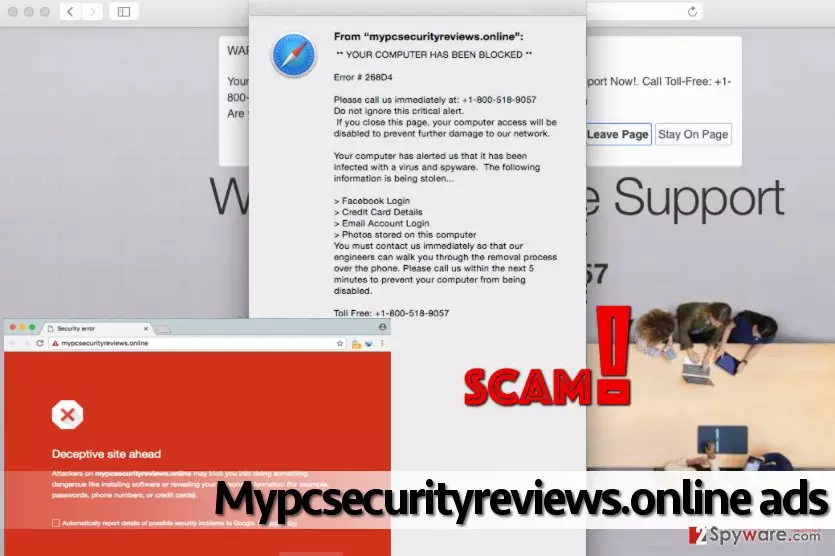
A browser infected with Mypcsecurityreviews.online virus starts to display annoying pop-up advertisements that are extremely hard to close. Ads that come from this phishing website display ** Your COMPUTER HAS BEEN BLOCKED ** alert, which claims that Error # 268D4 occurred. This technical support scam virus urges the victim to call +1-800-518-9057 immediately because “the computer has been infected with a virus and spyware,” which allegedly steals Facebook and email login details, credit card codes, photos and other data stored on the computer. If such message appeared on your computer screen, DO NOT CALL the provided number. The number of technical support scammers rapidly grows and forms a malevolent community that seeks to deceive inexperienced computer users. Scammers often present themselves as Microsoft employees, although they just use the name of the reputable company to boost the illusion of their credibility. However, these scammers do nothing but talk with naive computer users who call them all day and try to convince them to buy worthless or simply free pieces of software, which they sell for large sums of money. In some cases, scammers try to extort credit card details from victims to rob their bank accounts later. They justify such demands by saying that the user needs to “verify his identity.” Remember – real Microsoft experts would NEVER ask you to provide such sensitive information via phone, and in general, they do not track each computer, and they do not receive alerts each time someone gets a computer infection.
The primary thing you should do after discovering such virus on your computer is to scan it with a proper anti-malware tool. We highly recommend using the FortectIntego software. To remove Mypcsecurityreviews.online tech support scam virus manually carry out instructions that we have prepared. You can finish Mypcsecurityreviews.online removal with FortectIntego or another legitimate and powerful anti-malware tool.
Dissemination methods that help distribute this virus
Malware that displays phony “Call Microsoft Support” pop-ups is regarded technical support scam malware. Such malicious programs mostly spread via infectious websites that promote highly suspicious applications or files. You can accidentally install such virus after downloading a software crack or a movie. We advise you to search for trustworthy websites whenever you want to install a specific program on your computer. Do not download software installers from shady web places, or you will end up installing an infectious or spyware-type program. You might also get such malware via email, so pay attention to emails that you open. We suggest staying away from questionable letters that were sent to you by unknown people. Links in the message or email attachments that come with such letters can contain malware, and they, as well as Mypcsecurityreviews .online hijack computer system easily if the user is not attentive enough. Finally, adjust setup settings when you install programs and make sure you opt for Custom or Advanced settings, which allow configuring components of your download.
How to remove Mypcsecurityreviews.online pop-ups?
If your computer has been attacked by Mypcsecurityreviews.online virus, react quickly. These annoying pop-ups are not going to disappear if you don’t do anything about them. To remove Mypcsecurityreviews.online malware, run an anti-spyware software. You can also try to delete the malware by yourself. You can follow these informative Mypcsecurityreviews.online removal guidelines and get rid of the virus by yourself. Please read the instructions that we have prepared carefully.
Uninstall from Windows
Uninstall from Windows 10/8:
- Type Control Panel into the Windows search box and open the result.
- Under Programs, select Uninstall a program.


Uninstall from Windows 7/XP:
- Click on Windows Start > Control Panel (Windows XP users should click on Add/Remove Programs).
- In Control Panel, select Programs > Uninstall a program.


Remove the unwanted program:
- In the Programs and Features window, look for any recently installed suspicious entries, select them, and click Uninstall.
- If User Account Control appears, click Yes to confirm, then complete the removal.


Delete from macOS
Remove the unwanted application:
- From the menu bar, select Go > Applications.
- In the Applications folder, look for any suspicious entries, then drag them to Trash (or right-click and pick Move to Trash).


Delete leftover files and folders:
- Select Go > Go to Folder.
- Enter /Library/Application Support and remove any suspicious folders related to the unwanted program.
- Repeat the same check in the /Library/LaunchAgents and /Library/LaunchDaemons folders, deleting any suspicious entries.

- Finally, empty the Trash to permanently remove the leftovers.

Reset Internet Explorer
Remove dangerous add-ons:
- Open Internet Explorer, click on the Gear icon (IE menu) on the top-right corner of the browser
- Pick Manage Add-ons.
- You will see a Manage Add-ons window. Here, look for suspicious plugins. Click on these entries and select Disable.


Change your homepage if it was altered:
- Open IE and click on the Gear icon.
- Select Internet Options.
- In the General tab, delete the Home page address and replace it by your preferred one (for example, Google.com).
- Click Apply and then select OK.


Delete temporary files:
- Press on the Gear icon and select Internet Options.
- Under Browsing history, click Delete...
- Select relevant fields and press Delete.


Reset Internet Explorer:
- Click on Gear icon > Internet options and select Advanced tab.
- Select Reset.
- In the new window, check Delete personal settings and select Reset.


Remove from Microsoft Edge
Delete unwanted extensions from MS Edge:
- Select Menu (three horizontal dots at the top-right of the browser window) and pick Extensions.
- From the list, pick the extension and click on the Gear icon.
- Click Remove.


Clear cookies and other browser data:
- Click on the Menu (three horizontal dots at the top-right of the browser window) and select Settings > Privacy, search, and services..
- Under Clear browsing data, pick Choose what to clear.
- Select Cookies and other site data and Cached images and files. (apart from passwords, although you might want to include Media licenses as well, if applicable) and click on Clear.


Restore new tab and homepage settings:
- Click the menu icon and choose Settings.
- Then find On startup section.
- Click Remove next to any suspicious startup page.
Reset MS Edge if the above steps did not work:
- Press on Ctrl + Shift + Esc to open Task Manager.
- Click on More details arrow at the bottom of the window.
- Select Details tab.
- Now scroll down and locate every entry with Microsoft Edge name in it. Right-click on each of them and select End Task to stop MS Edge from running.


Instructions for Chromium-based Edge
Delete extensions from MS Edge (Chromium):
- Open Edge and click select Settings > Extensions.
- Delete unwanted extensions by clicking Remove.


Clear cache and site data:
- Click on Menu and go to Settings.
- Select Privacy, search and services.
- Under Clear browsing data, pick Choose what to clear.
- Under Time range, pick All time.
- Select Clear now.


Reset Chromium-based MS Edge:
- Click on Menu and select Settings.
- On the left side, pick Reset settings.
- Select Restore settings to their default values.
- Confirm with Reset.
- This will disable extensions and reset startup pages but will not delete bookmarks, saved passwords, or browsing history.


Remove from Mozilla Firefox (FF)
Remove dangerous extensions:
- Open Mozilla Firefox browser and click on the Menu (three horizontal lines at the top-right of the window).
- Select Add-ons.
- In here, select the unwanted extension and click Remove.


Reset the homepage:
- Click three horizontal lines at the top right corner to open the menu.
- Choose Settings.
- Under Home, set your preferred homepage and new tab settings.
Clear cookies and site data:
- Click Menu and pick Settings.
- Go to Privacy & Security section.
- Scroll down to locate Cookies and Site Data.
- Click on Clear Data...
- Select Cookies and Site Data and Temporary cached files and pages, then click Clear.


Reset Mozilla Firefox
If clearing the browser as explained above did not help, reset Mozilla Firefox:
- Open Mozilla Firefox browser and click the Menu.
- Go to Help and then choose Troubleshooting Information.

- Under Give Firefox a tune up section, click on Refresh Firefox...
- Once the pop-up shows up, confirm the action by pressing on Refresh Firefox.



Remove from Google Chrome
Delete malicious extensions from Google Chrome:
- Open Google Chrome, click on the Menu (three vertical dots at the top-right corner) and select More tools > Extensions.
- In the newly opened window, you will see all the installed extensions. Uninstall all suspicious extensions related to the unwanted program by clicking Remove.


Clear cache and web data from Chrome:
- Click on Menu and pick Settings.
- Under Privacy and security, select Clear browsing data.
- Select Browsing history, Cookies and other site data, as well as Cached images and files.
- Click Clear data.


Change your homepage:
- Click menu and choose Settings.
- Look for a suspicious site in the On startup section.
- Click on Open a specific or set of pages and click on three dots to find the Remove option.
Reset Google Chrome:
If the previous methods did not help you, reset Google Chrome to eliminate all the unwanted components:
- Click on Menu and select Settings.
- In the Settings, scroll down and click Advanced.
- Scroll down and locate Reset and clean up section.
- Now click Restore settings to their original defaults.
- Confirm with Reset settings.


Delete from Safari
Remove dangerous extensions:
- Open Safari, click Safari in the menu at the top-left of the screen, and select Preferences.
- Go to the Extensions tab, look for any suspicious entries, and click Uninstall to remove them.


Clear history and website data:
- Click Safari in the menu and pick Clear History.
- Set Clear to all history and confirm with Clear History.


Reset Safari:
- Click Safari in the menu and select Preferences > Advanced.
- Enable Show Develop menu in menu bar.
- From the menu bar, click Develop and select Empty Caches.


Did this guide help?
3 comments
Bey
Thank you for helping me with Mypcsecurityreviews.online removal procedure. I couldnt start my antivirus because of this virus.
Andzei
Great tutorial, thank you very much!
Vin
I just cannot describe how ANNOYING these pop-ups were... Theyre gone, but ugh...Hate such malware... just seriously. it should be banned