

Securetabs.website ads – should you add the extension?
Securetabs.website virus is a highly annoying computer infection that gets stuck in web browsers and continuosly opens blank pages in them, displaying a pop-up that prevents from escaping the website quickly. Such pop-ups urge victims to “Add Extension to Leave,”[1] however, you should not do so! It is a very aggressive technique and we assume that the suggested extension can be malicious. Such technique urging victims to add shady browser extensions is actively used nowadays, as we have noticed many identical examples of Securetabs.website redirect virus already, including diifajv.club, chjicha.club, and other links that have a suspicious name and end with .club. You should not add any extensions they suggest adding and scan the PC for spyware/malware detection immediately. The virus plays audio message[2] urging to install the extension and automatically opens the suspicious page in full-screen mode.
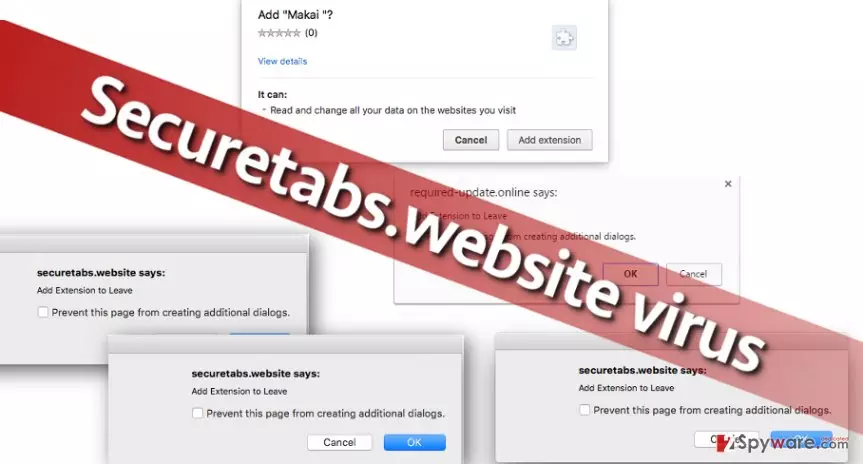
Securetabs.website hijack will torture you until you will finally install the hideous Makai extension, but you can never know what it actually does. Its description in Google Chrome store seems vague: “start watching movies,tv, and sports simple one click.” If you didn’t know yet, some browser extensions can actually download malware to your computer without your permission, so never install vague ones, especially those that appear in aggressive and hard-to-close pop-up ads![3] In general, stay away from very distinct prompts to install unknown software when you browse the Internet, otherwise you can easily plant malware on your computer without even realizing the danger. If you have already installed Securetabs.website malware, run a system scan with powerful scanning program and let it quarantine all dangerous programs/browser extensions at once. If you have added Makai extension to your browser, understand that it might take more than to remove it from the Infected browser via browser settings simply. We suggest looking at Securetabs.website removal instructions provided below before you start uninstalling this suspicious software.
Why did I get infected with this suspicious program?
You probably got infected with this questionable spyware/malware program that urges you to install random browser extensions because you have clicked on a malicious link or agreed to install some bundled programs along with your recent downloads[4]. Our advice for you is to always monitor the installation process carefully and pay special attention to software installation settings. For example, we advise you to review additional components bundled with your download before clicking the fatal “Install” button. If you choose Default or Standard settings when installing a program, most likely you will not notice “recommended downloads” that are added to your download. You need to deselect these suggestions to install them via Custom or Advanced settings. If you do this each time you install programs downloaded from the Internet, you will lower the chances of catching a malware or spyware infection like Chinimplants.website virus or more severe threats.
Remove Securetabs.website ads quickly
If you do not want to waste time reading Securetabs.website removal instructions and you want to attack the infection quickly and straight to the center, run a malware remover and let it thoroughly inspect your computer system. Then you can wipe unwanted programs and files from the system with one click. In case you want to remove Securetabs.website virus on your own, please take a look at instructions we present below the post. Do not forget to be responsible while browsing the world wide web, otherwise you might encounter more spyware/malware variants, online scams, viruses, and other dangers that are out there[5]. Stay safe!
Uninstall from Windows
Uninstall from Windows 10/8:
- Type Control Panel into the Windows search box and open the result.
- Under Programs, select Uninstall a program.


Uninstall from Windows 7/XP:
- Click on Windows Start > Control Panel (Windows XP users should click on Add/Remove Programs).
- In Control Panel, select Programs > Uninstall a program.


Remove the unwanted program:
- In the Programs and Features window, look for any recently installed suspicious entries, select them, and click Uninstall.
- If User Account Control appears, click Yes to confirm, then complete the removal.


Delete from macOS
Remove the unwanted application:
- From the menu bar, select Go > Applications.
- In the Applications folder, look for any suspicious entries, then drag them to Trash (or right-click and pick Move to Trash).


Delete leftover files and folders:
- Select Go > Go to Folder.
- Enter /Library/Application Support and remove any suspicious folders related to the unwanted program.
- Repeat the same check in the /Library/LaunchAgents and /Library/LaunchDaemons folders, deleting any suspicious entries.

- Finally, empty the Trash to permanently remove the leftovers.

Remove from Microsoft Edge
Delete unwanted extensions from MS Edge:
- Select Menu (three horizontal dots at the top-right of the browser window) and pick Extensions.
- From the list, pick the extension and click on the Gear icon.
- Click Remove.


Clear cookies and other browser data:
- Click on the Menu (three horizontal dots at the top-right of the browser window) and select Settings > Privacy, search, and services..
- Under Clear browsing data, pick Choose what to clear.
- Select Cookies and other site data and Cached images and files. (apart from passwords, although you might want to include Media licenses as well, if applicable) and click on Clear.


Restore new tab and homepage settings:
- Click the menu icon and choose Settings.
- Then find On startup section.
- Click Remove next to any suspicious startup page.
Reset MS Edge if the above steps did not work:
- Press on Ctrl + Shift + Esc to open Task Manager.
- Click on More details arrow at the bottom of the window.
- Select Details tab.
- Now scroll down and locate every entry with Microsoft Edge name in it. Right-click on each of them and select End Task to stop MS Edge from running.


Instructions for Chromium-based Edge
Delete extensions from MS Edge (Chromium):
- Open Edge and click select Settings > Extensions.
- Delete unwanted extensions by clicking Remove.


Clear cache and site data:
- Click on Menu and go to Settings.
- Select Privacy, search and services.
- Under Clear browsing data, pick Choose what to clear.
- Under Time range, pick All time.
- Select Clear now.


Reset Chromium-based MS Edge:
- Click on Menu and select Settings.
- On the left side, pick Reset settings.
- Select Restore settings to their default values.
- Confirm with Reset.
- This will disable extensions and reset startup pages but will not delete bookmarks, saved passwords, or browsing history.


Remove from Google Chrome
Delete malicious extensions from Google Chrome:
- Open Google Chrome, click on the Menu (three vertical dots at the top-right corner) and select More tools > Extensions.
- In the newly opened window, you will see all the installed extensions. Uninstall all suspicious extensions related to the unwanted program by clicking Remove.


Clear cache and web data from Chrome:
- Click on Menu and pick Settings.
- Under Privacy and security, select Clear browsing data.
- Select Browsing history, Cookies and other site data, as well as Cached images and files.
- Click Clear data.


Change your homepage:
- Click menu and choose Settings.
- Look for a suspicious site in the On startup section.
- Click on Open a specific or set of pages and click on three dots to find the Remove option.
Reset Google Chrome:
If the previous methods did not help you, reset Google Chrome to eliminate all the unwanted components:
- Click on Menu and select Settings.
- In the Settings, scroll down and click Advanced.
- Scroll down and locate Reset and clean up section.
- Now click Restore settings to their original defaults.
- Confirm with Reset settings.


Did this guide help?
4 comments
Adri
This pop-up was so annoying, but surprisingly, I have quickly removed it with Reimage. I have to admit, I didnt believe in Reimages power until I actually tried using it. It displayed a few pop-ups before I obtained the full version but the full version works like a charm. I honestly dont understand why some ppl say its bad. its not!
Neo
I could not find this securetabs.website virus by myself. I used my antimalware program (had to update it first). Im just curious where did I get this virus from... So suspicious!
stepdub
Thank you thank you thank you!!! This virus was giving me cancer. Its so dammnnn annoying!!!
(mr.pack)
Makai extension! This virus advertises it! Do not add it to your browser! I warned you...