

Search.searchtaccess.com redirects happen when your browser is hijacked by a PUP
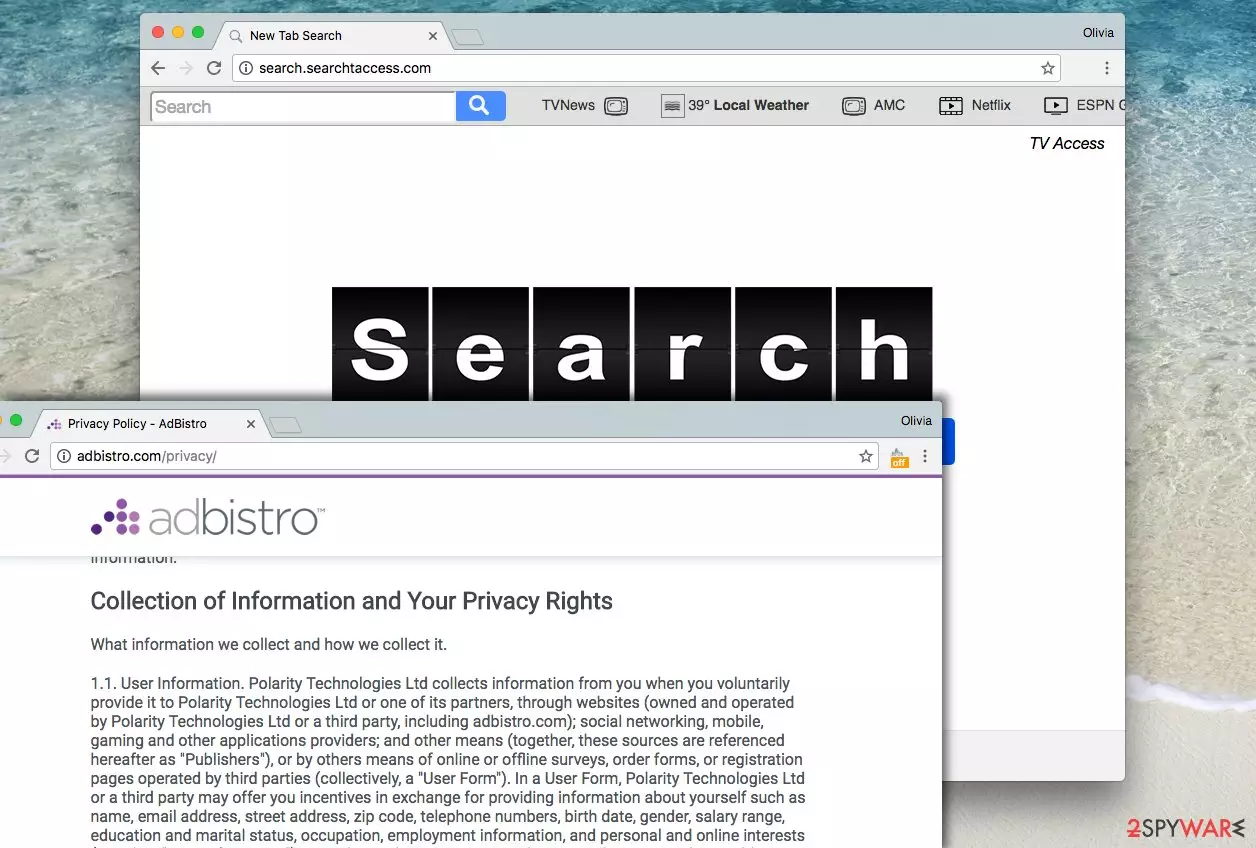
Polarity Technologies, Ltd are authors of Search.searchtaccess.com virus, a potentially unwanted program (PUP)[1], which appears to be a highly annoying browser infection. Although we have called it a “virus,” technically it cannot be described as such because it does not do anything malicious on the victim’s computer.
However, it is a very annoying program that can make your web browsers work the way they shouldn’t – send you loads of intrusive ads from the AdBistro network, cause redirections, and completely change your web browsing experience. Of course, in a negative way.
All the chaos that the browser hijacker initiates most like will force you to look for search.searchtaccess.com removal methods online, and if you are reading this article right now, you should know that you came to the right site. At the bottom of the article, you'll find instructions for both, manual and automatic removals.
| name | Search.searchtaccess.com |
|---|---|
| Type | Browser hijacker, PUP |
| Infection Symptoms | The browsing speed is slower; browser settings seem to be altered; all search queries are going through an unknown chain of domains; ads in search results |
| Risks | Privacy issues, installation of PUPs, malware infections |
| Distribution | Software bundles, freeware, file-sharing platforms |
| Elimination | You have to eliminate all threats by using dependable security tools |
| System health | Use the FortectIntego PC repair tool to fix system-related irregularities |
We are going to describe two different methods how you can remove search.searchtaccess.com browser hijacker, but first of all, you should learn why and how this potentially unwanted program operates. In case you are not interested, just scroll to the end of the article to see manual uninstall instructions or download a suggested program (such as MalwarebytesMalwarebytes or SpyHunterCombo Cleaner) for its automatic removal.
Speaking of the aim of the browser hijacker, we must say that it mainly wants revenue, so you can be sure that it will integrate sponsored entries in between organic search results[2] provided by the search tool presented by the indicated URL.
This URL will be set as your new homepage and new tab page address as soon as you infect your computer with this redirect virus. On top of that, you might receive search.searchtaccess.com ads, which can reach you in various different formats. They might pop up on your screen in the form of banners, pop-ups or pop-under ads, and so on.
Be careful, as such annoying ads often advertise useless PC optimizers, freeware, software updates, and similar software, which you do not need in your life. Therefore, we suggest you stay away from these ads and also from search results that this shady program provides and clean your PC from products of Polarity Technologies ASAP.
Once your device is virus-clean, you must perform a system tune-up to ensure that the device runs smoothly, doesn't crash, freeze, or exhibit any other abnormal behavior. By scanning your computer with the FortectIntego system diagnostics software you can forget about system issues.
How did I get infected with this browser parasite?
Search.searchtaccess.com hijack typically takes place at the time when the user unknowingly installs a software bundle[3]. For instance, when you download a free program from the Internet, check its components. To see them, one must select Custom or Advanced settings for the installation[4].
These settings are expandable, so do not ignore them if you see any information before you click on them. Your task is to deselect all suggested downloads, such as browser toolbars, add-ons, and so on. Bear in mind that the Default/Standard option doesn’t give you a chance to drop unwanted bundled programs, so we believe that you shouldn’t choose them.
What are my choices to remove search.searchtaccess.com?
If you’re done with search.searchtaccess.com virus, do not let it stay in your system – just uninstall it. There is no need to keep it in your system. We must warn you that it is not easy to delete spyware from the system, even though it is not malicious.
You might fail to find Registry Keys[5] and other small but significant parts of certain software, which can make your computer vulnerable to spyware and malware attacks. To clean up your PC from this browser hijacker, use an automatic spyware removal tool.
To remove search.searchtaccess.com, simply install an anti-spyware or anti-malware program and let it scan the system thoroughly. In case you’re not interested in the automatic removal option, we suggest you follow the instructions provided below in the article.
Uninstall from Windows
Uninstall from Windows 10/8:
- Type Control Panel into the Windows search box and open the result.
- Under Programs, select Uninstall a program.


Uninstall from Windows 7/XP:
- Click on Windows Start > Control Panel (Windows XP users should click on Add/Remove Programs).
- In Control Panel, select Programs > Uninstall a program.


Remove the unwanted program:
- In the Programs and Features window, look for any recently installed suspicious entries, select them, and click Uninstall.
- If User Account Control appears, click Yes to confirm, then complete the removal.


Delete from macOS
Remove the unwanted application:
- From the menu bar, select Go > Applications.
- In the Applications folder, look for any suspicious entries, then drag them to Trash (or right-click and pick Move to Trash).


Delete leftover files and folders:
- Select Go > Go to Folder.
- Enter /Library/Application Support and remove any suspicious folders related to the unwanted program.
- Repeat the same check in the /Library/LaunchAgents and /Library/LaunchDaemons folders, deleting any suspicious entries.

- Finally, empty the Trash to permanently remove the leftovers.

Remove from Microsoft Edge
Delete unwanted extensions from MS Edge:
- Select Menu (three horizontal dots at the top-right of the browser window) and pick Extensions.
- From the list, pick the extension and click on the Gear icon.
- Click Remove.


Clear cookies and other browser data:
- Click on the Menu (three horizontal dots at the top-right of the browser window) and select Settings > Privacy, search, and services..
- Under Clear browsing data, pick Choose what to clear.
- Select Cookies and other site data and Cached images and files. (apart from passwords, although you might want to include Media licenses as well, if applicable) and click on Clear.


Restore new tab and homepage settings:
- Click the menu icon and choose Settings.
- Then find On startup section.
- Click Remove next to any suspicious startup page.
Reset MS Edge if the above steps did not work:
- Press on Ctrl + Shift + Esc to open Task Manager.
- Click on More details arrow at the bottom of the window.
- Select Details tab.
- Now scroll down and locate every entry with Microsoft Edge name in it. Right-click on each of them and select End Task to stop MS Edge from running.


Instructions for Chromium-based Edge
Delete extensions from MS Edge (Chromium):
- Open Edge and click select Settings > Extensions.
- Delete unwanted extensions by clicking Remove.


Clear cache and site data:
- Click on Menu and go to Settings.
- Select Privacy, search and services.
- Under Clear browsing data, pick Choose what to clear.
- Under Time range, pick All time.
- Select Clear now.


Reset Chromium-based MS Edge:
- Click on Menu and select Settings.
- On the left side, pick Reset settings.
- Select Restore settings to their default values.
- Confirm with Reset.
- This will disable extensions and reset startup pages but will not delete bookmarks, saved passwords, or browsing history.


Remove from Mozilla Firefox (FF)
Remove dangerous extensions:
- Open Mozilla Firefox browser and click on the Menu (three horizontal lines at the top-right of the window).
- Select Add-ons.
- In here, select the unwanted extension and click Remove.


Reset the homepage:
- Click three horizontal lines at the top right corner to open the menu.
- Choose Settings.
- Under Home, set your preferred homepage and new tab settings.
Clear cookies and site data:
- Click Menu and pick Settings.
- Go to Privacy & Security section.
- Scroll down to locate Cookies and Site Data.
- Click on Clear Data...
- Select Cookies and Site Data and Temporary cached files and pages, then click Clear.


Reset Mozilla Firefox
If clearing the browser as explained above did not help, reset Mozilla Firefox:
- Open Mozilla Firefox browser and click the Menu.
- Go to Help and then choose Troubleshooting Information.

- Under Give Firefox a tune up section, click on Refresh Firefox...
- Once the pop-up shows up, confirm the action by pressing on Refresh Firefox.



Remove from Google Chrome
Delete malicious extensions from Google Chrome:
- Open Google Chrome, click on the Menu (three vertical dots at the top-right corner) and select More tools > Extensions.
- In the newly opened window, you will see all the installed extensions. Uninstall all suspicious extensions related to the unwanted program by clicking Remove.


Clear cache and web data from Chrome:
- Click on Menu and pick Settings.
- Under Privacy and security, select Clear browsing data.
- Select Browsing history, Cookies and other site data, as well as Cached images and files.
- Click Clear data.


Change your homepage:
- Click menu and choose Settings.
- Look for a suspicious site in the On startup section.
- Click on Open a specific or set of pages and click on three dots to find the Remove option.
Reset Google Chrome:
If the previous methods did not help you, reset Google Chrome to eliminate all the unwanted components:
- Click on Menu and select Settings.
- In the Settings, scroll down and click Advanced.
- Scroll down and locate Reset and clean up section.
- Now click Restore settings to their original defaults.
- Confirm with Reset settings.


Delete from Safari
Remove dangerous extensions:
- Open Safari, click Safari in the menu at the top-left of the screen, and select Preferences.
- Go to the Extensions tab, look for any suspicious entries, and click Uninstall to remove them.


Clear history and website data:
- Click Safari in the menu and pick Clear History.
- Set Clear to all history and confirm with Clear History.


Reset Safari:
- Click Safari in the menu and select Preferences > Advanced.
- Enable Show Develop menu in menu bar.
- From the menu bar, click Develop and select Empty Caches.


Did this guide help?
4 comments
MissyE
Thanks for providing this tutorial! it was very helpful.
lAne29
I couldnt stand all these redirects... thats a really bad search engine, Im telling ya...
4646
Thank you!!!!!! got rid of it!
Yeezy
Finally its gone... I can browse without encountering useless ads again. Thanks a lot.