

Home.tvstreamsurfer.com – a fake search engine that should not be trusted
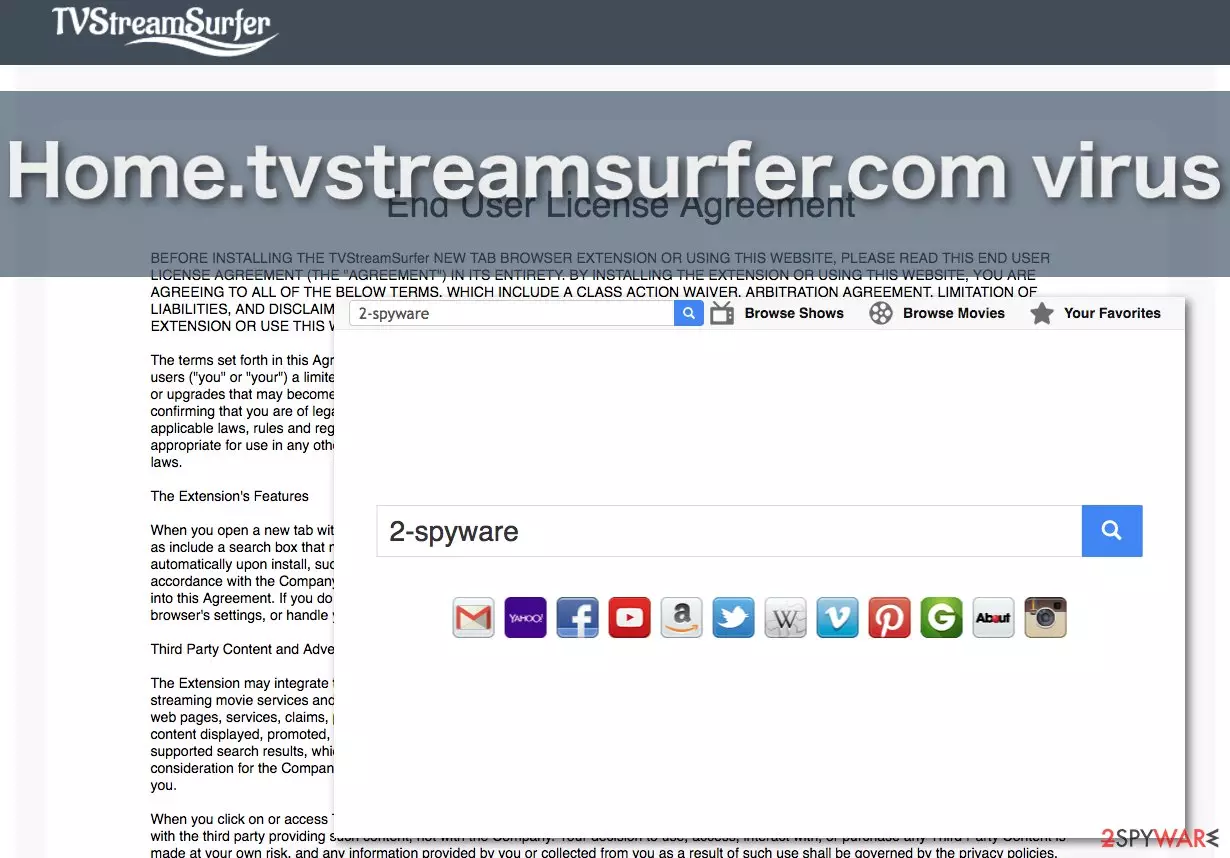
Home.tvstreamsurfer.com virus is an allegedly useful search engine[1] that integrates additional features which allow the user to browse TV shows, movies and add favorites directly on his/her homepage. Such functions may seem useful, but the truth is that TV Stream Surfer authors simply preach false promises to cover up the malicious nature of the program.
In reality, this search engine is designed to spy[2] on the users, learn about their browsing habits and generate targeted advertising [3] based on the obtained information. This way, the users are more likely to interact with the provided ads consequentially, providing advertisers with a greater chance of generating ad revenue[4].
The worst part is that most users that find Home.tvstreamsurfer.com on their computers are subjected to extensive advertising completely against their will. The virus infiltrates computers by stealth, using various deceptive advertising techniques which will be discussed later in the article.
Learning about these techniques may help prevent malware attacks. As for the already infected users, the primary focus should be the browser hijacker's removal. All the necessary steps that need to be taken in order to achieve that are provided at the end of the article.
| name | Home.tvstreamsurfer.com |
|---|---|
| Type | Browser hijacker, potentially unwanted program |
| Symptoms | Altered browser settings; redirects to questionable domains; search results contain lots of ads |
| Distribution | Fake Flash Player updates, software bundling |
| Elimination | All infections should be dealt with accordingly – removed with anti-malware software |
| System Health | Software like the FortectIntego app will ensure that your device runs smoothly and doesn't crash |
If you have been a victim of the Home.tvstreamsurfer.com hijack, and this virus is still on your computer, we should warn you to be especially careful while browsing the Web. Since this PUP is categorized as a browser hijacker[5], you can expect it to assign its domain as a default browser page, which will load every time the browser is launched or open in a new browser tab or window.
As mentioned previously, the initial problem with this website is that the search services it offers are not trustworthy and merely utilized for advertising purposes. In case you are looking for some legitimate information, the persistent redirect issue and never-ending ads can become highly disruptive.
Besides, you can never know if the advertised content will not expose you to some potentially dangerous software, fraudulent services, or products. Hence, security professionals suggest the users remove Home.tvstreamsurfer.com and look for a more reputable Internet search alternative.
The easiest way to get rid of any suspicious apps or files is by scanning your device with MalwarebytesMalwarebytes, SpyHunterCombo Cleaner, or similar anti-malware software. It will identify, locate, and remove all malicious entries within a few minutes. Once that's done, to ensure that your device runs without any hiccups, please use the FortectIntego PC repair tool.
How my device was infected?
You may already know that potentially unwanted programs, especially browser hijackers are placed on the victims’ computers by deception. Home.tvstreamsurfer.com is no different from its kin. The virus may install on the targeted computer as a supposedly legitimate software update; the users may download it after interacting with infected download buttons or corrupt ads.
However, software bundling is probably the most common way the browser hijacker infects browsers. When downloading freeware or shareware applications on their computers users often choose quick or recommended installation settings in order to get through the process quicker.
This is a dangerous practice that is especially useful for the malware creators who can attach malicious programs to such software packages and install them without the user’s knowledge. Thus, advanced installation mode should always always be opted for in order to stop undesirable content from reaching your device.
What is the quickest way to remove Home.tvstreamsurfer.com?
The fastest way to get rid of the virus highly depends on the individual user’s skills. For some, manual removal may be the most convenient approach to exterminating the unwanted program. Nevertheless, most security experts agree that automatic elimination is the quickest and, undoubtedly, the most precise approach that helps banish the virus from the infected device without leaving anything behind.
Thus, if you are looking for the safest way to remove Home.tvstreamsurfer.com from the computer, we recommend investing in a professional antivirus utility and use it for the system investigation and clean up. If you still want to do it yourself, at least use our guides presented below.
Uninstall from Windows
Uninstall from Windows 10/8:
- Type Control Panel into the Windows search box and open the result.
- Under Programs, select Uninstall a program.


Uninstall from Windows 7/XP:
- Click on Windows Start > Control Panel (Windows XP users should click on Add/Remove Programs).
- In Control Panel, select Programs > Uninstall a program.


Remove the unwanted program:
- In the Programs and Features window, look for any recently installed suspicious entries, select them, and click Uninstall.
- If User Account Control appears, click Yes to confirm, then complete the removal.


Delete from macOS
Remove the unwanted application:
- From the menu bar, select Go > Applications.
- In the Applications folder, look for any suspicious entries, then drag them to Trash (or right-click and pick Move to Trash).


Delete leftover files and folders:
- Select Go > Go to Folder.
- Enter /Library/Application Support and remove any suspicious folders related to the unwanted program.
- Repeat the same check in the /Library/LaunchAgents and /Library/LaunchDaemons folders, deleting any suspicious entries.

- Finally, empty the Trash to permanently remove the leftovers.

Remove from Microsoft Edge
Delete unwanted extensions from MS Edge:
- Select Menu (three horizontal dots at the top-right of the browser window) and pick Extensions.
- From the list, pick the extension and click on the Gear icon.
- Click Remove.


Clear cookies and other browser data:
- Click on the Menu (three horizontal dots at the top-right of the browser window) and select Settings > Privacy, search, and services..
- Under Clear browsing data, pick Choose what to clear.
- Select Cookies and other site data and Cached images and files. (apart from passwords, although you might want to include Media licenses as well, if applicable) and click on Clear.


Restore new tab and homepage settings:
- Click the menu icon and choose Settings.
- Then find On startup section.
- Click Remove next to any suspicious startup page.
Reset MS Edge if the above steps did not work:
- Press on Ctrl + Shift + Esc to open Task Manager.
- Click on More details arrow at the bottom of the window.
- Select Details tab.
- Now scroll down and locate every entry with Microsoft Edge name in it. Right-click on each of them and select End Task to stop MS Edge from running.


Instructions for Chromium-based Edge
Delete extensions from MS Edge (Chromium):
- Open Edge and click select Settings > Extensions.
- Delete unwanted extensions by clicking Remove.


Clear cache and site data:
- Click on Menu and go to Settings.
- Select Privacy, search and services.
- Under Clear browsing data, pick Choose what to clear.
- Under Time range, pick All time.
- Select Clear now.


Reset Chromium-based MS Edge:
- Click on Menu and select Settings.
- On the left side, pick Reset settings.
- Select Restore settings to their default values.
- Confirm with Reset.
- This will disable extensions and reset startup pages but will not delete bookmarks, saved passwords, or browsing history.


Remove from Mozilla Firefox (FF)
Remove dangerous extensions:
- Open Mozilla Firefox browser and click on the Menu (three horizontal lines at the top-right of the window).
- Select Add-ons.
- In here, select the unwanted extension and click Remove.


Reset the homepage:
- Click three horizontal lines at the top right corner to open the menu.
- Choose Settings.
- Under Home, set your preferred homepage and new tab settings.
Clear cookies and site data:
- Click Menu and pick Settings.
- Go to Privacy & Security section.
- Scroll down to locate Cookies and Site Data.
- Click on Clear Data...
- Select Cookies and Site Data and Temporary cached files and pages, then click Clear.


Reset Mozilla Firefox
If clearing the browser as explained above did not help, reset Mozilla Firefox:
- Open Mozilla Firefox browser and click the Menu.
- Go to Help and then choose Troubleshooting Information.

- Under Give Firefox a tune up section, click on Refresh Firefox...
- Once the pop-up shows up, confirm the action by pressing on Refresh Firefox.



Remove from Google Chrome
Delete malicious extensions from Google Chrome:
- Open Google Chrome, click on the Menu (three vertical dots at the top-right corner) and select More tools > Extensions.
- In the newly opened window, you will see all the installed extensions. Uninstall all suspicious extensions related to the unwanted program by clicking Remove.


Clear cache and web data from Chrome:
- Click on Menu and pick Settings.
- Under Privacy and security, select Clear browsing data.
- Select Browsing history, Cookies and other site data, as well as Cached images and files.
- Click Clear data.


Change your homepage:
- Click menu and choose Settings.
- Look for a suspicious site in the On startup section.
- Click on Open a specific or set of pages and click on three dots to find the Remove option.
Reset Google Chrome:
If the previous methods did not help you, reset Google Chrome to eliminate all the unwanted components:
- Click on Menu and select Settings.
- In the Settings, scroll down and click Advanced.
- Scroll down and locate Reset and clean up section.
- Now click Restore settings to their original defaults.
- Confirm with Reset settings.


Delete from Safari
Remove dangerous extensions:
- Open Safari, click Safari in the menu at the top-left of the screen, and select Preferences.
- Go to the Extensions tab, look for any suspicious entries, and click Uninstall to remove them.


Clear history and website data:
- Click Safari in the menu and pick Clear History.
- Set Clear to all history and confirm with Clear History.


Reset Safari:
- Click Safari in the menu and select Preferences > Advanced.
- Enable Show Develop menu in menu bar.
- From the menu bar, click Develop and select Empty Caches.


Did this guide help?
3 comments
fastcars
does this site actually does anything other than advertise shady content?
Intsee
Home.tvstreamsurfer.com is always redirecting me to aliexpress. what the heck?
Mosea
Under any circumstances should you submit any of your personal information on sites accessed through this search site. A lot of phishing content out there