

What are reasons to stop using ExcellentSearch.org?
ExcellentSearch.org virus may not be the most dangerous of cyber infections out there, but the experts do not rule it out as completely harmless either. Excellent Search is somewhere in between a cyber infection and an intrusive application which earns it a status of a potentially unwanted program [1]. Unfortunately, the malicious aspect of it is much more prevalent. This parasite makes its way onto the computers by deception, this way violating the users’ right to choose what content they allow to be installed on their personal devices. ExcellentSearch malware has been put to the category of browser hijackers [2] and not without reason. Once it settles on the computer, the virus turns its full attention to the Web browsers, take over the control of their settings and change the default domain address to ExcellentSearch.org. We have some bad news for those of you who think that rolling back these changes will be easy. The malware will put a bunch of obstacles in your path to make this almost impossible to achieve. It may install the so-called helper objects [3], modify Windows registry [4], etc., this way ensuring that the shady search engine stays put. Despite from what it may seem, ExcellentSearch.org removal is actually not that difficult. You simply have to make use of the specialized tools, such as FortectIntego anti-malware to scan your computers. This way, the virus will be eliminated automatically, without interfering with your regular activities.
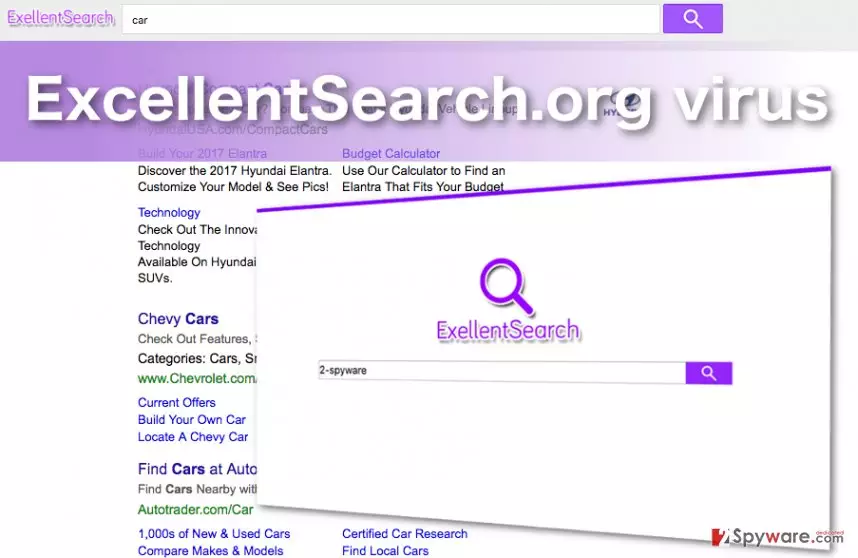
As you may have already realized, ExcellentSearch.org hijack computers for a reason. And the reason is simple. The program creators aim to raise some money, and the modifiable search engine helps them do that. Instead of presenting the regular search results this site displays affiliate links [5] which, when clicked, generate advertising revenue. By altering the headlines of these links, the hijacker creators can even make ExcellentSearch.org redirect users to the sponsored web pages by deception. What is interesting about this site is that it goes blank when some ad-blocking program runs on the device. This only illustrates the scale of advertising that this website involves. Thus, you should follow experts advice and remove ExcellentSearch.org from your PC.
How did the hijack occur?
ExcellentSearch.org hijacker is usually promoted online as a handy tool which helps with online shopping. Luckily, most users have already learned the lesson of the dangers that may hide behind such applications and voluntarily download them less frequently than before. Thus, the developers of potentially unwanted programs learn deceptive techniques of tricking users into unknowingly downloading and installing ExcellentSearch.org on their computer along with other software. Thus, when you decide to install some new application on your PC, be sure to check it thoroughly and determine whether your desired application is not bundled with some potentially unwanted ones.
ExcellentSearch.org removal tactics:
When planning the ExcellentSearch.org virus elimination, it is recommended to evaluate your options, since the virus removal can be carried out either manually or automatically. If you decide to opt for the first option, make sure you use the proper instructions to guide you through the process. ExcellentSearch.org removal instructions prepared by our experts are provided below. However, we understand that for some users, manual virus removal may be too much of a challenge. Thus, we should remind you that you can always trust professional antivirus software to remove ExcellentSearch.org.
Uninstall from Windows
Uninstall from Windows 10/8:
- Type Control Panel into the Windows search box and open the result.
- Under Programs, select Uninstall a program.


Uninstall from Windows 7/XP:
- Click on Windows Start > Control Panel (Windows XP users should click on Add/Remove Programs).
- In Control Panel, select Programs > Uninstall a program.


Remove the unwanted program:
- In the Programs and Features window, look for any recently installed suspicious entries, select them, and click Uninstall.
- If User Account Control appears, click Yes to confirm, then complete the removal.


Delete from macOS
Remove the unwanted application:
- From the menu bar, select Go > Applications.
- In the Applications folder, look for any suspicious entries, then drag them to Trash (or right-click and pick Move to Trash).


Delete leftover files and folders:
- Select Go > Go to Folder.
- Enter /Library/Application Support and remove any suspicious folders related to the unwanted program.
- Repeat the same check in the /Library/LaunchAgents and /Library/LaunchDaemons folders, deleting any suspicious entries.

- Finally, empty the Trash to permanently remove the leftovers.

Reset Internet Explorer
Remove dangerous add-ons:
- Open Internet Explorer, click on the Gear icon (IE menu) on the top-right corner of the browser
- Pick Manage Add-ons.
- You will see a Manage Add-ons window. Here, look for suspicious plugins. Click on these entries and select Disable.


Change your homepage if it was altered:
- Open IE and click on the Gear icon.
- Select Internet Options.
- In the General tab, delete the Home page address and replace it by your preferred one (for example, Google.com).
- Click Apply and then select OK.


Delete temporary files:
- Press on the Gear icon and select Internet Options.
- Under Browsing history, click Delete...
- Select relevant fields and press Delete.


Reset Internet Explorer:
- Click on Gear icon > Internet options and select Advanced tab.
- Select Reset.
- In the new window, check Delete personal settings and select Reset.


Remove from Microsoft Edge
Delete unwanted extensions from MS Edge:
- Select Menu (three horizontal dots at the top-right of the browser window) and pick Extensions.
- From the list, pick the extension and click on the Gear icon.
- Click Remove.


Clear cookies and other browser data:
- Click on the Menu (three horizontal dots at the top-right of the browser window) and select Settings > Privacy, search, and services..
- Under Clear browsing data, pick Choose what to clear.
- Select Cookies and other site data and Cached images and files. (apart from passwords, although you might want to include Media licenses as well, if applicable) and click on Clear.


Restore new tab and homepage settings:
- Click the menu icon and choose Settings.
- Then find On startup section.
- Click Remove next to any suspicious startup page.
Reset MS Edge if the above steps did not work:
- Press on Ctrl + Shift + Esc to open Task Manager.
- Click on More details arrow at the bottom of the window.
- Select Details tab.
- Now scroll down and locate every entry with Microsoft Edge name in it. Right-click on each of them and select End Task to stop MS Edge from running.


Instructions for Chromium-based Edge
Delete extensions from MS Edge (Chromium):
- Open Edge and click select Settings > Extensions.
- Delete unwanted extensions by clicking Remove.


Clear cache and site data:
- Click on Menu and go to Settings.
- Select Privacy, search and services.
- Under Clear browsing data, pick Choose what to clear.
- Under Time range, pick All time.
- Select Clear now.


Reset Chromium-based MS Edge:
- Click on Menu and select Settings.
- On the left side, pick Reset settings.
- Select Restore settings to their default values.
- Confirm with Reset.
- This will disable extensions and reset startup pages but will not delete bookmarks, saved passwords, or browsing history.


Remove from Mozilla Firefox (FF)
Remove dangerous extensions:
- Open Mozilla Firefox browser and click on the Menu (three horizontal lines at the top-right of the window).
- Select Add-ons.
- In here, select the unwanted extension and click Remove.


Reset the homepage:
- Click three horizontal lines at the top right corner to open the menu.
- Choose Settings.
- Under Home, set your preferred homepage and new tab settings.
Clear cookies and site data:
- Click Menu and pick Settings.
- Go to Privacy & Security section.
- Scroll down to locate Cookies and Site Data.
- Click on Clear Data...
- Select Cookies and Site Data and Temporary cached files and pages, then click Clear.


Reset Mozilla Firefox
If clearing the browser as explained above did not help, reset Mozilla Firefox:
- Open Mozilla Firefox browser and click the Menu.
- Go to Help and then choose Troubleshooting Information.

- Under Give Firefox a tune up section, click on Refresh Firefox...
- Once the pop-up shows up, confirm the action by pressing on Refresh Firefox.



Remove from Google Chrome
Delete malicious extensions from Google Chrome:
- Open Google Chrome, click on the Menu (three vertical dots at the top-right corner) and select More tools > Extensions.
- In the newly opened window, you will see all the installed extensions. Uninstall all suspicious extensions related to the unwanted program by clicking Remove.


Clear cache and web data from Chrome:
- Click on Menu and pick Settings.
- Under Privacy and security, select Clear browsing data.
- Select Browsing history, Cookies and other site data, as well as Cached images and files.
- Click Clear data.


Change your homepage:
- Click menu and choose Settings.
- Look for a suspicious site in the On startup section.
- Click on Open a specific or set of pages and click on three dots to find the Remove option.
Reset Google Chrome:
If the previous methods did not help you, reset Google Chrome to eliminate all the unwanted components:
- Click on Menu and select Settings.
- In the Settings, scroll down and click Advanced.
- Scroll down and locate Reset and clean up section.
- Now click Restore settings to their original defaults.
- Confirm with Reset settings.


Delete from Safari
Remove dangerous extensions:
- Open Safari, click Safari in the menu at the top-left of the screen, and select Preferences.
- Go to the Extensions tab, look for any suspicious entries, and click Uninstall to remove them.


Clear history and website data:
- Click Safari in the menu and pick Clear History.
- Set Clear to all history and confirm with Clear History.


Reset Safari:
- Click Safari in the menu and select Preferences > Advanced.
- Enable Show Develop menu in menu bar.
- From the menu bar, click Develop and select Empty Caches.


Did this guide help?
2 comments
semano
ExcellentSearch? haha. useless
Esmera33
I want to thank you for the virus removal instructions! I was looking for a proper guide EVERYWHERE until I came across your site! THanks again!