

Key arguments why you should beware of balkan.ba
Balkan.ba virus happens to be none other than a browser hijacker. If you encounter it for the first time, you might not be aware of the full possibilities. Usually, a browser hijacker redirects to sponsored domains, such as gaming, gambling websites. Such occurrence might be quite annoying if you are used to fast browsing. Hijackers also tend to display ads abd banners. Emerging advertisements might be a harbinger of a more severe cyber problem [1]. Get acquainted with the key features of this website to prevent its infiltration in the future. Find out how to remove balkan.ba. For a faster solution, use FortectIntego.
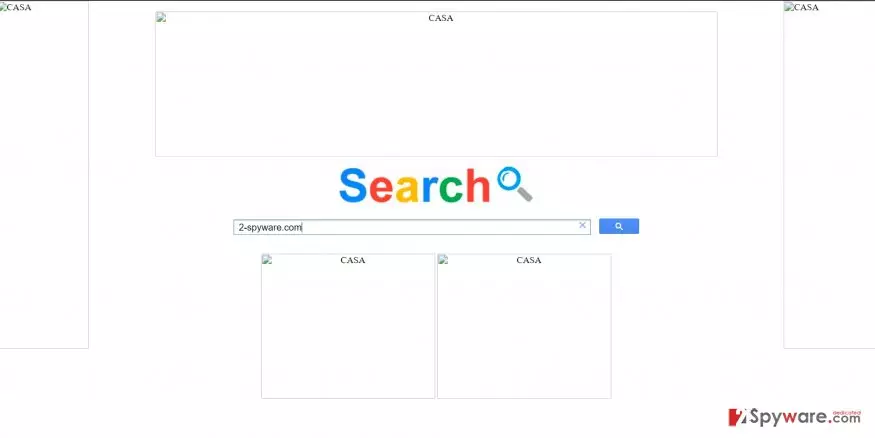
There is no need to be a proficient computer user to realize that this search engine is somewhat faulty. After you get redirected to http://balkan.ba/speshl/search.html, you end up on the search engine which obviously displays buggy images. In fact, you can‘t see any images at all. Most likely advertisements are displayed on the homepage of a PUP. Alternatively, it might contain links to social networks or domains promoting security tools. We would like to warn you not to install anything from the affiliated web pages.
Likewise, you might only increase the risk of getting infected with a more severe threat. It is necessary to arm up with knowledge about the potential threats [2], to avoid more destructive threats. As recent virus activity suggests, even a small detail can be significant [3]. Browser hijackers work in close cooperation with various unknown and shady online companies. In exchange for their support, they promote diverse websites and domains. Some of them might even trigger bewilderment by showing disturbing content. Promoting sponsored content sometimes becomes an issue since, due to balkan.ba redirect, you get into another web page instead of your preferred one.
Furthermore, using a browser hijacker instead of a reliable search engine might significantly lower the overall security level of the device. Specifically, redirecting to poorly protected web pages, using questionable servers and showing futile ads in overall increase the chances of the hijack by a virus. In addition, you should look up the privacy provisions of the website you are using. Users ignore this document convinced that it a useless compilation of statements. However, such thinking deprives them of the valuable insight about the very product.
After taking a glance at privacy policy, you might realize how a search engine treats your non-personal and personal information. In this relation, balkan.ba does not present any document at all. Thus, you are not aware whether it uses cookies or other tracking technologies. Websites which excessively guarantee the protection of user data should be treated suspiciously as no one guarantees that the stored data about your browsing habits and search entries, as well as personal detail, are not leaked or sold to third parties [4]. Lastly, this website disguises under Google Custom Search – another preference of browser hijackers. Thus, we would like to encourage you to initiate balkan.ba removal.
The distribution of the PUP
If you are thinking how this hijacker found its way into your computer, we have the answer. Usually, such PUPs are dispersed through the technique called “bundling.” The essence of it lies in pinning down the unwanted applications to popular freeware. When users skim through the settings, they forget the possibility that additional applications might be attached. Likewise, they accidentally enable Balkan.ba hijack or facilitate the infiltration of another hijacker. In order to prevent such scenario next time, install new programs differently. Choose “Advanced” settings rather “Basic.” Afterward, unpin all unwanted application and proceed further. You need to stay vigilant not only while surfing the vast spaces of the Internet but while managing the healthy ecosystem of your computer [5].
How can I remove balkan.ba from the device?
Speaking of fast balkan.ba removal, we recommend entrusting this procedure to an anti-spyware application. This application will fully eradicate the threat without leaving any related components. In addition, you should check manual guidelines as well. They will instruct you how to remove balkan.ba virus and reset the browser settings. This action ensures that any possibly injected scripts and files in your browser are fully eradicated. On the final note, do not dash through the settings of the installation wizard to spot unwanted and potentially fraudulent add-ons.
Uninstall from Windows
Uninstall from Windows 10/8:
- Type Control Panel into the Windows search box and open the result.
- Under Programs, select Uninstall a program.


Uninstall from Windows 7/XP:
- Click on Windows Start > Control Panel (Windows XP users should click on Add/Remove Programs).
- In Control Panel, select Programs > Uninstall a program.


Remove the unwanted program:
- In the Programs and Features window, look for any recently installed suspicious entries, select them, and click Uninstall.
- If User Account Control appears, click Yes to confirm, then complete the removal.


Delete from macOS
Remove the unwanted application:
- From the menu bar, select Go > Applications.
- In the Applications folder, look for any suspicious entries, then drag them to Trash (or right-click and pick Move to Trash).


Delete leftover files and folders:
- Select Go > Go to Folder.
- Enter /Library/Application Support and remove any suspicious folders related to the unwanted program.
- Repeat the same check in the /Library/LaunchAgents and /Library/LaunchDaemons folders, deleting any suspicious entries.

- Finally, empty the Trash to permanently remove the leftovers.

Reset Internet Explorer
Remove dangerous add-ons:
- Open Internet Explorer, click on the Gear icon (IE menu) on the top-right corner of the browser
- Pick Manage Add-ons.
- You will see a Manage Add-ons window. Here, look for suspicious plugins. Click on these entries and select Disable.


Change your homepage if it was altered:
- Open IE and click on the Gear icon.
- Select Internet Options.
- In the General tab, delete the Home page address and replace it by your preferred one (for example, Google.com).
- Click Apply and then select OK.


Delete temporary files:
- Press on the Gear icon and select Internet Options.
- Under Browsing history, click Delete...
- Select relevant fields and press Delete.


Reset Internet Explorer:
- Click on Gear icon > Internet options and select Advanced tab.
- Select Reset.
- In the new window, check Delete personal settings and select Reset.


Remove from Microsoft Edge
Delete unwanted extensions from MS Edge:
- Select Menu (three horizontal dots at the top-right of the browser window) and pick Extensions.
- From the list, pick the extension and click on the Gear icon.
- Click Remove.


Clear cookies and other browser data:
- Click on the Menu (three horizontal dots at the top-right of the browser window) and select Settings > Privacy, search, and services..
- Under Clear browsing data, pick Choose what to clear.
- Select Cookies and other site data and Cached images and files. (apart from passwords, although you might want to include Media licenses as well, if applicable) and click on Clear.


Restore new tab and homepage settings:
- Click the menu icon and choose Settings.
- Then find On startup section.
- Click Remove next to any suspicious startup page.
Reset MS Edge if the above steps did not work:
- Press on Ctrl + Shift + Esc to open Task Manager.
- Click on More details arrow at the bottom of the window.
- Select Details tab.
- Now scroll down and locate every entry with Microsoft Edge name in it. Right-click on each of them and select End Task to stop MS Edge from running.


Instructions for Chromium-based Edge
Delete extensions from MS Edge (Chromium):
- Open Edge and click select Settings > Extensions.
- Delete unwanted extensions by clicking Remove.


Clear cache and site data:
- Click on Menu and go to Settings.
- Select Privacy, search and services.
- Under Clear browsing data, pick Choose what to clear.
- Under Time range, pick All time.
- Select Clear now.


Reset Chromium-based MS Edge:
- Click on Menu and select Settings.
- On the left side, pick Reset settings.
- Select Restore settings to their default values.
- Confirm with Reset.
- This will disable extensions and reset startup pages but will not delete bookmarks, saved passwords, or browsing history.


Remove from Mozilla Firefox (FF)
Remove dangerous extensions:
- Open Mozilla Firefox browser and click on the Menu (three horizontal lines at the top-right of the window).
- Select Add-ons.
- In here, select the unwanted extension and click Remove.


Reset the homepage:
- Click three horizontal lines at the top right corner to open the menu.
- Choose Settings.
- Under Home, set your preferred homepage and new tab settings.
Clear cookies and site data:
- Click Menu and pick Settings.
- Go to Privacy & Security section.
- Scroll down to locate Cookies and Site Data.
- Click on Clear Data...
- Select Cookies and Site Data and Temporary cached files and pages, then click Clear.


Reset Mozilla Firefox
If clearing the browser as explained above did not help, reset Mozilla Firefox:
- Open Mozilla Firefox browser and click the Menu.
- Go to Help and then choose Troubleshooting Information.

- Under Give Firefox a tune up section, click on Refresh Firefox...
- Once the pop-up shows up, confirm the action by pressing on Refresh Firefox.



Remove from Google Chrome
Delete malicious extensions from Google Chrome:
- Open Google Chrome, click on the Menu (three vertical dots at the top-right corner) and select More tools > Extensions.
- In the newly opened window, you will see all the installed extensions. Uninstall all suspicious extensions related to the unwanted program by clicking Remove.


Clear cache and web data from Chrome:
- Click on Menu and pick Settings.
- Under Privacy and security, select Clear browsing data.
- Select Browsing history, Cookies and other site data, as well as Cached images and files.
- Click Clear data.


Change your homepage:
- Click menu and choose Settings.
- Look for a suspicious site in the On startup section.
- Click on Open a specific or set of pages and click on three dots to find the Remove option.
Reset Google Chrome:
If the previous methods did not help you, reset Google Chrome to eliminate all the unwanted components:
- Click on Menu and select Settings.
- In the Settings, scroll down and click Advanced.
- Scroll down and locate Reset and clean up section.
- Now click Restore settings to their original defaults.
- Confirm with Reset settings.


Delete from Safari
Remove dangerous extensions:
- Open Safari, click Safari in the menu at the top-left of the screen, and select Preferences.
- Go to the Extensions tab, look for any suspicious entries, and click Uninstall to remove them.


Clear history and website data:
- Click Safari in the menu and pick Clear History.
- Set Clear to all history and confirm with Clear History.


Reset Safari:
- Click Safari in the menu and select Preferences > Advanced.
- Enable Show Develop menu in menu bar.
- From the menu bar, click Develop and select Empty Caches.


Did this guide help?
2 comments
MMXVII
The designers messed up..ha ha.
Lvivo
This time I wont fall for the bait!