

Why using Fanli90.cn is not safe?
Fanli90.cn virus is a browser hijacker that acts like a social networking website. This potentially unwanted program offers a form of microblogging [1], where the users can submit a story to a common feed or vote for the entries submitted by others. Unfortunately, the functionality of this site is far from the one possessed by other services of the same genre, such as Twitter, for instance. The site is clumsy and filled with ads popping up on every page. Strangely enough, though the information on this site is provided in English and Chinese, most of Fanli90.cn users come from India, Indonesia, and Brazil [2]. Could this mean that this site is just another creation of Chinese hackers? In fact, such theory may have some reasoning behind it. After investigating the site closer, we have found that Fanli90 is closely related to Baidu — an infamous web search site that is extensively used in most of the Chinese malware, including browser hijackers, adware and even Skype viruses [3]. Any service, application or website that has connections to the questionable parties can be fully trusted. Thus, we recommend you to quit visiting this site or remove Fanli90.cn from your computer using anti-malware such as FortectIntego in case the site has hijacked your browser against your will.
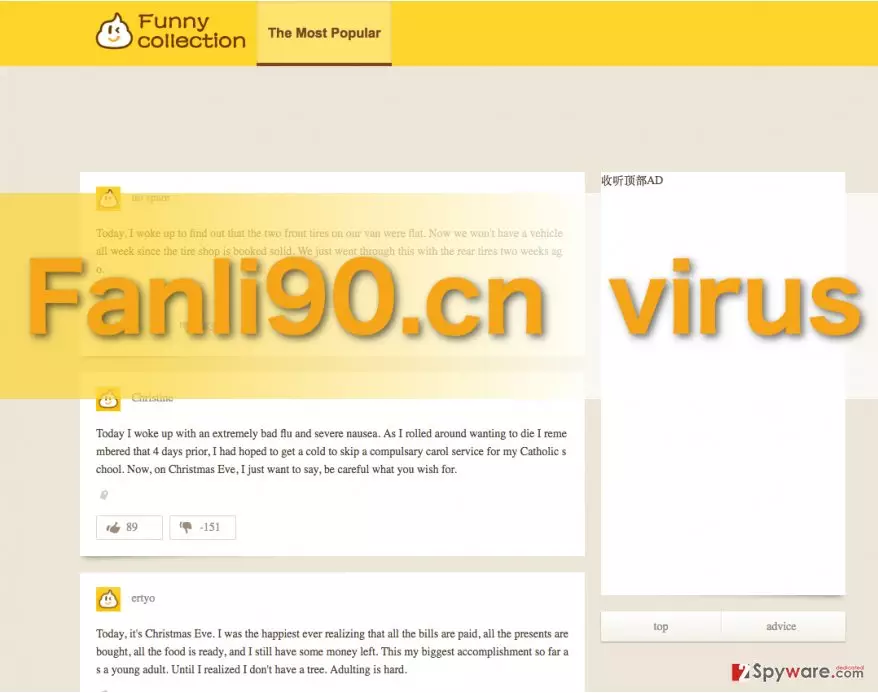
The first symptoms you can identify the Fanli90.cn hijack by are the changes in the web browsers — all of them become assigned to this social networking website without your explicit permission. Besides, you may also notice a new extension called Easychrome was added to your Chrome extension list. Be careful — this program is the so-called browser helper object (BHO) [4] that keeps setting back the hijacker as your homepage despite the attempts to switch to some other URL and assists the virus in other activities, say, data tracking [5] and ad injection. Due to this extension, your browser will be flooded with ads, sponsored links, and banners in no time. So, when you start considering Fanli90.cn removal, you should also keep in mind that this extension will also have to be banished from your device if you wish to keep the malware at bay.
What determines whether this virus infects computers?
Fanli90.cn can infect and usually infects computers stealthily, so the users are unaware that the hijack has even occurred. Such unwanted hijacks usually occur on the computers of some less tech-savvy users who lack information about safe web browsing principles and secure software installation techniques. Therefore, you could say that the level of the user’s knowledge about online security is the determining factor when it comes to the malware infiltration. It is only natural that if you go about the web visiting questionable websites, clicking on random links and downloading unfamiliar software, you will eventually end up if not with Fanli90.cn, but with some sort of malware on your computer. You should also always stay informed about the new virus distribution techniques and keep that in mind when browsing the web.
Our recommendations for Fanli90.cn removal:
In order to fix your browser and stop the undesirable Fanli90.cn virus from showing up as your homepage, you should first give your computer a thorough scan with anti-malware or antivirus software. This should eliminate the core problem, but don’t relax just yet, because there is more to the Fanli90.cn removal. You should also reset your browser to delete the last remaining bits of the virus. Remove Fanli90.cn related extensions from your browser and then scroll down below to find instructions how to reset the infected browsers.
Uninstall from Windows
Uninstall from Windows 10/8:
- Type Control Panel into the Windows search box and open the result.
- Under Programs, select Uninstall a program.


Uninstall from Windows 7/XP:
- Click on Windows Start > Control Panel (Windows XP users should click on Add/Remove Programs).
- In Control Panel, select Programs > Uninstall a program.


Remove the unwanted program:
- In the Programs and Features window, look for any recently installed suspicious entries, select them, and click Uninstall.
- If User Account Control appears, click Yes to confirm, then complete the removal.


Delete from macOS
Remove the unwanted application:
- From the menu bar, select Go > Applications.
- In the Applications folder, look for any suspicious entries, then drag them to Trash (or right-click and pick Move to Trash).


Delete leftover files and folders:
- Select Go > Go to Folder.
- Enter /Library/Application Support and remove any suspicious folders related to the unwanted program.
- Repeat the same check in the /Library/LaunchAgents and /Library/LaunchDaemons folders, deleting any suspicious entries.

- Finally, empty the Trash to permanently remove the leftovers.

Reset Internet Explorer
Remove dangerous add-ons:
- Open Internet Explorer, click on the Gear icon (IE menu) on the top-right corner of the browser
- Pick Manage Add-ons.
- You will see a Manage Add-ons window. Here, look for suspicious plugins. Click on these entries and select Disable.


Change your homepage if it was altered:
- Open IE and click on the Gear icon.
- Select Internet Options.
- In the General tab, delete the Home page address and replace it by your preferred one (for example, Google.com).
- Click Apply and then select OK.


Delete temporary files:
- Press on the Gear icon and select Internet Options.
- Under Browsing history, click Delete...
- Select relevant fields and press Delete.


Reset Internet Explorer:
- Click on Gear icon > Internet options and select Advanced tab.
- Select Reset.
- In the new window, check Delete personal settings and select Reset.


Remove from Microsoft Edge
Delete unwanted extensions from MS Edge:
- Select Menu (three horizontal dots at the top-right of the browser window) and pick Extensions.
- From the list, pick the extension and click on the Gear icon.
- Click Remove.


Clear cookies and other browser data:
- Click on the Menu (three horizontal dots at the top-right of the browser window) and select Settings > Privacy, search, and services..
- Under Clear browsing data, pick Choose what to clear.
- Select Cookies and other site data and Cached images and files. (apart from passwords, although you might want to include Media licenses as well, if applicable) and click on Clear.


Restore new tab and homepage settings:
- Click the menu icon and choose Settings.
- Then find On startup section.
- Click Remove next to any suspicious startup page.
Reset MS Edge if the above steps did not work:
- Press on Ctrl + Shift + Esc to open Task Manager.
- Click on More details arrow at the bottom of the window.
- Select Details tab.
- Now scroll down and locate every entry with Microsoft Edge name in it. Right-click on each of them and select End Task to stop MS Edge from running.


Instructions for Chromium-based Edge
Delete extensions from MS Edge (Chromium):
- Open Edge and click select Settings > Extensions.
- Delete unwanted extensions by clicking Remove.


Clear cache and site data:
- Click on Menu and go to Settings.
- Select Privacy, search and services.
- Under Clear browsing data, pick Choose what to clear.
- Under Time range, pick All time.
- Select Clear now.


Reset Chromium-based MS Edge:
- Click on Menu and select Settings.
- On the left side, pick Reset settings.
- Select Restore settings to their default values.
- Confirm with Reset.
- This will disable extensions and reset startup pages but will not delete bookmarks, saved passwords, or browsing history.


Remove from Mozilla Firefox (FF)
Remove dangerous extensions:
- Open Mozilla Firefox browser and click on the Menu (three horizontal lines at the top-right of the window).
- Select Add-ons.
- In here, select the unwanted extension and click Remove.


Reset the homepage:
- Click three horizontal lines at the top right corner to open the menu.
- Choose Settings.
- Under Home, set your preferred homepage and new tab settings.
Clear cookies and site data:
- Click Menu and pick Settings.
- Go to Privacy & Security section.
- Scroll down to locate Cookies and Site Data.
- Click on Clear Data...
- Select Cookies and Site Data and Temporary cached files and pages, then click Clear.


Reset Mozilla Firefox
If clearing the browser as explained above did not help, reset Mozilla Firefox:
- Open Mozilla Firefox browser and click the Menu.
- Go to Help and then choose Troubleshooting Information.

- Under Give Firefox a tune up section, click on Refresh Firefox...
- Once the pop-up shows up, confirm the action by pressing on Refresh Firefox.



Remove from Google Chrome
Delete malicious extensions from Google Chrome:
- Open Google Chrome, click on the Menu (three vertical dots at the top-right corner) and select More tools > Extensions.
- In the newly opened window, you will see all the installed extensions. Uninstall all suspicious extensions related to the unwanted program by clicking Remove.


Clear cache and web data from Chrome:
- Click on Menu and pick Settings.
- Under Privacy and security, select Clear browsing data.
- Select Browsing history, Cookies and other site data, as well as Cached images and files.
- Click Clear data.


Change your homepage:
- Click menu and choose Settings.
- Look for a suspicious site in the On startup section.
- Click on Open a specific or set of pages and click on three dots to find the Remove option.
Reset Google Chrome:
If the previous methods did not help you, reset Google Chrome to eliminate all the unwanted components:
- Click on Menu and select Settings.
- In the Settings, scroll down and click Advanced.
- Scroll down and locate Reset and clean up section.
- Now click Restore settings to their original defaults.
- Confirm with Reset settings.


Delete from Safari
Remove dangerous extensions:
- Open Safari, click Safari in the menu at the top-left of the screen, and select Preferences.
- Go to the Extensions tab, look for any suspicious entries, and click Uninstall to remove them.


Clear history and website data:
- Click Safari in the menu and pick Clear History.
- Set Clear to all history and confirm with Clear History.


Reset Safari:
- Click Safari in the menu and select Preferences > Advanced.
- Enable Show Develop menu in menu bar.
- From the menu bar, click Develop and select Empty Caches.


Did this guide help?
Be the first to comment