

What do I need to know about ObiFind.com search?
ObiFind.com virus can silently install itself on your PC system. Despite the fact that it is a non-malicious program developed by Coinis LTD., it hardly deserves trust because it is designed for monetization purposes only. Once installed, it hijacks all web browsers and adds suspicious browser extension[1] (or possibly a few of them) to major Internet browsers such as Google Chrome or Mozilla Firefox. This extension changes browser’s settings[2] and sets a new homepage and new tab page. It is clear that nobody likes to see changes in their computers done without their knowledge, and that is one of the reasons why we recommend users to remove ObiFind.com. What is more, it inserts tracking[3] cookies to observe what kind of websites does the victim visit, what does he or she search on the Internet, ads that one clicks and similar data. Another surprising fact that we discovered while browsing through ObiFind’s Privacy Policy page was that ObiFind collects personally identifiable[4] information, for example, name, country, demographic information, telephone number and similar data in case the victim provides it when registering an account with ObiFind. Based on collected data, ObiFind.com redirect virus selects targeted sponsored content and displays among regular search results. Sometimes such ad-supported programs display ads in pop-ups or banners, so if you notice them, do not be surprised. 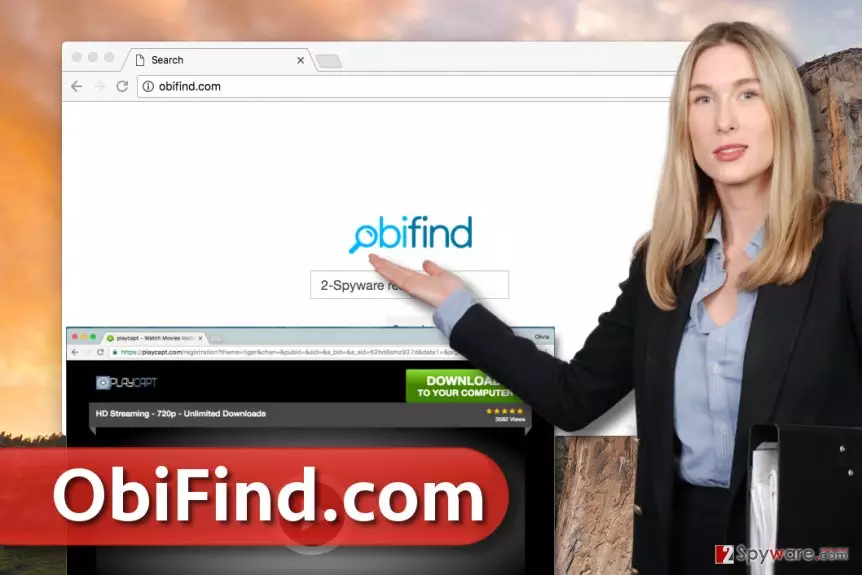
The reason why we suggest removing this additional application from your computer is that it doesn’t adequately disclose its presence when entering the computer system and also it aims to serve third-party content without checking its quality. It says that it is not responsible for “privacy practices of any such third parties.” If you care about your computer’s safety, we advise you to think about ObiFind.com removal already. It can be done with programs like FortectIntego or MalwarebytesMalwarebytes. Using a search engine that cares about revenue making rather than satisfaction of its users is a bad choice – at least in our opinion.
How did I install this potentially unwanted program on my computer?
ObiFind.com hijack takes place when the user downloads and installs some freeware[5] from the Internet. You must remember that free programs often carry additional attachments that appear to be browser toolbars or applications, which, unfortunately, usually are ad-supported. Nobody likes to receive excessive amounts of advertisements on a daily basis, so we advise you to stay away from programs that deliver them. To protect yourself from adware and browser hijackers, choose Custom or Advanced option at all times when you install new programs on your PC. After selecting one of these options, deselect all “additional third-party programs” recommended to you.
How to uninstall ObiFind.com hijacker?
Browser hijackers can be easily uninstalled using anti-spyware or anti-malware programs. Remember that these programs are meant to remove ObiFind.com virus and similar ad-supported software as well as critical programs, whereas antivirus software typically aims to eliminate very dangerous viruses only. It goes without saying that we do not want any of spyware or malware programs in our systems. Therefore, we recommend using antivirus and anti-malware programs at once. If you are not looking for those, we suggest trying these ObiFind.com removal tips:
Uninstall from Windows
Uninstall from Windows 10/8:
- Type Control Panel into the Windows search box and open the result.
- Under Programs, select Uninstall a program.


Uninstall from Windows 7/XP:
- Click on Windows Start > Control Panel (Windows XP users should click on Add/Remove Programs).
- In Control Panel, select Programs > Uninstall a program.


Remove the unwanted program:
- In the Programs and Features window, look for any recently installed suspicious entries, select them, and click Uninstall.
- If User Account Control appears, click Yes to confirm, then complete the removal.


Delete from macOS
Remove the unwanted application:
- From the menu bar, select Go > Applications.
- In the Applications folder, look for any suspicious entries, then drag them to Trash (or right-click and pick Move to Trash).


Delete leftover files and folders:
- Select Go > Go to Folder.
- Enter /Library/Application Support and remove any suspicious folders related to the unwanted program.
- Repeat the same check in the /Library/LaunchAgents and /Library/LaunchDaemons folders, deleting any suspicious entries.

- Finally, empty the Trash to permanently remove the leftovers.

Remove from Mozilla Firefox (FF)
Remove dangerous extensions:
- Open Mozilla Firefox browser and click on the Menu (three horizontal lines at the top-right of the window).
- Select Add-ons.
- In here, select the unwanted extension and click Remove.


Reset the homepage:
- Click three horizontal lines at the top right corner to open the menu.
- Choose Settings.
- Under Home, set your preferred homepage and new tab settings.
Clear cookies and site data:
- Click Menu and pick Settings.
- Go to Privacy & Security section.
- Scroll down to locate Cookies and Site Data.
- Click on Clear Data...
- Select Cookies and Site Data and Temporary cached files and pages, then click Clear.


Reset Mozilla Firefox
If clearing the browser as explained above did not help, reset Mozilla Firefox:
- Open Mozilla Firefox browser and click the Menu.
- Go to Help and then choose Troubleshooting Information.

- Under Give Firefox a tune up section, click on Refresh Firefox...
- Once the pop-up shows up, confirm the action by pressing on Refresh Firefox.



Remove from Google Chrome
Delete malicious extensions from Google Chrome:
- Open Google Chrome, click on the Menu (three vertical dots at the top-right corner) and select More tools > Extensions.
- In the newly opened window, you will see all the installed extensions. Uninstall all suspicious extensions related to the unwanted program by clicking Remove.


Clear cache and web data from Chrome:
- Click on Menu and pick Settings.
- Under Privacy and security, select Clear browsing data.
- Select Browsing history, Cookies and other site data, as well as Cached images and files.
- Click Clear data.


Change your homepage:
- Click menu and choose Settings.
- Look for a suspicious site in the On startup section.
- Click on Open a specific or set of pages and click on three dots to find the Remove option.
Reset Google Chrome:
If the previous methods did not help you, reset Google Chrome to eliminate all the unwanted components:
- Click on Menu and select Settings.
- In the Settings, scroll down and click Advanced.
- Scroll down and locate Reset and clean up section.
- Now click Restore settings to their original defaults.
- Confirm with Reset settings.


Did this guide help?
4 comments
Kay
I cant remember how i installed Obifind. However, I find this search tool useless! I clearly understand why it kept redirecting me to strange pages. It just wants to make money by redirecting me to affiliate websites!
Ali
Obifind.com virus showed up in chrome this morning. my kids were playing with computer last evening, so theres no wonder who installed Obifind.com on the system.
Alexandr
I used this search engine for a while, although I didnt like it at all... can I be infected with something now?
Kindghom_88
thanks - i uninstalled it quite easily :)