

Search.searchmpct.com virus – a PUP that will impede your browsing time quality
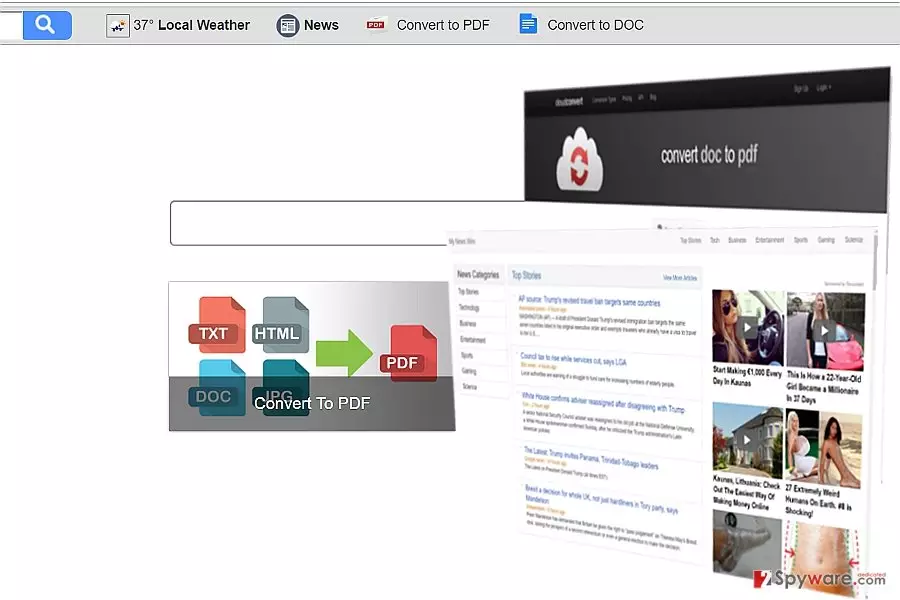
If you are wondering to shift to a new search engine, avoid encountering search.searchmpct.com virus. This search engine hardly meets your expectations. In fact, it may annoy you with constant redirects to other domains. Popping ads will become a bothersome phenomenon over time as well.
The problem is that they might be a harbinger of a more complex problem[1]. Another negative aspect of this hijacker is that it also displays links and articles which lead to potentially insecure domains. Thus, it would be better to remove search.searchmpct.com right away.
| name | search.searchmpct.com virus |
|---|---|
| Type | Browser hijacker |
| Symptoms | Altered browser settings; slower device's performance; diminished browsing speed |
| Risks | Monetary losses, privacy issues |
| Distribution | Software bundles, deceptive ads, file-sharing platforms |
| Elimination | Remove suspicious and malicious apps/files from your device by using a reliable security tool |
| System health | Use the FortectIntego PC repair tool to fix all damage caused by the virus |
Choosing a search engine might be a difficult task. Not to mention the number of available browsing tools on the Web, they are all share common features[2]. Such myriad may easily puzzle a user. At first glance, this browser hijacker does not stand out from other search providers, In fact, it may catch users‘ attention by offering file converting services.
What is more, the upper toolbar redirects to weather forecast websites. Despite these benefits, it is still not recommended to set this browsing engine as a permanent search tool. Firstly, Searchmpct belongs to Polarity Technologies Ltd. This company has already released about a dozen of similar questionable browsing engines. It is also the rightful owner of Spigot Toolbar which has already attracted netizens‘ attention[3].
Secondly, if personal privacy is of interest to you, this browsing tool is certainly not the right choice. According to the document, by using this search engine, you agree to its collection of data about your browsing peculiarities. The problem is that the compiled data may include personal details as well.
All in all, such data may be transferred to advertising companies and other third parties[4]. Consequently, your inbox might get crammed with spam emails. Note that spam emails often serve as the tools for malware campaigns. Lastly, search.searchmpct.com redirect phenomenon becomes a bother over time as you have to ward off popping windows more often.
Therefore, do not hesitate to initiate the browser hijacker's removal. You can accomplish it manually with the help of our detailed instructions provided at the bottom of the article, or automatically, by scanning your device with MalwarebytesMalwarebytes, SpyHunterCombo Cleaner, or similar trustworthy security software
Once the virus is removed, you will have to reset browsers to their original settings. Please see the guides below on how to do that. And lastly, we highly advise using the FortectIntego system diagnostics tool to repair virus damage and delete all tracking cookies.
When did this PUP sneak into my computer?
You might have accidentally enabled a browser hijacker yourself while installing a new program. The very process happens without your direct notice as you click “Recommended” and then hit the “Install” button. Likewise, similar unwanted tools easily pave their way into your computer.
If you are willing to prevent such infiltration in the future, follow these recommendations. During the installation of any program, opt for “Custom” settings. Then, unmark all unwanted attached programs and proceed to install the wanted software.
Is it difficult to remove search.searchmpct.com?
Browser hijackers usually do not cause any elimination problems. You can do it quicker with anti-spyware software. Update it and then run the scan. This type of program also comes in handy when blocking more sophisticated threats. You might also want to manually check search.searchmpct.com removal guidelines shown below.
They will be useful when deleting other types of potentially unwanted programs as well. Lastly, you should follow additional security recommendations while browsing and installing new software[5]. Cyber awareness matters since the latest threats are not always detectable right after their emergence.
Uninstall from Windows
Uninstall from Windows 10/8:
- Type Control Panel into the Windows search box and open the result.
- Under Programs, select Uninstall a program.


Uninstall from Windows 7/XP:
- Click on Windows Start > Control Panel (Windows XP users should click on Add/Remove Programs).
- In Control Panel, select Programs > Uninstall a program.


Remove the unwanted program:
- In the Programs and Features window, look for any recently installed suspicious entries, select them, and click Uninstall.
- If User Account Control appears, click Yes to confirm, then complete the removal.


Delete from macOS
Remove the unwanted application:
- From the menu bar, select Go > Applications.
- In the Applications folder, look for any suspicious entries, then drag them to Trash (or right-click and pick Move to Trash).


Delete leftover files and folders:
- Select Go > Go to Folder.
- Enter /Library/Application Support and remove any suspicious folders related to the unwanted program.
- Repeat the same check in the /Library/LaunchAgents and /Library/LaunchDaemons folders, deleting any suspicious entries.

- Finally, empty the Trash to permanently remove the leftovers.

Remove from Microsoft Edge
Delete unwanted extensions from MS Edge:
- Select Menu (three horizontal dots at the top-right of the browser window) and pick Extensions.
- From the list, pick the extension and click on the Gear icon.
- Click Remove.


Clear cookies and other browser data:
- Click on the Menu (three horizontal dots at the top-right of the browser window) and select Settings > Privacy, search, and services..
- Under Clear browsing data, pick Choose what to clear.
- Select Cookies and other site data and Cached images and files. (apart from passwords, although you might want to include Media licenses as well, if applicable) and click on Clear.


Restore new tab and homepage settings:
- Click the menu icon and choose Settings.
- Then find On startup section.
- Click Remove next to any suspicious startup page.
Reset MS Edge if the above steps did not work:
- Press on Ctrl + Shift + Esc to open Task Manager.
- Click on More details arrow at the bottom of the window.
- Select Details tab.
- Now scroll down and locate every entry with Microsoft Edge name in it. Right-click on each of them and select End Task to stop MS Edge from running.


Instructions for Chromium-based Edge
Delete extensions from MS Edge (Chromium):
- Open Edge and click select Settings > Extensions.
- Delete unwanted extensions by clicking Remove.


Clear cache and site data:
- Click on Menu and go to Settings.
- Select Privacy, search and services.
- Under Clear browsing data, pick Choose what to clear.
- Under Time range, pick All time.
- Select Clear now.


Reset Chromium-based MS Edge:
- Click on Menu and select Settings.
- On the left side, pick Reset settings.
- Select Restore settings to their default values.
- Confirm with Reset.
- This will disable extensions and reset startup pages but will not delete bookmarks, saved passwords, or browsing history.


Remove from Mozilla Firefox (FF)
Remove dangerous extensions:
- Open Mozilla Firefox browser and click on the Menu (three horizontal lines at the top-right of the window).
- Select Add-ons.
- In here, select the unwanted extension and click Remove.


Reset the homepage:
- Click three horizontal lines at the top right corner to open the menu.
- Choose Settings.
- Under Home, set your preferred homepage and new tab settings.
Clear cookies and site data:
- Click Menu and pick Settings.
- Go to Privacy & Security section.
- Scroll down to locate Cookies and Site Data.
- Click on Clear Data...
- Select Cookies and Site Data and Temporary cached files and pages, then click Clear.


Reset Mozilla Firefox
If clearing the browser as explained above did not help, reset Mozilla Firefox:
- Open Mozilla Firefox browser and click the Menu.
- Go to Help and then choose Troubleshooting Information.

- Under Give Firefox a tune up section, click on Refresh Firefox...
- Once the pop-up shows up, confirm the action by pressing on Refresh Firefox.



Remove from Google Chrome
Delete malicious extensions from Google Chrome:
- Open Google Chrome, click on the Menu (three vertical dots at the top-right corner) and select More tools > Extensions.
- In the newly opened window, you will see all the installed extensions. Uninstall all suspicious extensions related to the unwanted program by clicking Remove.


Clear cache and web data from Chrome:
- Click on Menu and pick Settings.
- Under Privacy and security, select Clear browsing data.
- Select Browsing history, Cookies and other site data, as well as Cached images and files.
- Click Clear data.


Change your homepage:
- Click menu and choose Settings.
- Look for a suspicious site in the On startup section.
- Click on Open a specific or set of pages and click on three dots to find the Remove option.
Reset Google Chrome:
If the previous methods did not help you, reset Google Chrome to eliminate all the unwanted components:
- Click on Menu and select Settings.
- In the Settings, scroll down and click Advanced.
- Scroll down and locate Reset and clean up section.
- Now click Restore settings to their original defaults.
- Confirm with Reset settings.


Delete from Safari
Remove dangerous extensions:
- Open Safari, click Safari in the menu at the top-left of the screen, and select Preferences.
- Go to the Extensions tab, look for any suspicious entries, and click Uninstall to remove them.


Clear history and website data:
- Click Safari in the menu and pick Clear History.
- Set Clear to all history and confirm with Clear History.


Reset Safari:
- Click Safari in the menu and select Preferences > Advanced.
- Enable Show Develop menu in menu bar.
- From the menu bar, click Develop and select Empty Caches.


Did this guide help?
2 comments
leeeParis
Ive already grown out of these cheap tricks.
newwolwerine
Nothing extraordinary, just a mere hijacker.