

Panda viewer is a browser hijacker that compromises web browser's settings without permission
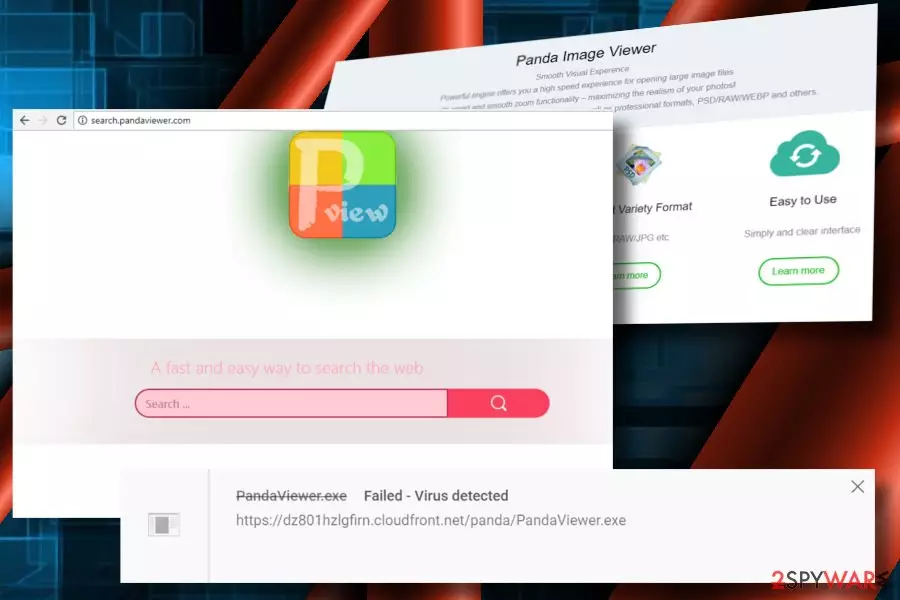
Panda viewer has been classified as a browser hijacker and potentially unwanted program (PUP). Although its developer, Banana Summer Technology Inc., represents the Image Viewer app as a “fast, stable, easy to use image viewer for pc, laptop, tablet, and smartphone,” cybersecurity experts reported it being involved in suspicious activities. Once it enters the system, it injects an extension to Chrome, Firefox, IE, Edge, and other web browsers and sets Search.pandaviewer.com as a start page and as a search engine. Upon these modifications, the web browser initiates redirects to partner's websites.
| Name | Panda viewer |
|---|---|
| Type | Browser hijacker (can exhibit adware-typical behavior) |
| Danger level | Low. Can redirect to potentially dangerous websites or promote questionable programs |
| Distribution | Freeware bundling |
| Related files | Pandaviewer.exe |
| Removal | Anti-malware tools and the guide below should help you clear the infection fully |
| Other traits | Is related to other PUPs and search sites |
| Download FortectIntego and run a full system scan to get rid of any virus damage | |
The relationship between the Panda Viewer and Search.pandaviewer.com is not apparent from the initial inspection because the search looks like a regular search engine [1] that promises to provide the users with “a fast and easy way to search the web.” However, using it for a while reveals that it's mainly used to promote various services and its partner's websites.
In fact, people behind the malware may try to sneak this program on the computers against the user’s will, by secretly bundling[2] it with freeware or shareware applications. Once on the computer, the advertisers may go through a similar process when trying to foist the Panda Image Viewer Secure Search extension users.
While we can’t tell whether this product is safe to use or not, we should point out that reputable service providers rarely choose such questionable means of letting the world know about their work. If you are not happy with the sudden change of your default search engine and homepage, the only way to revert the changes is to remove the virus from your computer unhesitatingly.
We recommend you to perform the virus removal with reputable antivirus software like SpyHunterCombo Cleaner or MalwarebytesMalwarebytes. Make sure to update definitions of your security software, and you'll see that this program is detected as a potentially unwanted browser hijacker [3]. Most AV engines recognize the PandaViewer.exe file to be potentially dangerous.

If Panda viewer has already established Search.pandaviewer.com URL on your web browser, you should better be careful when browsing the net. NoVirus.uk[4] team warns that this malware is capable of:
- Set Search.pandaviewer.com URL as default start page and search engine without permission;
- Install Browser Helper Objects (BHO) to evade the removal;
- Alter search results by injecting links to partner's websites. Beware that some of them can be potentially dangerous;
- The app does not take responsibility for the third-party content that it might be set to promote:
This Software does not provide any representations, guarantees or warranties with respect to security, legality, compatibility and/or harmlessness regarding the installation, upgrade and/or other aspects of any third-party software involved. Any disputes arising thereof shall be settled by the third party, and Banana Summer will assume no responsibility or liability whatsoever.
- It injects tracking cookies and collects Search Data continuously;
- Can display an excessive amount of ads;
- Increases the CPU utilization [5] to nearly 100%, making the system slower and more vulnerable;
In a nutshell, we do not recommend keeping it installed. Eliminate it without a delay by launching a security tool or following the manual removal guide provided down below.
PUP travel around in a misleading way
The problem with this PUP is that it is not heavyweight enough to be noticed by automatic malware detection software, so it may travel bundled together with freeware and shareware applications and install on the computer completely unnoticed by the users.

This is highly determined by the fact that users fail to run the installation properly. They often choose quick installation instead of a more detailed one, this way unknowingly allowing unwanted apps to enter the computer.To prevent this from happening, always opt for the Advanced installation option and unmark “recommended” tools that are marked by default.
A guide on how to remove Panda viewer virus
If Panda viewer malware stealthily entered the system and forcefully altered your web browser's parameters, make sure to respond immediately by running your antivirus and resetting the changes.
Since the app tends to spread bundled with freeware, it might not be the only PUP residing in the system. Thus, we would strongly recommend you run a full system scan to remove the virus along with its companions.
After that, you'll have to delete Search.pandaviewer.com search from your browser. This can be done by manually resetting the web browser's settings. You can find a thorough PUP elimination guidance down below.
Uninstall from Windows
Uninstall from Windows 10/8:
- Type Control Panel into the Windows search box and open the result.
- Under Programs, select Uninstall a program.


Uninstall from Windows 7/XP:
- Click on Windows Start > Control Panel (Windows XP users should click on Add/Remove Programs).
- In Control Panel, select Programs > Uninstall a program.


Remove the unwanted program:
- In the Programs and Features window, look for any recently installed suspicious entries, select them, and click Uninstall.
- If User Account Control appears, click Yes to confirm, then complete the removal.


Delete from macOS
Remove the unwanted application:
- From the menu bar, select Go > Applications.
- In the Applications folder, look for any suspicious entries, then drag them to Trash (or right-click and pick Move to Trash).


Delete leftover files and folders:
- Select Go > Go to Folder.
- Enter /Library/Application Support and remove any suspicious folders related to the unwanted program.
- Repeat the same check in the /Library/LaunchAgents and /Library/LaunchDaemons folders, deleting any suspicious entries.

- Finally, empty the Trash to permanently remove the leftovers.

Remove from Microsoft Edge
Delete unwanted extensions from MS Edge:
- Select Menu (three horizontal dots at the top-right of the browser window) and pick Extensions.
- From the list, pick the extension and click on the Gear icon.
- Click Remove.


Clear cookies and other browser data:
- Click on the Menu (three horizontal dots at the top-right of the browser window) and select Settings > Privacy, search, and services..
- Under Clear browsing data, pick Choose what to clear.
- Select Cookies and other site data and Cached images and files. (apart from passwords, although you might want to include Media licenses as well, if applicable) and click on Clear.


Restore new tab and homepage settings:
- Click the menu icon and choose Settings.
- Then find On startup section.
- Click Remove next to any suspicious startup page.
Reset MS Edge if the above steps did not work:
- Press on Ctrl + Shift + Esc to open Task Manager.
- Click on More details arrow at the bottom of the window.
- Select Details tab.
- Now scroll down and locate every entry with Microsoft Edge name in it. Right-click on each of them and select End Task to stop MS Edge from running.


Instructions for Chromium-based Edge
Delete extensions from MS Edge (Chromium):
- Open Edge and click select Settings > Extensions.
- Delete unwanted extensions by clicking Remove.


Clear cache and site data:
- Click on Menu and go to Settings.
- Select Privacy, search and services.
- Under Clear browsing data, pick Choose what to clear.
- Under Time range, pick All time.
- Select Clear now.


Reset Chromium-based MS Edge:
- Click on Menu and select Settings.
- On the left side, pick Reset settings.
- Select Restore settings to their default values.
- Confirm with Reset.
- This will disable extensions and reset startup pages but will not delete bookmarks, saved passwords, or browsing history.


Remove from Mozilla Firefox (FF)
Remove dangerous extensions:
- Open Mozilla Firefox browser and click on the Menu (three horizontal lines at the top-right of the window).
- Select Add-ons.
- In here, select the unwanted extension and click Remove.


Reset the homepage:
- Click three horizontal lines at the top right corner to open the menu.
- Choose Settings.
- Under Home, set your preferred homepage and new tab settings.
Clear cookies and site data:
- Click Menu and pick Settings.
- Go to Privacy & Security section.
- Scroll down to locate Cookies and Site Data.
- Click on Clear Data...
- Select Cookies and Site Data and Temporary cached files and pages, then click Clear.


Reset Mozilla Firefox
If clearing the browser as explained above did not help, reset Mozilla Firefox:
- Open Mozilla Firefox browser and click the Menu.
- Go to Help and then choose Troubleshooting Information.

- Under Give Firefox a tune up section, click on Refresh Firefox...
- Once the pop-up shows up, confirm the action by pressing on Refresh Firefox.



Remove from Google Chrome
Delete malicious extensions from Google Chrome:
- Open Google Chrome, click on the Menu (three vertical dots at the top-right corner) and select More tools > Extensions.
- In the newly opened window, you will see all the installed extensions. Uninstall all suspicious extensions related to the unwanted program by clicking Remove.


Clear cache and web data from Chrome:
- Click on Menu and pick Settings.
- Under Privacy and security, select Clear browsing data.
- Select Browsing history, Cookies and other site data, as well as Cached images and files.
- Click Clear data.


Change your homepage:
- Click menu and choose Settings.
- Look for a suspicious site in the On startup section.
- Click on Open a specific or set of pages and click on three dots to find the Remove option.
Reset Google Chrome:
If the previous methods did not help you, reset Google Chrome to eliminate all the unwanted components:
- Click on Menu and select Settings.
- In the Settings, scroll down and click Advanced.
- Scroll down and locate Reset and clean up section.
- Now click Restore settings to their original defaults.
- Confirm with Reset settings.


Delete from Safari
Remove dangerous extensions:
- Open Safari, click Safari in the menu at the top-left of the screen, and select Preferences.
- Go to the Extensions tab, look for any suspicious entries, and click Uninstall to remove them.


Clear history and website data:
- Click Safari in the menu and pick Clear History.
- Set Clear to all history and confirm with Clear History.


Reset Safari:
- Click Safari in the menu and select Preferences > Advanced.
- Enable Show Develop menu in menu bar.
- From the menu bar, click Develop and select Empty Caches.


Did this guide help?
Be the first to comment