

No-block.net ads – are they dangerous?
No-block.net virus is a clone of no-stops.net virus. This computer parasite alters browser’s settings and then starts displaying various third-party offers during user’s browsing sessions, sadly, annoyance might be the least problematic thing considering other issues that might arise from No-block.net ads. Although the program advertises itself as a proxy server[1] that helps to access geo-restricted websites and blocked services, it is clear that the author of this tool had entirely different intentions when developing it. Instead of helping the user to access restricted websites, it simply bombards the user with third-party ads collected from various ad networks. It is advisable to refrain from exploring these offers because clicking on them can cause redirects to highly suspicious or even dangerous third-party sites[2]. Once on such sites, you can be easily convinced to install a program you don’t need or sign up and provide personal information[3], and this can pose a threat to your privacy.
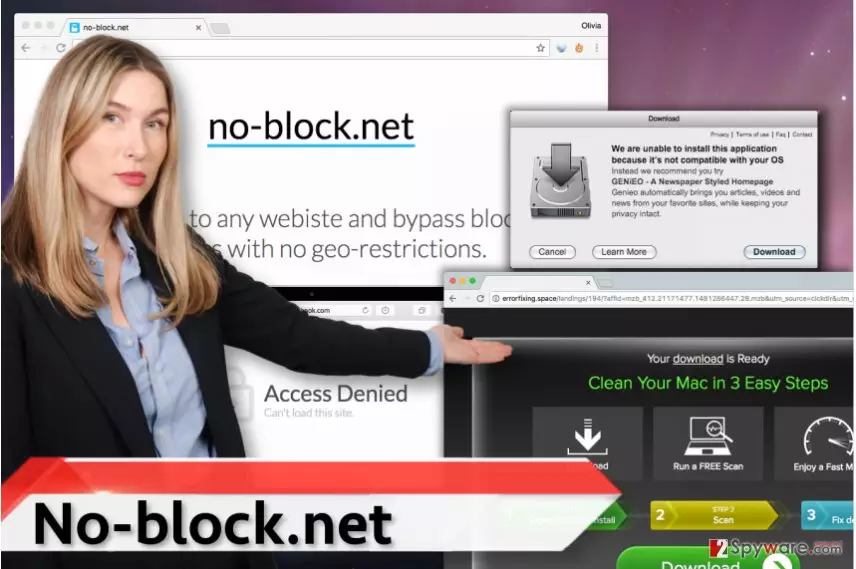
If you are a security-minded PC user, better take actions to protect yourself from dangerous content online, and avoid clicking on eye-catching offers that pop-up on your screen out of thin air. Remember the good old rule – if it looks too good to be true, it is. Therefore, if you do not want to be lured into insecure third-party websites, better stay away from No-block.net ads and remove No-block.net components from your PC. For that, we highly recommend using anti-spyware software like FortectIntego. You can also try to fix affected browsers manually (please see No-block.net removal tutorial, which is given right below the article).
How did I install a program without even realizing it?
You could get this ad-supported parasite either by installing a suspicious program or by following setup instructions provided on No-block.net website. No-block.net might come into your system in the form of a program or a browser extension, but it can come in like a fileless infection and simply alter your proxy settings[4] without installing anything on your computer. We suggest you carefully inspect suggested settings when installing free programs because, with a help of software bundling method, free programs typically help various potentially unwanted programs to reach computer systems effectively. We suggest choosing Custom/Advanced settings in software installers, as this is the easiest way to notice and deselect suggestions to install third-party software, browser toolbars[5] and other meaningless components that can add no value to your computer.
How to remove No-block.net?
If you were forced to change your proxy settings without realizing it, wait no longer and remove No-block.net virus using anti-malware software. We also prepared a manual No-block.net removal tutorial, which explains how you should eliminate it manually. Do not hesitate and contact us if you need any extra help when trying to remove No-block.net from your PC.
Uninstall from Windows
Uninstall from Windows 10/8:
- Type Control Panel into the Windows search box and open the result.
- Under Programs, select Uninstall a program.


Uninstall from Windows 7/XP:
- Click on Windows Start > Control Panel (Windows XP users should click on Add/Remove Programs).
- In Control Panel, select Programs > Uninstall a program.


Remove the unwanted program:
- In the Programs and Features window, look for any recently installed suspicious entries, select them, and click Uninstall.
- If User Account Control appears, click Yes to confirm, then complete the removal.


Delete from macOS
Remove the unwanted application:
- From the menu bar, select Go > Applications.
- In the Applications folder, look for any suspicious entries, then drag them to Trash (or right-click and pick Move to Trash).


Delete leftover files and folders:
- Select Go > Go to Folder.
- Enter /Library/Application Support and remove any suspicious folders related to the unwanted program.
- Repeat the same check in the /Library/LaunchAgents and /Library/LaunchDaemons folders, deleting any suspicious entries.

- Finally, empty the Trash to permanently remove the leftovers.

Reset Internet Explorer
Remove dangerous add-ons:
- Open Internet Explorer, click on the Gear icon (IE menu) on the top-right corner of the browser
- Pick Manage Add-ons.
- You will see a Manage Add-ons window. Here, look for suspicious plugins. Click on these entries and select Disable.


Change your homepage if it was altered:
- Open IE and click on the Gear icon.
- Select Internet Options.
- In the General tab, delete the Home page address and replace it by your preferred one (for example, Google.com).
- Click Apply and then select OK.


Delete temporary files:
- Press on the Gear icon and select Internet Options.
- Under Browsing history, click Delete...
- Select relevant fields and press Delete.


Reset Internet Explorer:
- Click on Gear icon > Internet options and select Advanced tab.
- Select Reset.
- In the new window, check Delete personal settings and select Reset.


Remove from Microsoft Edge
Delete unwanted extensions from MS Edge:
- Select Menu (three horizontal dots at the top-right of the browser window) and pick Extensions.
- From the list, pick the extension and click on the Gear icon.
- Click Remove.


Clear cookies and other browser data:
- Click on the Menu (three horizontal dots at the top-right of the browser window) and select Settings > Privacy, search, and services..
- Under Clear browsing data, pick Choose what to clear.
- Select Cookies and other site data and Cached images and files. (apart from passwords, although you might want to include Media licenses as well, if applicable) and click on Clear.


Restore new tab and homepage settings:
- Click the menu icon and choose Settings.
- Then find On startup section.
- Click Remove next to any suspicious startup page.
Reset MS Edge if the above steps did not work:
- Press on Ctrl + Shift + Esc to open Task Manager.
- Click on More details arrow at the bottom of the window.
- Select Details tab.
- Now scroll down and locate every entry with Microsoft Edge name in it. Right-click on each of them and select End Task to stop MS Edge from running.


Instructions for Chromium-based Edge
Delete extensions from MS Edge (Chromium):
- Open Edge and click select Settings > Extensions.
- Delete unwanted extensions by clicking Remove.


Clear cache and site data:
- Click on Menu and go to Settings.
- Select Privacy, search and services.
- Under Clear browsing data, pick Choose what to clear.
- Under Time range, pick All time.
- Select Clear now.


Reset Chromium-based MS Edge:
- Click on Menu and select Settings.
- On the left side, pick Reset settings.
- Select Restore settings to their default values.
- Confirm with Reset.
- This will disable extensions and reset startup pages but will not delete bookmarks, saved passwords, or browsing history.


Remove from Mozilla Firefox (FF)
Remove dangerous extensions:
- Open Mozilla Firefox browser and click on the Menu (three horizontal lines at the top-right of the window).
- Select Add-ons.
- In here, select the unwanted extension and click Remove.


Reset the homepage:
- Click three horizontal lines at the top right corner to open the menu.
- Choose Settings.
- Under Home, set your preferred homepage and new tab settings.
Clear cookies and site data:
- Click Menu and pick Settings.
- Go to Privacy & Security section.
- Scroll down to locate Cookies and Site Data.
- Click on Clear Data...
- Select Cookies and Site Data and Temporary cached files and pages, then click Clear.


Reset Mozilla Firefox
If clearing the browser as explained above did not help, reset Mozilla Firefox:
- Open Mozilla Firefox browser and click the Menu.
- Go to Help and then choose Troubleshooting Information.

- Under Give Firefox a tune up section, click on Refresh Firefox...
- Once the pop-up shows up, confirm the action by pressing on Refresh Firefox.



Did this guide help?
4 comments
Vanzxc
Thanks for letting me know! Very detailed tutorial, love it!
Samantha
No-block.net ads were incredibly annoying. Im glad I found a way to get rid of them. This website provided some really good tips. thanks :]
juliet
nasty browser virus and sneaky as well, i was going crazy trying to find where these ads come from!!!!
100001
Finally got rid of this parasite...