

What problems can arise from using Stop-block.org service?
Stop-block.org virus is an identical copy of no-block.net and no-stops.net viruses. Technically, these programs cannot harm your PC in a direct way, and we cannot assign them to malware category[1]. However, we do not consider Stop-block.org services trustworthy due to several reasons. First of all, these services can start bothering you very soon because instead of improving your web browsing experience and allowing you to access geo-restricted websites, the software advertised on Stop-block.org might start sending you third-party ads in the form of banners, pop-ups, in-text links[2], etc.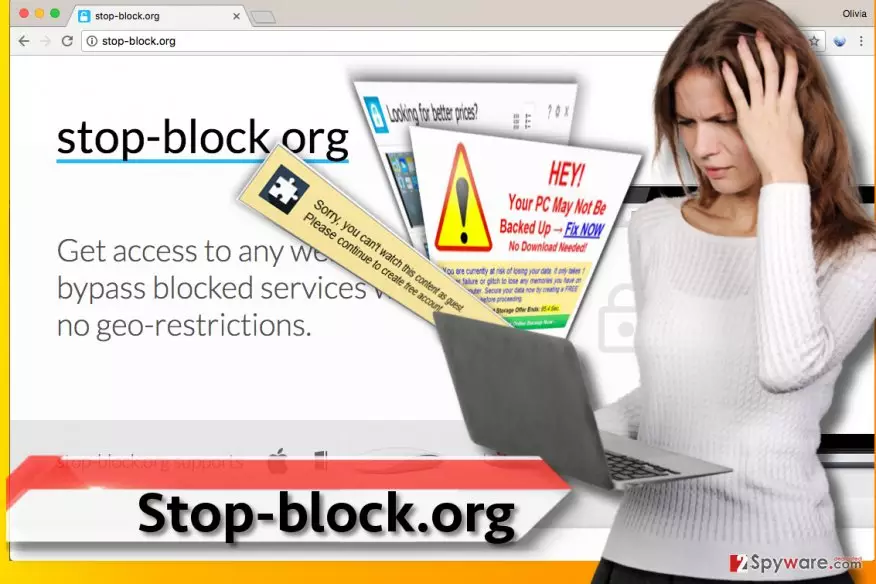
According to the Privacy Policy statements provided by this questionable program, third-party advertisers may inject tracking cookies[3] or web beacons into your machine, besides, the program itself stores tracking cookies and forwards them to target servers when needed. Besides, Stop-block.org redirect virus agrees that it allows “indirect browsing of third-party websites,” which means that you are going to receive a lot of sponsored content during your browsing sessions. To be precise, “Stop-block.org ads” or “ads by Stop-block.org” are going to bother you during each browsing session no matter what web browser you use. Although this annoying parasite claims to be compatible with Internet Explorer and Mozilla Firefox only, we strongly believe that it might soon begin infecting other web browsers as well. During the installation of this pesky program, browser’s proxy configuration URL[4] parameter is changed into hxxp://stop-block.org/wpad.dat. We recommend you to remove Stop-block.org and everything associated with it because clickbait ads it provides can trick you into visiting precarious Internet pages loaded with offers to participate in non-existent lotteries, requests to provide your name and email address for some bizarre purposes, or prompts to install potentially dangerous software or updates. If such offers originate from websites advertised by Stop-block.org, better quit them immediately and check the system with anti-malware or anti-spyware software like FortectIntego to get an in-depth analysis of the system.
Why did I become a user of these suspicious services?
You probably became a user of this hardly useful service after installing a specific free program on the system. We assume that it was bundled with the described potentially unwanted program (PUP) and hidden behind Default/Standard settings that appear to be the most trustworthy from the first sight. Sadly, these settings are not the ones that you should count on. If you want to take matters into your own hands, always pick Custom or Advanced settings[5] in the software installation wizard. This way, you can directly get your hands on additional components bundled with your downloaded software, and reject them if you don’t want to install them. Typically, we suggest getting rid of all these additional items because in most cases they are completely useless programs or browser extensions that are meant to change system settings and serve third-party deals.
How can I eliminate Stop-block.org ads right now?
If you want to remove Stop-block.org virus and forget that these ads ever existed, take advantage of anti-malware program’s benefits. Such software can easily scan your PC and quickly find all risk-posing programs. You can also try to carry out Stop-block.org removal manually with the help of this tutorial:
Uninstall from Windows
Uninstall from Windows 10/8:
- Type Control Panel into the Windows search box and open the result.
- Under Programs, select Uninstall a program.


Uninstall from Windows 7/XP:
- Click on Windows Start > Control Panel (Windows XP users should click on Add/Remove Programs).
- In Control Panel, select Programs > Uninstall a program.


Remove the unwanted program:
- In the Programs and Features window, look for any recently installed suspicious entries, select them, and click Uninstall.
- If User Account Control appears, click Yes to confirm, then complete the removal.


Delete from macOS
Remove the unwanted application:
- From the menu bar, select Go > Applications.
- In the Applications folder, look for any suspicious entries, then drag them to Trash (or right-click and pick Move to Trash).


Delete leftover files and folders:
- Select Go > Go to Folder.
- Enter /Library/Application Support and remove any suspicious folders related to the unwanted program.
- Repeat the same check in the /Library/LaunchAgents and /Library/LaunchDaemons folders, deleting any suspicious entries.

- Finally, empty the Trash to permanently remove the leftovers.

Reset Internet Explorer
Remove dangerous add-ons:
- Open Internet Explorer, click on the Gear icon (IE menu) on the top-right corner of the browser
- Pick Manage Add-ons.
- You will see a Manage Add-ons window. Here, look for suspicious plugins. Click on these entries and select Disable.


Change your homepage if it was altered:
- Open IE and click on the Gear icon.
- Select Internet Options.
- In the General tab, delete the Home page address and replace it by your preferred one (for example, Google.com).
- Click Apply and then select OK.


Delete temporary files:
- Press on the Gear icon and select Internet Options.
- Under Browsing history, click Delete...
- Select relevant fields and press Delete.


Reset Internet Explorer:
- Click on Gear icon > Internet options and select Advanced tab.
- Select Reset.
- In the new window, check Delete personal settings and select Reset.


Remove from Mozilla Firefox (FF)
Remove dangerous extensions:
- Open Mozilla Firefox browser and click on the Menu (three horizontal lines at the top-right of the window).
- Select Add-ons.
- In here, select the unwanted extension and click Remove.


Reset the homepage:
- Click three horizontal lines at the top right corner to open the menu.
- Choose Settings.
- Under Home, set your preferred homepage and new tab settings.
Clear cookies and site data:
- Click Menu and pick Settings.
- Go to Privacy & Security section.
- Scroll down to locate Cookies and Site Data.
- Click on Clear Data...
- Select Cookies and Site Data and Temporary cached files and pages, then click Clear.


Reset Mozilla Firefox
If clearing the browser as explained above did not help, reset Mozilla Firefox:
- Open Mozilla Firefox browser and click the Menu.
- Go to Help and then choose Troubleshooting Information.

- Under Give Firefox a tune up section, click on Refresh Firefox...
- Once the pop-up shows up, confirm the action by pressing on Refresh Firefox.



Did this guide help?
4 comments
Angella
Hi, thank you - this tutorial was useful and helped me to get rid of Stop-block.org ads.
Vayeaz
I didnt get ads from Stop-block.org but I definitely experienced multiple redirections to Stop-block.org, what does it mean?
jozif
thats probably another adware program that advertises all kinds of suspicious programs... try scanning your PC with anti-malware
Mulberryd
Great tutorial. I cannot see Stop-block.org ads any more! :)