

Forsearch.net – a potentially unwanted program that hijacks your browsers
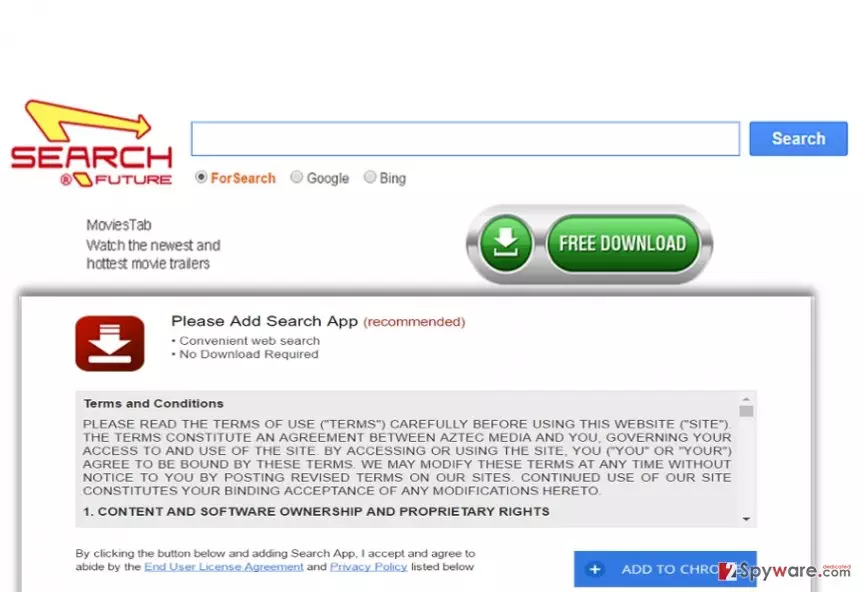
Forsearch.net virus, or alternatively known as Search Future, pretends to be a reliable search engine. It displays a relatively low number of banners and quick access links. However, it promotes a highly suspicious browser add-on known as Search App. It is suitable for all types of browsers.
Even though the privacy policy claims that the website is 100% secure and it does not specifically compile your personal information, virus researchers do not recommend using this application. Specifically, they classify it as a browser hijacker. Regarding the virus activity and especially the rise of Spora and sage viruses which infect users via fake browser plug-ins[1], there is a risk in using this search tool as well.
If you have already installed it, remove forsearch.net right away. Weighing the pros and cons should be the first step in deciding whether this browsing tool should be banished from your system. However, when you try to look for the pros, you realize that there are none of them at all.
Interestingly, that the credentials lead to the Aztec Media office located in Cyprus. However, the alternative version is provided in Vietnamese. The hijacker provides three versions of the browsing tool. However, none of them are secure. We'll explain how to get rid of it and restore your browser settings.
| name | Forsearch.net virus |
|---|---|
| Type | PUP, browser hijacker |
| Symptoms | Apart from modified browser settings users experience redirects to questionable sites and search results filled with deceptive ads |
| Risks | Installation of additional PUPs, malware infections, privacy issues |
| Distribution | Fake Flash Player updates, software bundling |
| Elimination | Reliable anti-malware software can remove all cyberthreats |
| System fix | By using the FortectIntego PC repair software you can rest assured that no tracking cookies stay on your system, and that your device runs properly |
Since the PUP applies its specific browser “layer” even if you use well-known websites[2]. When you opt either for one of them, you are redirected to an insecure copy of the mentioned website. Additional security plug-ins reveal that the website has a very poor rating[3].
While using this browser hijacker, you are likely to get bothered by its redirect tendency. Due to this phenomenon, you might find yourself on a website that harbors malevolent elements. Therefore, it would be better to desert this hijacker and instead take care of forsearch.net removal by using either SpyHunterCombo Cleaner or MalwarebytesMalwarebytes security software.
Note that any less known search engine which asks you enable to additional plug-ins and features might be a harbinger of severe consequences. The case of Spora ransomware spreading through fake Chrome add-on and the story of Facebook video virus suggest that this method is gaining popularity among hackers.
You might notice that this PUP tries to attract attention with links to movie trailers. Let us warn you not to download any sponsored applications and system scanners, MovieTab, and similar add-ons. What you might download might be far from secure and efficient[4].
How browser hijacker end up on devices?
Unlike reliable websites and applications, this hijacker tries to penetrate users’ systems in the disguise of freeware. Crooks are aware that the majority of users do not pay attention to the installation of wizards while installing new applications. As a result, they unintentionally enable the invasion of highly unnecessary attachments.
In order to spot them on time, let us give you advice. When you install a new program, make sure you chose “Advanced” mode. Later on, when you spot unwanted applications, remove the checkmarks from them and only then proceed with the installation of preferred software.
Remove Forsearch.net virus with a couple of easy steps
The automatic forsearch.net removal option is the optimal choice for those who are in a rush and those who encounter a browser hijacker for the first time. There are also manual guidelines that help you remove the article's culprit. You might combine both of these methods.
Even if you are cautious enough not to install untrusted browser extensions, perform a full browser reset once in a while to eliminate all present possibly fraudulent injected scripts.[5] Using a reliable security tool would block you from visiting dangerous sites or installing unwanted apps.
Uninstall from Windows
Uninstall from Windows 10/8:
- Type Control Panel into the Windows search box and open the result.
- Under Programs, select Uninstall a program.


Uninstall from Windows 7/XP:
- Click on Windows Start > Control Panel (Windows XP users should click on Add/Remove Programs).
- In Control Panel, select Programs > Uninstall a program.


Remove the unwanted program:
- In the Programs and Features window, look for any recently installed suspicious entries, select them, and click Uninstall.
- If User Account Control appears, click Yes to confirm, then complete the removal.


Delete from macOS
Remove the unwanted application:
- From the menu bar, select Go > Applications.
- In the Applications folder, look for any suspicious entries, then drag them to Trash (or right-click and pick Move to Trash).


Delete leftover files and folders:
- Select Go > Go to Folder.
- Enter /Library/Application Support and remove any suspicious folders related to the unwanted program.
- Repeat the same check in the /Library/LaunchAgents and /Library/LaunchDaemons folders, deleting any suspicious entries.

- Finally, empty the Trash to permanently remove the leftovers.

Remove from Microsoft Edge
Delete unwanted extensions from MS Edge:
- Select Menu (three horizontal dots at the top-right of the browser window) and pick Extensions.
- From the list, pick the extension and click on the Gear icon.
- Click Remove.


Clear cookies and other browser data:
- Click on the Menu (three horizontal dots at the top-right of the browser window) and select Settings > Privacy, search, and services..
- Under Clear browsing data, pick Choose what to clear.
- Select Cookies and other site data and Cached images and files. (apart from passwords, although you might want to include Media licenses as well, if applicable) and click on Clear.


Restore new tab and homepage settings:
- Click the menu icon and choose Settings.
- Then find On startup section.
- Click Remove next to any suspicious startup page.
Reset MS Edge if the above steps did not work:
- Press on Ctrl + Shift + Esc to open Task Manager.
- Click on More details arrow at the bottom of the window.
- Select Details tab.
- Now scroll down and locate every entry with Microsoft Edge name in it. Right-click on each of them and select End Task to stop MS Edge from running.


Instructions for Chromium-based Edge
Delete extensions from MS Edge (Chromium):
- Open Edge and click select Settings > Extensions.
- Delete unwanted extensions by clicking Remove.


Clear cache and site data:
- Click on Menu and go to Settings.
- Select Privacy, search and services.
- Under Clear browsing data, pick Choose what to clear.
- Under Time range, pick All time.
- Select Clear now.


Reset Chromium-based MS Edge:
- Click on Menu and select Settings.
- On the left side, pick Reset settings.
- Select Restore settings to their default values.
- Confirm with Reset.
- This will disable extensions and reset startup pages but will not delete bookmarks, saved passwords, or browsing history.


Remove from Mozilla Firefox (FF)
Remove dangerous extensions:
- Open Mozilla Firefox browser and click on the Menu (three horizontal lines at the top-right of the window).
- Select Add-ons.
- In here, select the unwanted extension and click Remove.


Reset the homepage:
- Click three horizontal lines at the top right corner to open the menu.
- Choose Settings.
- Under Home, set your preferred homepage and new tab settings.
Clear cookies and site data:
- Click Menu and pick Settings.
- Go to Privacy & Security section.
- Scroll down to locate Cookies and Site Data.
- Click on Clear Data...
- Select Cookies and Site Data and Temporary cached files and pages, then click Clear.


Reset Mozilla Firefox
If clearing the browser as explained above did not help, reset Mozilla Firefox:
- Open Mozilla Firefox browser and click the Menu.
- Go to Help and then choose Troubleshooting Information.

- Under Give Firefox a tune up section, click on Refresh Firefox...
- Once the pop-up shows up, confirm the action by pressing on Refresh Firefox.



Remove from Google Chrome
Delete malicious extensions from Google Chrome:
- Open Google Chrome, click on the Menu (three vertical dots at the top-right corner) and select More tools > Extensions.
- In the newly opened window, you will see all the installed extensions. Uninstall all suspicious extensions related to the unwanted program by clicking Remove.


Clear cache and web data from Chrome:
- Click on Menu and pick Settings.
- Under Privacy and security, select Clear browsing data.
- Select Browsing history, Cookies and other site data, as well as Cached images and files.
- Click Clear data.


Change your homepage:
- Click menu and choose Settings.
- Look for a suspicious site in the On startup section.
- Click on Open a specific or set of pages and click on three dots to find the Remove option.
Reset Google Chrome:
If the previous methods did not help you, reset Google Chrome to eliminate all the unwanted components:
- Click on Menu and select Settings.
- In the Settings, scroll down and click Advanced.
- Scroll down and locate Reset and clean up section.
- Now click Restore settings to their original defaults.
- Confirm with Reset settings.


Delete from Safari
Remove dangerous extensions:
- Open Safari, click Safari in the menu at the top-left of the screen, and select Preferences.
- Go to the Extensions tab, look for any suspicious entries, and click Uninstall to remove them.


Clear history and website data:
- Click Safari in the menu and pick Clear History.
- Set Clear to all history and confirm with Clear History.


Reset Safari:
- Click Safari in the menu and select Preferences > Advanced.
- Enable Show Develop menu in menu bar.
- From the menu bar, click Develop and select Empty Caches.


Did this guide help?
2 comments
plurality
Uuuh...certainly shady!
NewleafKono
I expect nothing more from it...